
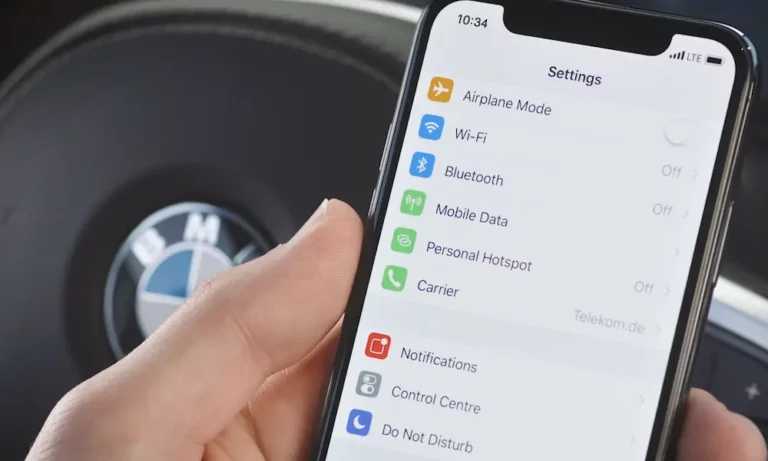
Your iPhone just silenced all your notifications mid-commute — and you’re sitting in the back of an Uber. Sound familiar? This guide covers every way to turn off driving mode on iPhone, from a quick tap fix to permanent settings changes. Stick around, because the solution you need might not be the obvious one.
What Is iPhone Driving Mode, Anyway?
iPhone’s Driving Focus is a feature Apple introduced in iOS 15. It automatically detects when you’re moving at speed using GPS, your accelerometer, and Bluetooth connections to your car. Once triggered, it silences notifications and blocks incoming texts.
The problem? It can’t tell if you’re driving or just a passenger. Bus riders, Uber passengers, and train commuters across the US get caught by this constantly. False positives are common, and they’re genuinely annoying.
Here’s how to fix it.
How to Turn Off Driving Mode on iPhone Right Now (Quick Methods)
You’ve got a few fast options depending on what you’re doing at that moment.
Use Siri (Hands-Free and Instant)
If you need a completely hands-free fix, just say:
“Hey Siri, turn off Driving Focus.”
That’s it. Siri talks directly to the Focus state manager and kills the session instantly. Make sure Siri is allowed on the Lock Screen — check this under Settings > Siri & Search.
Tap “I’m Not Driving” on the Lock Screen
When your iPhone detects movement and activates Driving Focus, it shows a banner on your Lock Screen. Here’s what to do:
- Swipe up or tap the notification
- Select “I’m Not Driving”
This suspends Driving Focus for that trip. It won’t permanently turn it off, but it works great for a one-time fix.
Turn It Off from Control Center
This is the fastest tap-based method:
- Face ID iPhones: Swipe down from the top-right corner
- Home button iPhones: Swipe up from the bottom
Look for the car icon. Tap it to turn off Driving Focus immediately. Done.
How to Stop iPhone Driving Mode from Turning On Automatically
If you’re tired of turning it off manually every single trip, you need to change the trigger settings. This is where you take back permanent control.
Set Driving Focus to Manual Only
This is the most important change you can make. Here’s the path:
Settings > Focus > Driving > Turn On Automatically
Change the setting from “While Driving” to “Manually”.
This kills all background sensing — GPS speed detection, accelerometer triggers, and Bluetooth handshakes. Driving Focus will only activate when you personally turn it on. This is the go-to fix for transit riders, passengers, and anyone who’s fed up with false activations.
Turn Off CarPlay Auto-Activation
If your phone still jumps into Driving Focus when you plug into your car stereo, here’s the fix:
Settings > Focus > Driving > While Driving
Toggle off “Activate With CarPlay.”
This stops your phone from auto-launching Driving Focus the moment it handshakes with your vehicle’s infotainment system. Useful if you want to use CarPlay navigation without silencing all your notifications.
Delete the Driving Focus Profile Entirely
Want it gone for good? You can delete the whole profile:
- Go to Settings > Focus > Driving
- Scroll to the very bottom
- Tap “Delete Focus” and confirm
This completely removes the configuration from your device. No profile, no auto-triggers, no problem.
Full Settings Reference Table
Here’s a clear breakdown of every setting change, where to find it, and what it does:
| What You Want to Do | Settings Path | Key Selection | What Happens |
|---|---|---|---|
| Stop auto-activation entirely | Settings > Focus > Driving | Set “Turn On Automatically” to Manually | Disables GPS, motion, and Bluetooth triggers |
| Stop CarPlay from triggering it | Settings > Focus > Driving | Toggle off Activate With CarPlay | No auto-launch when connecting to car audio |
| Delete Driving Focus completely | Settings > Focus > Driving | Scroll down, tap Delete Focus | Erases the profile from device memory |
| Fix locked settings on restricted devices | Settings > Screen Time > Content & Privacy | Set Driving Focus to Allow | Restores your ability to edit or delete the profile |
Why Does Driving Mode Keep Coming Back?
You turned it off. You maybe even deleted it. And then it came back. Here’s why.
Your Apple Watch Is the Culprit
This one catches a lot of people. If you have an Apple Watch, it might be reactivating Driving Focus even after you’ve deleted it from your iPhone.
Why? Because watchOS doesn’t let you fully delete default Focus profiles. Your watch keeps sensing motion and sends a state-change signal back to your iPhone.
The fix: Open the Watch app on your iPhone, go to Focus settings, and turn off Mirror my iPhone. This breaks the feedback loop and stops the phantom reactivations.
Share Across Devices Is Enabled
Check this setting under Settings > Focus. If “Share Across Devices” is toggled on, your Focus states sync across every device on the same Apple Account. Turn it off if you want your iPhone to behave independently.
Screen Time or MDM Is Locking Your Settings
If you’re on a work phone or a device with parental controls, an IT admin may have locked the Driving Focus settings to limit company liability. You’ll notice the menu is grayed out or locked.
The fix (if you have the passcode):
Settings > Screen Time > Content & Privacy Restrictions > Driving Focus > Allow
Enter the Screen Time passcode and select Allow. This restores your ability to modify or delete the profile.
Keep Some Features, Ditch the Annoying Parts
You don’t have to go all-or-nothing. If you actually like having some safety buffers while driving, iOS lets you fine-tune what Driving Focus does.
Whitelist Important Contacts
You can let specific people break through the Focus block:
Settings > Focus > Driving > Allowed Notifications > People
Add whoever you want. If they text you while Driving Focus is on, their message gets through. Everyone else still gets silenced. It’s a smart middle ground.
Customize Your Auto-Reply
Driving Focus can send an automatic text reply to anyone who messages you. You can set it to reply to Recents, Favorites, All Contacts, or turn it off completely.
Go to Settings > Focus > Driving > Auto-Reply to customize the message. The default text is editable, so you can make it sound like an actual human wrote it instead of a robot.
Let “Urgent” Messages Through
Here’s a feature most people don’t know about. Even if a contact isn’t on your whitelist, they can still reach you. When they text you and get the auto-reply saying notifications are silenced, they can send the word “urgent” as a follow-up. That message bypasses the block entirely.
Turning Off Driving Mode in Google Maps and Apple Maps
Your iPhone’s system-level Driving Focus isn’t the only thing that might be hijacking your screen. Navigation apps have their own driving modes — and they run independently.
Google Maps Driving Mode
Google Maps has a built-in Assistant-powered Driving Mode that takes over your screen during navigation. It can activate automatically even when your iPhone’s Driving Focus is completely off.
To stop it:
- Tap your Profile Picture in Google Maps
- Go to Settings > Navigation Settings
- Under Google Assistant settings, set Driving Mode to Off
Apple Maps Predictive Routing
Apple Maps uses on-device intelligence to track your regular routes to work, school, and other frequent destinations. It then pushes traffic alerts to your Lock Screen and widgets. Helpful for some people, intrusive for others.
To turn it off: Settings > Apps > Maps > Location, then toggle off Preferred Routes and Predicted Destinations.
You can also stop Siri-based destination suggestions via Settings > Maps > Siri & Search, then toggle off Show Siri Suggestions in App.
App-Level Driving Mode Settings at a Glance
| App | Settings Path | Toggle to Disable | Result |
|---|---|---|---|
| Google Maps | Profile Picture > Settings > Navigation Settings | Driving Mode: Off | Stops Assistant override during navigation |
| Apple Maps (Predictive) | Settings > Apps > Maps > Location | Preferred Routes and Predicted Destinations: Off | Stops route learning and commute alerts |
| Apple Maps (Siri) | Settings > Maps > Siri & Search | Show Siri Suggestions in App: Off | No auto-destination predictions |
The Distracted Driving Context Worth Knowing
Here’s something worth keeping in mind. The NHTSA reports that distracted driving claimed 3,308 lives in the US in 2022. Apple’s Driving Focus exists for a real reason. If you’re the one behind the wheel, keeping it active — or at least keeping the manual-only version on hand — is a genuinely smart call.
The goal isn’t to ignore road safety. It’s to stop your phone from assuming you’re driving when you’re not.
The Fastest Fix Based on Your Situation
- You’re a passenger right now: Tap the Lock Screen banner and select “I’m Not Driving”
- You want to stop it forever: Settings > Focus > Driving > Set to Manually
- It keeps coming back after deletion: Disable Focus mirroring on your Apple Watch
- Settings are locked: Check Screen Time restrictions or talk to whoever manages the device
- Google Maps is the problem: Turn off Driving Mode in Google Assistant settings inside the app
Pick your fix, run with it. Your notifications are waiting.