
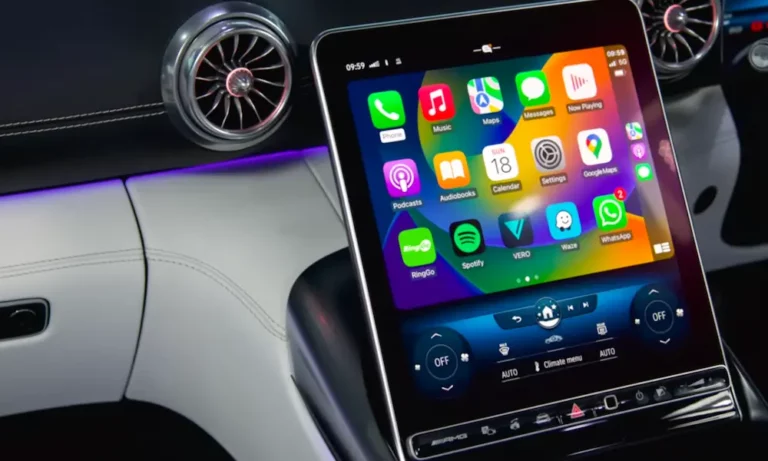
That little message on your car screen is infuriating — especially when your phone is clearly charging just fine. The “accessory not supported” CarPlay error has more causes than most people realize, and the fix isn’t always obvious. Stick with this guide, and you’ll know exactly where to look.
Your Cable Is Probably the Culprit
Let’s start with the most common villain: your cable.
CarPlay isn’t like regular charging. It needs a continuous, high-speed data connection running at 480 megabits per second. A cheap cable that handles charging just fine can completely choke on that demand.
Here’s what you need to know about Apple’s MFi (“Made for iPhone”) program. Every legitimate Lightning or USB-C cable contains a tiny authentication chip. When you plug in, your iPhone interrogates that chip — like a bouncer checking IDs. If the chip fails the check, iOS blocks the connection entirely.
Knock-off cables often use cloned chips that fool older iOS versions. But Apple regularly updates its authentication logic, so a cable that worked last month might trigger an “accessory not supported” error today after a software update.
Even worse? Many cheap USB-C cables are charge-only — they don’t have data wires inside at all. Your phone charges, your car recognizes nothing, and you’re left confused.
The fastest diagnostic test: Swap in an original Apple cable. If CarPlay works immediately, your third-party cable is the problem.
| Cable Type | Data Capable | CarPlay Compatible | Risk Level |
|---|---|---|---|
| Apple OEM Lightning | ✅ Yes | ✅ Yes | None |
| MFi-Certified Third-Party | ✅ Yes | ✅ Yes | Low |
| Generic Lightning | Sometimes | Sometimes | High |
| Cheap USB-C (charge-only) | ❌ No | ❌ No | Very High |
Your Port Has More Gunk Than You Think
Even a perfect cable can’t fix a dirty port.
Your iPhone spends most of its life in a pocket or bag, acting like a lint vacuum. Over time, debris packs tightly against the base of the Lightning or USB-C port. The connector still slides in, the phone still charges — but the data pins can’t make clean contact.
Here’s the frustrating part: power pins and data pins are separate. If lint blocks the data pins but not the power pins, your phone charges normally while CarPlay throws an “accessory not supported” error. It looks like a software problem. It’s actually fluff.
How to clean your port safely:
- Use a wooden or plastic toothpick — never metal. A paperclip can short-circuit your pins or bend them permanently
- Use compressed air with the can held upright. Tilting it sprays liquid propellant, which causes moisture damage inside the port
- For the cable connector itself, use isopropyl alcohol on a lint-free cloth to clear skin oils and oxidation
- For your car’s USB-A port, use an electronics cleaner spray — don’t poke anything sharp in there
Many people clean their port and immediately solve a CarPlay problem they’ve had for months. It sounds too simple. It works.
Three iPhone Settings That Silently Block CarPlay
Your cable is fine. Your port is clean. CarPlay still won’t connect. Now it’s time to check your settings — because iOS has several features that can block CarPlay without any warning.
Siri Must Be On
CarPlay runs on Siri. If Siri is disabled, CarPlay won’t launch — period. Check that both “Hey Siri” and “Allow Siri When Locked” are active in your settings. That second toggle matters most for drivers who plug in while their screen is locked.
USB Restricted Mode — The Hidden Timer
Apple introduced USB Restricted Mode as a security feature against data-extraction hardware. It works like this: if your iPhone hasn’t been unlocked in the past hour, it refuses to send data through the port — even though it still charges.
If you’ve been in a meeting, at the gym, or away from your phone, you’ll plug into your car and get an “accessory not supported” error for no obvious reason.
The fix: Go to Settings → Face ID & Passcode → Allow Access When Locked and enable Accessories. This single setting change permanently fixes “intermittent” CarPlay failures for a lot of drivers.
Screen Time Restrictions
If Screen Time is enabled on your iPhone — either by you, a parent, or a corporate IT policy — CarPlay might be switched off under Content & Privacy Restrictions → Allowed Apps. Your car sees a connected device but can’t launch CarPlay, and the error message tells you nothing useful.
Go check that toggle right now if the other fixes haven’t helped.
Your VPN Is Quietly Killing the Connection
This one trips up a lot of people, especially since iOS 18.1 and 18.2 tightened things up.
CarPlay — even wired CarPlay — operates like a local network connection between your phone and your car’s head unit. A VPN creates an encrypted tunnel that routes your data through a remote server. When those two things conflict, CarPlay loses.
If your VPN has a Kill Switch enabled (which blocks any data that doesn’t go through the VPN tunnel), it can completely prevent CarPlay from establishing its local handshake with your vehicle.
Quick test: Disable your VPN, then plug in. If CarPlay connects instantly, your VPN is the problem. Some VPNs offer split tunneling, which lets local traffic bypass the tunnel — but it doesn’t always solve it. Disabling the VPN entirely is the most reliable fix while driving.
Wireless CarPlay Has Its Own Problem: Wi-Fi Clingy-ness
Wireless CarPlay uses a two-step process: Bluetooth first to exchange credentials, then a 5GHz Wi-Fi connection to stream the interface. The problem? If your phone is still connected to your home Wi-Fi as you back out of the garage, it won’t automatically switch to your car’s network.
The result is a failed handshake and an error on your dashboard — every single morning.
Fix it by:
- Turning off Wi-Fi briefly before getting in your car, then turning it back on
- Or setting your home network to not auto-join when you’re leaving
| CarPlay Type | Protocol | Most Common Failure Point |
|---|---|---|
| Wired | USB Data Sync | Dirty port or bad cable |
| Wireless (init) | Bluetooth | Stored pairing conflict |
| Wireless (streaming) | 5GHz Wi-Fi | Home network cling or VPN |
Your Car’s Head Unit Needs a Reboot Too
Sometimes your phone is fine and your cable is fine — your car’s infotainment system is just stuck. Each brand has its own reset method, and a standard power cycle often isn’t enough because vehicles maintain power to the system even when you turn the key off.
Here’s how to do a proper soft reset by brand:
Ford Sync 3/4: Hold the Power button + Seek Right for 10 seconds. On newer models without physical knobs, use Volume Down + Seek Right on the steering wheel instead.
Chevrolet/GM: Turn the car off, then open the driver’s door to kill retained accessory power. Wait until the OnStar LED on the overhead console goes dark — up to 15 minutes. This fully clears the infotainment cache.
Toyota Entune: Go to Setup → General → Delete Personal Data. Yes, you’ll lose radio presets, but a corrupted device profile from an iOS update is often the hidden cause of persistent errors.
Chrysler/Jeep/Dodge Uconnect: Hold both the volume and tuner knobs simultaneously for 20 seconds for a soft reset.
| Brand | System | Soft Reset Method |
|---|---|---|
| Ford | Sync 3/4 | Power + Seek Right (10 sec) |
| Chevrolet | MyLink / Infotainment 3 | Door open + wait for OnStar LED off |
| Toyota | Entune | Setup → General → Delete Personal Data |
| Honda | HondaLink | Hold volume knob (10 sec) |
| Chrysler | Uconnect | Vol + Tuner knobs (20 sec) |
| Nissan | NissanConnect | Hold volume knob (20 sec) |
iPhone 15 and 16 Owners Have a Specific Problem
The switch to USB-C with iPhone 15 and 16 created a new wave of “accessory not supported” CarPlay errors — especially for drivers with older cars using USB-A ports.
The problem is that the USB-C cable market is flooded with charge-only cables. Unlike Lightning — where almost all cables support data — many USB-C cables are wired only for power. There’s no clear label telling you which is which at the gas station display.
On top of that, some older head units don’t recognize the E-Marker chips inside newer high-end USB-C cables. This creates a negotiation loop — the car and phone keep trying to agree on a connection speed, fail repeatedly, and eventually throw an unsupported accessory error.
What to do: Buy a USB-A to USB-C cable explicitly rated for USB 2.0 data transfer from Apple or a verified MFi-certified brand. Avoid anything that only lists wattage specs without mentioning data speed.
Heat Is Breaking Your Connection More Than You Know
Your iPhone doing CarPlay is working hard — GPS, cellular data, screen rendering, and charging all at once. That generates serious heat. If your phone is sitting in a hot center console or on a direct-sun wireless pad, it will hit its thermal limit and cut the data connection to protect the battery.
This shows up as a random “accessory not supported” error that seems to appear out of nowhere, usually on hot days or long drives.
Easy fix: Mount your phone where air circulates. Avoid cup holder mounts in sealed consoles, and never leave your phone face-down on a wireless charger in direct sunlight.
The Full Fix Sequence — Do These in Order
If you’re dealing with a persistent “accessory not supported” CarPlay error, run through these steps in order. Don’t skip ahead — each step rules out one layer of the problem.
- Restart everything — your iPhone, your car’s head unit (using the brand-specific method above), and forget then re-add the car in Settings → General → CarPlay
- Clean your ports — wooden toothpick on the phone port, compressed air, check for bent pins
- Swap in an Apple OEM cable — this rules out every cable variable in one step
- Audit your settings — Siri enabled, USB Accessories allowed, Screen Time not blocking CarPlay
- Kill your VPN — disable it completely and test the connection
- Check for updates — update iOS and check with your dealership for available head unit firmware updates
- Reset network settings on your iPhone if nothing else works — this clears every wireless configuration that might be conflicting
Most people fix their problem at step 1, 2, or 3. If you reach step 7, consider having your dealership flash a firmware update to your head unit — especially if your car is more than three years old and you’re using a newer iPhone model.