
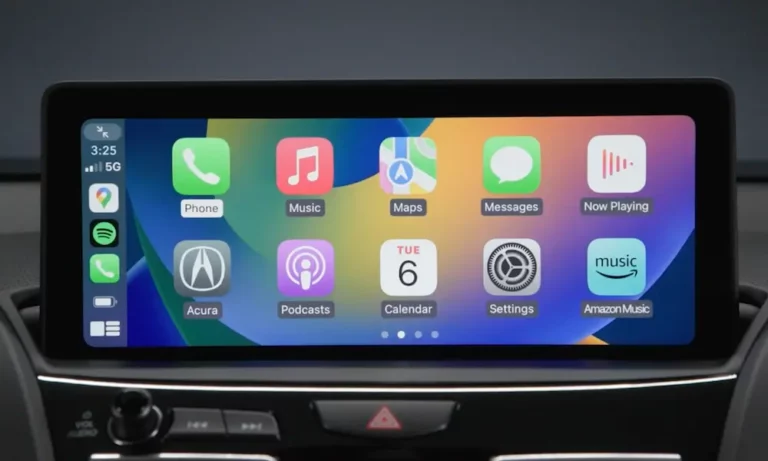
Your CarPlay dashboard just went dark after updating to iOS 26, and now you’re staring at a blank screen while your car’s head unit pretends your iPhone doesn’t exist. Frustrating, right? The good news: most of these failures have specific, fixable causes. This guide walks you through every layer — software, hardware, and wireless — so you can get back on the road with a working setup.
Why iOS 26 Is Breaking CarPlay in the First Place
The iOS 26 update isn’t just a visual refresh. It introduced the “Liquid Glass” design language — a real-time translucent UI that demands significantly more processing power from both your iPhone and your car’s head unit. Older infotainment systems weren’t built to handle that kind of rendering load.
On top of that, the update quietly reshuffled system-level permissions. Many users discovered that CarPlay simply vanished from their Settings menu overnight — no warning, no explanation. The culprit is almost always a permission that got flipped during the install.
The bottom line: iOS 26 didn’t just add features. It changed how CarPlay handshakes with your vehicle, and a lot of cars haven’t caught up yet.
Check These Settings Before You Do Anything Else
Before you restart your car or your phone, check these four settings. Any one of them can silently kill CarPlay.
| Setting | Where to Find It | What Happens If It’s Off |
|---|---|---|
| Screen Time → CarPlay | Settings > Screen Time > Content & Privacy > Allowed Apps | CarPlay disappears from General Settings entirely |
| Siri (Hey Siri + Siri When Locked) | Settings > Siri & Search | Phone refuses to handshake with your car |
| Allow CarPlay While Locked | Settings > Face ID & Passcode | Wireless connects but the dash stays blank |
| Set Automatically (Date & Time) | Settings > General > Date & Time | Security certificate failure blocks wireless connection |
The Screen Time restriction is the sneakiest one. iOS 26 has been documented toggling CarPlay off inside Content & Privacy Restrictions during the update process. Go check it right now — even if you’ve never touched Screen Time settings before.
Siri is equally critical. According to Apple’s CarPlay setup requirements, iOS 26 requires Siri to be fully active before CarPlay can initiate a connection. If “Listen for Hey Siri” or “Allow Siri When Locked” is off, your car’s system won’t complete the handshake.
The Wireless CarPlay Fix Most People Miss
Wireless CarPlay runs on two channels simultaneously: Bluetooth for the initial pairing and a 5GHz Wi-Fi link for the actual data transfer. iOS 26.4.2 — the critical stability patch released in early 2026 — changed how the iPhone manages that Wi-Fi handoff. If your car’s firmware hasn’t been updated to match, you’ll get a “Searching for Phone” loop.
Disable Your VPN First
This one surprises people. If you run a VPN or ad-blocking app on your iPhone, it may be intercepting the peer-to-peer Wi-Fi bridge CarPlay needs. Turn your VPN off completely — don’t just pause it — and try connecting again.
Toggle Airplane Mode for 60 Seconds
Hold Airplane Mode on for a full minute. This clears the Bluetooth and Wi-Fi cache without wiping your network settings. It’s the gentlest reset you can do, and it works more often than you’d think.
Force Restart Your iPhone
A regular power-down doesn’t reset the CarPlay framework. You need a force restart: press Volume Up, then Volume Down, then hold the Side button until the Apple logo appears. This clears the background processes responsible for the handshake.
Reset Network Settings (Last Resort)
If nothing above works, go to Settings > General > Transfer or Reset iPhone > Reset > Reset Network Settings. This wipes your Wi-Fi and Bluetooth cache and forces a fresh connection with your car. You’ll need to re-enter your Wi-Fi passwords, so write them down first.
Is It Actually Your Cable?
If you’re using wired CarPlay with an iPhone 15, 16, or 17 (all USB-C), your cable might be the entire problem. Many USB-C cables are charge-only. They have no data wiring inside at all.
CarPlay needs a cable that supports at least USB 2.0 speed — that’s 480 Mbps minimum. Anything slower and you’ll get intermittent disconnects, thin audio, or a charging indicator with no CarPlay screen.
| Cable Spec | Minimum Requirement | Recommended Option |
|---|---|---|
| Interface | USB-A to USB-C (no adapters) | Belkin BoostCharge or Anker PowerLine |
| Data Speed | 480 Mbps (USB 2.0) | USB 3.1 at 10Gbps for better response |
| Power Delivery | 15W minimum | Apple-certified or USB-IF certified |
| Shielding | Multi-layer interference protection | Braided jacket for vehicle vibration |
Cheap cables also fail inside the vehicle’s electrical environment. Dashboard wireless charging pads and high-output USB-C ports create electrical noise that unshielded cables can’t handle. That explains the micro-stutters and audio distortion some users report.
Vehicle-Specific Fixes That Actually Work
Ford SYNC 4 and 4A
Ford F-150, Explorer, and Mustang Mach-E owners have had a rough time. TSB 25-2048 was released specifically to address intermittent wireless CarPlay failures and navigation lag on SYNC 4 systems.
The connection sequence matters on Ford trucks. Plug the cable into your iPhone first, start the vehicle, wait for the infotainment home screen to fully load, and then plug the USB end into the dash. If you plug in after the system boots, the head unit often defaults to charge-only mode and ignores the data handshake.
Ford also had a recall affecting over 4.3 million vehicles due to a trailer control module glitch that caused SYNC 4 reboots and corrupted CarPlay connections. A Master Reset of SYNC (which wipes all user data) is often the only way to clear that corrupted cache.
BMW iDrive
BMW owners are seeing “ghosting” — CarPlay shortcuts appear on the iDrive screen but are grayed out and won’t respond. This is a 5GHz Wi-Fi stack failure inside the head unit.
Fix: Hold the volume/mute button on the iDrive controller for 70 to 90 seconds. This forces the head unit to fully reboot its wireless stack. It sounds too simple, but BMW technicians confirm this works.
Toyota RAV4 and Subaru Solterra
Toyota and Subaru’s Linux-based systems are sensitive to the iPhone’s “Private Wi-Fi Address” feature. When enabled, your car can’t recognize the iPhone as a trusted device. Turn it off: Settings > Wi-Fi > tap your car’s network name > toggle Private Wi-Fi Address to off.
The Date & Time “Set Automatically” bug also hits these platforms hard. A time mismatch causes a security certificate failure that blocks the wireless handshake completely. Toggle “Set Automatically” off, wait 10 seconds, and toggle it back on. That’s often enough to clear the error.
Chevrolet and GMC (Gas Models)
For gas-powered Silverado and Tahoe owners, the same plug-in sequence that works for Ford applies here too. Connect the cable to your iPhone first, start the truck, let the infotainment system fully boot, then plug the USB into the dash. The head unit needs to detect an active data connection immediately when the USB port activates.
Note: If you drive a 2026 Blazer EV or Silverado EV, GM’s decision to drop CarPlay in favor of a native Google system means CarPlay simply isn’t coming back on those models.
Tesla
Tesla’s CarPlay rollout is still in progress. The delay ties directly to technical conflicts between Apple Maps and Autopilot software. When it does arrive, it’ll appear as a windowed app inside the Tesla UI — not a full-screen takeover. The integration depends on wider adoption of iOS 26.4 patches.
Two iOS 26 Settings That Silently Kill Audio
“Keep Audio in Headphones”
iOS 26.4 added a new toggle at Settings > General > AirPlay & Continuity called “Keep Audio in Headphones.” It’s designed to stop audio from jumping to car speakers automatically — but if it’s on, CarPlay can’t take control of the audio stream. You’ll see navigation visuals on the dash but hear nothing. Check this setting if your screen works but there’s no sound.
Vocal Shortcuts (Accessibility)
This one is new in iOS 26.4 and it’s causing real problems. Vocal Shortcuts keeps the iPhone microphone in a constant high-priority capture state. That conflicts with CarPlay’s audio routing and produces thin, compressed audio — like a bad phone call. Disable it at Settings > Accessibility > Vocal Shortcuts.
Using a Wireless CarPlay Adapter? Update Its Firmware
Adapters like the Ottocast U2-AIR and CARLUEX Air are hardware bridges between your wired-only car and wireless CarPlay. They run their own software, and iOS 26.4.2 changed enough about the wireless handshake that older adapter firmware simply won’t keep up.
Update your adapter’s firmware by opening a browser on your phone and going to 192.168.1.101 while connected to the adapter’s network. Look for a firmware update option in the portal. If the CarPlay screen is black while audio still plays, adjust the Video Resolution or DPI settings in that same portal to match your car’s native display ratio.
What’s Coming: CarPlay Ultra
The chaos around iOS 26 connectivity is actually groundwork for something bigger. CarPlay Ultra will give your iPhone deeper control over climate settings, instrument cluster displays, and more. The stability fixes in iOS 26.4.2 are the foundation it’ll be built on.
The lesson from 2026 is clear: your car is now a rolling computing platform. Keep your iPhone updated, check your vehicle firmware annually, and replace data cables at the first sign of intermittent drops. iOS 26.4 also opened CarPlay to third-party AI assistants like ChatGPT and Claude — and Grok is on its way too. A stable connection isn’t just a convenience anymore. It’s the entry point to everything coming next.


