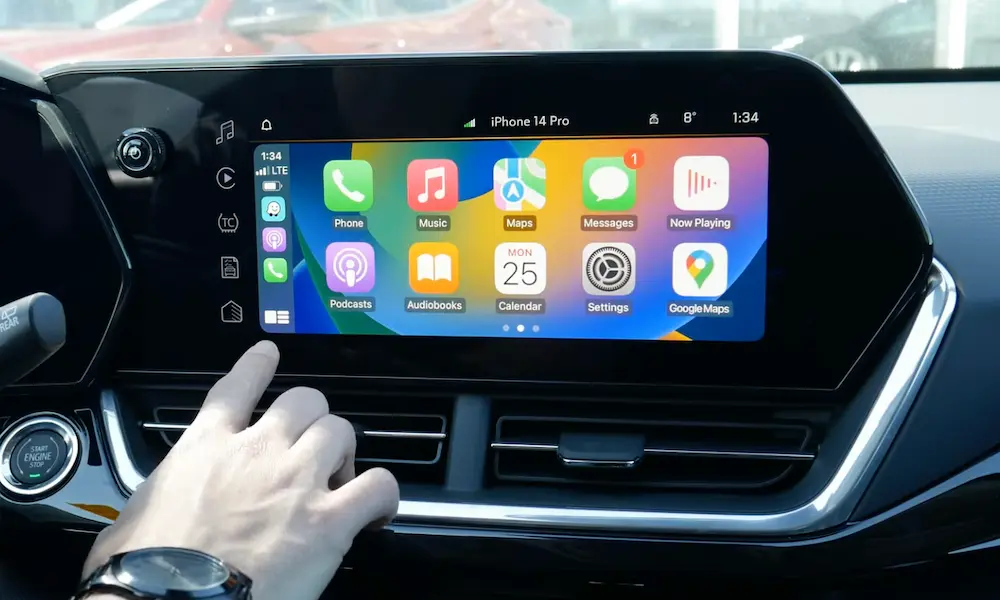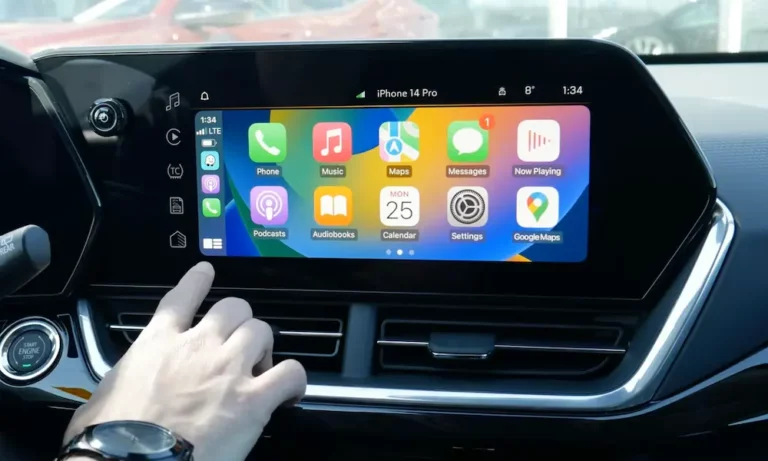
Your GMC’s CarPlay just stopped working, and now you’re driving in silence like it’s 2009. Frustrating, right? The good news is that most GMC CarPlay problems have a fix you can do yourself — no dealership required. This guide walks you through every cause and solution, from a dirty USB port to a software glitch buried deep in your settings.
Why Is Your GMC CarPlay Not Working?
Before you start randomly pressing buttons, it helps to know what’s actually going on.
GMC CarPlay failures usually fall into three buckets:
- Hardware problems — bad cable, dirty port, blown fuse
- Software conflicts — iOS update, VPN interference, Siri disabled
- Wireless handshake failures — your phone won’t switch from home WiFi to the car’s network
Knowing which bucket your problem belongs to saves you a ton of time. Let’s go through each one.
Start Here: The Quick-Check List
Run through these first. They solve the problem roughly half the time.
- Swap your cable. Use an Apple OEM cable, not a random charger. Around 40% of CarPlay failures trace back to a bad or non-data cable.
- Check Siri. CarPlay won’t launch without it. Go to Settings > Siri & Search and make sure “Allow Siri When Locked” is on. Apple confirms this is a hard requirement.
- Restart both devices. Turn your phone off completely. Shut your GMC off, get out, close the door, wait 60 seconds, and restart.
- Check your USB port. You might be plugged into a charge-only port. In most GMC trucks and SUVs, the data port is at the front of the center console — not the rear-seat ports.
If none of that works, keep reading.
The Cable and Port Problem (More Common Than You Think)
GMC’s USB ports live in a rough neighborhood. Vibration, heat, cold, and pocket lint all take a toll. A port full of debris can block the pins from seating properly, which means your phone charges fine but CarPlay stays grayed out.
How to Clean Your GMC’s USB Port
- Blast it with compressed air first
- Use a wooden toothpick or a plastic pick — never metal
- Some techs use a paper straw cut to a sharp point to hook debris from the corners of USB-C ports
- Check for bent pins while you’re in there
| Symptom | Likely Cause | Fix |
|---|---|---|
| Phone charges but CarPlay icon doesn’t appear | Non-data cable or charge-only port | Use Apple OEM cable in the front console data port |
| CarPlay drops when you hit a bump | Loose port fitment or debris | Clean port; try a different cable |
| “Smartphone Connection Error” message | Damaged cable or pin mismatch | Replace with MFi-certified cable |
| No power at all from the USB port | Blown infotainment fuse | Check the USB/Infotainment fuse in the interior fuse panel |
Also worth knowing: GMC’s T1XX platform trucks (2019+ Sierra) have specific port assignments. The front console ports handle data; the rear ports are charge-only. Many people plug into the wrong one and spend an hour troubleshooting a non-problem.
Wireless CarPlay Issues: The Sneaky Culprit
If you have a 2019 or newer GMC, you’ve probably got wireless CarPlay. It’s great when it works. When it doesn’t, the problem is almost always the handshake between Bluetooth and WiFi.
Here’s how wireless CarPlay actually connects:
| Stage | Technology Used | What Can Go Wrong |
|---|---|---|
| Discovery | Bluetooth LE | Bluetooth is off or phone isn’t visible |
| Handshake | Bluetooth | “Trusted Device” conflict or outdated security token |
| Data Transfer | 5GHz WiFi | Phone stays locked onto your home WiFi network |
| Projection | Software layer | “Projection” isn’t enabled in GMC settings |
The biggest wireless problem? Your phone won’t leave your home network. If you’re parked in the driveway and your home WiFi reaches the garage, your iPhone might refuse to switch to the car’s 5GHz network. This “driveway handover” issue is extremely common and easy to overlook.
Fix: Turn off your home WiFi on your phone before you get in the car. Or walk out of range before connecting.
The “Trusted Device” Conflict
GMC’s newer systems have a Trusted Device setting linked to the MyGMC app. After an iOS update or a network reset, the security token your phone sends might not match what the car expects. The car then rejects the CarPlay connection entirely.
The fix that works in the GMC community: delete your phone from the vehicle’s Bluetooth list, delete the car from your phone, re-pair from scratch, and when asked if you want to set it as a Trusted Device — say no. This removes the extra authentication layer that’s causing the conflict.
iOS 18 Made GMC CarPlay Not Working for a Lot of People
If your CarPlay stopped working after an iOS update, you’re not imagining it. iOS 18 changed how the iPhone’s network stack handles data, and it broke CarPlay for a significant chunk of GMC owners.
The specific problem: about 30% of post-iOS-18 CarPlay failures come from VPN apps. In iOS 18, the VPN can intercept the local WiFi stream that CarPlay uses to send data to your screen. Since your car’s infotainment system isn’t on the internet, the VPN has nowhere to route that traffic — and you get a “Phone Not Responding” error.
Apps confirmed to cause this:
- ExpressVPN
- NordVPN
What to do:
- Don’t just disconnect the VPN — fully disable it
- Turn off “Auto-Connect” and “Kill Switch” features in the VPN app settings
- Then reconnect CarPlay
iOS 18 also reset Siri permissions for some users. Double-check that Siri is still enabled after any major iOS update.
How to Reboot Your GMC Infotainment System
Sometimes the infotainment system just gets stuck. A proper reset clears the volatile memory and kicks the projection software back into gear.
The reset method depends on which system your GMC has:
| System Type | Which GMC Models | How to Reset |
|---|---|---|
| IntelliLink 1.0/2.0 | 2014–2018 Sierra, Yukon, Canyon | Hold Home + Fast Forward buttons for 10 seconds |
| GM Infotainment | 2019–2021 Sierra, Acadia, Terrain | 15-minute Deep Sleep cycle (details below) |
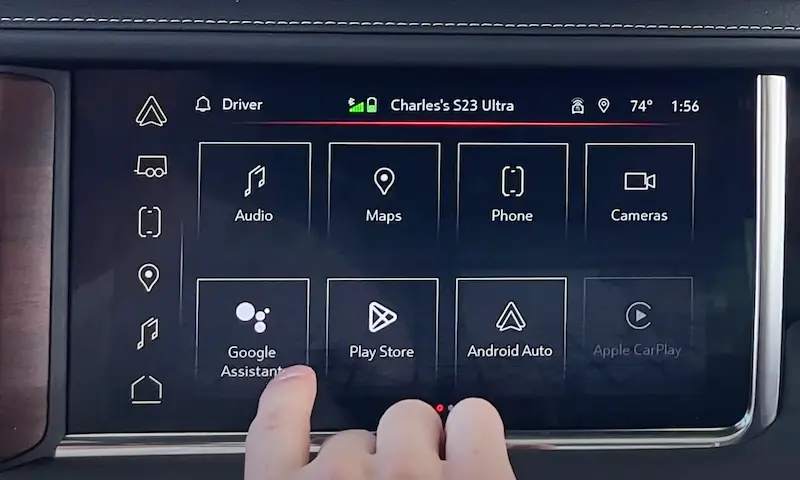
| Google Built-in | 2022+ Sierra, Yukon, Hummer EV | Hold steering wheel End Call button for 20 seconds |
| Any generation | Any screen with Settings menu | Settings > Return to Factory Settings > Restore Vehicle Settings |
The Deep Sleep Fix (For Stubborn Hangs)
Modern GMCs use Retained Accessory Power (RAP), which keeps the system partially alive even after you turn it off. To do a true cold reboot:
- Turn off the engine and take out the key
- Open and close the driver’s door — this ends the RAP session
- Stay out of the car for at least 15 minutes
- Watch the OnStar LED on the overhead console — when it goes completely dark, the system is in Deep Sleep
- Get back in, start the car, and wait 20 seconds before connecting your phone
This fixes persistent “fuzzy album art,” laggy maps, and CarPlay that loads but then freezes.
Check for OTA Software Updates
GMC pushes over-the-air firmware updates through the OnStar modem. These updates sometimes contain the only permanent fix for known CarPlay bugs — like the widespread crashing reported on 2024 GMC Terrain models after the iPhone 15 launched.
To check for updates:
- Park the car with the engine running
- Go to Settings > Vehicle Software on the infotainment screen
- If the Updates button is grayed out, your battery might be too low — drive for 20–30 minutes and try again
- Underground parking kills OTA downloads; connect to your home WiFi through the infotainment WiFi settings for faster results
GMC Acadia and Terrain: A Specific Problem to Know
If you drive a 2017–2019 Acadia, there’s a known hardware issue worth flagging. The USB hub in the dashboard can lose its data connection due to thermal expansion and contraction — the constant heating and cooling of the cabin literally loosens the internal connections over time. This shows up as intermittent CarPlay drops that get worse over time and don’t respond to software fixes.
If you’ve tried everything and your Acadia still drops CarPlay randomly, that USB port module likely needs a physical replacement. A dealer visit or independent shop with GMC experience can handle this.
Your Step-by-Step Diagnostic Playbook
Work through these levels in order. Most people solve it at Level 1.
Level 1 — Physical Check
- Swap to an Apple OEM cable
- Confirm Siri is on with “Allow Siri When Locked” enabled
- Clean the USB port with compressed air
Level 2 — Software Sync
- Delete the vehicle from your phone and your phone from the vehicle
- Re-pair via Bluetooth; accept all iPhone permission prompts including “Allow CarPlay While Locked”
- Fully disable any VPN or security app
Level 3 — System Reset
- Run the correct hard reset for your GMC’s system generation
- Reset iPhone network settings (Settings > General > Transfer or Reset iPhone > Reset > Reset Network Settings)
- Check for pending OTA firmware updates in the Vehicle Software menu
One More Thing Worth Knowing
GM has made the decision to phase out CarPlay in its upcoming electric vehicles, replacing it with a fully Google-integrated system. If you drive a current Sierra, Yukon, or Acadia with an internal combustion engine, CarPlay support stays in place for your vehicle’s lifespan. But new feature development may slow as GM shifts its software focus to the native Google platform.
That makes knowing these manual reset and maintenance steps more valuable, not less. You’re better off understanding your system than waiting for a fix that may never come.