Your GMC’s Bluetooth won’t pair, and you’ve already toggled it on and off three times. Frustrating, right? The good news is that most GMC Bluetooth not pairing issues have a fix you can do yourself — no dealership trip required. Work through these steps in order, and you’ll likely have your phone connected before you finish your coffee.
Why GMC Bluetooth Stops Pairing in the First Place
Before you start pressing buttons, it helps to know why this happens.
GMC’s infotainment systems store a unique encryption key every time you pair a phone. If a software update wipes or corrupts that key — on either the phone or the vehicle — the pairing fails. The device name might still show up in your saved list, but the handshake falls apart behind the scenes.
Other common culprits include:
- Too many saved devices — GMC systems have a finite memory for Bluetooth profiles. A cluttered list causes sluggish behavior and pairing failures.
- The RAP system staying powered — Even after you turn the ignition off, the infotainment module often stays on for several minutes. A simple key cycle doesn’t fully reboot it.
- Signal interference — Bluetooth runs on the 2.4 GHz frequency, which it shares with Wi-Fi, smartwatches, and wireless charging pads inside the cabin.
- Outdated firmware — A vehicle running 2018-era firmware will struggle to handshake with a phone running a 2025 Bluetooth stack.
Now let’s fix it.
Step 1: Check the Basics First
It sounds obvious, but these quick checks resolve more GMC Bluetooth not pairing problems than you’d expect.
- Make sure the vehicle is in Park — many Bluetooth menu options are grayed out while driving.
- Confirm Bluetooth is enabled on both your phone and the infotainment system.
- Keep your phone’s Bluetooth settings screen open while the vehicle searches. Many phones drop out of discoverable mode after 60 seconds.
- Move any smartwatches or wireless earbuds away from the center console. These devices compete for the same frequency band.
If everything checks out and it still won’t connect, move to the next step.
Step 2: Force a True Power Cycle (The RAP Method)
Here’s the trick most people miss. Turning the key off doesn’t fully reboot the infotainment system. GMC’s Retained Accessory Power (RAP) system keeps the HMI module running for several minutes afterward.
To actually cut the power:
- Turn the ignition off.
- Open the driver’s door and close it. This terminates the RAP circuit.
- Wait at least two to five minutes.
- Restart the vehicle and try pairing again.
This forces the Bluetooth stack to restart from a cold state rather than resuming a frozen process.
Step 3: Delete the Pairing on Both Devices
If a power cycle doesn’t do it, the corrupted encryption key is likely the problem. You need to remove the pairing from both sides — not just one.
On the vehicle:
Navigate to Bluetooth Settings → select the device → tap Delete or Forget Device.
On your phone:
Go to Bluetooth Settings → find the vehicle name (usually “myGMC” or “GMC Infotainment”) → tap Forget This Device.
After forgetting on both sides, do the RAP power cycle again before you attempt a fresh pairing. Skipping this step often means you’re re-pairing on top of a corrupted session.
Step 4: Use the Right Reset for Your Infotainment System
When the standard steps don’t work, it’s time to do a targeted reboot. GMC has built specific reset shortcuts into each infotainment generation. A soft reset resolves roughly 85% of minor Bluetooth pairing failures — but only if you use the right method for your system.
| System Type | Model Years | Button Combination | Hold Time |
|---|---|---|---|
| MyLink / IntelliLink | 2017–2019 | Home + Fast Forward | 10–15 seconds |
| GM Infotainment (OnStar) | 2017–2019 | OnStar Call + Immediate Hang Up | 1–2 seconds |
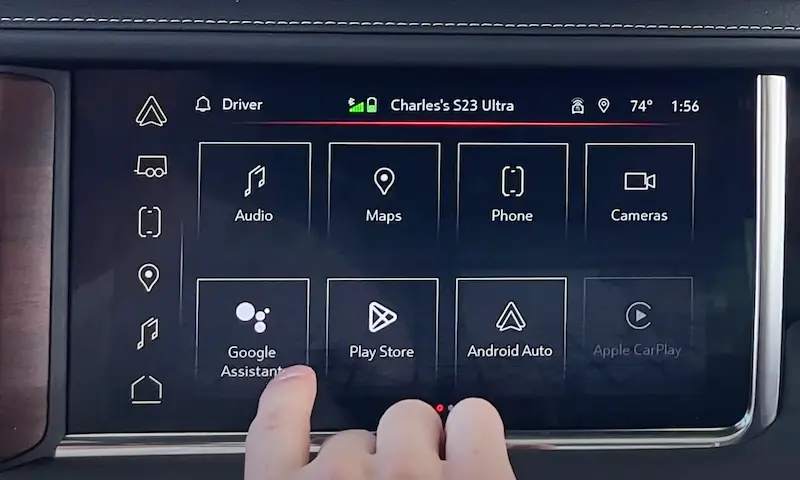
| Google Built-in | 2022–2026 | Phone Hangup (steering wheel) | 10–15 seconds |
| Touchscreen Volume | 2022–2025 | Press and hold Volume Knob/Power | 10–15 seconds |
For 2024–2026 Sierra and Yukon owners: the 15-second hold of the Phone Hangup button on the steering wheel is your go-to fix, especially when the “Add Phone” icon is grayed out while the vehicle is in Park. This is a known software flag issue that the steering wheel reset clears reliably.
Step 5: Fix It on Your Phone’s Side
Sometimes the vehicle is perfectly fine. The problem lives in your phone’s Bluetooth memory.
Android 14 and 15
A corrupted Bluetooth cache is a frequent offender on Android. Here’s how to clear it:
- Go to Settings → Apps → See All Apps.
- Tap the three-dot menu and choose Show System Apps.
- Find “Bluetooth” or “Bluetooth Legacy”.
- Tap Storage & Cache → Clear Cache.
- Restart your phone.
This re-initializes the Bluetooth stack without deleting any settings. It’s a clean slate for the pairing process.
Note for Android 15 users: There’s a documented issue with Bluetooth Android Auto connections after the Android 15 update. Clearing the cache is the first fix to try.
iPhone (iOS 17 and 18)
After a major iOS update, buggy Bluetooth profiles can block pairing entirely. A Reset Network Settings wipes those out:
Settings → General → Transfer or Reset iPhone → Reset → Reset Network Settings
Fair warning: this also deletes saved Wi-Fi passwords, so have those handy before you tap confirm.
What Those Software Updates Actually Fix
GM regularly releases Technical Service Bulletins (TSBs) targeting specific Bluetooth bugs. These aren’t optional — they’re genuine fixes for verified problems.
Here are the most relevant ones for GMC owners:
- Bulletin 19-NA-269 (Version U148): Fixed a “busy” message that deleted paired phones and a bug where call audio stayed on the phone instead of routing to vehicle speakers.
- Bulletin 23-NA-042 (Version V164): Corrected intermittent Bluetooth drops on Silverado and Sierra, including issues with the recent call list in the instrument cluster.
- Bulletin 24-NA-261 (Version Y175): A critical update for 2022–2024 models with the Google Built-in system (RPO IOK). This fixes crackling audio during calls, echo problems, and the “Device can’t be added while driving” error that incorrectly triggers while in Park.
- Bulletin 23-NA-227: Targets the “Add Phone” button not responding and Bluetooth media queue display errors on the Blazer and Silverado EV.
To check your current version and look for pending updates, go to Settings → System → Vehicle Software → Updates on your infotainment screen. Your vehicle needs a strong Wi-Fi connection to download OTA updates — connecting to your home network monthly is a smart habit.
The Nuclear Options: Factory Reset and Fuse Pull
If nothing above has worked, you’ve got two more moves before hardware becomes the conversation.
Factory Reset
This erases everything — presets, saved devices, navigation history. For Google Built-in vehicles, the path is:
Settings → System → Reset Options → Erase Infotainment Data
Before you go full factory reset, try Restart in Safe Mode first. This boots the system with only core GMC apps running, disabling third-party apps like Spotify or Amazon Music. If your phone pairs in Safe Mode, a third-party app is crashing the Bluetooth service.
The 10-Amp Fuse Pull
When the screen is completely unresponsive and no button combination works, pull the infotainment fuse. It’s a 10-amp fuse in the instrument panel fuse box. Remove it for 30 seconds, reinstall it, and let the system boot fresh. This cold-state restart is reported to be 90% effective for fully frozen systems.
Signs Your HMI Module Has a Hardware Problem
If you’ve gone through every step above and GMC Bluetooth not pairing is still your reality, the issue may be physical, not software.
Watch for these signs of a failing HMI module:
- Black screen with audio still playing
- System stuck in a boot loop showing only the GMC logo
- “Waiting for Update Media” message that won’t clear
- OBD-II scanner showing DTC U0184 (“Lost Communication With Radio”)
GMC trucks also have a documented poor battery ground issue that causes random Bluetooth drops and black screens. If your 12V battery is weak or the ground cable is corroded, the infotainment system may refuse to initiate the Bluetooth handshake entirely. Have the battery tested — especially before winter.
Keep It from Happening Again
Once you’re back up and running, these habits will keep your Bluetooth connection stable:
- Every 6 months: Delete and re-pair your phone to flush out stale encryption data.
- Monthly: Connect to home Wi-Fi so OTA software updates download automatically.
- Use quality cables: If you use wired CarPlay or Android Auto, cheap cables create electrical interference that disrupts the simultaneous Bluetooth link.
- Annual battery check: Low voltage is one of the top causes of HMI glitches, especially in extreme heat or cold.
The right fix for GMC Bluetooth not pairing usually comes down to knowing which generation of infotainment you have and targeting the reset that matches it. Start simple, work through the tiers, and you’ll almost certainly crack it without setting foot in a dealership.