Your GMC IntelliLink is frozen, glitching, or acting like it’s had one too many software updates. Good news — a hard reset usually fixes it. This guide covers every method, from a quick button combo to pulling fuses, so you can get back on the road without a dealership bill.
What’s Actually Going On With Your IntelliLink?
Before you start pressing buttons, it helps to know what you’re dealing with. The IntelliLink system isn’t just a fancy radio. It’s a computer running on dedicated hardware, and like any computer, it crashes.
Common symptoms that signal a reset is needed:
- Touchscreen frozen or completely unresponsive
- Bluetooth won’t connect or keeps dropping
- Navigation showing wrong location or blank map
- Screen goes black randomly
- System reboots on its own during drives
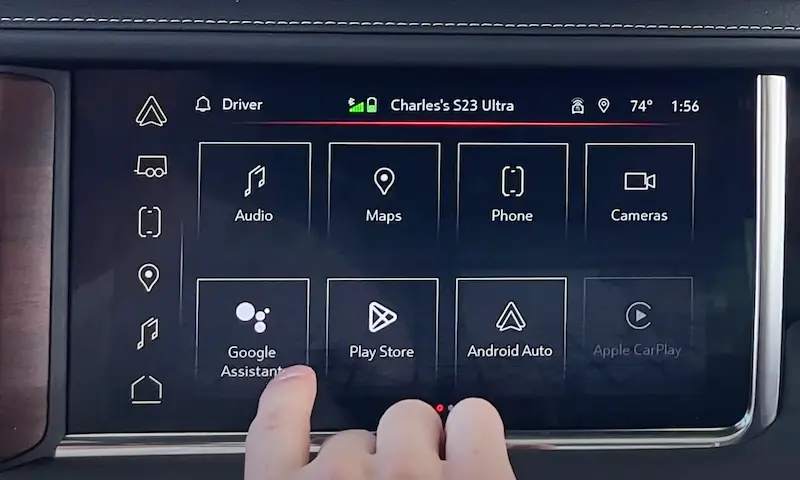
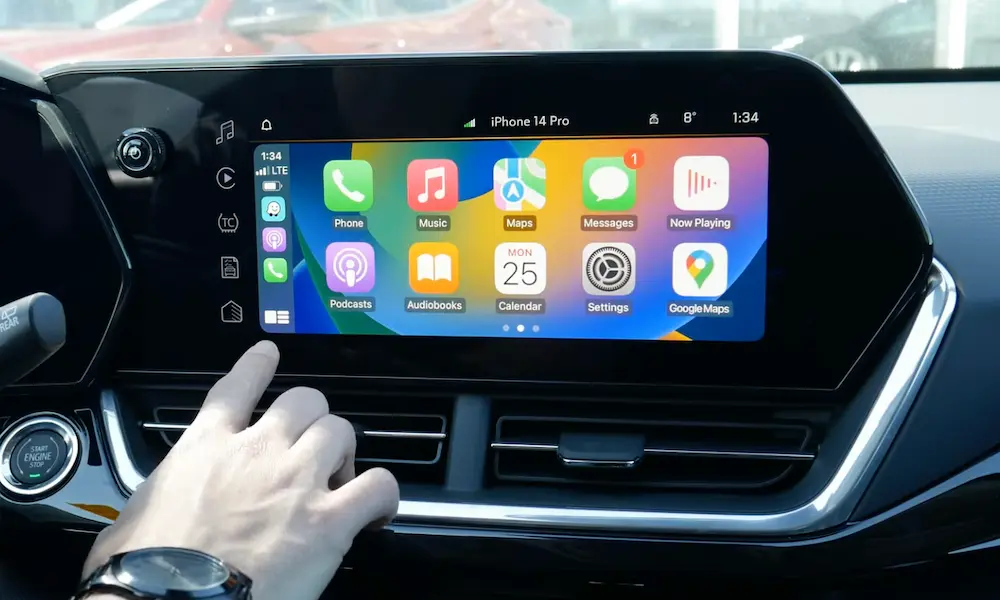
- CarPlay or Android Auto won’t launch
Most of these issues come from corrupted temporary memory or a software hiccup — not a broken unit. A GMC IntelliLink hard reset clears that out and gives the system a fresh start.
Know Your System Before You Reset It
Not every GMC uses the same infotainment hardware. The RPO code (Regular Production Option) on your vehicle tells you exactly what’s installed. You’ll find it on the Service Parts Identification label — in the glove box on pre-2018 models, or as a QR code on the driver-side door jamb on newer ones.
Here’s a quick breakdown of the most common systems:
| RPO Code | System | Screen Size | Years Active |
|---|---|---|---|
| IO5 | GMC IntelliLink | 8-inch | 2014–2018 |
| IO6 | IntelliLink + Navigation | 8-inch | 2014–2018 |
| IOR | Infotainment 3 | 7 or 8-inch | 2019–2022 |
| IOS | Infotainment 3 Plus | 8 or 10.2-inch | 2019–2022 |
| IOT | Infotainment 3 Premium | 8 or 13.4-inch | 2020–present |
| IOK | Google Built-in | 10.2 or 13.4-inch | 2022–present |
Why does this matter? Because the reset method that works on a 2017 Sierra (IO6) won’t be the same one you use on a 2024 Yukon (IOK). Pick the wrong method and you’ll wonder why nothing’s happening.
Step 1: Try a Software Reset First (No Tools Needed)
A software-based factory reset works great when your screen is responsive but the system is acting up. It’s the gentlest method — think of it as a polite restart.
Here’s how to do it:
- Put the vehicle in Park
- Turn the ignition to On (engine running or accessory mode works)
- Press the Home button on the screen or dashboard
- Tap Settings
- Navigate to System (required on Infotainment 3 and newer)
- Select your reset type
You’ll see three options, and each one does something different:
- Restore Vehicle Settings — Resets lighting, locks, and comfort features. Keeps your personal data.
- Clear All Private Data — Wipes paired phones, call logs, and saved addresses. Use this before selling.
- Restore Radio Settings — Resets audio settings and presets only.
For most glitches, Restore Vehicle Settings gets the job done. After you confirm, the screen goes black and the system reboots. Give it two to three minutes to fully reload.
Check for OTA Updates First
Before hitting reset, check for a software update. Many bugs you’re dealing with are already fixed in a newer firmware version. Go to Settings → System → Vehicle Software → Updates. If an update’s available, install it. This approach preserves your settings instead of wiping them.
Step 2: Soft Reset With Button Combos (For Frozen Screens)
If your screen is completely frozen, you can’t tap your way into Settings. That’s where physical button combos come in. These force-reboot the infotainment processor without touching anything else in the vehicle.
2017–2021 GMC Trucks and SUVs (IntelliLink / Infotainment 3)
Press and hold the Home button and Fast Forward button at the same time. Hold them for 10 to 15 seconds. The screen will go dark and reboot.
2022–2025 GMC Models (Google Built-in / IOK)
The steering wheel is your tool here. With the vehicle in Park, press and hold the Phone Hangup button on the steering wheel for 10 to 15 seconds. You’ll see the screen go black and restart. This is what GM calls a “hard flash reboot.”
Other Methods Worth Trying
- Hold the Power or Volume knob for 10+ seconds — works on some mid-generation models
- Press the OnStar call button and immediately hang up — this can sometimes reset the telematics module and kick the display back to life
These soft resets are quick, safe, and don’t erase any of your data.
Step 3: GMC IntelliLink Hard Reset via Fuse Pull
When button combos don’t work, it’s time to cut power directly to the infotainment module. Pulling the right fuse forces a complete memory discharge — the most thorough reset you can do without touching the battery.
Find Your Fuse Block First
GMC vehicles have multiple fuse box locations. Here’s where to look:
- Underhood Fuse Block — Under the hood near the battery on the driver’s side. Mostly handles engine and powertrain systems, but may include the audio amplifier fuse.
- Instrument Panel Fuse Block — Your primary target. Located on the driver’s side under the dash, near the steering column or kick panel.
- Passenger-Side IP Block (Yukon/XL) — On the passenger-side dashboard edge, only accessible with the door open.
- Rear Compartment Block (Full-size SUVs) — Behind a panel in the cargo area on the driver’s side. Manages rear entertainment and auxiliary power.
Find the Right Fuse
Open the fuse box cover — the diagram’s printed on the inside. You’re looking for labels like “Radio,” “Infotainment,” “Display,” or “HMI.”
For a 2018 GMC Sierra, check:
- Fuse #18 — 20-amp Radio fuse
- Fuse #36 — 30-amp Audio Amplifier fuse
For a GMC Acadia, look for a 15-amp Radio fuse and a 10-amp Infotainment fuse.
How to Pull the Fuse
- Turn the ignition off and remove the key
- Use the plastic fuse puller (it’s in the fuse box) to pull the fuse
- Leave it out for 60 seconds — this drains residual power from the module
- Reinsert the fuse
- Start the vehicle and let the system do a cold boot
This “cold boot” is more thorough than any button combo. The system reloads everything from scratch.
Step 4: Full Battery Disconnect (Last Resort)
If fuse pulls don’t fix it, the nuclear option is a complete battery disconnect. This resets every electronic module in the vehicle — including the Body Control Module and Engine Control Module — not just the infotainment system.
Here’s how to do it safely:
- Turn the vehicle off and wait two minutes for all modules to enter sleep mode
- Remove the negative cable first (marked with a minus sign or black cover)
- Then remove the positive cable
- Touch the two disconnected cable ends together for 15 to 30 seconds — this drains stored capacitor energy from the modules. Don’t let them touch the battery.
- Wait at least 15 minutes with both cables off
- Reconnect positive first, then negative
After reconnection, the system runs a full re-sync. It may take a few minutes to establish GPS and reload app data.
Heads up: A battery disconnect resets learned parameters in the ECM and transmission. You might notice slightly different shift behavior for the first few miles — that’s normal and it corrects itself.
When a Reset Won’t Fix It
Some problems look like software issues but aren’t. Here’s what to watch for:
Low Battery Voltage
A weak battery (below 9.0–10.5 volts) causes random reboots and failed startups. If you’re resetting your IntelliLink every few weeks, get your battery and alternator tested. AutoZone and other parts stores do this for free.
Blown Fuse From Wiring Damage
On 2021–2024 GMC Yukon and Yukon XL models, a known wiring short near the center console hinge can blow the F4DR fuse in the passenger-side IP block. That fuse controls the Body Control Module 2, which manages the display. Replacing the fuse temporarily fixes the black screen, but it’ll blow again unless you repair the wiring harness.
The “LOCKED” Screen
If your screen shows “LOCKED” and won’t respond to anything, this is GM’s TheftLock security system at work. Every infotainment module is programmed to a specific VIN. A used radio from a salvage yard will show this. No reset fixes it — the unit needs dealer-level programming or cloning from the original module.
Use Bad Cables for CarPlay?
If Android Auto or CarPlay drops constantly, swap your USB cable before you do anything else. Cheap cables cause more connection problems than people realize.
Keep Your IntelliLink Running Smoothly
Prevention beats troubleshooting every time. Here’s a simple maintenance schedule to keep things running right:
| Task | How Often | Why It Matters |
|---|---|---|
| Check for software updates | Monthly | Patches known bugs before they cause problems |
| Clear old Bluetooth devices | Every 3 months | Too many paired devices slows the system down |
| Clear app cache | Every 6 months | Removes junk files from Spotify, Maps, and other apps |
| Battery health test | Annually | Low voltage is the #1 hidden cause of infotainment glitches |
| Replace USB cables | As needed | Prevents CarPlay and Android Auto drop-outs |
GMC’s newer systems — especially those running Google Built-in on the Global B architecture — are getting smarter about self-healing. They can detect a crashed service and restart it in the background without interrupting your music. But even those systems need the occasional reset. Now you know exactly how to do it.