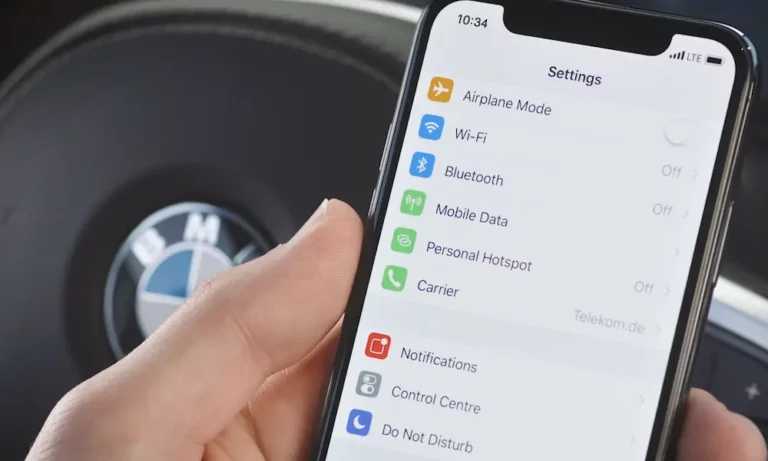
Your phone is plugged in, the battery icon shows it’s charging — but your CarPlay screen stays blank. Frustrating, right? The good news is this problem has real, fixable causes. This guide breaks down exactly why your phone charging but CarPlay not working happens, and walks you through every fix, from swapping a cable to clearing a corrupted pairing. Stick with it — the answer is probably simpler than you think.
Your Cable Is the Most Common Culprit
Here’s something most people don’t know: not all cables do the same job.
A standard USB cable contains four internal wires. Two carry power to your phone. The other two carry data — the actual packets of video, audio, and touch feedback that CarPlay needs to run. Many cheaper cables skip those data wires entirely. They charge your phone just fine, but they’re physically incapable of launching CarPlay.
Charge-only cables look identical to data cables from the outside. That’s the trap. You plug in, your phone charges, you assume the connection is good — but CarPlay never loads.
| Cable Wiring Component | Data-Capable Cable | Charge-Only Cable |
|---|---|---|
| Power lines | Present | Present |
| Data transfer wires | Present | Absent |
| Minimum bandwidth | 480 Mbps | 0 Mbps |
| CarPlay capable? | ✅ Yes | ❌ No |
Quick test: Plug your cable into a laptop. If your phone shows up as a storage device, the cable transfers data. If nothing happens — or only charging occurs — toss the cable and grab a certified replacement.
iPhone 15 and Newer: The USB-C Problem
If you upgraded to an iPhone 15 or later, you’re now on USB-C. Most cars built before 2023 only have USB-A ports. That mismatch creates a whole new layer of problems.
Many USB-A to USB-C cables on the market are built for fast charging, not data. They charge your iPhone 15 quickly but won’t trigger CarPlay. Add an adapter into the mix — like a Lightning-to-USB-C adapter — and you’ve introduced another weak point that vibrations can knock loose.
The fix here is straightforward: buy a direct, MFi-certified USB-A to USB-C cable from a reputable brand. Skip the adapters when you can.
Siri Is Off — And That’s Blocking Everything
This one surprises a lot of people. CarPlay won’t launch if Siri is disabled.
Apple and car manufacturers require voice assistant access as a safety measure. The logic is that CarPlay must be operable without you touching your phone screen. If Siri is turned off, the system treats the connection as unsafe and refuses to start.
Check these settings right now:
- Settings → Siri & Search → Make sure “Listen for Hey Siri” and “Press Side Button for Siri” are both on
- Settings → Siri & Search → Allow Siri When Locked → Toggle this on
- Settings → Face ID & Passcode → Confirm “USB Accessories” is enabled so data transfers when your phone is locked
Blocking Siri when locked is one of the most common silent causes of CarPlay failure. The car tries to wake CarPlay when you plug in your locked phone — but without Siri access, it never gets a response.
Your VPN Is Quietly Killing the Connection
This is a big one in 2025 and 2026, and most people never suspect it.
CarPlay works like a local network connection between your phone and your car’s head unit. Your VPN doesn’t know the difference between your car and a public Wi-Fi hotspot — so it intercepts that local traffic and routes it through an encrypted tunnel. The result? CarPlay can’t find the car, even though your phone is sitting right in the USB port charging.
Research shows roughly 30% of “phone charging but CarPlay not working” cases trace back to an active VPN.
| Security Setting | Effect on CarPlay | What to Do |
|---|---|---|
| Active VPN | Blocks local network discovery | Fully disable before connecting |
| Lockdown Mode | Treats car as untrusted USB device | Toggle off for driving |
| Private Wi-Fi Address | Causes handshake failures | Set to “Fixed” for your car’s network |
| Local Network Access blocked | Prevents app communication | Enable it in Settings → Privacy |
| Screen Time restrictions | Silently blocks CarPlay | Check Allowed Apps list |
Turn your VPN off completely before plugging in. Don’t just pause it — disable it. If CarPlay launches immediately, you’ve found your problem. Many VPN apps let you set exceptions for local network access, which is the long-term fix so you don’t have to toggle it every time you get in the car.
Lockdown Mode is another hidden blocker. When it’s active, your iPhone treats your car’s USB port as an untrusted accessory and refuses to send data — even though it still accepts power. If you use Lockdown Mode, you’ll need to disable it while driving or find an alternative security setup.
The Pairing Got Corrupted — Forget the Car and Start Over
Your phone and your car exchange digital security certificates every time they connect. Think of it as a secret handshake. Over time — especially after an iOS update — those certificates fall out of sync. The phone and the car “recognize” each other but can’t establish a trusted session. The result is exactly the symptom you’re seeing: charging, no CarPlay.
Here’s how to fix it:
- On your iPhone: Settings → General → CarPlay → Select your car → tap Forget This Car
- In your car: Go to the Bluetooth settings in your infotainment system → find your phone → delete it
- Restart both your phone and the car’s infotainment system completely
- Plug back in and go through the pairing process from scratch
This forces both devices to generate fresh security keys and clears out any corrupted session data. It takes five minutes and fixes a huge number of persistent connection problems.
iOS Updates Can Break CarPlay (It’s Not Just You)
Apple’s iOS updates occasionally introduce bugs that break CarPlay connections that were working perfectly before.
The iOS 18.4 update in early 2025 triggered widespread CarPlay failures across Toyota, Honda, Mazda, and Volkswagen vehicles. Users reported the system either failing to launch entirely or showing graphical glitches like missing track information. iOS 26.4.1 in 2026 broke security handshake protocols for newer iPhone models.
What you should do:
- Check for a newer iOS update — Apple usually patches these bugs within a few weeks
- Check for a head unit update — your car’s infotainment firmware matters just as much. Many vehicles update over Wi-Fi at home; others need a dealership visit
- Check community forums — if your exact iPhone and car combination broke after a specific update, you’ll find it on Reddit’s r/CarPlay or MacRumors quickly
The car and the phone need to agree on the exact handshake sequence. When Apple changes that sequence in a software update without coordinating with car manufacturers, the vehicle rejects the connection as invalid.
Lint and Dirty Ports Are a Real Problem
Your phone lives in your pocket all day. Lint and dust pack into the charging port, layer by layer, until the data pins in the center of the connector are completely blocked. The power pins on the edges often still make contact — so your phone charges — but CarPlay won’t load because the data pins are buried under debris.
Use a wooden toothpick or plastic interdental brush to gently scrape lint out of the port. Short bursts of compressed air work well for loose dust.
| Cleaning Tool | Safe? | Notes |
|---|---|---|
| Wooden toothpick | ✅ Yes | Best for scraping edges |
| Plastic interdental brush | ✅ Yes | Good for loose lint |
| Compressed air | ⚠️ Caution | Use short bursts only |
| Metal needle or pin | ❌ No | Can permanently short the board |
| Liquid cleaners | ❌ No | Moisture causes corrosion |
Never use metal tools. A paperclip or sewing needle can cause an electrical short that destroys your phone’s logic board. Stick to wood or plastic.
You’re Plugged Into the Wrong Port
This one’s embarrassingly simple, but it trips up a lot of people. Many cars have multiple USB ports — some for data, some for charging only. In many GM and Ford vehicles, only the front console port supports CarPlay data transfer. Rear-seat ports and center console ports are often wired for charging only.
Look for a port marked with a smartphone icon, a CarPlay logo, or a lightning bolt. Your owner’s manual will confirm which port handles data. Switching ports takes five seconds and sometimes that’s all it takes.
| Manufacturer | System | CarPlay Port Notes |
|---|---|---|
| Ford | SYNC | Front console port; requires specific reboot |
| Toyota | Multimedia | Privacy toggle needed in “General” settings |
| Honda | Display Audio | Instrument cluster integration bugs reported |
| Chevrolet | Infotainment 3 | Usually only one port supports data |
| Mazda | Connect | Prone to black screen on launch |
| BMW | iDrive | Historical subscription model; confirm it’s active |
Some vehicles — particularly newer Toyota models — also have a toggle inside the car’s own settings menu to enable or disable smartphone integration. If that setting got accidentally flipped, your phone will charge but CarPlay will never start. Dig into your car’s general settings menu and look for anything labeled “Smartphone Link,” “Apple CarPlay,” or “Projection.”
Wireless CarPlay: When the Charging Pad Works But the Screen Doesn’t
Wireless CarPlay uses two radios simultaneously — Bluetooth to establish the initial handshake, then Wi-Fi for the actual data stream. If your phone’s Wi-Fi is off, or if your phone auto-joins your home network instead of the car’s network, the data link fails. Your phone sits on the charging pad, draws power, and the dashboard shows nothing.
Quick checks for wireless failures:
- Confirm Wi-Fi is on on your phone
- Turn off your home Wi-Fi hotspot or move out of range before testing
- Set your car’s Wi-Fi network to “Fixed” private address in your iPhone’s Wi-Fi settings — this prevents the handshake from breaking when Apple rotates your MAC address
- If you’re in a dense city, radio frequency interference from dashcams, other cars, and portable hotspots can block the Wi-Fi link entirely — try a wired connection to rule this out
Your Full Diagnostic Checklist
Work through these steps in order. Most problems get fixed in the first three.
| Step | What to Do | What It Fixes |
|---|---|---|
| 1 — Cable | Test cable on a laptop for file transfer; replace with MFi-certified data cable | Charge-only cable |
| 2 — Reboot | Full restart of phone and car system; wait for dash to go dark | Corrupted memory state |
| 3 — Permissions | Enable Siri, Allow While Locked, USB Accessories | Blocked security protocols |
| 4 — Network | Disable VPN, Personal Hotspot, check Wi-Fi status | Packet interference |
| 5 — Re-pair | Forget This Car on phone; delete phone from car; pair fresh | Corrupted security keys |
| 6 — Port | Clean port with wooden toothpick; try front console port | Debris or wrong port |
| 7 — Updates | Update iOS; update car firmware | Software regressions |
Most cases of phone charging but CarPlay not working come down to three things: a charge-only cable, a blocked software permission, or a VPN. Start there. If you’ve run through every step and CarPlay still won’t launch, the USB port itself may have worn or bent pins — at that point, a repair shop can assess whether the port needs replacing.