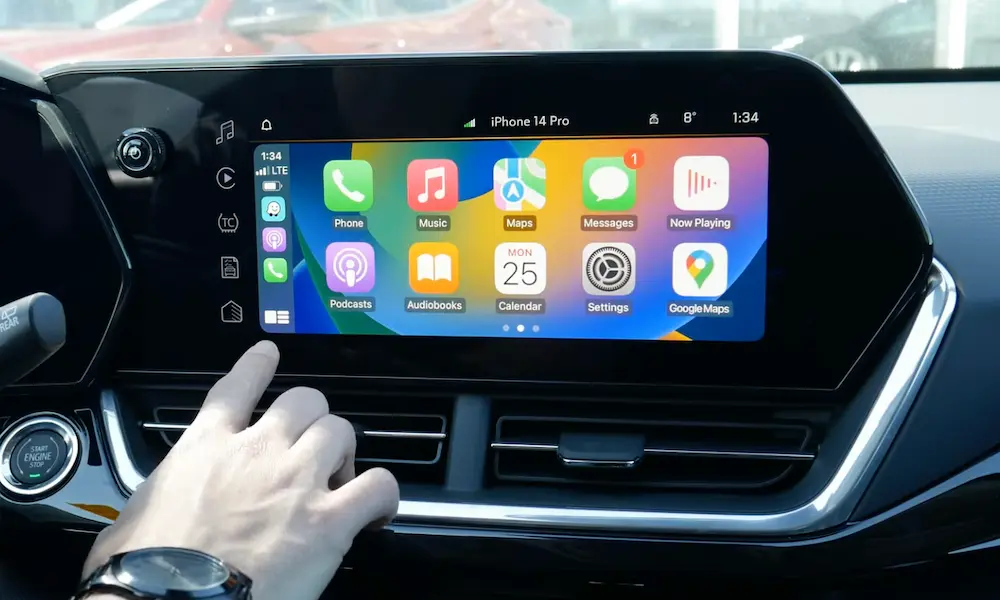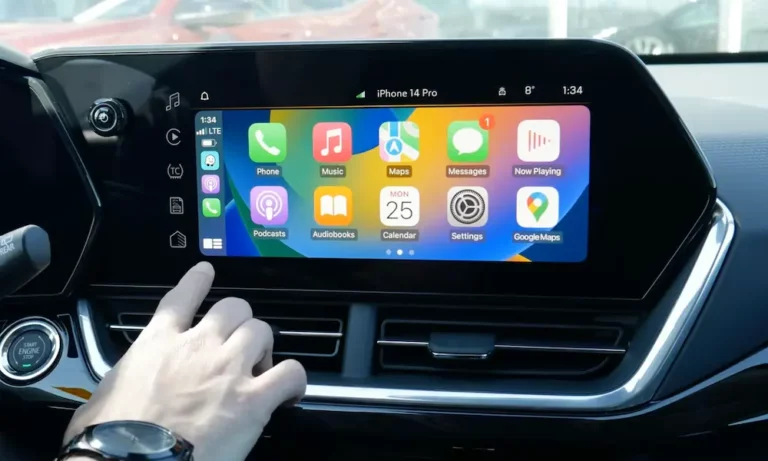
Struggling to get Apple CarPlay working in your GMC? You’re probably staring at a grayed-out icon or a screen that just won’t respond. This guide walks you through every step — wired and wireless — plus the fixes that actually work when things go sideways. Stick around to the end, because the troubleshooting section alone might save you a dealership visit.
First, Check If Your GMC Actually Supports CarPlay
Not every GMC has CarPlay. The feature rolled out starting with 2016 models, so if you’re driving a 2014 or 2015 Sierra or Yukon, your factory system doesn’t support it. Those older HMI modules can’t be updated with a simple software patch.
Here’s a quick look at when CarPlay arrived for each GMC model:
| GMC Model | CarPlay Support Starts | Default Connection |
|---|---|---|
| Canyon | 2016 | Wired USB |
| Sierra 1500 & HD | 2016 | Wired USB |
| Yukon & Yukon XL | 2016 | Wired USB |
| Acadia | 2017 | Wired USB |
| Terrain | 2018 | Wired USB |
| Hummer EV | 2022 | Wireless & Wired |
If your model year isn’t on this list or falls before 2016, you’ll need to look at aftermarket solutions. Everyone else — read on.
What You Need Before You Start
Don’t skip this part. Most CarPlay failures trace back to a missed setting, not a broken system.
On your iPhone:
- iPhone 5 or newer (iOS 14+ required for 2024 and newer GMC models)
- Siri enabled — CarPlay won’t work without it
- “Allow Siri When Locked” turned on
- CarPlay not blocked by Screen Time restrictions
Check your Siri settings: Go to Settings > Siri & Search and make sure both “Listen for Hey Siri” and “Allow Siri When Locked” are toggled on. Then go to Settings > Screen Time > Content & Privacy Restrictions > Allowed Apps and confirm CarPlay is allowed. These two settings cause the majority of connection failures.
For wired connections:
- A certified MFi (Made for iPhone) USB cable — cheap cables can charge your phone but still fail the CarPlay handshake
- Access to a front-row data port (not a rear charging-only port)
How to Connect Apple CarPlay to GMC With a Cable
Wired is the most reliable method. It’s also the easiest place to start if wireless isn’t cooperating.
Step 1: Park the vehicle. GMC requires the car to be in Park during the initial setup.
Step 2: Unlock your iPhone. The system needs the phone unlocked to complete the first handshake.
Step 3: Plug your MFi-certified cable into a data-enabled USB port in the front center stack. Avoid rear passenger ports — those are usually charge-only.
Step 4: Your iPhone will ask: “Allow CarPlay with [Vehicle Name] while locked?” Tap Allow. This keeps CarPlay running even when your screen times out.
Step 5: Watch your GMC screen. A gray “Projection” icon will appear. Once the handshake completes, it turns green and displays “Apple CarPlay.”
Step 6: Tap the Apple CarPlay icon to launch the interface if it doesn’t open automatically.
That’s it. If the icon stays gray or nothing happens, jump down to the troubleshooting section.
How to Connect Apple CarPlay to GMC Wirelessly
Wireless CarPlay is available on select 2020+ GMC models and comes standard on the Hummer EV. It uses a two-step process — Bluetooth first, then Wi-Fi.
Step 1: On your GMC screen, go to Phone > Add Phone (or Pair Device).
Step 2: Open Bluetooth settings on your iPhone and select your vehicle’s name (usually something like “myGMC” or “GMC Sierra”).
Step 3: A six-digit code appears on both screens. Confirm the codes match, then accept the pairing.
Step 4: Once Bluetooth connects, the vehicle automatically triggers a Wi-Fi bridge request. Your iPhone will show a prompt: “Use CarPlay.” Tap it.
Step 5: CarPlay launches on your GMC screen. Your phone can now stay in your pocket or on the wireless charging pad.
After the initial setup, your GMC and iPhone reconnect automatically every time you start the car — no tapping required.
IntelliLink vs. Google Built-In: What’s Different
Your experience varies depending on which infotainment system your GMC runs.
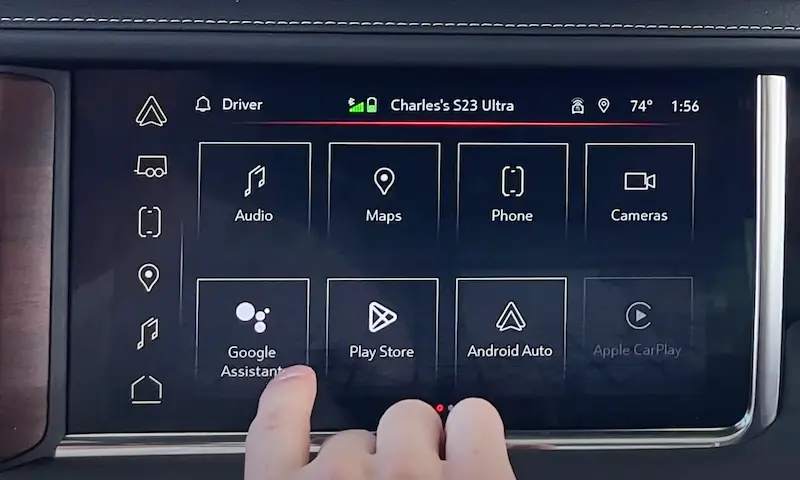
IntelliLink (2016–2021 models): CarPlay works as a projected app. You’ll see a home screen with icons for Audio, Phone, Projection, and Settings. When you press the vehicle’s physical Home button to exit CarPlay, the session keeps running in the background. The Projection icon on the home screen will be replaced by the CarPlay logo while the session is active.
Google Built-In (2022+ models): This system runs Android Automotive as the vehicle’s native OS. It still supports CarPlay fully, but the setup includes a guided Setup Wizard that walks you through connecting accounts and syncing contacts. Newer models with this platform also handle over-the-air firmware updates, so the system stays current without a dealer visit.
One important note for newer trucks: 2024 and later GMC models require iOS 14 or higher for CarPlay to work at all, wired or wireless.
Using Siri and the Steering Wheel Controls
CarPlay is built around voice commands. Your steering wheel’s Push-to-Talk button does two different things depending on how you press it:
- Short press → activates GMC’s native voice recognition
- Long press (2–3 seconds) → bypasses GMC’s system and activates Siri directly
Use the long press for everything CarPlay-related. From there, Siri handles:
- Sending and reading text messages hands-free
- Turn-by-turn directions via Apple Maps, Google Maps, or Waze
- Music, podcasts, and audio apps
- Calendar reminders and scheduling
One heads-up: navigation through CarPlay uses your phone’s cellular data. If you drive through rural areas with spotty coverage, download offline maps before you leave.
CarPlay Not Working? Here’s How to Fix It
Start With a Software Check
Run through this list before touching any hardware:
- Siri is enabled with lock-screen access ✓
- CarPlay isn’t blocked in Screen Time settings ✓
- Go to Settings > General > CarPlay — your vehicle should appear under “My Cars” with “Allow CarPlay While Locked” turned on ✓
Wireless Connection Failing? Check Your VPN
This one trips up a lot of iPhone users. If you run a VPN — especially on iOS 18 — it can block the Wi-Fi bridge that wireless CarPlay depends on. Disconnecting the VPN often isn’t enough. You may need to fully disable or uninstall the VPN app to restore wireless functionality.
The Icon Is Grayed Out and Nothing Works
This usually means the infotainment module needs a full reset — not just a restart. Here’s the process:
| Reset Level | What to Do | When to Use It |
|---|---|---|
| Soft Reset | Hold power/volume knob for ~10 seconds while in Park | First thing to try |
| Forget & Re-pair | Delete the vehicle in iPhone’s CarPlay settings; delete the iPhone from the vehicle’s device list | After a soft reset fails |
| OnStar Sleep Cycle | Turn off the car, open the driver’s door, wait for the OnStar LED on the overhead console to go dark (5–15 minutes) | Persistent grayed-out icons |
| Network Reset | Settings > General > Transfer or Reset iPhone > Reset > Reset Network Settings | Last resort — erases saved Wi-Fi passwords |
The OnStar Sleep Cycle trick works because it fully powers down the HMI and radio modules. When you restart the vehicle, the system cold-boots instead of resuming from a cached state.
Check the Cable and the Ports
If wired CarPlay randomly disconnects or never connects:
- Inspect your cable. Cold winters and hot summers make cable wires brittle over time. If it’s more than a year old and heavily used, try a new MFi-certified cable first.
- Clean the iPhone’s charging port. Lint and debris can prevent a stable data connection even when the phone appears to be charging. Use a can of compressed air.
- Try a different port. Only the front-row ports in the center stack connect to the infotainment system for data. A port in the rear or on the back of the center console is likely charge-only.
Wireless Interference
Wireless CarPlay runs on the 2.4GHz or 5GHz Wi-Fi bands. Dashcams, mobile hotspots, and crowded urban radio environments can cause lag or dropped connections. If wireless performance is inconsistent, switch to a wired connection for reliability. It’s not a step backward — it’s the more stable option in high-interference environments.
CarPlay by GMC Model: Quick Use Notes
Sierra and Canyon owners tend to use CarPlay as a mobile office — dictating messages, managing job-site navigation with Waze, and running logistics hands-free. The deep center console keeps the phone secure and charging during a full work day.
Yukon, Acadia, and Terrain drivers typically use it for family trips. The large center display on the Yukon gives you a clear map view, and multiple USB ports throughout the cabin mean everyone can charge their devices while the driver’s phone runs the CarPlay session.
Hummer EV drivers get the full wireless experience out of the box. The truck’s high-powered processors handle CarPlay alongside native off-road apps and energy management tools without any lag — it’s the smoothest implementation GMC offers right now.
Keep the System Running Smoothly
Update both your iPhone’s iOS and your GMC’s firmware regularly. Newer GMC models receive over-the-air updates automatically — no dealer trip needed. Older IntelliLink models may need updates pushed by a technician.
If you hit a wall and none of these fixes work, Apple’s CarPlay support page and GMC’s official troubleshooting guide are both worth a look before you book a service appointment. Most issues have a software fix — hardware failure is rare.