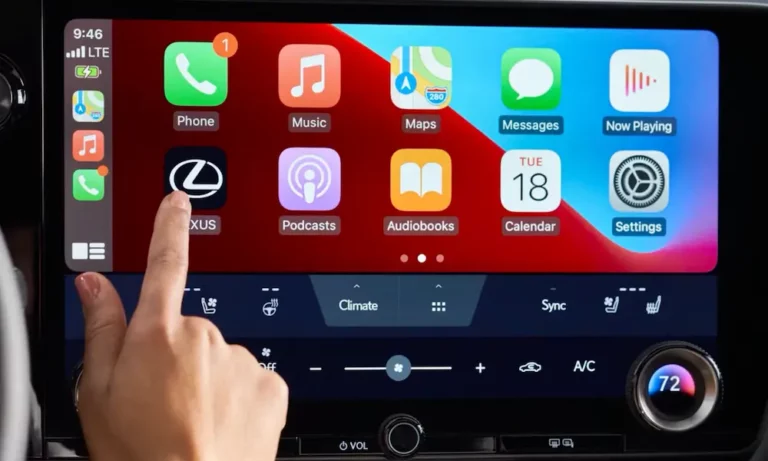
Tangled cables are annoying. Wireless CarPlay fixes that — but the setup trips up a lot of people. If your CarPlay icon is grayed out or your phone just won’t connect, you’re in the right place. This guide walks you through exactly how to connect Apple CarPlay wirelessly, covers every major car brand, and fixes the most common problems. Read to the end — the troubleshooting section alone is worth it.
What You Need Before You Start
Wireless CarPlay isn’t magic. It needs the right conditions to work. Check these off before you touch a single setting.
Your iPhone must be:
- iPhone 8 or newer (iPhone 11 and up works best)
- Running an updated version of iOS
- Have both Bluetooth and Wi-Fi turned on — not just one
Your car must support wireless CarPlay. Over 800 vehicle models in the US now offer it. Check your owner’s manual or look up your trim level online.
Your iPhone settings must have:
- Siri enabled (both “Listen for Hey Siri” and “Press Side Button for Siri”)
- CarPlay allowed under Settings → Screen Time → Content & Privacy → Allowed Apps
- No active VPN (more on this later)
Miss any of these, and the connection will silently fail. You’ll just stare at a grayed-out CarPlay icon wondering what went wrong.
How Wireless CarPlay Actually Works
Here’s the short version: wireless CarPlay uses two radio signals working together, not just one.
| Layer | Protocol | What It Does |
|---|---|---|
| Step 1: Discovery | Bluetooth (iAP2) | Finds your iPhone and starts the handshake |
| Step 2: Authentication | Bluetooth Core | Verifies your device and shares Wi-Fi credentials |
| Step 3: Data | Wi-Fi 5GHz (802.11ac) | Streams video, audio, and touch input |
| Step 4: Display | H.264 Video | Compresses your iPhone screen for the car display |
First, Bluetooth handles the “hello” — it identifies your phone and passes over the Wi-Fi connection details. Then Wi-Fi takes over and does the heavy lifting: streaming your screen at 60 frames per second.
The system uses the 5GHz Wi-Fi band specifically. That’s important. The 2.4GHz band is cluttered with signals from other cars, home routers, and devices. The 5GHz band gives CarPlay the clean, fast channel it needs. If your connection stutters, 5GHz interference is usually the first suspect.
How to Connect Apple CarPlay Wirelessly: The Universal Steps
These steps work for most cars. Manufacturer-specific differences come in the next section.
- Start your car and wait for the infotainment system to fully load
- Press and hold the voice command button on your steering wheel
- On your iPhone, go to Settings → General → CarPlay → Available Cars
- Tap your vehicle’s name when it appears in the list
- Match the PIN shown on both your phone screen and car display, then tap “Pair” on both
- When your iPhone asks “Use CarPlay with [Vehicle]?” — tap “Use CarPlay”
- Grant permission to sync contacts when prompted
That’s it. After the first pairing, your phone auto-joins every time you start the car — no steps needed.
Pro tip: Go into your Wi-Fi settings, find the CarPlay network name, and make sure “Auto-Join” is toggled on. This is the most overlooked step that breaks the “automatic” experience for a lot of people.
How to Connect by Car Brand
The core steps are the same, but each manufacturer’s menu looks different. Here’s how to navigate each system.
Ford (Sync 4 and Sync 4A)
Ford’s Sync 4 system — found in the F-150, Bronco, and Mustang Mach-E — was one of the first to support wireless CarPlay.
If Bluetooth paired but CarPlay didn’t launch automatically:
- Go to the Phone List in Sync 4 settings
- Select your device
- Toggle “Enable CarPlay” to on
Ford also pushes over-the-air “Power-Up” updates that improve CarPlay stability. Keep your Sync software current.
Chevrolet (Infotainment 3)
Chevy’s Silverado, Tahoe, and Bolt use the Infotainment 3 system. Tap the Apple CarPlay icon on the home screen to begin pairing.
If your icon is grayed out after an iOS update, use the “Forget This Phone” method: remove your phone from the car’s Bluetooth list, remove the car from your iPhone’s CarPlay settings, and re-pair from scratch. This fixes the problem most of the time.
Toyota (Audio Multimedia System)
Toyota’s 2023 and newer models use the Toyota Audio Multimedia system. Here’s the path:
Settings (gear icon) → Bluetooth & Devices → Add Another Device
Toyota may prompt you to link your Toyota account during setup. This adds connected services on top of CarPlay — it’s optional but worth doing.
Jeep, Ram, Dodge (Uconnect 5)
Uconnect 5 is fast and handles wireless CarPlay and Android Auto simultaneously. To pair:
Phone → Add Device
Uconnect 5 lets you designate a “primary” phone. If multiple phones enter the car, it connects to the primary automatically. You can also view climate controls inside the CarPlay interface — no need to switch screens.
Honda (Display Audio)
Honda’s Civic, Accord, and CR-V use a “Smartphone Connection” menu. The most important step: when Honda asks if CarPlay should launch “Once” or “Always” — pick “Always.” This one setting determines whether you ever have to manually connect again.
Wireless CarPlay vs. Wired: Which Is Actually Better?
Wireless is more convenient. Wired is more reliable. Here’s the honest breakdown:
| Metric | Wired CarPlay | Wireless CarPlay |
|---|---|---|
| Audio Quality | Lossless (CD quality) | High-quality AAC (compressed) |
| Latency | Near zero | 500ms to 2,000ms |
| Connection Speed | Instant | 10–30 seconds to boot |
| Stability | 100% with a good cable | ~95% (interference is a factor) |
| Battery Impact | Charges while connected | Drains faster; heat can be an issue |
If you drive in hot states like Arizona or Texas, watch out for overheating. Running wireless CarPlay plus wireless charging together generates serious heat. An overheated iPhone will dim its screen or shut down entirely to protect the battery. On long summer trips, a quality wired MFi cable keeps things cooler and more stable.
No Wireless CarPlay in Your Car? Use an Adapter
If your car has wired CarPlay but not wireless, a wireless adapter gives you the upgrade without buying a new car.
These dongles plug into your car’s USB port. Your car thinks it’s talking to a wired iPhone. The adapter handles the wireless connection to your phone instead.
Popular options:
| Brand | Wi-Fi Band | Best For |
|---|---|---|
| CarlinKit | 5.8GHz | Stability and auto-updates |
| Ottocast | Dual-core | Fast boot, multi-phone support |
| GetPairr | Standard | Affordable entry point |
Setup is simple: plug in the adapter, pair your iPhone to the adapter’s Bluetooth signal, and CarPlay launches on your screen. Expect a slight 1–2 second delay compared to native wireless — that’s the trade-off for going cord-free in an older car.
Fixing Wireless CarPlay Problems
CarPlay Won’t Connect At All
Start with the basics:
- Turn Bluetooth and Wi-Fi off and back on (don’t use Airplane Mode — it kills both)
- Restart your iPhone
- Restart the car’s infotainment system
- Check that Siri is enabled — CarPlay won’t launch without it
Your VPN Is Probably the Problem
This trips up a huge number of people. A VPN routes all your phone’s traffic through a remote server, which blocks the local Wi-Fi handshake CarPlay needs. Go to:
Settings → General → VPN & Device Management
Turn every VPN off. If you use NordVPN or ExpressVPN, fully close the app — some VPNs run background processes that interfere even when the toggle looks off.
CarPlay Keeps Disconnecting
The 5GHz signal is sensitive to physical interference. Your own body absorbs it. If your phone sits in your back pocket or in a bag on the floor, the signal degrades. Fix:
- Place your phone in a center console slot or mount
- Remove any nearby electronics (dash cams, radar detectors) that compete on the same frequency band
- Use the “Forget This Car” method to force a fresh handshake — this fixes about 40% of disconnection issues
Gray Icon After an iOS Update
This is common and easy to fix. Go into your car’s Bluetooth list and delete your iPhone. Then go to your iPhone’s CarPlay settings and delete the car. Re-pair both from scratch. The fresh security handshake almost always clears it up.
Check Your Cable Quality (Yes, Even for Wireless Setup)
This sounds counterintuitive, but even wireless CarPlay sometimes needs a wired connection for the initial pairing. Many cheap cables are charge-only — they don’t have data pins. Buy an MFi-certified cable that supports USB 2.0 data transfer (480 Mbps minimum). iPhone 15 and newer users need a USB-A to USB-C cable — check that it’s data-capable, not just a charging cable.
What’s Coming: CarPlay Ultra
CarPlay Ultra goes well beyond the center screen. It takes over the speedometer, fuel or battery gauge, and climate controls — all customizable from your iPhone. It’s wireless-first by design and will roll out across new models in the coming years.
For EV drivers, CarPlay already monitors your battery level in real time when wirelessly connected. Apple Maps automatically suggests charging stops along your route and shows your estimated battery percentage on arrival. That feature alone makes a rock-solid wireless connection more important than ever.
Quick-Reference Checklist
Before you troubleshoot anything complicated, run through this list:
- ✅ Bluetooth is on
- ✅ Wi-Fi is on
- ✅ Siri is fully enabled
- ✅ CarPlay is allowed in Screen Time settings
- ✅ Auto-Join is enabled for the CarPlay network
- ✅ VPN is off
- ✅ Phone is placed where the 5GHz signal isn’t blocked
- ✅ iOS is up to date
- ✅ Your car supports wireless CarPlay (not just wired)
Run through that list first. Most wireless CarPlay problems trace back to one of those nine things — and most of them take under 30 seconds to fix.