Trying to figure out how to connect your Hyundai to CarPlay but hitting a wall? You’re in the right place. Whether your Hyundai uses a wired setup or supports wireless connection, this guide walks you through every step. Stick around — there’s also a solid troubleshooting section for when things don’t go as planned.
Does Your Hyundai Support Apple CarPlay?
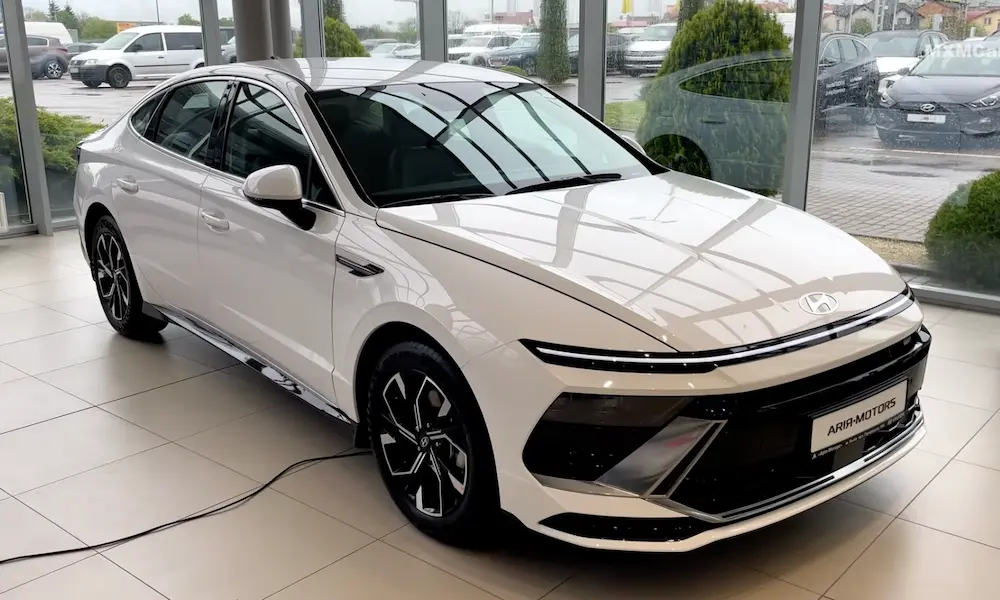
Before you start, confirm your Hyundai actually supports CarPlay. Hyundai first introduced CarPlay on the 2015 Sonata, then rolled it out aggressively from 2016 onward.
Here’s a quick look at how Hyundai expanded CarPlay over the years:
| Model Year | Key Models | Connection Type |
|---|---|---|
| 2015 | Sonata | Wired |
| 2016 | Elantra GT, Tucson, Genesis | Wired |
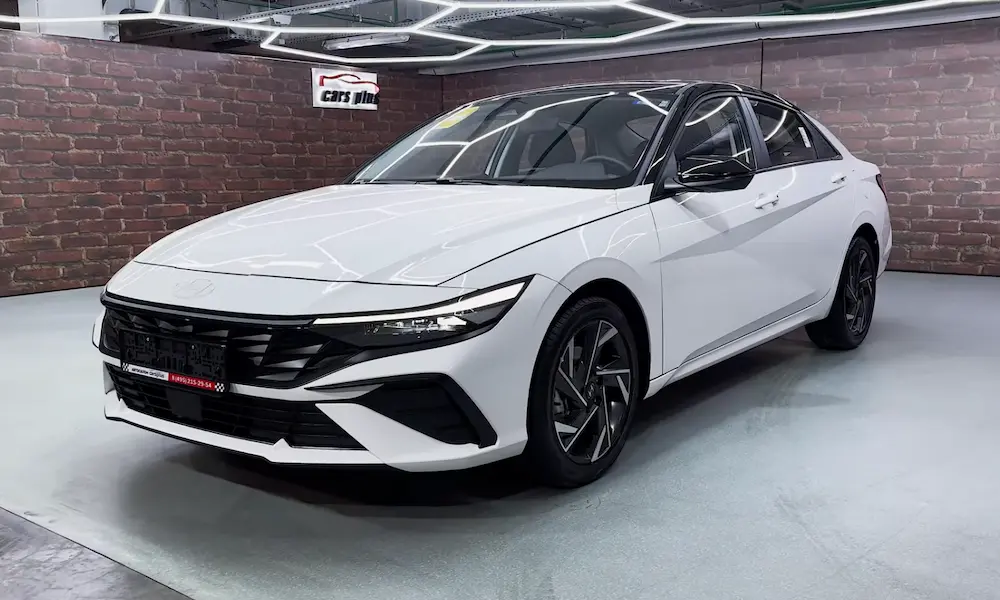
| 2017 | Santa Fe, Ioniq, Elantra | Wired |
| 2018 | Accent, Kona | Wired |
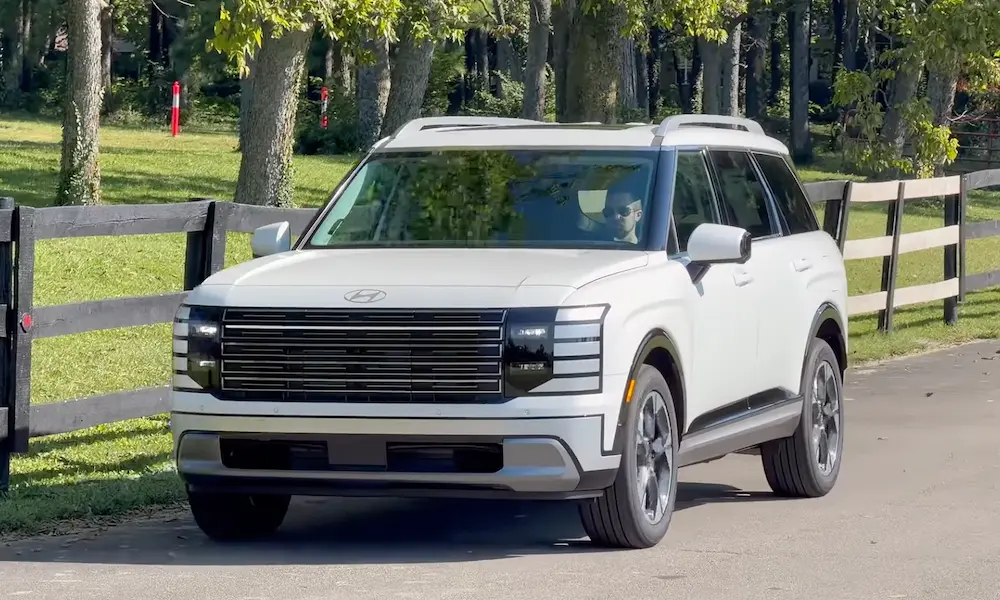
| 2020 | Palisade, Venue | Wired |
| 2021 | Santa Fe, Tucson (select trims) | First Wireless |
| 2024 | Kona, Ioniq 6 | Wireless (ccNC) |
| 2025 | Ioniq 5, Kona | Standard Wireless |
If your Hyundai is a 2015 or newer, you almost certainly have CarPlay. Older firmware may need an update — more on that below.
What You Need Before You Connect
Don’t skip this part. A few wrong assumptions here cause most CarPlay headaches.
For wired connection:
- An Apple-certified (MFi) Lightning or USB-C cable
- iPhone running iOS 7.1 minimum (iOS 14+ recommended)
- Access to the front USB data port — not a rear charge-only port
For wireless connection:
- iPhone 5 or later with iOS 9+
- A Hyundai with a Display Audio unit or the newer ccNC system
- Bluetooth and Wi-Fi both enabled on your iPhone
One thing people get wrong constantly: using a cheap cable. If your cable isn’t MFi-certified, you’ll get “Device Not Supported” errors or constant dropouts. Spend the extra few dollars on an Apple cable or a reputable MFi-certified brand.
Also, note that the iPhone 15 and newer use USB-C. Newer Hyundai ccNC systems use USB-C ports too, so you’ll need a USB-C to USB-C cable for a stable wired link.
How to Connect Hyundai to CarPlay: Wired Setup
This method works across all Hyundai systems — old or new.
Step 1: Start your car and let the infotainment screen fully load.
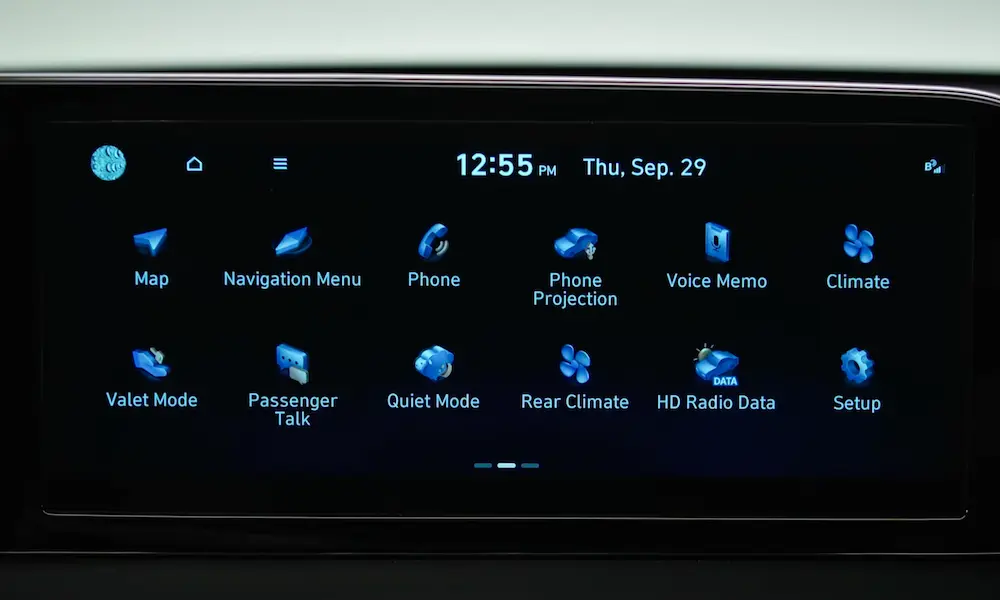
Step 2: On the Hyundai home screen, go to Setup → Connectivity (sometimes labeled “Phone Projection”). Make sure Apple CarPlay is toggled On.
Step 3: Plug your Apple-certified cable into the front USB data port and your iPhone.
Step 4: Your iPhone will show a prompt: “Allow CarPlay with ‘Hyundai’ while phone is locked?” Tap Allow. If you skip this, CarPlay drops every time your screen locks.
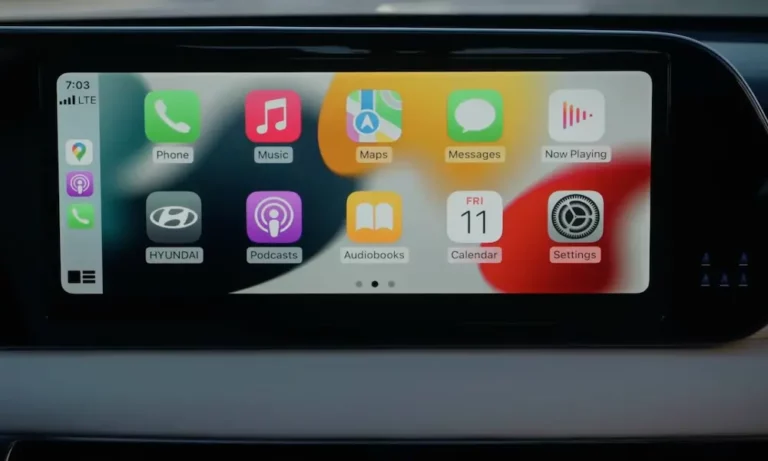
Step 5: Back on the Hyundai screen, tap the green CarPlay icon on the home screen. You’re in.
That’s the complete wired setup. Takes about 30 seconds once you’ve done it once.
How to Connect Hyundai to CarPlay: Wireless Setup
Wireless CarPlay uses a Bluetooth + Wi-Fi handshake. Here’s exactly how that process works:
- Bluetooth discovers and pairs the devices
- A verification code confirms both devices match
- The system switches to a peer-to-peer Wi-Fi link (5GHz band) for the actual streaming
- Bluetooth stays active in the background for calls and metadata
Here’s the step-by-step:
Step 1: On the Hyundai home screen, go to Settings → Phone Connections → Add New.
Step 2: On your iPhone, open Settings → Bluetooth and select your vehicle’s name from the list.
Step 3: Confirm the numeric code on your iPhone matches the one on the car screen. Tap to confirm on both.
Step 4: Your iPhone will ask: “Use CarPlay?” Tap Use CarPlay. Agree to any prompts on the vehicle screen.
Step 5: The screen transitions to CarPlay automatically. Next time you get in the car, it reconnects on its own within 5–10 seconds.
Quick note on wireless CarPlay and older Hyundai nav units: From 2021–2023, there was a quirky situation where lower-tier Display Audio units had wireless CarPlay, but the premium 10.25-inch navigation units didn’t. That’s been fixed in the newer ccNC architecture, but if you have a 2021–2023 nav-equipped Hyundai and can’t get wireless to work, that’s likely why.
How to Update Your Hyundai’s Infotainment Firmware
Outdated firmware breaks CarPlay. Hyundai releases updates twice a year, and skipping them causes compatibility issues whenever Apple pushes a new iOS version.
You can grab updates yourself at update.hyundai.com without visiting a dealership. Here’s what that process looks like:
| Update Step | What You Need | Key Detail |
|---|---|---|
| Prepare a USB drive | 32GB or 64GB, USB 3.0 | Format as exFAT or FAT32 |
| Download the updater | Hyundai Navigation Updater tool | Stable internet — files can exceed 20GB |
| Install in the car | Engine must be running | Don’t turn off the car mid-install (~15 min) |
| Verify the update | Check SW Version in General Settings | Match version numbers to the release notes |
A big June 2024 update for Display Audio Gen2V systems specifically improved wireless CarPlay stability and fixed persistent disconnection bugs. If you’re on an older firmware and struggling with wireless drops, this update likely solves it.
Troubleshooting: When CarPlay Won’t Connect
Here’s a quick breakdown of the most common issues and their fixes:
| Symptom | Probable Cause | Fix |
|---|---|---|
| “Device Not Supported” | Non-certified cable | Swap for an MFi-certified Apple cable |
| CarPlay icon won’t appear | Projection disabled | Setup → Connectivity → Enable CarPlay |
| Frequent wireless drops | Wi-Fi cache or interference | Reset Network Settings on your iPhone |
| No audio from apps | Media source conflict | Check volume; toggle steering wheel mute |
| Blank screen on connect | Firmware bug | Use the pinhole soft reset |
The Pinhole Reset (Your Best Friend)
If your screen freezes or stops recognizing USB inputs, don’t panic. Most Hyundai models have a recessed pinhole reset button that reboots the infotainment system without wiping your data.
- Elantra/Sonata: Near the volume knob or Setup button
- Tucson/Santa Fe: Next to the tuning knob or screen bezel
- Palisade: Below the screen near physical media controls
Use a paperclip, press and hold for 2–3 seconds with the ignition on. The screen goes black, the Hyundai logo appears — you’re good. This method is also documented by NHTSA as part of Hyundai’s official AVN pinhole reset service procedure.
Factory Reset (Last Resort)
If CarPlay settings are greyed out or the Phone Projection menu has vanished entirely, go to Setup → General → Reset. Fair warning: this wipes saved addresses, Bluetooth devices, and radio presets. Use it only when everything else fails.
Using Siri With Your Hyundai’s Steering Wheel
Here’s something most Hyundai owners don’t know: the voice button on your steering wheel does double duty.
- Short press: Activates Hyundai’s native voice system
- Long press (2 seconds): Activates Siri via CarPlay
For Siri to work reliably, check these iPhone settings under Siri & Search:
- “Listen for ‘Hey Siri'” — On
- “Press Side Button for Siri” — On
- “Allow Siri When Locked” — On
If any of these are off, you’ll get a “Siri is not available” error on the head unit. Also, keep the car’s microphone (typically near the rearview mirror) clear of dashboard covers — high fan speeds from climate control can already make it harder for Siri to hear you clearly.
Customizing CarPlay on Your Hyundai Screen
CarPlay isn’t just a mirror of your phone — you can customize the layout. On your iPhone, go to Settings → General → CarPlay → [Your Car] → Customize.
From there, rearrange or remove apps. If you use Google Maps or Waze daily, move them to position one for quick access while driving.
A few other tweaks worth making:
- Dark Mode: Set it to “Always On” if you drive in bright sunlight regularly — especially useful in southern states where screen glare is a real issue
- Driving Focus: Configure it to activate automatically on CarPlay connection. It silences text notifications so you stay focused
What’s Coming Next for Hyundai CarPlay
iOS 26 brings a “Liquid Glass” visual redesign to CarPlay — translucent, rounded elements that match the iPhone 17 aesthetic. Older Hyundai units will get backward-compatible versions of these updates, but the full experience will favor ccNC hardware with USB-C ports due to the higher bandwidth these animations demand.
For Ioniq 5 and Ioniq 6 owners, future CarPlay updates are expected to bring real-time EV charging station data and multi-stop routing with up to 15 stops directly inside Apple Maps on your car’s screen. That’s a major win for long-distance EV drivers juggling multiple apps right now.
Keep your firmware updated at update.hyundai.com and your iOS current — that’s the simplest way to make sure you don’t miss these improvements when they roll out.