
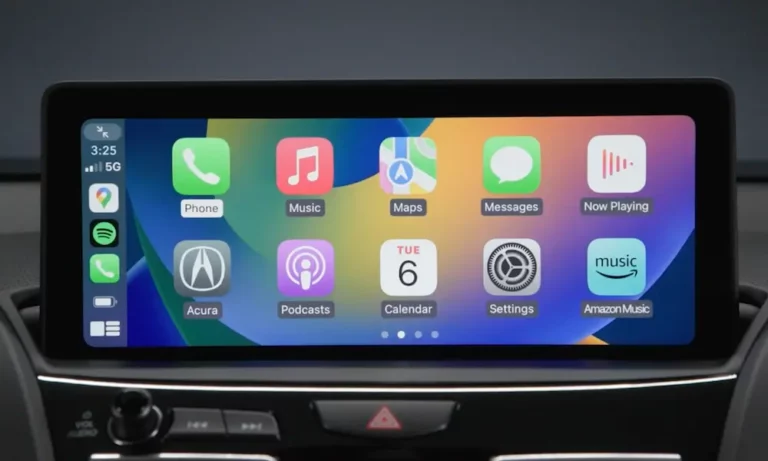
CarPlay keeps connecting when you don’t want it to. Maybe it’s distracting, a privacy concern, or you just returned a rental car. Whatever your reason, you can fix this in minutes. This guide covers every way to disable CarPlay on your iPhone — from a quick unpair to a full system-wide block. Read to the end so you don’t miss the one that fits your situation.
Why You Might Want to Turn Off CarPlay
CarPlay is handy — until it isn’t. Here are the most common reasons people want it gone:
- Privacy: CarPlay syncs your contacts, recent calls, and navigation history to the car’s memory. That’s a problem in rental cars.
- Distraction: Some drivers find the secondary screen more distracting than helpful.
- Work phones: IT departments often need CarPlay blocked on company devices.
- Sold or returned a vehicle: You don’t want your old car reconnecting to your phone.
There’s no single “off switch” that covers every scenario. Let’s go through all your options.
How to Completely Disable CarPlay on iPhone Using Screen Time
This is the most thorough method. It blocks CarPlay across every vehicle, not just one specific car.
Here’s how to do it:
- Open Settings on your iPhone.
- Tap Screen Time.
- Tap Content & Privacy Restrictions and toggle it On if it’s not already.
- Tap Allowed Apps.
- Find CarPlay and toggle it Off (it’ll turn gray).
That’s it. Your iPhone will stop initiating CarPlay sessions with any vehicle.
What still works after this? Standard Bluetooth features like hands-free calling and music streaming continue to work fine, as long as your car supports them independently of CarPlay.
One more thing to know: when this restriction is active, the CarPlay entry disappears entirely from Settings > General. That’s your confirmation it worked. To undo it, go back into Screen Time and flip the toggle — you’ll likely need your Screen Time passcode to get back in.
This method works well for parents of teen drivers or corporate fleet managers who need a hands-off enforcement tool.
How to Disconnect CarPlay From One Specific Car
You don’t always want to nuke CarPlay entirely. Sometimes you just need to remove one vehicle — like a car you sold or a rental you’re returning.
Here’s how to forget a specific car:
- Open Settings > General > CarPlay.
- Under My Cars, tap the vehicle you want to remove.
- Tap Forget This Car.
This deletes the stored connection profile and cryptographic keys for that vehicle. Your phone won’t try to reconnect when you’re near it again.
Don’t Stop There — Clean Up Bluetooth Too
Deleting the CarPlay profile alone often isn’t enough. The car’s head unit still remembers your phone.
Do these extra steps for a clean break:
- Go to Settings > Bluetooth, find the car’s name, tap the ⓘ icon, and select Forget This Device.
- If you used wireless CarPlay, go to Settings > Wi-Fi, find the car’s network, tap ⓘ, and turn off Auto-Join.
This stops your iPhone from constantly scanning and re-triggering the CarPlay handshake every time you’re near the vehicle.
Quick Reference: Which Action Fits Your Situation
| Situation | What to Do |
|---|---|
| Returning a rental car | Settings > General > CarPlay > Forget This Car |
| Selling your personal vehicle | Forget car in CarPlay AND Bluetooth menus; reset head unit |
| Blocking CarPlay on all cars | Screen Time > Allowed Apps > CarPlay (Off) |
| Temporary disconnect | Toggle Wi-Fi off in Settings (not Control Center) |
| IT-managed work phone | Contact your admin — it’s controlled via MDM |
How to Turn Off CarPlay From Your Car’s Dashboard
Disabling CarPlay works both ways. Your car’s infotainment system can block it too. Here’s how it works on the most common US brands.
Ford SYNC 3 and SYNC 4
On SYNC 3, go to Settings > Apple CarPlay Preferences and select the device to disable.
On SYNC 4 (found in the F-150, Mustang Mach-E, and others), the path is Settings > Phone List > select your iPhone > Disable. Your phone stays connected via Bluetooth for calls and audio — CarPlay just won’t launch.
Toyota Entune and Audio Multimedia
Older Toyota systems (Entune 3.0): Setup > Projection Settings > Apple CarPlay > Off.
Newer 2022+ Toyota Audio Multimedia: look under Bluetooth & Devices or Smartphone Connection. Some Toyota models also require you to disable the head unit’s Wi-Fi hotspot to prevent wireless CarPlay from reconnecting on its own.
Honda, GM, and Others
| Brand | System | Path to Disable CarPlay |
|---|---|---|
| Honda | Display Audio | Settings > Smartphone Connection > CarPlay > Disable |
| Chevrolet/GMC/Cadillac | Infotainment 3 | Settings > Apps > Apple CarPlay > Toggle Off |
| BMW | iDrive 7/8 | Communication > Mobile Devices > Disconnect |
| Toyota | Audio Multimedia | Setup > Projection Settings > CarPlay > Off |
| Ford | SYNC 4 | Settings > Phone List > iPhone > Disable |
Stop CarPlay From Launching When Your Phone Is Locked
There’s a specific setting that controls whether CarPlay launches automatically when your phone is plugged in while locked.
Find it at Settings > General > CarPlay > your vehicle > Allow CarPlay While Locked. Turn that off, and the CarPlay interface won’t take over the dashboard until you unlock your phone first.
This is a smart setting for anyone who parks their car but doesn’t want navigation or messages displayed on the screen.
Use a Charge-Only Cable to Block CarPlay Permanently at the Hardware Level
CarPlay depends on the data pins inside your USB cable. A charge-only cable skips those pins entirely. Plug it in, your phone charges, and CarPlay never starts.
This is one of the easiest hardware fixes. No settings to change, no profiles to delete.
Also worth knowing: in most SUVs and minivans, only the front dashboard USB ports support CarPlay data. Plug into a rear-seat port or use a 12V adapter instead, and CarPlay simply won’t activate.
Protect Your Privacy With USB Restricted Mode
If privacy or security is your main concern, this setting is important. It’s called Wired Accessories (previously USB Restricted Mode), and it lives under Settings > Face ID & Passcode.
Scroll down to Allow Access When Locked and find the Accessories toggle.
When this is Off, your iPhone won’t talk to a car’s head unit unless you’ve unlocked your phone within the last hour. After that window closes, the car needs your Face ID or passcode to access your phone’s data.
This matters if your phone is lost or stolen, but it also means CarPlay won’t auto-connect to a car without your active approval. Standard power-only charging still works fine.
Wireless CarPlay: Three Fast Ways to Kill the Connection
Wireless CarPlay uses Bluetooth to initiate the handshake, then switches to peer-to-peer Wi-Fi for streaming. You can interrupt either step.
- Turn off Wi-Fi in Settings (not Control Center — that only disconnects, it keeps the radio active). This kills the data stream CarPlay needs.
- Enable Airplane Mode for the fastest cut when you need to disconnect in a hurry.
- Forget the car’s Bluetooth device under Settings > Bluetooth. No Bluetooth handshake means no CarPlay session starts at all.
What iOS 26 Changed for CarPlay Management
iOS 26 introduced the “Liquid Glass” interface for CarPlay and a bigger customization menu under Settings > General > CarPlay > your vehicle > Customize. You can now remove Ambient Music, Weather, and Calendar from the CarPlay home screen individually.
iOS 26.4 added support for voice-based AI chatbot apps inside CarPlay. If you’d rather not have those running, go to the Customize menu and tap the red minus (-) icon next to any AI app you want removed.
Fix CarPlay Connection Loops After an iOS Update
Some iOS 18 and iOS 26 updates caused “ghost connection” bugs where CarPlay wouldn’t fully disconnect. If that’s happening to you, try this fix: go to Settings > General > About > Name and rename your iPhone. Changing the device name forces your car’s head unit to treat your phone as a new, unrecognized device — which clears the stuck connection profile.
Privacy Risks in Rental Cars (and How to Handle Them)
When you connect via CarPlay, your contacts, recent calls, and navigation history can get stored in the car’s memory. That data sits there for the next renter.
Before you hand back the keys, do this:
- Use a charge-only cable if you don’t need CarPlay at all.
- Tap Forget This Car in Settings > General > CarPlay.
- Use the car’s built-in Factory Reset or Delete All Personal Data option in its settings menu.
That three-step process clears your data from both sides of the connection.
Quick Strategy Guide: Picking the Right Method
| Goal | Best Method |
|---|---|
| Block CarPlay on every car permanently | Screen Time > Allowed Apps > CarPlay Off |
| Remove one specific vehicle | Settings > General > CarPlay > Forget This Car |
| Stop auto-launch when phone is locked | Allow CarPlay While Locked > Off |
| Hardware block while still charging | Use a charge-only USB cable |
| Protect data if phone is lost or stolen | Settings > Face ID & Passcode > Accessories Off |
| Fix a stuck connection after iOS update | Rename iPhone in Settings > General > About |
| Kill wireless CarPlay instantly | Enable Airplane Mode |
Knowing how to disable CarPlay on iPhone isn’t about rejecting the technology — it’s about controlling when and how it runs. Whether you’re handing back a rental, managing a work fleet, or just want fewer things fighting for your attention on the road, these settings put you back in the driver’s seat.


