Your phone won’t connect to CarPlay, and it’s driving you nuts. You’ve tried unplugging and replugging the cable a dozen times. Still nothing. The good news? Most CarPlay connection failures have a clear cause — and a clear fix. Read through this guide, and you’ll almost certainly find your answer.
Start Here: The Fastest Fixes to Try First
Before diving deep, run through this quick checklist. These five steps fix the majority of CarPlay problems in under two minutes.
- Restart both your iPhone and your car’s infotainment system
- Try a different USB port — many cars only have one data-enabled port
- Toggle Bluetooth and Wi-Fi off, then back on
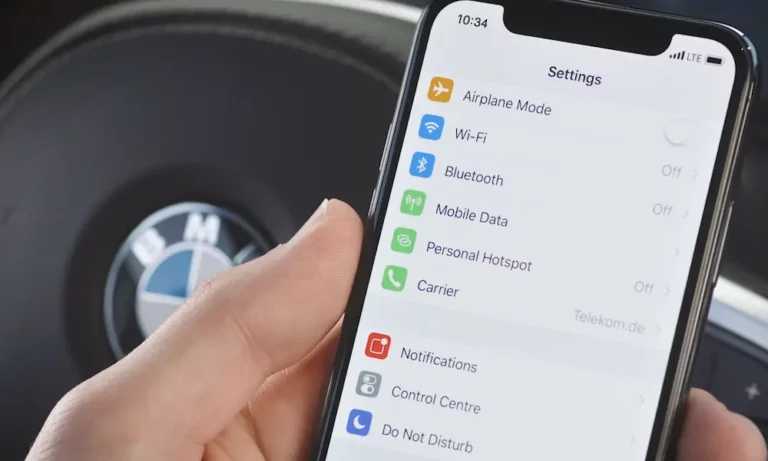
- Check that Siri is enabled (Settings → Siri & Search)
- Make sure CarPlay isn’t restricted (Settings → Screen Time → Content & Privacy)
If none of those work, keep reading. The fix is in here.
Your Cable Is Probably the Problem
Here’s a stat that’ll surprise you: roughly 40–50% of all CarPlay connection failures trace back to the cable or the USB port — not the phone, not the car.
The sneaky culprit? Charge-only cables. These cables deliver power just fine, so your iPhone shows it’s charging. But the car’s head unit sees nothing, because the cable is missing the internal data wires needed to start the CarPlay handshake.
What to look for in a good cable:
- MFi-certified or Apple OEM original
- Under 1 meter (3.3 feet) in length — longer cables cause signal drop
- Direct USB-C to USB-C or USB-C to USB-A (avoid adapter chains)
- Physically clean connector with no pocket lint in your iPhone’s port
If you’re on an iPhone 15, 16, or 17, you’re using USB-C. Many people grab a random USB-C cable and assume it works — but cheap, non-certified cables often skip the data wiring entirely.
Also, check which USB port you’re plugging into. In many GM vehicles, only the front dashboard port connects to the infotainment data bus. Rear passenger ports and ports marked with a battery icon are power-only — they’ll charge your phone but won’t launch CarPlay.
| Cable Issue | What You’ll See |
|---|---|
| Charge-only cable (no data wires) | Phone charges, CarPlay icon is grayed out |
| Cable over 1 meter long | Intermittent drops, slow connection |
| Dirty or bent connector | Disconnects every time you hit a bump |
| Third-party adapter in the chain | Total incompatibility with head unit |
Wireless CarPlay: Why It’s More Complicated Than You Think
Wireless CarPlay isn’t just Bluetooth. It actually runs on two radios at once. Bluetooth handles the initial handshake, then the system switches to a 5GHz Wi-Fi connection to stream maps, audio, and touch responses. If either radio stumbles, the whole connection fails.
Your Other Wi-Fi Connections Are Interfering
This trips up a lot of people. If your iPhone is still connected to your home router when you pull out of the driveway, it may refuse to switch over to the car’s CarPlay network. The result is a “Connection Failed” message that has nothing to do with your car.
Quick fix: Before you get in the car, forget your home Wi-Fi network temporarily, or simply toggle Wi-Fi off and back on to force your phone to look for a fresh connection.
Other things that kill wireless CarPlay signals:
- Metal center consoles or gloveboxes — these attenuate the 5GHz signal significantly
- Radar detectors — they create localized radio interference
- Wireless phone chargers with active Wi-Fi management — these compete directly with CarPlay’s frequency
- Portable hotspots left on in your bag — your phone tries to connect to those instead
| Wireless Connection Stage | Radio Used | Common Failure |
|---|---|---|
| Discovery | Bluetooth Low Energy | Bluetooth disabled on phone or car |
| Authentication | Bluetooth + WPA2/WPA3 | MAC address rotation causes mismatch |
| Data streaming | 5GHz Wi-Fi | Competing home or dashcam network |
| Session maintenance | Dual-band sync | Interference from radar detector or hotspot |
Your iPhone Settings Are Blocking CarPlay
This is the most overlooked category of fixes. CarPlay isn’t a standalone app — it’s a service layer built into iOS core, which means it depends on several other settings being switched on.
Siri Must Be On
Apple designed CarPlay as a eyes-on-the-road, hands-free interface. If Siri is disabled — or if “Allow Siri When Locked” is off — your iPhone won’t launch CarPlay at all. Check both:
- Settings → Siri & Search → Listen for “Siri” (on)
- Settings → Siri & Search → Allow Siri When Locked (on)
Screen Time May Be Hiding CarPlay
After a software update, or on a corporate device, Screen Time restrictions can make CarPlay invisible to your car. The vehicle reports “no compatible device found” — even though the cable is perfect.
Check here: Settings → Screen Time → Content & Privacy Restrictions → Allowed Apps → CarPlay (must be on)
The iOS Private Wi-Fi Address Problem
iOS 18 introduced a feature that rotates your device’s Wi-Fi hardware identifier periodically to prevent tracking. It’s great for privacy. It’s annoying for CarPlay. Your car stores a security certificate tied to your phone’s identifier. When that identifier rotates, the car doesn’t recognize the “new” device and blocks the connection.
Fix: On your iPhone, go to Settings → Wi-Fi → tap the car’s network → toggle Private Wi-Fi Address off. Then “Forget This Car” in your CarPlay settings and re-pair.
Your VPN Is Quietly Breaking Everything
Nearly 30% of unexplained wireless CarPlay failures in 2025–2026 come from active VPN profiles — even when users think the VPN is off.
CarPlay needs a direct, local connection to your car’s Wi-Fi network. A VPN intercepts all network traffic and reroutes it through a remote server. The car becomes invisible to your phone.
The tricky part: even after you disconnect inside the VPN app, the underlying iOS system profile may still be active. You need to go to Settings → General → VPN & Device Management and disable the profile there.
If you’re using a work-issued iPhone, your company’s Mobile Device Management (MDM) profile might enforce an always-on VPN or restrict Bluetooth pairing. In that case, you’ll need your IT department to create an exception — there’s no workaround on your end.
Why Won’t My Phone Connect to CarPlay After an iOS Update?
iOS 26 introduced the “Liquid Glass” design, which uses translucent, animated graphics that demand significantly more processing power and bandwidth than older CarPlay interfaces. Vehicles made before 2022 may struggle to render it, producing black screen errors that look like connection failures but are actually rendering crashes.
iOS 26.4 also added AI assistant integration — ChatGPT and Gemini inside CarPlay — which requires specific low-latency data handling on the USB or Wi-Fi bus. Cars that haven’t updated their firmware to support these new packet types may freeze when you try to use voice AI features.
Quick fix for post-update failures: Reset your iPhone’s Network Settings (Settings → General → Transfer or Reset iPhone → Reset → Reset Network Settings). This clears corrupted Wi-Fi profiles that often break CarPlay after major iOS updates.
Your Specific Car Brand Matters
Every manufacturer runs a different infotainment operating system, and each has its own quirks.
Ford (SYNC 3 and SYNC 4)
Ford’s SYNC modules are prone to “module freeze” — the system gets stuck in a background process and stops recognizing connected devices. Ford’s fix: hold the Power button + Skip Forward button simultaneously for 10 seconds. This reboots the communication stack without erasing your radio presets.
General Motors (Chevrolet, GMC, Cadillac)
GM vehicles have a “Retained Accessory Power” (RAP) system that keeps the infotainment running after you turn off the engine. To fully reset the module: turn off the car, open and close the driver’s door, then wait up to 15 minutes for the OnStar LED on the overhead console to go dark. That full power-down clears the cached device list and lets your iPhone register as new.
Important note for GM EV owners: If you drive a Blazer EV or Silverado EV, CarPlay is not available at all. GM removed CarPlay from these models in favor of a proprietary Android Automotive system. No amount of troubleshooting will bring it back — it’s a manufacturer-level decision.
Toyota (RAV4, Camry, Tacoma 2025–2026)
Toyota’s newest Audio Multimedia System relies on cloud-connected firmware updates. A pending update can cause “flaky” CarPlay behavior until it installs. Check here in your car: System menu → Software Information → check for available updates.
Audi and Mercedes-Benz
Premium European vehicles sometimes need a Terminal 30 Reset to clear deep firmware errors. This NHTSA technical service bulletin outlines the procedure — it involves pulling specific fuses for the infotainment and connectivity modules to force a complete cold start. This clears errors that a standard software reboot can’t reach. It’s advanced, so check your owner’s manual or a dealership before pulling fuses.
| Car Brand | System | Best Reset Method |
|---|---|---|
| Ford | SYNC 3/4 | Hold Power + Skip Forward for 10 seconds |
| Chevrolet/GMC | Infotainment 3/4 | Off + open/close door + wait 15 min |
| Toyota | Multimedia System | System menu → Software Update |
| Infiniti | InTouch | Hold Volume Knob for 10 seconds |
| Chrysler/Jeep | Uconnect 5 | Reset network settings in Phone menu |
| Audi | MIB 3 | Terminal 30 Reset (fuse pull) |
One More Weird Culprit: Your Car Battery
This one surprises people. If your car’s battery is aging and dropping voltage while the engine idles, the vehicle’s Power Distribution Module may shed non-essential electrical loads — including the infotainment system. CarPlay drops out, especially when seat heaters or other heavy loads are running.
If your CarPlay keeps disconnecting in cold weather or when accessories are active, get your battery tested. A failing battery is sometimes the unexpected solution to what looks like a software problem.
The Deep Reset That Fixes Almost Everything Else
If you’ve tried everything above and your phone still won’t connect to CarPlay, here’s the most thorough software fix available without visiting a dealer.
On your iPhone:
Settings → General → Transfer or Reset iPhone → Reset → Reset Network Settings
This wipes all cached Wi-Fi passwords, stale Bluetooth pairings, and corrupted VPN configurations. It’s the digital equivalent of a clean slate for your phone’s connection layer.
On your car:
Run a full factory reset of the infotainment system (check your owner’s manual for the exact steps by model). This clears old device certificates your head unit may be holding onto — certificates that could be rejecting your phone’s new iOS identity.
Pair your iPhone fresh from scratch after both resets. For most people, this combination resolves connection failures that weeks of cable-swapping couldn’t fix.