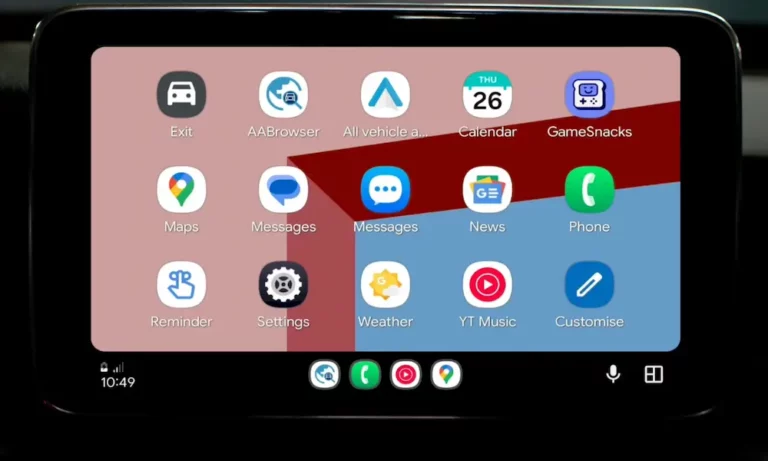
Figuring out how to add apps to Android Auto shouldn’t feel like defusing a bomb. Whether your favorite app keeps disappearing, you want to customize your dashboard, or you’re curious about the new Gemini AI features, this guide covers everything. Stick around — the fix you need is probably closer than you think.
How Android Auto Actually Works (Quick Version)
Before diving into steps, here’s something most people miss: Android Auto doesn’t install apps onto your car.
Your phone hosts every app. Your car’s screen just displays what’s on your phone — it’s basically a fancy external monitor with touch inputs. So if an app isn’t showing up on your dashboard, the fix always starts on your phone, not your car.
Android Auto works with over 300–400 vehicle models and aftermarket receivers. Odds are, your car’s already compatible.
How to Add Apps to Android Auto: The Standard Method
This is the simplest way to get new apps onto your dashboard.
Step 1: Open the Google Play Store on your phone.
Step 2: Search for the app you want — Spotify, Waze, Audible, Google Maps, etc.
Step 3: Check the app description to confirm it supports Android Auto.
Step 4: Tap Install.
That’s it. Once the app installs onto your phone, it should appear in your Android Auto launcher the next time you connect to your car. No additional setup needed.
Google restricts which apps can project onto your dashboard. The goal is reducing driver distraction, so don’t expect TikTok or Netflix to show up in the Play Store search results as compatible options.
How to Customize Your Android Auto App Launcher
Getting apps installed is step one. Arranging them so your dashboard isn’t a cluttered mess is step two.
Here’s how to customize your launcher:
Settings → Connected Devices → Connection Preferences → Android Auto → Customize Launcher
Inside that menu, you can:
- Toggle apps on or off — Hide apps you never use. They drop to the bottom of the list and stay out of your way.
- Reorder apps — Switch to custom layout, then drag apps up or down using the handle icon. Put navigation and music at the top where you actually need them.
- Add contact shortcuts — Create a one-tap button that calls a specific person. Useful for daily commutes.
- Set assistant command macros — Program a single button to trigger a voice action, like “Navigate to work” or “Play my morning playlist.”
| Setting | Where to Find It | What It Does |
|---|---|---|
| App Toggle | Customize Launcher | Shows or hides individual apps on your dashboard |
| Custom Positioning | Customize Launcher → Launcher Sorting | Drag-and-drop reordering of your app icons |
| Contact Shortcut | Add Shortcut → Call a Contact | One-tap calling for a saved contact |
| Assistant Macro | Add Shortcut → An Assistant Action | Single button triggers a voice command automatically |
| Day/Night Map Mode | Android Auto → Maps | Auto-switches map colors based on time of day |
| Media Layout | Android Auto → Change Layout | Shifts playback controls closer to the driver’s side |
Why Your Apps Keep Disappearing From Android Auto
This is one of the most common frustrations with Android Auto — and it’s almost never what you think it is.
The Sleeping App Problem
Apps go missing because your phone put them to sleep, not because they uninstalled or broke. Samsung phones are especially aggressive about this. To save battery, the OS suspends background processes for apps you haven’t opened in a while. When an app’s background process stops running, Android Auto can’t see it — so it vanishes from your dashboard.
How to Wake a Sleeping App
- Open the app directly on your phone. This wakes the background process and the app should reappear in your car launcher.
- Turn off battery optimization for that app. Go to your phone’s battery settings, find the app, and set it to “Unrestricted” or add it to an exclusion list.
On Samsung devices specifically: Settings → Device Care → Battery → App Power Management — then disable “Put unused apps to sleep” for your Android Auto apps or set explicit battery exceptions.
This fix works the vast majority of the time. If the app still won’t show up after this, check that it’s actually toggled on inside the Customize Launcher menu.
Fix Android Auto Connection Problems
Sometimes apps won’t load because your phone isn’t properly connecting to your car in the first place. Here’s how to troubleshoot both wired and wireless setups.
Wired USB Fixes
- Use a certified data cable under three feet long — longer cables drop signal
- Avoid USB hubs and extension adapters
- Use the cable that came with your phone if possible
- Clean dust and lint out of both USB ports
Wireless Connection Fixes
Wireless Android Auto uses Bluetooth for the initial handshake and Wi-Fi for the actual screen projection. Both need to be active.
If wireless keeps failing:
- Go to Android Auto Settings → Previously Connected Cars → Forget All Cars
- Delete your phone’s profile from your car’s Bluetooth menu too
- Reconnect fresh — this clears corrupted pairing profiles that cause sync errors
| Connection Issue | Root Cause | Quick Fix |
|---|---|---|
| Frequent disconnects | Long or low-quality USB cable | Replace with a certified short data cable |
| Port not connecting | Dust blocking pins | Clean both USB ports carefully |
| Wireless won’t start | Bluetooth/Wi-Fi handshake failure | Toggle airplane mode on your phone to restart both radios |
| Wireless drops mid-drive | Corrupted pairing profile | Forget all cars, re-pair from scratch |
Five Android Auto Settings Worth Changing Now
While you’re in the settings menu, these tweaks make a real difference:
- Set startup behavior so Android Auto launches automatically when you plug in
- Enable “Allow Android Auto while phone is locked” to skip the unlock step every time you get in your car
- Switch to Day/Night auto map mode so your screen isn’t blinding you at night
- Shift the media layout toward the driver’s side for easier reach
- Enable your phone’s wallpaper on the dashboard under Connection Preferences for a more personal look
How to Unlock Developer Settings (Advanced Customization)
Want deeper control? Android Auto hides a developer menu that unlocks extra options.
How to access it:
- Open Android Auto settings on your phone
- Scroll to the Version number at the bottom
- Tap the version number 10 times in a row
- Confirm you want to enable developer mode
- Tap the three-dot menu in the top-right corner
- Select Developer Settings
Inside, you can:
- Force USB-only connections to save phone battery and stop random wireless drops
- Turn off video/audio logging to cut background data usage
- Adjust video resolution for better display scaling on high-res dashboards
- Enable Unknown Sources to allow sideloaded apps
Sideloading Apps: What You Can Do (and What to Watch Out For)
Sideloading lets you install apps that Google hasn’t officially approved for Android Auto. Tools like Android Auto Apps Downloader (AAAD) work by mimicking the Play Store’s installation signature — a process called signature spoofing — so the system accepts non-approved apps as legitimate.
Apps people commonly sideload include:
- CarStream — YouTube video playback on your dashboard
- Fermata Auto — IPTV streams and local video files
- Screen2Auto — Full phone screen mirroring
- Performance Monitor — Real-time vehicle diagnostics
But there are real risks here. About 34% of sideloaded automotive apps request excessive permissions — like continuous location tracking — without going through standard security review. Sideloaded apps can also destabilize your system, and Android 14 and higher often needs specific workarounds to keep them running.
Sideloading also creates a direct driver distraction risk. The NHTSA actively researches distraction-related crashes, and apps like CarStream exist specifically to bypass the safety restrictions Google put in place for that reason. Use sideloaded apps with that in mind.
Android Auto’s 2026 Update: What’s New
Google’s 2026 update brings two major changes worth knowing about.
Material 3 Design and Wallpaper Sync
The new interface uses Google’s Material 3 Expressive design system — smoother animations, updated fonts, and widgets that scale properly across different screen shapes and sizes. The 3D Google Maps view now shows buildings, overpasses, and lane-level guidance including stop signs and traffic signals.
To sync your phone wallpaper to your dashboard:
Settings → Connected Devices → Connection Preferences → Android Auto → Use Phone’s Wallpaper
If the wallpaper reverts to a default image after syncing, toggle your phone wallpaper to a default system image and back to your custom one. This forces the projection buffer to reload and apply the correct background.
Gemini AI Replaces Google Assistant
The bigger change is Gemini replacing the legacy Assistant. Here’s how to switch it on:
- Update both the Google app and Gemini app in the Play Store
- Open Gemini → tap your profile icon → Settings
- Go to Digital Assistants from Google → select Gemini as your default
- Your car dashboard automatically inherits the change — look for the spark icon when voice control activates
What Gemini does that the old Assistant couldn’t:
- Chat summaries — Instead of reading every message, it summarizes group chats. “Your family’s debating dinner — dad wants Italian, mom wants sushi.”
- Smart replies — One-tap reply suggestions like “On my way” appear on your dashboard
- Multi-condition queries — Ask “Find a charging station near a sushi restaurant that’s open now” and Gemini filters all three conditions at once
- Gemini Live — Say “Let’s talk Live” to start a continuous conversation without re-triggering the assistant each time
- Voice options — Choose from eight to ten voice profiles through the Gemini settings on your phone
| Feature | Legacy Assistant | Gemini (2026) |
|---|---|---|
| Communication style | Command-based | Natural conversation |
| Message handling | Reads messages one by one | Summarizes group chats |
| Query complexity | Single requests | Multi-condition filtering |
| Continuous chat | Not available | Gemini Live mode |
| Visual indicator | Colored dots | Spark icon |
Getting the most out of Android Auto comes down to three things: installing apps correctly through the Play Store, keeping your battery settings from putting those apps to sleep, and tweaking your launcher so your most-used tools are front and center. The rest — developer settings, sideloading, Gemini — is there when you’re ready to go deeper.