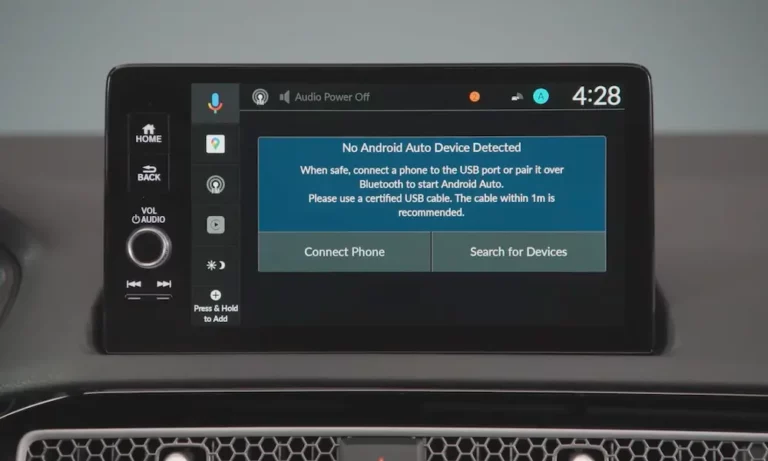
Tired of fumbling with a USB cable every time you get in the car? You’re in the right place. This guide walks you through exactly how to connect Android Auto wireless — whether your car supports it natively or you need a dongle to make it happen. Stick around, because the troubleshooting section alone is worth the read.
Does Your Phone and Car Actually Support It?
Before you do anything, check this first. Wireless Android Auto has a short list of non-negotiable requirements. Miss one, and nothing works.
Your phone needs:
- Android 11 or higher (most phones)
- Android 10 or higher (Google Pixel or Samsung Galaxy)
- A 5GHz Wi-Fi radio — this is a hard hardware requirement
- An active mobile data plan
Your car needs:
- A head unit with built-in wireless Android Auto support
- This became common starting with 2021 model year vehicles
If your phone only supports 2.4GHz Wi-Fi, a software update won’t fix it. The 2.4GHz band simply can’t carry the video stream. You’d need a new phone or a wireless adapter (more on those below).
| Device Type | Minimum Android Version | Key Requirement |
|---|---|---|
| Most Android phones | Android 11+ | 5GHz Wi-Fi |
| Google Pixel / Samsung Galaxy | Android 10+ | 5GHz Wi-Fi |
| Legacy Samsung S8 / Note 8 | Android 9 | 5GHz Wi-Fi |
| All devices | Any compatible version | Active data plan |
Popular brands with wireless support include Audi, BMW, Chevrolet, Chrysler, Honda, and Ford (SYNC 4 and newer). Ford’s older SYNC 3 system supports wired Android Auto only — it doesn’t have the second Wi-Fi radio needed for wireless.
How to Connect Android Auto Wireless (Native Setup)
Do this while parked. Seriously — the pairing process needs your full attention.
Step 1: Prep your phone
Turn on all three of these:
- Bluetooth
- Wi-Fi
- Location Services (set to “Always Allow”)
Location Services trips people up. Android uses it to verify you’re near the car and to comply with local Wi-Fi regulations. Without it, the handshake can fail silently.
Step 2: Start pairing from the car
Go into your car’s infotainment settings and look for “Add a Phone” or “Pair New Device.” This puts the head unit into discovery mode.
Step 3: Find the car on your phone
Open Bluetooth settings on your phone. Search for your car’s name — something like “Honda Pilot” or “Ford F-150.” Tap it.
Step 4: Confirm the pairing code
A number appears on both your phone and dashboard. Confirm they match, then tap “Use Android Auto” when prompted.
That’s it. The system jumps from Bluetooth (used only for the handshake) to a 5GHz Wi-Fi connection. Android Auto should appear on your dashboard within seconds.
Here’s how the connection actually works under the hood:
| Connection Layer | Protocol | What It Does |
|---|---|---|
| Initialization | Bluetooth / BLE | Authenticates your phone and starts the pairing |
| Data stream | Wi-Fi 5 (5GHz) | Carries the video, audio, and touch input |
| App data | Cellular (LTE / 5G) | Keeps maps and media streaming live |
Your Car Doesn’t Support Wireless? Use an Adapter
Millions of cars have wired Android Auto but no wireless capability. A wireless adapter fixes that. You plug it into your car’s data-enabled USB port, pair your phone to the adapter instead of the car, and the adapter handles the 5GHz connection.
Important: Make sure you use a data port, not a charging-only port. Look for the one with a smartphone icon or labeled “data.” A charging port will power the adapter but won’t let it talk to your infotainment system.
Here are the top adapters worth considering:
| Adapter | Best For | Connection |
|---|---|---|
| Motorola MA1 | Stable plug-and-play setup | USB-A |
| AAWireless | Tech-savvy users who want customization | USB-C |
| Carsifi | Households with multiple drivers | USB-C |
| Ottocast U2-Air | Speed (uses 5.8GHz Wi-Fi) | USB-A / USB-C |
| Carlinkit 5.0 | Mixed Android and Apple households | USB-A / USB-C |
The Motorola MA1 is built with Google’s input, so it’s rock-solid for most people. The AAWireless adapter has a companion app that lets you adjust DPI (display resolution), update firmware, and tweak settings that you can’t touch on a native system. If your car has an odd-shaped screen, the AAWireless app can resize the interface to fit it properly.
Unlock Android Auto’s Secret Developer Menu
This hidden menu gives you real control over how wireless Android Auto behaves. It’s not visible by default, but it takes about 20 seconds to unlock.
How to unlock it:
- Open your phone’s Settings app and search for “Android Auto”
- Tap into the Android Auto settings
- Scroll to the bottom and find the “Version” text
- Tap it 10 times in a row
- Confirm when asked to “Allow development settings”
- Access the menu through the three-dot icon in the top right corner
Once you’re in, here’s what’s actually useful:
- Wireless Android Auto toggle — Force it on or off. Helpful when you’re troubleshooting a stubborn wired/wireless conflict
- Unknown Sources — Lets Android Auto run apps not installed from the Play Store
- Video resolution (DPI) adjustment — Fixes blurry or incorrectly scaled displays on wide or high-res screens
- Day/Night mode — Forces a specific theme regardless of whether your headlights are on
Fix Your Battery Drain Problem First
Wireless Android Auto is power-hungry. Your phone is simultaneously running GPS, cellular, Bluetooth, and a 5GHz video stream. On long drives, your battery drops fast if you’re not on a wireless charging pad.
The bigger problem: your phone’s battery manager might throttle Android Auto mid-trip to save power. That causes random disconnects and lag.
Fix it once:
- Go to Settings → Apps → Android Auto → Battery
- Set it to “Unrestricted”
This tells your phone never to kill the Android Auto process in the background. It makes a noticeable difference on longer commutes.
Troubleshooting Wireless Android Auto
Even a perfectly set-up system can start acting up after a software update. Here’s how to isolate and fix the most common problems.
| Symptom | Likely Cause | Fix |
|---|---|---|
| Disconnects while driving | Interference or signal drop | Toggle Airplane mode for 5 seconds before connecting |
| Won’t connect at all | Corrupted pairing data | Forget the car on your phone and delete your phone from the car, then re-pair |
| Interface won’t launch | Missing permissions | Set Location and Notifications to “Always Allow” |
| Audio stuttering or lag | Battery throttling | Set Android Auto battery to “Unrestricted” |
| Blurry display | DPI mismatch | Adjust DPI in Developer Settings |
The nuclear reset: If it used to work and now it doesn’t, wipe the whole relationship. Forget the car in your phone’s Bluetooth settings. Delete your phone from the car’s paired devices list. Clear the Android Auto app cache and data. Restart both your phone and your car’s infotainment system. Then re-pair from scratch.
The 2026 Pixel and Samsung Connection Bug
If you have a Pixel 7 through Pixel 10 Pro or a Samsung S23 through S26, you may have hit a specific bug documented in early 2026. The phone fails to get an IP address when switching from the Bluetooth handshake to the 5GHz Wi-Fi connection. Google calls it a pairing race condition — your phone’s jump to 5G cellular briefly knocks out the local Wi-Fi link to the car.
Two workarounds that actually help:
- Force your phone to use LTE instead of 5G before you get in the car
- Toggle Airplane mode on, wait 5 seconds, then turn it off right before you start the connection
VPN Users: Here’s Why It Breaks and How to Fix It
If you use a VPN on your phone, it might be blocking wireless Android Auto completely. A VPN routes all traffic through a remote server, which makes your car’s head unit invisible to your phone on the local network.
The fix is split tunneling. Most major VPNs — NordVPN, ProtonVPN, ExpressVPN — support it. Go into your VPN app’s split tunneling settings and add Android Auto to the “Exclude” list. Your regular internet traffic stays encrypted, but the projection data flows directly to the car.
Managing Two Phones in One Car
If you share a car with someone, wireless Android Auto gets annoying fast. The car usually tries to connect to whichever phone it saw last, not necessarily the driver’s.
A clever fix some people use: NFC tags. Place a small NFC tag on the dashboard for each driver. Wave your phone over your tag, and it triggers an automation (like Samsung’s Modes and Routines) that disables the other phone’s Bluetooth and Wi-Fi, then enables yours. The car connects to you by default, no menu-digging required.
One Last Tip Before You Go
Keep your Android Auto app updated. Google pushes fixes regularly, and running an outdated version is one of the most common reasons wireless connections randomly stop working. Check the Play Store once a week — it takes five seconds and saves you a lot of frustration.