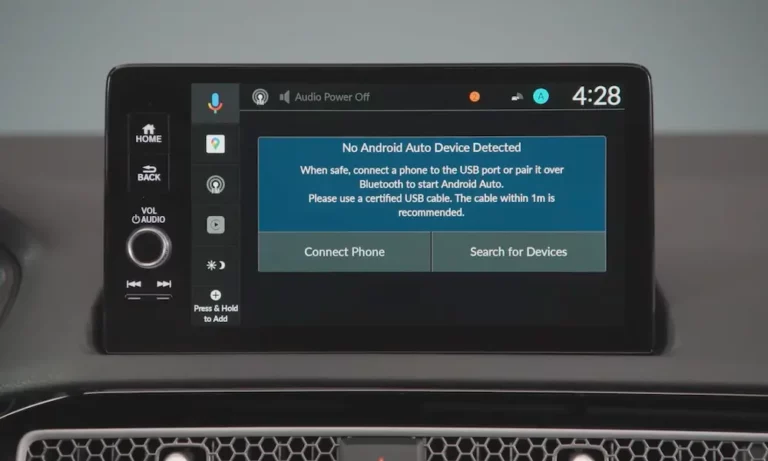
Android Auto has a habit of taking over your car screen whether you want it to or not. This guide walks you through every way to shut it down — on your phone, in your car, and at the hardware level. Pick the method that fits your situation, and stick around for the fixes that actually hold.
Why Android Auto Is So Hard to Turn Off
Here’s the thing: Android Auto isn’t a normal app anymore.
On Android 9 and earlier, you could just uninstall it. Done. But starting with Android 10, Google baked Android Auto directly into the operating system. It’s now a system service. You can’t delete it — you can only disable or restrict it.
That’s why so many people find it keeps coming back to life after updates or reconnections.
Here’s how the architecture has changed over time:
| Android Version | App Type | What You Can Do |
|---|---|---|
| Android 6.0 – 9.0 | Standalone app | Uninstall completely |
| Android 10 – 15 | System service | Disable or restrict only |
| Android 16+ | AI-enhanced OS layer | Policy-based management |
The good news? You still have real options. Let’s get into them.
How to Disable Android Auto on Your Phone
This is the most thorough fix. It stops Android Auto from responding to any connection — wired or wireless.
On Google Pixel and Stock Android
- Open Settings on your phone
- Tap Apps → See all apps
- Find Android Auto in the list (if it’s missing, tap the three-dot menu and select Show system apps)
- Tap Force Stop first to kill any active background processes
- Then tap Disable → confirm by tapping Disable app
That’s it. The app goes dormant and won’t respond to any connection triggers until you manually re-enable it.
On Samsung Galaxy Phones
Samsung’s One UI buries the settings differently. On One UI 6.1 and later, head to Settings → Connected devices → Android Auto.
On older Samsung models, try: Settings → Advanced features → Android Auto
To fully disable it, you still need to go into the Apps menu and hit Disable there. The Connected devices menu lets you manage individual features, but it won’t actually freeze the service.
On Motorola and Other Android Phones
The path is slightly different: Settings → Apps & notifications → Android Auto → App info → Disable
The steps work the same way across most manufacturers — you’re just navigating different menu labels.
How to Disable Android Auto From Your Car’s Infotainment System
Maybe you want to keep Android Auto on your phone for other vehicles but block it from launching in one specific car. Most modern infotainment systems let you do exactly that.
Toyota (2024–2025 Multimedia System)
- Tap Settings on the infotainment screen
- Select Connectivity
- Choose Android Auto and toggle Auto-start Android Auto to off
You can also use the Mode button on the steering wheel to cycle back to Toyota’s native radio without disconnecting your phone entirely.
Ford SYNC 4 and SYNC 4A
- Tap the Vehicle icon on the SYNC screen
- Go to Settings → Phone List
- Select your device and tap Disable Android Auto
Ford’s system will keep your Bluetooth connection active for calls and basic audio — it just blocks the data projection that powers the Android Auto interface.
Chevrolet Infotainment 3
Go to Settings → Apps → Android Auto and toggle it off.
If it keeps trying to reconnect, Chevrolet recommends a deep infotainment reset:
- Turn the car off and power down your phone
- Open and close the driver’s door
- Wait for the OnStar LED overhead to go out (5–15 minutes)
This drains residual power to the infotainment module and clears the software handshake.
Honda Display Audio (Accord, Passport, Others)
- Put the car in Park with the engine running
- Press Home → Settings
- Go to Connections → Android Auto
- Select your phone and tap Delete
One thing to know with Honda: while Android Auto is connected, Bluetooth audio from the same phone is blocked. A secondary phone can still stream audio via Bluetooth, though.
Here’s a quick reference for the most common vehicles:
| Vehicle Brand | Menu Path | What to Do |
|---|---|---|
| Toyota | Settings → Connectivity → Android Auto | Toggle Auto-start off |
| Ford | Settings → Phone List → Device | Disable Android Auto |
| Chevrolet | Settings → Apps → Android Auto | Toggle off or deep reset |
| Honda | Settings → Connections → Android Auto | Delete the device |
| Hyundai | Setup → Device Connections → Android Auto | Disable auto-launch |
Stop Android Auto From Launching Automatically
If you don’t want to disable it entirely, you can just stop it from hijacking your screen every time you plug in.
Change the Auto-Start Setting
Inside Android Auto’s settings on your phone, find the startup preference. Your options are usually:
- Always — launches instantly on connection
- If used on last drive — only launches if you actively used it last time
- Never / Default set by vehicle — won’t launch unless you start it manually
Some newer versions of Android Auto removed the “Never” option entirely, replacing it with “Default set by vehicle.” If your car doesn’t have a disable toggle, it may default to Always — creating a frustrating loop.
Use the “Start While Locked” Toggle
This one is underused and genuinely effective. Turn off Start Android Auto while locked in Settings → Android Auto.
With this off, your car can’t initiate the Android Auto session unless you manually unlock your phone first. It’s a simple gate that puts you back in control.
Turn Off Wireless Android Auto
Wireless Android Auto uses Bluetooth to negotiate a Wi-Fi Direct connection. Even if you turn Bluetooth off manually, the Android Auto service is designed to turn it back on to maintain the automotive link.
To stop wireless launches:
- Open Android Auto settings
- Find Wireless Projection and toggle it off
- If the option is hidden, access Developer Settings by tapping the version number 10 times
Hardware Fixes: Charge Your Phone Without Triggering Android Auto
Sometimes the easiest fix is physical, not digital.
Use the Right USB Port
Most cars have two types of USB ports. Data ports (usually marked with a smartphone or USB icon) will trigger Android Auto. Charge-only ports — often in armrests, rear seats, or center consoles — just deliver power with no data connection.
Check if your car has one before going further.
Use a Charge-Only Cable or Data Blocker
If you have to use a data-enabled port, these two hardware options work well:
| Hardware Method | How It Works | Effectiveness |
|---|---|---|
| Charge-only cable | No data wiring inside the cable | High |
| Data blocker (“USB condom”) | Physically blocks data pins | High |
| 12V adapter | Bypasses the vehicle data bus entirely | Absolute |
| Rear USB ports | Often wired for power only | High |
A charge-only cable simply lacks the internal wiring needed to transmit data — it’s the cleanest, most foolproof option.
Fix: Android Auto Keeps Re-Enabling After Updates
This is one of the most frustrating behaviors. Google Play Services periodically refreshes system app permissions, which can wake Android Auto back up after you’ve disabled it.
Clear Cache and Data
If Android Auto is ignoring your startup settings:
- Go to Settings → Apps → Android Auto
- Tap Storage
- Tap Clear Cache, then Clear Data
This forces the app to reinitialize and respect your settings once you configure them again.
Roll Back a Buggy Update
After a late 2025 Play Store UI change, Google moved the “Uninstall updates” button out of the main app page. You now find it by going to Settings → Apps → Android Auto → three-dot menu → Uninstall updates.
To stop it from updating back automatically, open the Play Store, find Android Auto, and uncheck Enable auto-update in the corner menu.
Stop Android Auto From Playing Music Automatically
If the first thing your car does when you start the engine is blast music at full volume, this is your fix.
- In Android Auto settings: Turn off Start music automatically
- In Spotify or YouTube Music: Find the setting called Allow external devices to start playback and turn it off
- In phone settings: Disable Media resumption under Sound and vibration to stop media apps from staying “ready” in the background
Using all three layers gives you the most reliable protection against unwanted autoplay.
The Layered Approach: What Actually Works Long-Term
Single fixes often don’t stick. Here’s the combination that holds up:
- Software layer — Set startup to “Never” or “If used last drive.” Disable “Start while locked.”
- Hardware layer — Use a charge-only cable or a 12V adapter to bypass the data bus.
- Vehicle layer — Use your car’s infotainment settings to forget or disable your specific device.
Stack all three and Android Auto stops running your car’s screen on its own terms. Your phone stays a tool — not a system that automatically takes the wheel.