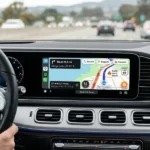
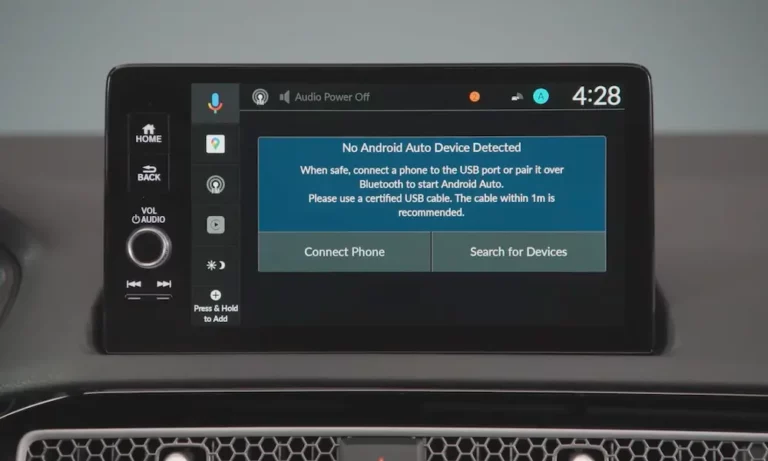
Staring at a tiny Android Auto window surrounded by black bars is genuinely frustrating, especially when your car has a gorgeous widescreen display. Good news — there are real fixes. Read to the end, because the right solution depends on your specific car.
Why Android Auto Doesn’t Fill Your Screen
Your phone isn’t the problem. Your car’s head unit is.
When you plug in, your car’s head unit sends a signal called Extended Display Identification Data (EDID) to your phone. Think of it as the car telling your phone exactly how much screen space to use. If the car reports outdated or restricted dimensions, your phone draws the interface inside those limits — black bars and all.
This explains why the same phone works perfectly in one car and shows letterboxing in another. Android Auto was originally built for smaller, standardized screens back in 2014. When widescreen dashboards became common, the software hadn’t caught up yet.
Some manufacturers also intentionally block the full screen to protect space for their native climate controls or shortcuts. That’s a choice they made, not a bug in your phone.
Check These Settings Before Doing Anything Else
Try the simple stuff first. You might solve this in two minutes.
Inside your car’s settings menu:
- Find “Phone Projection” or “Connectivity” settings
- Look for a “Split Screen” checkbox and uncheck it
- Check that your head unit firmware is up to date
On your Android Auto screen:
The Coolwalk interface (the current layout Google uses) shows multiple cards on screen at once. A lot of people think this split view means Android Auto isn’t full screen. It actually is — that’s just how Coolwalk works now.
To get a single full-screen app view, just tap directly on the map card or whichever app card you want expanded. It fills the permitted screen area immediately. This tap-to-expand behavior is built into the current interface design.
How to Force Full Screen Using Android Auto Developer Settings
If tapping cards doesn’t fix things, use the hidden developer menu inside Android Auto. This is the most effective software fix for persistent letterboxing.
Here’s how to unlock it:
- Open your phone’s Settings and go to “Connected Devices” or “Apps”
- Find and open the Android Auto app settings
- Scroll to the very bottom of the page — find the “Version” line
- Tap “Version” repeatedly, about 7–10 times
- Confirm when asked if you want to allow developer settings
- Tap the three-dot menu in the top-right corner — “Developer settings” is now visible
Inside Developer Settings, change two things:
Video resolution — By default it’s set to “Negotiated by phone and car.” Change this to “Allow up to 1080p”. A higher video signal can force the head unit to expand the display area to its physical edges. If 1080p causes blurry text or a blank screen, try 720p instead — that often works better on older units.
DPI (Density Independent Pixels) — DPI controls how large UI elements appear. If it’s set too high, buttons and text look huge and the system won’t show secondary cards. Lowering the DPI tricks Android Auto into thinking it’s on a wider screen, which shifts the taskbar from the bottom to the side and opens up more map space.
A good starting range is 155–160 for standard 8-inch screens. Go lower — around 110–130 — to force a proper widescreen layout.
Your Car Brand Matters More Than You’d Think
Different manufacturers handle the Android Auto protocol differently. Here’s what you need to know by brand.
RAM Trucks (12-Inch and 14.5-Inch Vertical Screens)
RAM owners have had it rough. Android Auto was stuck in a square box on the upper half of those massive vertical displays for years, while Apple CarPlay used the whole screen. The problem is RAM’s UConnect 5 system reserves the bottom half for native widgets.
Recent OTA updates (Version 26.x) for 2026 model year trucks introduced a proper “Full Screen” mode with an Expand button. If you don’t see this update arriving automatically, there’s a possible reason — a mismatched radio ID in the SiriusXM backend.
Some RAM owners found their OTA updates were stuck because SiriusXM’s database had the old radio’s serial number linked to their VIN. The fix? Contact SiriusXM directly to update the backend mapping. Once corrected, the truck can “see” the pending firmware update and download it.
Kia and Hyundai (10.25-Inch and 12.3-Inch Widescreen)
Kia and Hyundai vehicles with widescreen displays had a letterboxing problem where the right third of the screen showed a static Android Auto logo. This was a firmware issue, not a phone issue.
Both brands released software updates to fix it. Install the update via USB:
- Visit the official Kia or Hyundai navigation update portal and search by VIN
- Download the update to a PC and copy it to a USB drive
- Go to “General” settings in your car, then “SW Info/Update”
- Run the installation from there
After updating, go into the car’s “Phone Projection” settings and uncheck the “Split Screen” option. That single checkbox is what lets the Android Auto signal stretch across the full width of the display.
Ford Sync 3 and Sync 4
Sync 3 systems (8-inch horizontal screens) use a standard 16:9 ratio and don’t support vertical screen expansion. If you want more screen real estate on an older F-150 or F-250, you’re looking at an aftermarket Sync 4 or 4A module upgrade.
On Sync 4A vehicles like the Mustang Mach-E, the full-screen fix is usually just tapping the map icon on the left side of the display to toggle from the widget view to the focused full-screen navigation view.
Use a Wireless Adapter to Force the Layout You Want
If your car’s firmware is locked and won’t cooperate, a wireless Android Auto adapter gives you another way in.
AAWireless: Best for Customization
AAWireless is the go-to adapter for users who want actual control over how Android Auto displays. Its companion app lets you set a custom DPI value that overrides what the car reports.
| Target Setup | Recommended DPI | What You Get |
|---|---|---|
| Standard 8″ screen | 155–170 | Good legibility plus sidebar widgets |
| Widescreen / ultra-wide | 110–130 | Taskbar moves left, more map space |
| Portrait / vertical screens | 140–150 | Cards stack vertically for better use |
| Maximum content view | 75–100 | Smaller UI elements, more content visible |
Setting DPI to around 110 is particularly effective on cars where the taskbar defaults to the bottom, pushing it to the side instead and giving you a much cleaner map view.
Motorola MA1: Simple But Limited
The Motorola MA1 is Google-certified and extremely easy to set up. Pair it once, and it connects automatically every time you get in the car. The catch? It has no companion app and no DPI adjustment.
The MA1 completely depends on whatever the car’s EDID reports. If your head unit is locked to a 2/3 screen view, the MA1 mirrors that limitation wirelessly. It’s a great adapter for reliable wireless connection, but it won’t solve a firmware-restricted display.
If pairing fails or the layout doesn’t trigger correctly with the MA1, shut the car off for 10 seconds, re-insert the adapter, and re-pair via Bluetooth to force a fresh handshake.
Don’t Forget Your USB Cable
Forcing 1080p output puts more demand on the connection between your phone and car. A worn-out or charging-only cable can cause pixelation, blurry text, or the handshake reverting to a lower resolution.
Use a cable that’s certified for data transfer, not just charging. USB-A to USB-C cables labeled “Hi-Speed” or “USB 2.0 Data” are the minimum. If you upgraded to 1080p and things look worse, the cable is the first thing to swap.
What’s Coming Next for Android Auto
Google is actively improving the Coolwalk interface with each update. Version 15.6 beta spotted a swipeable card stack for media apps like Spotify and YouTube Music, letting you flip between them without leaving the main screen.
Gemini AI integration is also in the works, moving beyond basic voice commands toward natural language conversation, text summaries, and smarter navigation assistance. As portrait screens become more common in new vehicles, the multi-card layout will likely get smarter about using vertical space too — possibly with phone-style widgets showing real-time info like weather or tire pressure.
The platform is genuinely improving. But right now, if you want how to make Android Auto full screen work for your specific setup, the fix is a combination of the right developer settings, the right firmware on your head unit, and — for stubborn cases — the right wireless adapter.