Waze on Android Auto is one of the best co-pilot combos you can have in your car. But getting it to work smoothly? That’s where most people hit a wall. This guide walks you through everything — from setup and settings to fixing the annoying bugs that nobody warns you about. Stick around, because the good stuff is buried in the details.
What You Need Before You Start
Before you even think about plugging in your phone, check that you’ve got the basics covered.
Your phone needs:
- Android 9.0 or higher for a wired connection
- Android 11.0 or higher for wireless
- The latest version of Waze installed
- A reliable 4G LTE connection (5G is even better)
Your car needs:
- An Android Auto-compatible head unit — over 500 vehicle models qualify
- A working USB port or wireless Android Auto support
| Requirement | Wired | Wireless |
|---|---|---|
| Android OS | 9.0 minimum | 11.0 minimum |
| Recommended OS | Android 14+ | Android 15+ |
| Connection type | USB data cable | Bluetooth + 5GHz Wi-Fi Direct |
| Data needed | 4G LTE | 4G LTE or better |
One thing worth flagging: Tesla owners don’t get native Android Auto support. Your best workaround is pulling up the Waze live map through Tesla’s browser, but it won’t give you turn-by-turn directions the way Android Auto does.
Wired vs. Wireless: Which Connection Is Better?
Both options work. But they each come with trade-offs.
Wired Connection
The cable matters more than you’d think. Android Auto sends a constant high-speed data stream to your car’s display, and cheap cables simply can’t keep up. Use a shielded USB-C 3.1 cable and keep it short — three to six feet is ideal. Longer cables drop signal quality fast.
Also, check your USB ports. Dust or pocket lint packed into the port is one of the most common reasons Android Auto keeps disconnecting. A quick clean with a toothpick or compressed air can fix what looks like a software problem.
Wireless Connection
Wireless Android Auto uses a two-step handshake — Bluetooth kicks off the connection, then the system jumps to a 5GHz Wi-Fi Direct link for the actual data transfer. It’s smooth when it works, but it can run hot. If you drive in warm weather or take long trips, a phone cooling mount is worth considering.
If your wireless connection keeps dropping, some users have found that switching back to a wired cable just works better — especially in areas with heavy Wi-Fi interference.
How to Use Waze in Android Auto: Step-by-Step
Here’s how to get Waze running on your dashboard from scratch.
- Install Waze on your Android phone from the Google Play Store
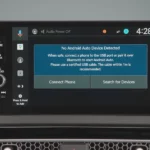
- Connect your phone to your car via USB or wirelessly
- Android Auto launches automatically on your car’s display
- Tap the Waze icon from the app launcher on your dashboard
- Search for your destination using voice or the search bar
That’s it for the basics. But the setup inside those steps is where most people get tripped up.
Entering a Destination
Waze on Android Auto gives you three ways to search for a destination.
Voice commands (safest while driving):
Say “OK Google” or tap the microphone icon, then speak naturally. Try things like:
- “Navigate to downtown Chicago”
- “Find a gas station on my route”
- “Take me to the nearest Walmart”
Manual search (parked only):
Once your car’s in Park, you can type directly into the search bar. The keyboard locks out once you’re moving — which is the right call from a distracted driving safety standpoint.
Saved Places:
If you’ve saved home, work, or favorite spots in your Waze account, they sync automatically. Set something up on your laptop before a trip, and it’s ready on your dashboard when you get in the car.
Real-Time Routing
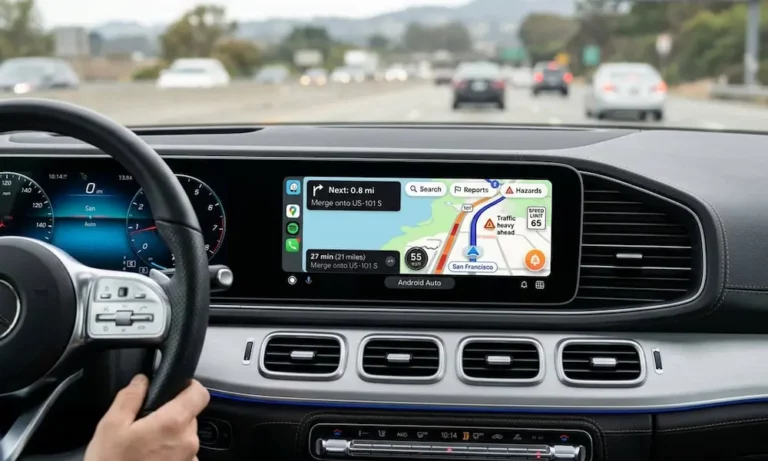
Waze doesn’t just calculate a route once and call it a day. It continuously monitors road conditions using data from other drivers and will offer you a faster route if traffic shifts. You’ll see a pop-up on your dashboard — just tap to accept or ignore it. In some cars, this routing data also shows up on your instrument cluster or head-up display.
Reporting Incidents While You Drive
This is the feature that makes Waze genuinely better than most built-in navigation systems. You’re not just getting directions — you’re part of a live road network.
To report something, tap the orange bubble icon on your dashboard. A quick menu pops up with categories:
| Report Type | What You Can Flag |
|---|---|
| Traffic | Moderate, heavy, standstill |
| Police | Visible, hidden, other side of road |
| Hazard | Road debris, shoulder issue, weather |
| Crash | Major, minor, opposite direction |
| Road Closure | Construction, event, emergency |
Every report you submit updates the map for all other Wazers on that road. Accident reports can trigger immediate rerouting. Police sightings alert others to stay alert. It takes five seconds and it genuinely helps.
Conversational Reporting (New in 2025)
Waze rolled out a major AI-powered update that lets you report hazards with your voice — no tapping required. Say something like “Hey Google, there’s a mattress in the road” and the system uses Gemini AI to categorize it and drop it on the map automatically.
This is genuinely useful. You can talk to Waze to report what’s on the road without ever taking your hands off the wheel.
Settings You Should Actually Change
Most people use Waze on Android Auto with factory settings. Don’t be most people.
Make Waze Your Default Navigation App
Android Auto tends to default to whichever nav app you used last — usually Google Maps. To force Waze to the top:
- Open the Android Auto app on your phone
- Go to Customize Launcher
- Drag Waze to the top of the list
- Uncheck Google Maps if you don’t want it showing up at all
This small change removes a lot of friction when you’re already buckled up and ready to roll.
Fix Your Audio Settings
Go into Waze’s app settings on your phone and turn on “Play voice over Bluetooth.” This makes sure navigation instructions come through your car speakers, not your phone’s tiny speaker. It’s one of those settings that Android Central users consistently flag as a must-change.
You can also switch up the voice. Waze has a bunch of options — some fun, some actually useful. Find them under Settings → Sound → Waze voice.
Enable Dark Mode
Open Waze on your phone, go to Settings → Display, and turn on Dark Mode. You can set it to trigger automatically when your headlights turn on, or just keep it on all the time. It cuts glare significantly at night.
Set Location Permissions Correctly
Waze needs your location set to “Allow all the time” — not just “While using the app.” If it’s set wrong, Waze loses its GPS lock the moment your phone screen turns off.
Also, go into your phone’s battery settings and set Waze to Unrestricted. This one setting stopped a lot of people’s Android Auto disconnection issues cold. Modern Android phones love to kill background apps to save power, and Waze is not immune.
Fixing Common Waze Android Auto Problems
GPS Keeps Losing Signal
First, don’t put your phone in a metal-lined compartment or deep in the glovebox. Metal blocks GPS. Keep your phone mounted where it can see the sky — even indirectly.
If GPS looks fine on your phone but Waze still shows errors on the dashboard, use a GPS Status app to check if your phone can see at least four satellites. If you’re locked on and Waze still acts up, a hard restart of your phone usually clears it.
Screen Looks Pixelated or Laggy
This one has a hidden fix. Open the Android Auto app on your phone, scroll to the bottom, and tap “Version” ten times. This unlocks Developer Settings. Tap the three-dot menu and find Video Resolution. Drop it to 720p. It sounds counterintuitive, but it often eliminates lag on high-res displays that your phone’s processor struggles to drive.
Samsung Galaxy Touchscreen Not Responding
High-end Samsung phones running at WQHD+ resolution have a known conflict with Android Auto. The map shows up fine but buttons won’t respond to touch. The fix: lower your phone’s screen resolution to FHD+ in Settings → Display → Screen Resolution. Weird fix, but it works.
The “Cancel Route” Button Does Nothing
This bug hit a lot of users in early 2026 — the X button to cancel navigation just stopped working on the dashboard screen. Don’t pull over. Just say:
- “Hey Google, stop navigation”
- “Cancel route”
Voice commands bypass the broken button entirely while Google and Waze work on a patch.
Wireless Connection Keeps Dropping
Check for Wi-Fi interference near your route. Some industrial areas and dense neighborhoods cause consistent drops on the 5GHz band. If you hit dead zones regularly, just switch to a wired connection — it’s more stable than any wireless workaround.
Using Your Phone While Waze Runs on the Dashboard
This used to be impossible. Now it’s not. A late-2025 Waze update lets you use your phone’s screen for other tasks while the map stays on your dashboard. You can search for a new destination on your phone and push it straight to the dashboard without interrupting navigation.
It’s a small change that makes a big difference on road trips, especially when a passenger wants to look something up.
What Happens When You Lose Cell Service
Waze is a cloud-dependent app. Once you lose data, it can’t reroute you. The good news: if you’re already on a route, Waze caches the map tiles for your planned path. So you’ll still see turn-by-turn guidance as long as you don’t deviate.
If you’re heading into rural areas with spotty coverage, either:
- Use a vehicle hotspot or eSIM for continuous data
- Have a backup app with full offline maps ready (Google Maps offline mode is a solid option)
Waze without data is like a GPS with a blindfold. It still knows where you are — it just can’t see what’s coming.