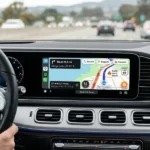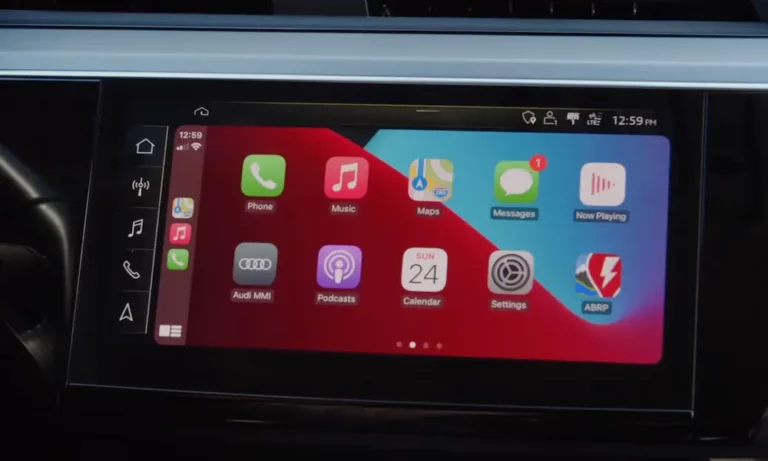
Got a new Android head unit and can’t figure out how to connect ZLink CarPlay? You’re in the right place. Whether you’re setting it up wired or wireless, this guide walks you through every step — plus the fixes that actually work when things go sideways. Stick around to the end, because the troubleshooting section alone can save you hours of frustration.
What Is ZLink and How Does It Work?
ZLink is a software app developed by Beijing Zjinnova Technology Co., Ltd. It runs on Android head units from brands like Atoto, Joying, and Dasaita. Its job is to make your iPhone think it’s talking to a real CarPlay-certified device.
Here’s the key thing to understand: CarPlay isn’t just screen mirroring. It’s a mini operating system running on your iPhone that projects its interface onto your car’s screen. ZLink handles the video stream, the audio channel, and your touchscreen inputs all at once.
Most head units ship with ZLink pre-installed, so you don’t need to download anything. You just need to know how to set it up correctly.
Before You Start: Check Your Hardware
A bad setup almost always comes down to hardware issues. Check these before you do anything else.
The Right USB Port and Cable
Your head unit has multiple USB ports. Only one supports data — the rest are charge-only. The data port connects directly to the head unit’s processor, which is what ZLink needs to run.
Use the original Apple Lightning or USB-C cable that came with your iPhone. Cheap third-party cables often skip the data lines entirely, and that’s enough to stop ZLink from launching.
Wireless Antenna Connections
Going wireless? Your head unit needs its antennas plugged in. On most Chinese-made head units, these are short blue wires labeled “Wi-Fi” or “BT”. Without them, your signal range is terrible — often too short to complete the wireless handoff that CarPlay needs.
| Hardware Element | What to Check |
|---|---|
| USB Port | Use the OTG data port, not a charging port |
| USB Cable | Original Apple cable only — skip cheap replacements |
| Bluetooth Antenna | Blue wire, keep it away from metal shielding |
| Wi-Fi Antenna | Required for wireless CarPlay projection |
How to Activate ZLink First
Before connecting your iPhone, ZLink needs to activate. It’s a one-time process tied to your head unit’s hardware ID.
Connect your head unit to the internet — either through a phone hotspot or your home Wi-Fi. Open the ZLink app. It contacts Zjinnova’s servers automatically, verifies your hardware, and stores an activation token. That’s it.
If you see a message saying “Please connect the internet to activate”, it just means the head unit isn’t online yet. Some brands like Junsun may also ask you to enter a code manually through the factory settings menu.
How to Connect ZLink CarPlay With a Cable (Wired Method)
Wired is the most stable way to run ZLink CarPlay. Use this method for long drives or if you’re in an area with heavy wireless interference.
Step 1: Plug your iPhone into the data-capable USB port using your original Apple cable.
Step 2: ZLink should launch automatically. If it doesn’t, open it manually from the app menu.
Step 3: Your iPhone will display a prompt: “Allow CarPlay with ZLink.” Tap Allow.
Step 4: CarPlay loads on your head unit screen.
That’s the full wired setup. If it doesn’t work on the first try, check whether your head unit came with two USB cables in the box — one 4-pin and one 6-pin. Test both. Manufacturers sometimes only wire the data lines to one of them.
How to Connect ZLink CarPlay Wirelessly
Wireless CarPlay through ZLink is a two-step handoff: Bluetooth first, then Wi-Fi. Bluetooth doesn’t have enough bandwidth to carry CarPlay video, so it’s only used to get things started.
Step 1: On your iPhone, go to Settings > Bluetooth and pair with your head unit. It often shows up as something like “BC-8 ANDROID” or “CarBT.”
Step 2: Once paired, the head unit sends your iPhone the credentials for its private Wi-Fi hotspot.
Step 3: Your iPhone disconnects from your current Wi-Fi and joins the car’s hotspot automatically.
Step 4: ZLink projects the CarPlay interface. Done.
One important tip: Don’t manually connect to the car’s Wi-Fi hotspot through your iPhone’s Wi-Fi settings. If you’ve done this before, go forget that network now. CarPlay needs to manage that Wi-Fi connection itself. If your phone tries to auto-join it independently, ZLink breaks.
| Connection Phase | Protocol | What Happens |
|---|---|---|
| Discovery | Bluetooth | Devices find each other and exchange pairing keys |
| Handover | Bluetooth | Head unit sends Wi-Fi hotspot credentials to phone |
| Projection | Wi-Fi (802.11n/ac) | Video, audio, and touch data stream to the screen |
| Backup | Bluetooth | Fallback for calls if Wi-Fi drops momentarily |
iPhone Settings You Must Check
Most ZLink connection failures aren’t hardware problems. They’re iPhone settings. Check all of these.
Enable Siri — All of It
CarPlay can’t function without Siri. Go to Settings > Siri & Search and turn on:
- Listen for “Hey Siri”
- Press Side Button for Siri
- Allow Siri When Locked ← This one is critical
If Siri is off or locked out, ZLink won’t launch on the iPhone side — and it usually won’t tell you why.
Check Screen Time Restrictions
If your iPhone has Screen Time or parental controls active, CarPlay might be blocked. Go to Settings > Screen Time > Content & Privacy Restrictions > Allowed Apps and make sure CarPlay is toggled on.
This catches a lot of people off guard, especially if the phone has corporate management profiles or was set up for a younger driver.
iOS 18 Users: Watch for Smart Display Zoom
If you’re on iOS 18 and your CarPlay screen goes black or freezes, Apple’s Smart Display Zoom accessibility feature is likely the cause. While connected, say “Hey Siri, open Settings” and disable the zoom feature from there.
Fixing ZLink When It Won’t Connect
If you’re stuck on a “Connecting” screen or getting a “Service Unavailable” error, run through this reset process in order. This is known as the clean slate method.
On your iPhone:
- Go to Settings > General > CarPlay → Forget your car
- Go to Settings > Bluetooth → Forget the head unit
On your head unit:
- Go to Settings > Apps > ZLink → Clear Cache, then Clear Data
Network reset:
- On your iPhone, go to Settings > General > Transfer or Reset iPhone > Reset > Reset Network Settings
Hardware reboot:
- Press the Reset button on your head unit or do a full power cycle
A persistent “Connecting” loop usually means Bluetooth connected fine but the Wi-Fi handoff failed. Switch your head unit’s hotspot security to WPA2 in Android settings if it’s currently set to “No Security.” Also, if you’re running a VPN on your iPhone, disable it — it can block the local network connection ZLink needs.
ZLink’s Hidden Settings Menu (Code 3457)
This one’s for power users. Open ZLink, then press and hold the “Settings” text for 5–10 seconds. A password prompt appears. Enter 3457.
Inside you’ll find:
- Echo Cancellation — Fixes the “hearing yourself” issue on phone calls, common in larger trucks and SUVs
- Resolution and DPI — Adjusts icon size and layout, useful for 2K or ultra-wide screens
- Protocol Selection — Switch between CarPlay protocol versions for better compatibility with older iPhones
Factory PIN Codes by Brand
If you need to access Android system settings on your head unit, you’ll need a PIN. Here are the most common ones:
| Brand | Common PIN Codes |
|---|---|
| Generic/Universal | 8888, 1234, 0000, 1617 |
| Junsun / Junsun V1 | 8888, 8878, 123456 |
| Atoto / Joying | 0000, 1617, 3368 |
| Dasaita / X-Stream | 126, 1617, 16176699 |
These get you into the Feature Settings menu, where you can manually re-enable CarPlay if it disappeared after a firmware update.
Improving Wireless Performance
If wireless CarPlay keeps dropping or stuttering, your environment matters.
Switch to 5GHz Wi-Fi. The 2.4GHz band is crowded in cities. If your head unit supports it, switching to 5GHz clears up most wireless dropouts. Disable other 2.4GHz devices in the car too — OBD-II dongles and Wi-Fi dashcams compete for the same signal.
Keep your phone cool. Summer heat causes iPhones to throttle performance. Keep your phone out of direct sunlight, especially in warmer climates. Heat-related throttling is one of the most common causes of CarPlay disconnects people don’t think to check.
Exclude ZLink from battery optimization. Android will kill background apps to save memory. Go into your Android settings and exclude ZLink from battery optimization so it stays alive. On the iPhone side, avoid using Low Power Mode while running CarPlay — it can throttle the Wi-Fi radio at battery levels below 20%.
ZLink vs. Factory CarPlay: What’s Actually Different
ZLink is an emulation layer, not a native CarPlay implementation. That means there are real-world differences worth knowing.
| Feature | Factory CarPlay | ZLink (Android Head Unit) |
|---|---|---|
| Boot Time | Instant on ignition | 20–40 seconds for Android to boot |
| Audio Quality | Direct link to car’s DSP | Runs through Android audio processing |
| Stability | Rarely disconnects | Can be affected by app crashes and interference |
| Updates | Dealer firmware updates | Manual APK installs or manufacturer OTA |
| Screen Customization | Fixed Apple UI | Adjustable layout via DPI settings |
ZLink works well — but it works best when your hardware is solid, your iPhone settings are dialed in, and you’re running the right version of the app. Check for ZLink updates after every major iOS release, especially after updating to iOS 18, since Apple regularly changes its CarPlay protocol in ways that require a matching ZLink update to stay compatible.