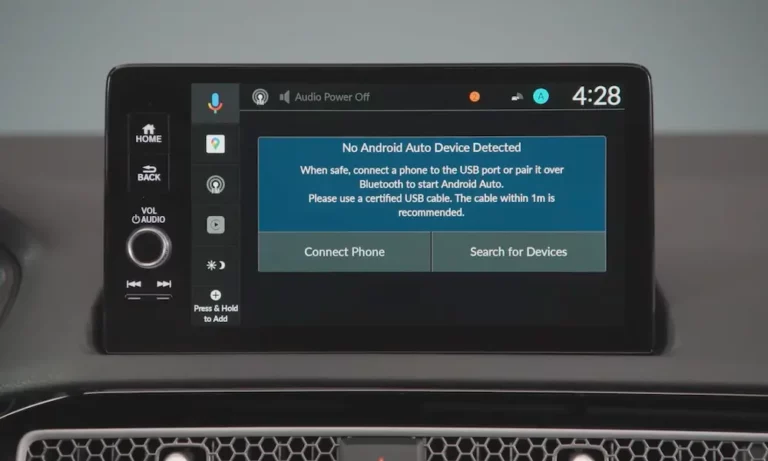
Android Auto taking over your dashboard when you just want to charge your phone? You’re not the first person to want it gone. Whether you want a quick exit, a permanent disable, or just to stop it from auto-launching, this guide walks you through every method that works — from a simple cable swap to a deep system reset.
Why Disconnecting Android Auto Isn’t Always Straightforward
Here’s the thing most people don’t realize: Android Auto isn’t a regular app you can just delete. Starting with Android 10, Google baked it directly into the operating system as a core service. That means the usual “uninstall and forget it” approach won’t cut it.
On top of that, Android Auto runs on two connection types:
- Wired: Your phone talks to the car through a USB data cable
- Wireless: Bluetooth kicks off the handshake, then Wi-Fi Direct takes over to stream the actual video and audio
Because of this dual-radio setup, simply killing one connection doesn’t always end the session cleanly. You need to know which pathway you’re dealing with before you start.
How to Disconnect Android Auto Right Now
Unplug the Cable (Wired Connection)
This one’s simple. Pull the USB cable from your phone or the car’s port, and the session ends immediately.
But here’s a common headache: you want to charge your phone without Android Auto launching. Most dashboard USB ports run straight into the infotainment system’s data bus, so plugging in triggers the whole projection sequence automatically.
Two ways around this:
- Use your car’s 12-volt outlet. Plug a USB car charger into the auxiliary socket instead. It delivers power without touching the car’s media system at all.
- Switch to a charge-only cable. These cables physically lack the data lines. Your car’s head unit can’t even see your phone, so Android Auto never launches. This is one of the cleanest fixes for people who just want to charge and drive.
Toggle Off Bluetooth or Wi-Fi (Wireless Connection)
For wireless sessions, swipe down your notification shade and flip off either Bluetooth or Wi-Fi. That breaks the connection instantly and hands your car’s screen back to its native interface.
One thing worth knowing: if you drive through busy areas with lots of public Wi-Fi networks, your phone might be dropping Android Auto on its own. Phones like the Pixel 9 Pro XL aggressively scan for known networks in the background, which can interrupt the Wi-Fi Direct link between your phone and car. Fix it by opening Wi-Fi settings and disabling auto-reconnect for public networks.
How to Stop Android Auto From Launching Automatically
This is what most people actually want. Keep the app available, but make it stop hijacking your dashboard every time you start the car.
Change the Auto-Start Setting
Head to your phone’s settings, tap Connected devices, select Connection preferences, then tap Android Auto. Under the startup section, find “Start Android Auto automatically” and change it from the default to Never or If used on the last drive.
While you’re there, also turn off these two settings:
- Start Android Auto while locked
- Start music automatically
Restart your phone after making these changes so the new settings take hold properly.
Unlock Developer Options to Kill Wireless Auto-Connect
On some phones, the wireless toggle is hidden. You need to unlock the developer panel to find it.
Here’s how:
- Go to Settings > Apps > Android Auto
- Scroll to the very bottom of the page to the version number
- Tap the version number 10 times
- Confirm the developer access prompt
- Tap the three-dot menu in the top-right corner
- Enter Developer settings
- Find “Wireless Android Auto” and switch it off
This forces Android Auto to wired connections only, which stops your phone from polling for nearby car systems when it’s just sitting in your pocket.
Use Automation Apps for Custom Rules
If you want granular control, apps like Tasker or Macrodroid give you conditional logic. You can set a rule that blocks Android Auto from running unless you’re connected to a specific charger or until you manually activate it from your home screen. It’s a bit more setup, but it puts you fully in charge.
How to Fully Disable Android Auto on Your Phone
When you want it completely off, not just quiet, the method depends on your device.
| Device Type | What to Do | Where to Go | What Happens |
|---|---|---|---|
| Google Pixel / Stock Android | Disable the system app | Settings > Apps > See all apps > Android Auto > Disable | Kills background services, hides settings menus |
| Samsung Galaxy | Adjust app preferences | Settings > Connected devices > Connection preferences > Android Auto | Exposes auto-launch and wireless toggles |
| Android 9 or Earlier | Full uninstall | Play Store or App Info page > Uninstall | Removes the app entirely |
| Any Android device | Roll back updates then disable | Play Store > Search Android Auto > Uninstall Updates > Disable | Strips updates, locks app in factory state |
The “uninstall updates then disable” method works well on Pixel and Samsung devices. Open the Play Store, search for Android Auto, uninstall all updates first, then go back into app settings and hit disable. This prevents the app from waking up quietly in the background after a system update pushes a refresh.
Turning It Off From Your Car’s Infotainment System
Your phone is only half the equation. If your car keeps broadcasting a wireless pairing signal, your phone will keep trying to connect — even from your pocket. Turn it off from the car side too.
| Car Brand | System | Where to Find It | Setting to Change |
|---|---|---|---|
| Toyota | Toyota Multimedia | Settings > Connectivity > Android Auto | Auto-start Android Auto (toggle off) |
| Ford | SYNC | Settings > Phone > Android Auto | Enable/Disable Android Auto |
| Hyundai | BlueLink / Display Audio | Setup > Device Connections > Android Auto | Auto-launch toggle or Split Screen setting |
| Chrysler / Jeep / Ram | Uconnect | Settings > Smartphone Connection | Turn off Smartphone Integration |
On vehicles with wide-format displays like the Hyundai Ioniq 5 or Kia EV6, you might also notice a split-screen bug where Android Auto locks your map into a small portion of the display. That’s a firmware issue, not a setting. Download the latest software update from your manufacturer’s portal, load it onto a USB drive, and update the system. That clears it up.
How to Completely Unpair Your Phone From the Car
Selling your car? Returning a lease? Dealing with a ghost connection that won’t die? You need a full system purge on both ends.
Remove the Car From Your Phone
Go to Settings > Connected devices > Connection preferences > Android Auto. Scroll down to “Previously connected cars”, tap the three-dot menu, and select “Forget All Cars”. Also switch off “Add new cars to Android Auto” so your phone doesn’t prompt to connect to unfamiliar vehicles.
Then go to your Bluetooth settings, find the car in your paired device list, and hit Forget or Unpair.
Remove Your Phone From the Car’s Display
On the car’s touchscreen, go to the Bluetooth or device manager settings, find your phone’s profile, and delete it. This step matters more than most people think. If your phone’s profile stays saved in the car’s memory, the head unit keeps broadcasting pairing signals. Your phone picks them up and tries to connect — even when it’s just sitting in your bag.
Clear the Cache and Storage
When things are still glitchy after all that, clear the app’s cached data:
- Settings > Apps > Android Auto > Storage > Clear Cache — removes corrupted temp files that build up after OS updates
- Settings > Apps > Android Auto > Storage > Clear Data — resets the app to factory defaults without deleting personal files
For wireless pairing loops that won’t stop, try a full radio stack reset: Settings > System > Reset options > Reset Bluetooth & Wi-Fi. This wipes all saved Wi-Fi passwords and Bluetooth pairings, which clears out underlying system conflicts that clearing cache alone won’t fix.
If you’re using an aftermarket wireless adapter (dongle), locate the pinhole reset button on its body, insert a paperclip, and hold for 5–10 seconds. That reboots the adapter’s processor and clears its pairing memory for a fresh start.
How to Exit Android Auto Without Unplugging Your Phone
You don’t always need to disconnect completely. Sometimes you just want to access your car’s native radio or built-in features mid-drive.
Google built an exit button right into the interface. While inside Android Auto, tap the grid icon in the corner to open the app drawer. Look for a button with your car manufacturer’s logo (Toyota, SYNC, Uconnect, etc.) and tap it. Your dashboard returns to the native infotainment screen immediately, phone still connected, no unplugging needed.
Newer Android Auto updates have also added a dedicated exit button right in the taskbar next to the battery and signal indicators. One tap gets you out.
Your steering wheel controls work here too. Pressing the physical Source or Media button switches audio to FM, AM, or SiriusXM without closing the navigation map on your screen. And if your car has its own voice assistant (“Hey Toyota” or similar), you can switch radio stations or adjust the climate through the native system while keeping your Google Maps route visible on the display.