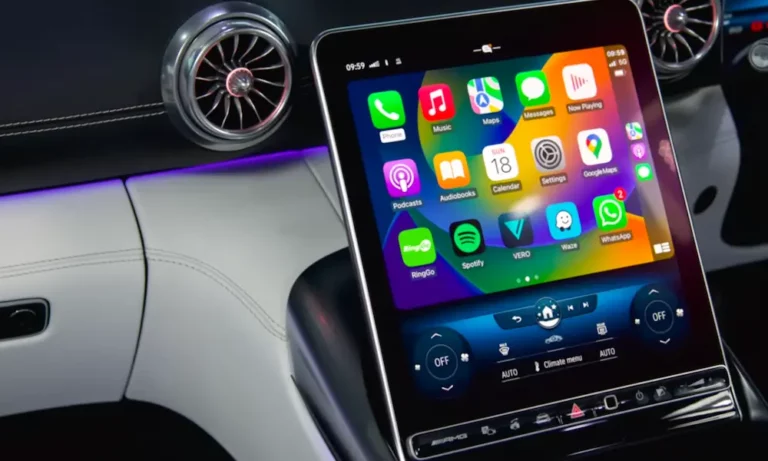
You get in the car, plug in your phone, and boom — Apple Music blasts at full volume before you even close the door. Sound familiar? This guide covers every real fix to stop Apple Music from automatically playing in car, from simple iOS settings to clever shortcuts. Stick around — the fix at the end might surprise you.
Why Does Apple Music Keep Playing in Your Car?
Here’s the short version: your car is the problem as much as your phone is.
When your iPhone connects via Bluetooth or USB, your car sends a “Play” command almost immediately. That’s a feature, not a bug — it’s meant to save you from fiddling with your phone while driving. The issue? Your phone defaults to Apple Music if no other app is active, then hunts for a song alphabetically. That’s why so many drivers keep hearing the same track every single morning.
This happens across CarPlay, standard Bluetooth, and wireless connections — and the fix usually requires changes on both the phone and the car.
Step 1: Fix Your iOS Settings First
These changes take under two minutes and cut off most of the common triggers.
Turn Off Handoff and Automatic AirPlay
Go to Settings → General → AirPlay & Handoff.
- Set Handoff to Off
- Set Automatic AirPlay to Ask (or Never)
Handoff is designed to pass audio between Apple devices seamlessly — which sounds great at home but gets chaotic in a car. Disabling it stops your iPhone from handing off a media session to your car’s speakers without asking.
Turn Off Background App Refresh for Music
Go to Settings → General → Background App Refresh → Music → toggle it Off.
This keeps Apple Music dormant until you open it manually. Without Background App Refresh, the app can’t sit “ready” in the background waiting to respond to your car’s Play command.
Disable Shake to Undo
This one’s oddly effective. Go to Settings → Accessibility → Touch → Shake to Undo → toggle Off.
Vehicle vibrations — especially on rough roads or in high-performance engines — can mimic a “shake” gesture, accidentally resuming paused audio. This fix is quick and has zero downsides.
Here’s a summary of the key iOS settings to change:
| Setting | Path | Recommended State |
|---|---|---|
| Handoff | Settings → General → AirPlay & Handoff | Off |
| Automatic AirPlay | Settings → General → AirPlay & Handoff | Ask or Never |
| Background App Refresh (Music) | Settings → General → Background App Refresh | Off |
| Shake to Undo | Settings → Accessibility → Touch | Off |
| Cellular Data (Music) | Settings → Music | Off (optional) |
Step 2: Kill the Infinity Loop Inside Apple Music
Even after fixing iOS settings, Apple Music’s built-in Autoplay feature can keep the cycle going.
Disable the Infinity Icon
Open the Music app and tap the mini-player to expand it. Tap the Up Next icon (three lines with dots), then look for the infinity symbol at the bottom. If it’s highlighted, tap it to gray it out.
When that infinity icon is active, Apple Music maintains an endless queue of tracks. The moment your car sends a Play command, there’s always something ready to go. Turn it off and there’s nothing to play once the queue ends.
Turn Off Cellular Data for Music
Go to Settings → Music → Cellular Data → toggle Off.
With no cellular access and no downloaded tracks, the app has nothing to stream. This is a clean option if you mainly use Spotify or another app in the car anyway.
Step 3: Use an iOS Shortcut to Force-Pause
This is the most reliable method for people whose cars are particularly aggressive about sending Play commands.
Why a Simple “Pause on Connect” Doesn’t Work
Here’s the problem: your phone pauses music, and then your car — still mid-handshake — sends its Play command a second later and resumes it. You need a “Wait” step in the middle to let the car finish doing its thing before the pause kicks in.
How to Build the Shortcut
- Open Shortcuts → tap Automation → tap +
- Select Create Personal Automation
- Choose Bluetooth and select your car’s name
- Make sure Is Connected is selected
- Set execution to Run Immediately
- Add a Wait action — set it to 4 seconds
- Add Play/Pause → explicitly set it to Pause
- Save and test
Some aggressive head units send two Play commands, so some drivers add a second Wait (1 second) + Pause at the end. It’s called the “Double Pause” strategy, and it works.
| Shortcut Step | Setting | Why It Matters |
|---|---|---|
| Trigger | Bluetooth → Your Car | Starts at the exact moment of connection |
| Run Immediately | Enabled | No tap needed |
| Wait | 4 seconds | Lets the car finish its Play command |
| Play/Pause | Set to Pause | Overrides the car’s command |
| Wait (optional) | 1 second | Buffer for slow head units |
| Play/Pause (optional) | Set to Pause | Catches any second Play command |
Step 4: Change Settings in Your Specific Car
Your car’s infotainment system often has its own autoplay toggle. Here’s where to find it.
Ford SYNC 3 / SYNC 4
Navigate to the Source menu while your iPhone is connected via Bluetooth. Select Bluetooth, then tap the gear icon in the lower right. Look for an Autoplay toggle and set it to Off.
On vehicles with physical buttons, press Set repeatedly until “Autoplay” appears on the display, then use the arrow keys to toggle it off.
Chevrolet / GMC (Infotainment 3)
Look under Settings → Radio Settings for an option called USB Auto Launch or Media on Start and turn it off.
On the Chevy Bolt and Equinox EV, muting the system before shutting off the car is often the most reliable workaround. The car remembers the muted state on the next startup — even if music technically starts playing in the background.
Toyota (2021–2025)
Go to the Bluetooth Setup screen on the display and tap Detailed Settings. Look for a toggle labeled Auto-Connect or Bluetooth Connection.
On the iPhone side, you can disable “Media Audio” in the Bluetooth pairing menu while keeping “Phone Audio” active. This keeps hands-free calling without triggering music streaming.
The Silent Song Trick (It’s Dumb but It Works)
When your iPhone connects to a car with no active session, it asks Apple Music for the first song alphabetically in your library. That’s why “Sara” by Fleetwood Mac became an unlikely icon of this problem.
The fix: add a track called “A a a a a Very Good Song” by Samir Mezrahi to your library. It’s roughly 10 minutes of complete silence. The car autoplays silence, and you get time to settle in and choose what you actually want to hear.
You can also use John Cage’s 4’33” — just rename it to “AAA 4’33″” so it sits at the top of the list.
iOS 18 FaceID Lock — The Best Modern Fix
iOS 18 added the ability to require Face ID to open specific apps. For stopping Apple Music from automatically playing in car, this is a game-changer.
Long-press the Music app icon → select Require Face ID.
With Face ID required, your car can’t wake up or trigger Apple Music in the background. The app simply won’t launch without a successful biometric scan. It blocks the A-Z glitch, the “resume last session” logic, and prevents any embarrassing moments if sensitive audio content starts playing with passengers in the car.
Control Siri’s Suggestions Too
Siri learns your habits and starts suggesting music on your CarPlay dashboard before you even ask. You can disable this by going to Settings → Siri & Search → Music and turning off Learn from this App.
To remove suggestions from the CarPlay dashboard directly: open Settings inside CarPlay (via your car’s touchscreen), go to Siri & Suggestions, and toggle off Suggestions in CarPlay.
The Nuclear Options
Still fighting it? These are the last-resort fixes.
Delete Apple Music entirely. Without the app, your car’s Play command has no target. You can “Offload” the app instead of deleting it via Settings → General → iPhone Storage → Music — this removes the app but keeps your library data for a quick reinstall.
Forget and re-pair your car. Go to Settings → General → CarPlay, select your vehicle, and choose Forget This Car. Delete the phone from your car’s Bluetooth menu too. Re-pairing from scratch often clears a stuck “Play on Connect” flag in the car’s cache.
Reset All Settings. Go to Settings → General → Transfer or Reset iPhone → Reset → Reset All Settings. This doesn’t delete your data, but it resets all system preferences including Bluetooth behavior. You’ll need to reconfigure everything, but it often solves persistent autoplay issues caused by corrupted preferences.
The Fastest Fix Based on Your Setup
Not sure which method suits you? Here’s a quick guide:
- You use Spotify, not Apple Music → Delete or offload the Music app
- Your car is the aggressive type → Build the Shortcuts automation with a 4-second Wait
- You’re on iOS 18 → Use the Face ID lock on the Music app
- You want a quick fix right now → Add the silent song to your library
- You want total control → Combine: disable Handoff + Automatic AirPlay + build the shortcut
None of these require tech expertise. Pick the one that fits your situation and you’ll stop Apple Music from automatically playing in car starting today.