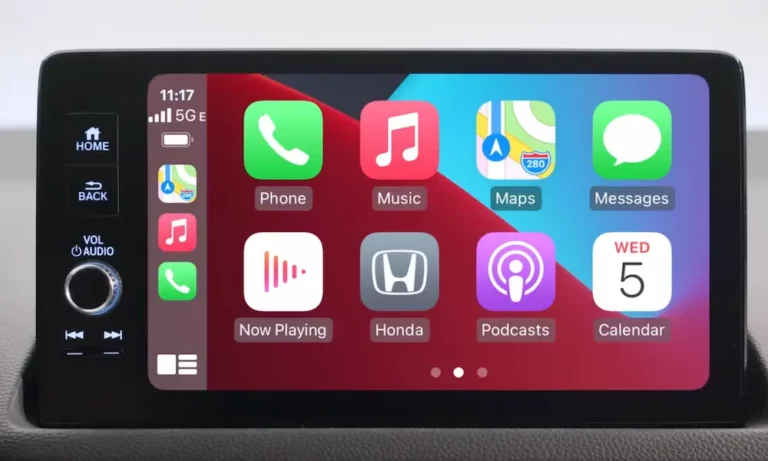
CarPlay keeps disconnecting and you’re losing navigation mid-route? That’s genuinely frustrating — and it’s more common than you’d think. According to JD Power’s 2026 Vehicle Dependability Study, infotainment and smartphone integration are the top sources of driver complaints. The good news? Most causes are fixable. Read to the end — the fix might be simpler than you expect.
Your Cable Is Probably the Problem (Start Here)
Before blaming your car or your iPhone, look at the cable in your hand. Most disconnection problems start right there.
A CarPlay cable isn’t just a charger. It carries high-bandwidth, two-way data at USB 2.0 speeds — that’s 480 Mbps minimum. Cheap cables skip the data wires entirely. Your phone charges fine, but CarPlay never gets a stable signal.
Here’s what your cable actually needs to do the job:
| Cable Spec | What You Need | What Goes Wrong Without It |
|---|---|---|
| Data Protocol | USB 2.0 or faster (480 Mbps) | Connection times out during setup |
| Cable Length | 1–3 feet (under 1 meter) | Signal degrades over longer runs |
| Build Quality | Braided, multi-shielded | Heat and vibration break internal wires |
| Certification | Apple MFi (Made for iPhone) | iPhone’s security chip rejects the connection |
| Connector Fit | Firm, audible click | Vibration causes intermittent drops |
If your cable isn’t MFi-certified, throw it out. Brands like Belkin or Anker are reliable bets.
The iPhone 15/16 USB-C Problem
If you recently upgraded to an iPhone 15 or 16, this one’s for you. About 75% of US vehicles still use USB-A ports. That means you’re likely using an adapter or a third-party USB-A to USB-C cable — and those extra connection points cause impedance mismatches that trigger random drops, especially during calls or map loading.
Fix: Use a direct USB-C to USB-A cable from a reputable brand instead of an Apple adapter chain.
Check Your Phone’s Port (Seriously)
Pocket lint is a surprisingly common culprit. Even a thin layer of compressed debris in your iPhone’s charging port blocks the data pins — while the larger power pins still charge the battery just fine. That’s why your phone charges but CarPlay drops.
Use a wooden toothpick or a blast of compressed air to gently clean the port. Do the same to your car’s USB socket.
Wireless CarPlay Keeps Disconnecting? The Dual-Radio Problem
Wireless CarPlay uses both Bluetooth and Wi-Fi working together. When either one wobbles, the whole connection fails.
Here’s how it actually works: Bluetooth handles the initial handshake and security check. Once that’s verified, your iPhone jumps to a Wi-Fi Direct network created by your head unit — usually on the 5GHz band. That Wi-Fi link carries the actual video, audio, and map data.
If anything interrupts either radio, CarPlay drops.
| Wireless Failure | What’s Causing It | What You Notice |
|---|---|---|
| Handshake failure | Bluetooth congestion (smartwatches, OBD dongles) | CarPlay won’t start when you get in |
| Channel interference | Dashcam or hotspot on same 5GHz band | Audio stutters or screen freezes |
| Gateway jumping | iPhone auto-connects to a saved coffee shop Wi-Fi | Instant drop when driving past familiar spots |
| Thermal throttling | Phone overheats from wireless charging | System disconnects to protect the hardware |
| Signal obstruction | Phone in a metal cubby or back pocket | Weak or no signal reaching the head unit |
The “Gateway Jumping” Disconnect
This one catches people off guard. When your iPhone joins your car’s Wi-Fi Direct network, it notices there’s no internet connection. So it helpfully jumps to a remembered Wi-Fi network nearby — like a Starbucks or stadium hotspot — and instantly kills your CarPlay session.
Fix: Go to Settings > Wi-Fi and delete any saved public networks you drive past regularly.
Geographic Dead Zones
Do you disconnect at the exact same spot on your commute every day? That’s not a coincidence. High-density RF interference near airports, police stations, or toll systems can overwhelm your car’s internal Wi-Fi. It’s not a hardware fault — the local radio environment is just too noisy. In those areas, plug in.
iOS Settings That Silently Kill CarPlay
Software settings are the sneakiest cause of CarPlay keeps disconnecting — because nothing looks broken.
Here are the settings that matter most:
| iOS Setting | What It Needs to Be | Why It Matters |
|---|---|---|
| Hey Siri | On | CarPlay requires active voice control |
| Allow Siri When Locked | Enabled | Prevents drops when screen goes dark |
| Screen Time / Restrictions | CarPlay explicitly allowed | Parental controls can silently block it |
| USB Accessories | Enabled | Keeps data pins active after phone locks |
| Background App Refresh | Off (for diagnosis) | Reduces wireless bandwidth competition |
Your VPN Is Probably Breaking Wireless CarPlay
VPNs are one of the most common “silent killers” of wireless CarPlay, especially since iOS 18. A VPN routes all traffic through a remote server, which blocks the local peer-to-peer Wi-Fi your car needs. Even when the VPN looks disconnected, background processes might still interfere.
Fix: Fully disable your VPN app before you get in the car — not just disconnect from the server. Or use split-tunneling if your VPN supports it.
iOS Updates and Head Unit Compatibility
iOS 18 and iOS 26 both introduced modem firmware changes that broke compatibility with older head units. The iPhone 17 series also includes hardware-level handshake changes that cause disconnections every 5–10 minutes on outdated infotainment systems.
Fix: Check your manufacturer’s owner portal for a firmware update. Many 2024–2025 models support over-the-air updates. Older vehicles need a USB drive or a dealer visit.
One unusual trick that actually works: rename your iPhone in Settings > General > About. This forces the car to treat the device as new, clearing corrupted cache files tied to the old device profile.
Brand-by-Brand Reset Guide
Every infotainment system has its own quirks. Here’s the exact reset process for the most common ones.
| Brand | System | How to Reset |
|---|---|---|
| Ford | SYNC 3/4 | Hold Power + Seek Right for 10–20 seconds |
| Chevy/GMC | Infotainment 3 | Turn off car, close driver’s door, wait for OnStar LED to turn off (up to 15 min) |
| Toyota | Multimedia | Hold volume/power knob for 10 seconds until logo reappears |
| Honda | HondaLink | Hold power button for 10–15 seconds |
| Dodge/Jeep/Ram | Uconnect 5 | Hold Volume + Tuner knobs simultaneously for 20 seconds |
| Nissan | NissanConnect | Engine running, hold power/volume knob for 10–15 seconds |
| Hyundai/Kia | Bluelink/Connect | Use pinhole reset button with a paperclip |
| VW | MIB 3 | Hold power knob for 10 seconds |
GM vehicles need special attention. Their systems stay in sleep mode for up to 15 minutes after you turn the engine off — so a standard restart often doesn’t clear the cache. Close the driver’s door and wait for the OnStar LED to go dark before doing anything else.
Ford Mach-E and other button-free models use the steering wheel Volume Down + Seek Right combination instead of dashboard buttons.
VW Tiguan owners with persistent wireless drops have found that switching to USB-only mode and disabling the wireless handshake entirely is the only way to get a stable connection.
The “Clean Slate” Reset: When Nothing Else Works
If you’ve tried everything above, the problem is likely corrupted cryptographic pairing data between your iPhone and your car. These keys get mismatched after software updates and cause persistent, inexplicable drops.
Here’s the full clean slate process:
- On your iPhone, go to Settings > General > CarPlay, select your car, and tap Forget This Car
- Go to Settings > Bluetooth, find your car, and tap Forget This Device
- In your car’s settings, find Connected Devices or Smartphone Integration and delete your phone’s profile
- Reboot both your iPhone and the head unit
- Reconnect from scratch and immediately tap Allow on every permission prompt — contacts, messages, all of it
Don’t skip the reboot step. Both devices need fresh starts before the new pairing will work reliably.
Network Settings Reset as a Last Resort
If wireless CarPlay is still dropping after a clean slate reset, a Network Settings Reset on your iPhone clears the entire Wi-Fi and Bluetooth stack. It removes corrupted IP tracking data that can confuse the car’s local network link.
Go to Settings > General > Transfer or Reset iPhone > Reset > Reset Network Settings.
You’ll need to re-enter all your Wi-Fi passwords — but it often fixes stubborn wireless CarPlay issues for good.
What’s Coming Next for CarPlay
The carplay ecosystem is shifting. GM has started phasing out CarPlay in new EVs in favor of a native Google-built system. Their argument: deeper hardware integration means fewer glitches and less lag.
But Apple isn’t standing still. CarPlay Ultra goes further than ever — taking over every screen in the vehicle, including the speedometer and climate displays, while integrating with live vehicle diagnostics like tire pressure and oil levels.
Whether you’re sticking with your current setup or waiting to see how things shake out, one thing’s certain: the connection between your phone and your car is only going to get more important — and more complex.