Getting music from your phone to your Ford’s speakers shouldn’t feel like defusing a bomb. This guide walks you through every SYNC version — from the old-school button-based Gen 1 to the shiny new Digital Experience — so you can get your playlist going fast. Stick around to the end for troubleshooting tips that actually work.
First, Figure Out Which Ford SYNC You Have
Before you connect anything, you need to know what you’re working with. Trying to follow SYNC 4 instructions on a SYNC 2 system is a recipe for frustration.
Ford SYNC has gone through five major generations since launching in 2007. Here’s the quick cheat sheet:
| SYNC Version | Screen Type | Key Giveaway |
|---|---|---|
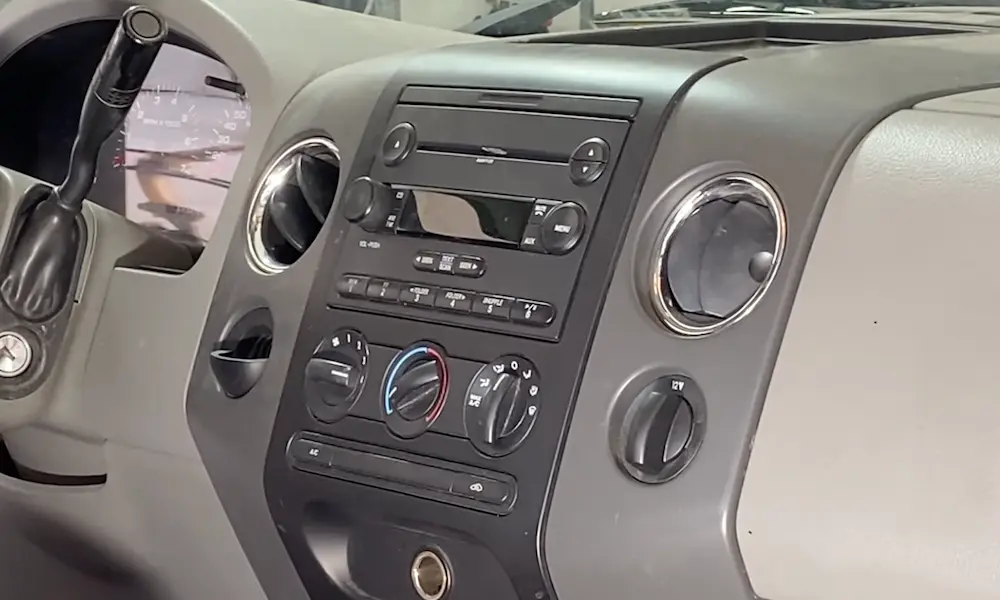
| Gen 1 | 2-line or 4.2″ LCD | No touchscreen; uses physical buttons only |
| SYNC 2 (MyFord Touch) | 8″ Resistive Touch | Four colored quadrants on the home screen |
| SYNC 3 | 6.5″ or 8″ Capacitive | Feature bar along the bottom of the screen |
| SYNC 4 / 4A | 8″–15.5″ Capacitive | Wireless CarPlay; large vertical or horizontal screen |
| Ford Digital Experience | Large High-Res LCD | Runs Android Automotive OS natively |
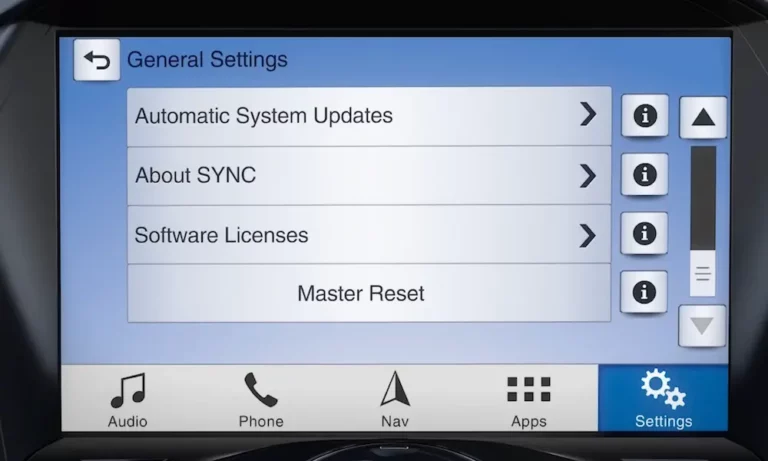
Not sure which one you have? Go to Settings → About SYNC (or System Information on older versions) and you’ll see the software version listed there. Ford also has a version checker tool on their support site.
How to Connect Your Phone to Ford SYNC via Bluetooth
Bluetooth is the main way to connect your phone to Ford SYNC and play music wirelessly. The steps vary slightly by version, but the logic is the same: make the phone visible, let SYNC find it, confirm the pairing code.
Before You Start (Any Version)
Do these two things first:
- Turn Bluetooth on in your phone’s settings
- Keep the Bluetooth settings screen open on your phone — most phones only stay discoverable while that screen is active
Also, disconnect any other Bluetooth devices (headphones, smartwatches) from your phone during the initial pairing. They can interrupt the handshake.
Connecting on Gen 1 SYNC
Gen 1 uses physical buttons — there’s no touchscreen here. Here’s what to do:
- Press the Phone button on your console
- If no phone is connected, SYNC shows “Please add a phone” — select Add or OK
- SYNC starts broadcasting — your phone will see “SYNC” in its Bluetooth list
- Select SYNC on your phone
- A 6-digit PIN appears on your dashboard screen — type it into your phone or confirm it matches
- Done — SYNC confirms the connection
Connecting on SYNC 2 (MyFord Touch)
That four-quadrant screen makes things pretty visual:
- Tap the Phone quadrant (top-left, yellow)
- Tap Add Phone
- The “Find SYNC” screen shows a 6-digit PIN
- On your phone, search for SYNC in Bluetooth settings and enter the PIN
- Accept the prompt to download your phonebook — this is what enables voice-activated music and calling
Connecting on SYNC 3
SYNC 3 makes the pairing flow more intuitive. Here’s the step-by-step from Ford:
- Tap Settings or the Phone icon on the feature bar
- Select Add Phone or Add Device
- SYNC scans and also becomes discoverable to your phone simultaneously
- Select your phone’s name on the SYNC screen, or tap SYNC on your phone
- A 6-digit passcode appears on both screens — confirm they match
- Tap Pair on your phone and Yes on the SYNC screen
No manual PIN typing required here. Modern Secure Simple Pairing handles it automatically.
Connecting on SYNC 4 and SYNC 4A
The SYNC 4 pairing process mirrors SYNC 3 but adds wireless connectivity:
- Go to Settings → Add Device (or tap the Phone icon)
- Follow the same 6-digit passcode confirmation flow
- SYNC 4 supports wireless CarPlay and Android Auto — no cable needed once paired
- SYNC 4A can even handle two phones connected at the same time, one for music and one for calls
Connecting on the Ford Digital Experience
The newest system runs Android Automotive, so it works a bit differently. Ford’s official pairing guide walks you through:
- Tap Settings → Bluetooth
- Select Add New Device
- Confirm the matching passcode on both screens
- You can manage multiple devices and switch between them directly in the settings menu
How to Play Music Through Ford SYNC After Connecting
Pairing your phone is step one. Getting the music actually playing is step two. You’ve got a few options depending on your setup.
Stream Music via Bluetooth (Wireless)
This is the most common method. Once your phone is paired, you need to select Bluetooth Audio as your source:
- Gen 1: Press the AUX button repeatedly until “BT Audio” appears
- SYNC 2: Tap the Entertainment quadrant → select BT Stereo
- SYNC 3 / SYNC 4: Tap Audio → Sources → [your phone’s name]
Then just hit play on your phone’s music app. The sound comes through your car speakers automatically. Track controls (next, previous, pause) work from the steering wheel buttons or the screen.
Bluetooth audio uses a protocol called A2DP (Advanced Audio Distribution Profile) to stream stereo audio. It’s wireless and convenient, though audio quality is slightly compressed compared to USB.
Play Music via USB
Plug your phone into the USB media hub — usually found at the base of the center stack, inside the armrest, or in the glove compartment depending on your model.
When connected via USB, SYNC indexes your music library — meaning it reads all your song metadata (artist, album, genre) and stores it locally. This unlocks:
- Voice commands for specific tracks and artists
- Alphabetical browsing on screen
- Higher audio fidelity than Bluetooth
SYNC supports MP3, WMA, WAV, and AAC file formats. Older systems can index up to 6,000 songs, so if your library is massive, expect a wait before voice commands work fully.
Use Apple CarPlay or Android Auto
This is where things get really smooth. Smartphone projection lets your car’s screen mirror your phone’s interface — so you get Spotify, Apple Music, Google Maps, and more, all in a familiar layout.
Wired (SYNC 3 and early SYNC 4):
- Connect your phone via USB cable
- Accept the CarPlay or Android Auto prompt on the screen
- The SYNC interface steps back and your phone’s UI takes over
- Siri or Google Assistant handles voice commands instead of SYNC’s own system
Wireless (SYNC 4 and SYNC 4A):
- Bluetooth handles the initial handshake, then switches to a Wi-Fi connection for streaming
- Your phone stays in your pocket — or on the wireless charging pad if your car has one
- Full CarPlay or Android Auto functionality with zero cables
| Playback Method | Connection | Best For | Control Level |
|---|---|---|---|
| Bluetooth Audio | Wireless | Quick, casual listening | Basic (play/pause/skip) |
| USB Media | Wired | Best audio quality + voice search | Full (artist/genre/playlist) |
| AppLink | Wired or Wireless | Spotify, Pandora, iHeartRadio control | App-specific |
| CarPlay / Android Auto | Wired or Wireless | Full phone experience on car screen | Native smartphone OS |
Using Voice Commands to Play Music
The whole point of SYNC is keeping your hands on the wheel and your eyes on the road. Voice commands let you request music without touching anything.
Press the Voice or Push-to-Talk button on your steering wheel to activate. On SYNC 4 and the Digital Experience, you can also just say “OK Ford” or “Hello Ford” as a wake word.
Here are the commands that work across most SYNC versions (once your media is indexed or your app is connected):
Source Commands:
- “Bluetooth Audio”
- “USB”
- “Radio”
Playback Commands:
- “Play,” “Pause,” “Stop”
- “Next Track,” “Previous Track”
Search Commands (USB or indexed media):
- “Play Artist The Weeknd”
- “Play Album Thriller”
- “Play Genre Jazz”
- “Play Playlist Road Trip”
SYNC 4 natural language examples:
- “Play some rock music”
- “I want to hear Spotify”
- “What’s this song?”
SYNC 4 uses cloud-based processing to understand more natural phrasing — so you don’t need to memorize rigid command formats.
Troubleshooting: When Your Phone Won’t Connect or Music Won’t Play
Even well-designed systems have bad days. Here’s how to fix the most common issues without losing your mind.
Try a Soft Reset First
If SYNC freezes or Bluetooth drops, a soft reset reboots the infotainment system without deleting your data.
- SYNC 3 / SYNC 4 (with power button): Hold the Audio Power button + Seek Up for 10 seconds — the screen goes black and reboots
- SYNC 4 (steering wheel controls only): Hold Volume Down + Seek Right on the steering wheel for 10 seconds
Do a Key Cycle
Turn off the car, open the driver’s door (this cuts the accessory delay power), wait 30 seconds, then restart. This forces the SYNC module to fully shut down and reinitialize — and it fixes more issues than you’d expect.
Try the Master Reset (Last Resort)
If nothing else works, a master reset wipes all paired phones and personal data and returns SYNC to factory settings. Use this path for your version:
- Gen 1: Phone → System Settings → Advanced → Master Reset → OK
- SYNC 2: Settings → System → Master Reset → Yes
- SYNC 3: Settings → General → Reset → Master Reset → Continue
- SYNC 4: Settings → General → Reset → Master Reset → Confirm
- Digital Experience: Settings → System → Reset Options → Factory Reset
Ford’s official reset guide covers all versions in detail.
Fix It from the Phone Side
Sometimes the issue is your phone, not the car:
- Toggle Bluetooth off, wait 10 seconds, toggle it back on
- Restart your phone
- Go to your phone’s Bluetooth settings, find SYNC, tap Forget This Device, then re-pair from scratch
For iPhones, make sure the Show Notifications toggle is enabled in your Bluetooth settings for the SYNC connection. Android users — check the “Do not ask again” box when SYNC asks for contact access, so it stops prompting you every single time you get in the car.
Keep SYNC Updated for the Best Performance
Software updates fix Bluetooth bugs, improve voice recognition, and add compatibility with newer phones. Here’s how updates work by version:
- Gen 1 / SYNC 2: Download the update from Ford’s owner support website to a USB drive, then install it manually in the car
- SYNC 3: Connect to your home Wi-Fi when parked and the system downloads updates automatically
- SYNC 4 / 4A: Uses Ford’s Power-Up over-the-air technology — updates download in the background using the vehicle’s built-in cellular connection, no USB or Wi-Fi needed
To check your current software version, go to Settings → About SYNC (or System Information on older versions). Keeping SYNC current is genuinely one of the easiest ways to prevent random connectivity problems.
Get Better Sound Quality from Your Setup
You’ve connected your phone — now make it sound good.
Use USB over Bluetooth when audio quality matters. Bluetooth compresses audio data. USB doesn’t. If you have high-quality music files (FLAC, ALAC, or high-bitrate MP3s), connecting via USB lets SYNC play them closer to their original quality.
Adjust the equalizer. In the Audio or Settings menu, you can tune Bass, Midrange, and Treble, plus adjust the fader and balance to match your car’s speaker layout. Take five minutes to dial this in — it makes a noticeable difference.
Use a short, high-quality USB cable. Long or cheap cables cause connection drops from signal interference and vibration. A short, braided cable from a reputable brand keeps the connection solid on bumpy roads.
On SYNC 2, consider turning off automatic phonebook download if you have thousands of contacts. That feature can quietly slow the whole system down, and if you’re just there for the music, you don’t need it loading in the background every time you start the car.