Finding your favorite channel while driving shouldn’t feel like defusing a bomb. Whether your dashboard runs Ford SYNC, GM MyLink, Uconnect, or something fancier, the process is surprisingly straightforward once you know where to tap. This guide covers every major car brand, plus some bonus features you probably didn’t know existed. Read to the end — the troubleshooting section alone is worth it.
The Universal Method That Works on Almost Every Car
Before diving into brand-specific steps, here’s the good news: SiriusXM’s own preset guide confirms that the core process is nearly identical across most vehicles.
Here’s the baseline method:
- Turn on your car’s infotainment system
- Select SiriusXM, SAT, or SXM as your audio source
- Tune to the channel you want to save
- Press and hold a preset slot on the screen for 2–3 seconds
- Wait for the beep or visual confirmation
That’s it. Some older radios require you to press a physical SET or MEM button first, then hold your numbered preset button. But on modern touchscreens, the long-press does all the work.
How to Set Favorites on SiriusXM in Car: Brand-by-Brand Guide
Ford (SYNC 3 and SYNC 4)
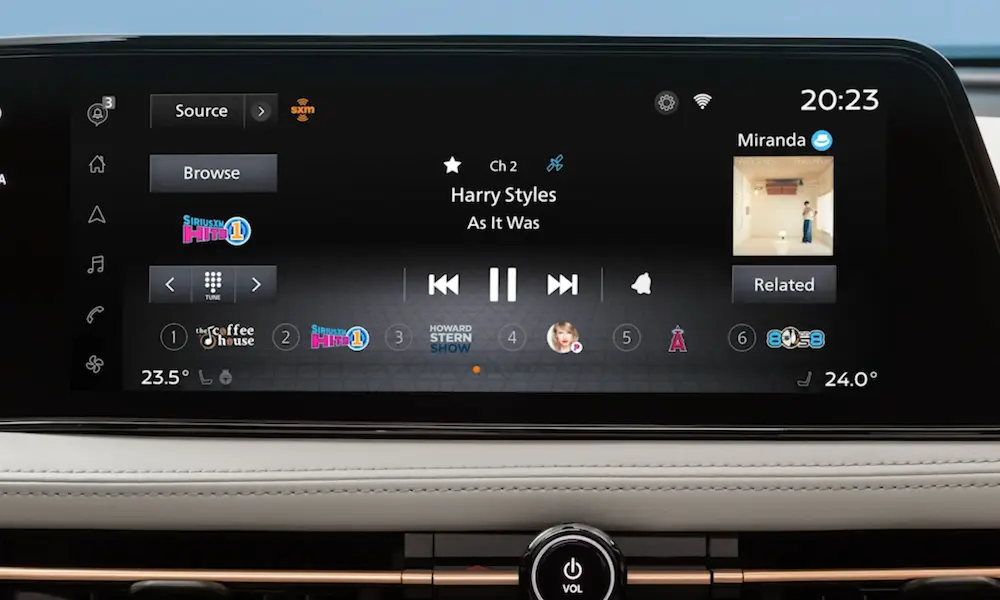
Ford’s SYNC system anchors a horizontal row of preset tiles along the bottom of the screen. Here’s how it works:
- Tune to your target SiriusXM channel using Direct Tune (it opens a keypad so you can type the channel number directly)
- Press and hold one of the preset tiles at the bottom
- The audio briefly mutes, then returns — that’s your confirmation
Ford gives you three separate preset banks for SiriusXM, holding up to 18 satellite radio favorites total. Swipe the preset bar left or right to flip between banks.
Newer SYNC versions also support mixed-band presets — meaning you can save an AM station, FM station, and SiriusXM channel on the same page. No more switching sources to get to your station.
General Motors (Chevy, GMC, Buick, Cadillac)
GM’s MyLink and Infotainment 3 systems take a flexible, source-agnostic approach. You can store up to 40 favorites mixing FM, AM, and SiriusXM in any order you like.
Two ways to save a channel:
- Browse method: Open the channel list, find your station, tap the Star icon to the right of the channel name
- Now Playing method: Tune live, then press and hold the “Hold to Set” tab on the main screen until you hear a beep
According to Chevy’s infotainment setup guide, your saved favorites appear in a scrollable bar at the top or bottom of the audio screen, depending on your model.
Bonus: If your GM vehicle supports the SiriusXM 360L platform, you can manage your favorites from the myChevrolet app on your phone, and they’ll sync to your dashboard automatically.
Stellantis (Ram, Jeep, Dodge, Chrysler — Uconnect)
Uconnect keeps SiriusXM presets separate from other audio sources. The numbered soft keys line up along the top of the screen.
- Tune to your desired channel
- Press and hold one of the 12 numbered preset buttons at the top
- Toggle between two sets of six presets using the arrow key in the upper right
To replace an old preset, just tune to the new channel and hold the old preset slot until it saves over.
Uconnect also has a seriously deep Artist and Song Alert system. While a track plays, tap the Star icon on screen. A menu asks whether you want to save the artist or the song. You can save up to 50 favorite songs and 50 favorite artists. When that artist or song pops up on any SiriusXM channel, your display flashes an alert with a one-tap option to switch over.
Subaru (STARLINK)
Subaru STARLINK uses a vertical preset column on the left side of the screen — easy to scan while keeping your eyes close to the road.
- Navigate to your SiriusXM channel using the tuning dial or the List feature (which sorts by genre)
- Press and hold any slot in the vertical column
- Release when you hear the confirmation tone
Subaru lets you store up to 36 presets, mixing AM, FM, and SiriusXM freely. To replace a saved station, just tune to a new one and long-press over the old slot.
Hyundai, Genesis, and Kia (Hyundai Motor Group)
These brands skip the long-press entirely. Instead, they use a Star icon tap system.
- Browse the SiriusXM channel list or watch the Now Playing screen
- Tap the Star icon next to the channel
- It turns blue or yellow — that’s your save confirmation
You can store up to 40 favorites this way. The Hyundai infotainment manual also lets you view the broadcast schedule for favorited channels, bulk-delete presets, and manually reorder your list.
Here’s what makes this system stand out: Smart Favorites. The first 10 channels you save trigger automatic background buffering when you start the car. This means you can switch to your 5th favorite channel and immediately rewind 30–60 minutes of content you missed.
Toyota and Lexus
Toyota and Lexus keep it clean. Their systems use a Heart icon instead of a star.
- Tune to your SiriusXM channel
- Tap the Heart icon on the Now Playing screen
- The channel appears instantly in a vertical favorites column on the left side of the display
Toyota’s system supports up to 20 saved channels. Tap any channel in that list to switch instantly.
Audi, BMW, Porsche, and Volvo
These brands take a more layered approach, often treating SiriusXM as a full app rather than a radio band.
Audi (MMI): Access SiriusXM via the App Menu. Tap the Star icon to save any live channel, on-demand show, or podcast. All favorites collect in a dedicated Favorites tab accessible from the Now Playing screen.
BMW and Mini (iDrive): Save channels by tapping the Star icon. However, iDrive 9 doesn’t support drag-and-drop reordering. New favorites always go to the bottom of the list. To get a custom order, you’ll need to delete and re-add channels in reverse sequence. BMW also displays your SiriusXM presets in the Head-Up Display — but only if the infotainment is already showing the favorites menu first.
Porsche (PCM): Tap the Star icon on the bottom bar while listening. To view your saved favorites as a group, switch the source from “SiriusXM” to “Favorites” — Porsche treats them as a separate input entirely.
Volvo and Polestar (Android Automotive): Through Settings → Media → SiriusXM, you can set city-specific traffic alerts, configure sports team notifications, and even create a “Skipped Stations” list that hides channels you never want to see while browsing.
Quick Comparison: Favorites by Car Brand
| Brand | Max Presets | Save Method | Standout Feature |
|---|---|---|---|
| Ford (SYNC) | 18 | Press and hold tile | Mixed-band preset pages |
| GM (MyLink/Infotainment 3) | 40 | Hold tile or tap Star | App sync via myChevrolet |
| Stellantis (Uconnect) | 12 per band | Press and hold tile | 50 artist + 50 song alerts |
| Subaru (STARLINK) | 36 | Press and hold slot | Genre-sorted List view |
| Hyundai/Genesis/Kia | 40 | Tap Star icon | Smart Favorites background buffering |
| Toyota/Lexus | 20 | Tap Heart icon | Instant vertical column display |
| BMW/Mini | Profile-based | Tap Star icon | Head-Up Display integration |
| Audi | Profile-based | Tap Star icon | Centralized Favorites tab |
| Porsche | Profile-based | Tap Star icon | Favorites as a separate source |
| Volvo/Polestar | Profile-based | Tap Star icon | Traffic alerts + Skipped Stations |
The Features That Turn On When You Set Favorites
Setting favorites isn’t just about shortcuts. In many modern vehicles, it activates features running quietly in the background.
TuneStart
Ever switch to a channel mid-song and wish you could hear it from the beginning? TuneStart does exactly that. When you tune to a favorited music channel, the system pulls from its background buffer and starts the current song from the very first note. This only works on channels you’ve saved as favorites. You can toggle it on or off in your audio settings.
TuneMix
Available on Honda and some other platforms, TuneMix blends up to 10 favorited music channels into one commercial-free custom stream. The system shuffles between whatever’s currently playing on each of your saved stations. It’s like building your own radio station from channels you already love.
Sports Alerts (Game Alerts + SportsFlash)
You can favorite specific sports teams, not just channels. This unlocks two alert types:
- Game Alerts: A notification appears the moment a game featuring your team starts broadcasting, with a one-tap option to switch channels
- SportsFlash: When a major play happens — a touchdown, a home run, a lead change — the system briefly interrupts your current audio to play the highlight, then returns you to what you were listening to
How Cloud Sync Works With Your SiriusXM Favorites
If your car supports the SiriusXM 360L platform, your favorites don’t live just in your car anymore. They live in the cloud.
Here’s how it connects:
- Log into your Listener Profile in your vehicle’s settings using your SiriusXM streaming credentials
- Any channel you save in the car syncs to your SiriusXM app and web player
- Any channel you save in the app syncs back to your dashboard on the next connection
The SiriusXM Library sync support page notes one important limitation: while your phone app can hold hundreds of saved items, your car’s display caps at 24 synced favorites to avoid overwhelming you while driving. Your full list stays safe in the app — the car just shows the first 24.
If you sell your car or return a rental, you can remotely log your profile out of any vehicle through the SiriusXM Profiles Management Portal. This wipes your listening history and favorites from that vehicle instantly.
Managing and Editing Your Saved Favorites
Deleting and Replacing Presets In the Car
On most systems with numbered preset banks (Ford, Uconnect, Subaru), you can’t leave a blank slot. To remove a channel, simply tune to something new and overwrite the old preset with a long-press.
On systems that use star or heart icons (Hyundai, Toyota, Audi, BMW), you can delete a favorite without replacing it. Just tap the icon again to uncheck it — the channel disappears from your list without leaving a gap.
Reordering Your Favorites
- Hyundai/Genesis/Kia: Go to the preset management menu and drag items into a new order directly on screen
- BMW iDrive 9: No drag-and-drop available. Delete and re-add channels in reverse order to get your preferred sequence
- SiriusXM App: Tap Edit in your Library, then press, hold, and drag any tile to reposition it. Hit Done to save your new order, and it syncs to your car
Removing Favorites in the App
Navigate to your Library, tap Edit in the Channels, Shows, or Episodes tab, then tap the red delete icon on any tile you want gone. Or simply uncheck the checkmark icon next to the item.
Troubleshooting: When Favorites Won’t Save or Sync
Favorites Not Appearing on Your Dashboard
First, confirm your car actually supports 360L profile sync. Not all vehicles do — especially older models from GM, BMW, Ford, and Toyota that haven’t received a software update yet.
If your car is compatible, the fix is usually simple:
- Verify you’re logged into your Listener Profile in the car’s settings
- Fully cycle the ignition (turn off, open the door, restart) to force a fresh server connection
- Check your app and car are signed into the same SiriusXM account
BMW and Mini: Can’t Access the App or Synced Recommendations
This one trips up a lot of BMW owners. The culprit is almost always the Data Privacy settings. Navigate to:
Home → Car → Settings → General Settings → Data Privacy → Individual Selection
Check the box for “SiriusXM Online Connectivity.” Without this enabled, the 360L app can’t make an internet connection and all cloud features go dark.
Audi: On-Demand Content Not Loading
Go to Settings → Privacy and make sure both “Mobile data” and “Location data for vehicle-based online services” are toggled ON. Either one being off cuts the IP connection entirely.
Radio Stuck on One Channel or Unresponsive
Too many Artist and Song alerts can overload the processor as it constantly scans incoming satellite metadata. Pruning your alert list and deleting old favorites usually clears this up. A full ignition cycle helps too.
Genesis: Persistent Pop-ups or UI Freezing
For 2020 and newer Genesis models, try this reset sequence:
- Delete all existing presets via the menu
- Use Direct Tune to go to Channel 0 (your Radio ID channel)
- Confirm the ID is showing on screen
- Switch to AM or FM to force the system cache to clear
- Try saving favorites again
If your screen shows “SAT antenna error!” — that’s a physical hardware issue, not a software fix. Head to the dealership.
| Problem | Likely Cause | Fix |
|---|---|---|
| Favorites not syncing to dash | Not logged into Listener Profile | Log in via car settings; cycle ignition |
| BMW/Mini app unavailable | Data Privacy Mode blocking connection | Enable “SiriusXM Online Connectivity” in privacy settings |
| Audi IP content missing | Mobile data toggled off | Turn on Mobile data + Location data in Settings → Privacy |
| Radio stuck on one channel | Too many artist/song alerts overloading processor | Delete old alerts and favorites; cycle ignition |
| Genesis UI freezing | Software desync | Delete presets, tune to Channel 0, switch to FM to clear cache |
| “SAT Antenna Error” displayed | Physical hardware disconnect | Visit dealership — software fixes won’t help here |
One Last Thing: Managing Annoying In-Vehicle Pop-ups
SiriusXM sends promotional messages and content highlights directly to your dashboard. If you find them intrusive, you can opt out through your online account:
- Log in to your SiriusXM account on a computer
- Go to Account Information → Contact Preferences
- Adjust your In-Vehicle Messaging settings there
It takes about two minutes and instantly makes your dashboard a quieter place.