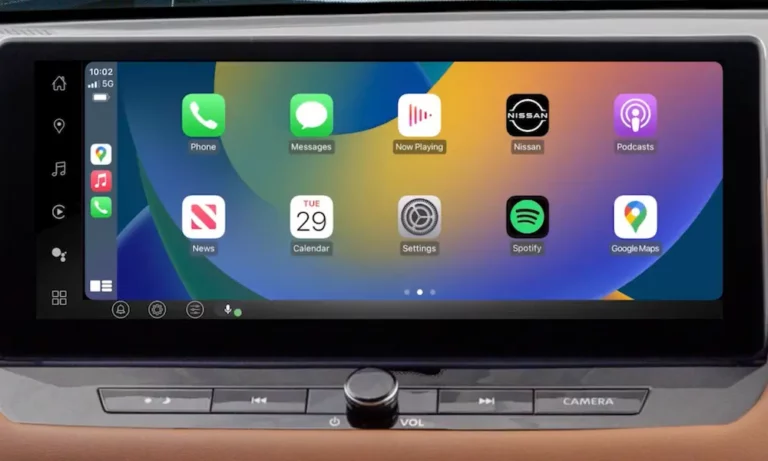
Zlink CarPlay not working is one of the most frustrating things that can happen mid-commute. The screen says “Waiting” or “Connecting,” and nothing you try seems to fix it. This guide breaks down every real cause — from loose USB leads to iOS permission blocks — and shows you exactly how to solve each one. Stick around, because the fix is probably simpler than you think.
Start Here: Understand Why Zlink Fails
Zlink isn’t a simple Bluetooth app. It’s a multi-stage system that bridges your iPhone and an Android head unit. When it breaks, it usually fails at one of three points:
- The physical connection (USB leads, antennas)
- The wireless handshake (Bluetooth-to-Wi-Fi handoff)
- The software layer (activation, app version, iOS permissions)
Knowing which layer is broken cuts your troubleshooting time in half.
Check Your USB Leads First
If you’re using wired CarPlay and Zlink just shows “Waiting,” your USB setup is probably the culprit.
Most Android head units ship with two USB pigtails that plug into the back of the unit via white multi-pin connectors. One lead handles high-speed data. The other is for charging only. If your iPhone is plugged into the charge-only port, Zlink will never detect the handshake and just sits there spinning.
How to fix it:
- Unplug your iPhone
- Swap it to the other USB lead
- Relaunch Zlink
Also, ditch that cheap cable. Cables without proper data pins will charge your phone but block CarPlay entirely. Use an Apple-certified cable with all data pins intact.
Antenna Placement Kills Wireless Connections
Wireless Zlink CarPlay not working? Check where your antennas ended up during installation.
Most head units use short wire antennas — often blue — for Bluetooth and Wi-Fi. Installers frequently tuck these behind metal dash panels, which destroys signal quality. The Bluetooth pairing might succeed, but the Wi-Fi handoff fails, leaving you stuck on “Connecting.”
Quick fix: Re-route the antenna wires so they sit as high as possible inside the dash, away from metal brackets and other wiring harnesses.
The Bluetooth-to-Wi-Fi Handoff Explained
Here’s what actually happens when you launch wireless Zlink:
- Your iPhone and head unit connect via Bluetooth to verify each other
- The head unit tells your iPhone to join its internal Wi-Fi hotspot
- Bluetooth drops to background mode
- Wi-Fi takes over and streams the CarPlay interface
The problem? Your iPhone might refuse to stay on the head unit’s Wi-Fi because it sees no internet connection. iOS “Wi-Fi Assist” kicks in and switches back to cellular, breaking the Zlink link entirely.
Fix this by turning off Wi-Fi Assist:
Settings → Cellular → scroll to the bottom → toggle off Wi-Fi Assist
Hotspot Security Settings Matter More Than You Think
Here’s something most guides skip. If your head unit’s Wi-Fi hotspot is set to “Open” (no password), the CarPlay handshake can fail. Enabling WPA2 security on the hotspot forces the iPhone to engage full networking protocols, which is what Zlink needs to complete the connection.
Go into your head unit’s hotspot settings and set a WPA2 password if you haven’t already.
2.4GHz vs. 5GHz: Which Band Should You Use?
| Band | Pros | Cons |
|---|---|---|
| 5GHz | Fast, low latency, ideal for video | Shorter range, blocked by metal |
| 2.4GHz | Better range, passes through obstacles | Congested in cities, can cause stuttering |
If you’re in a dense urban area and wireless CarPlay keeps dropping, try switching to 5GHz for a cleaner signal. If your dashboard is thick or the antennas are buried, 2.4GHz might actually give you more stability.
Fix the “Stuck on Connecting” Screen Fast
This is the most common complaint. Your screen shows “Connecting” and just… stays there.
The Bluetooth reset trick works almost every time:
- Open Zlink and wait for “Connecting” to appear
- Swipe down to open the Android notification shade
- Toggle Bluetooth off
- Wait 10 seconds
- Toggle Bluetooth back on
This forces the head unit to restart its discovery process and usually prompts the iPhone to complete the Wi-Fi handoff that was stalled.
Zlink Says “Inactivated” or “Service Unavailable”
This isn’t a connection problem — it’s a licensing problem. Zlink is a proprietary app tied to your head unit’s hardware ID. If it loses contact with the activation server, it won’t run.
How to reactivate:
- Connect your head unit to the internet (use your phone as a hotspot)
- Open Zlink while online
- If a QR code appears, scan it with your phone and complete the web portal verification
If your unit was bought from an unauthorized reseller, activation might require a new APK or direct contact with the supplier. Factory resets also wipe activation status, so reconnect to the internet immediately after any reset.
Update Your Zlink APK Version
Apple updates iOS frequently. Zlink must match or it stops working. If you updated your iPhone and CarPlay broke the next day, an outdated APK is the likely reason.
Here’s a quick compatibility overview:
| Zlink Version | Supported Android OS | Key Notes |
|---|---|---|
| Zlink 4 | Android 9 and below | Early wireless support, higher latency |
| Zlink 5 | Android 10–12 | Better 5GHz stability |
| Zlink 6 | Android 12–13 | Supports iOS 17/18 handshakes |
| Tlink/Zlink Hybrid | Various | Common on 662 chipsets, more robust activation |
To sideload a newer APK, copy it onto a USB drive formatted to FAT32 — Android won’t read NTFS or exFAT from most file managers. Plug the drive into your head unit, open the file manager, and install the APK.
Fix iPhone Settings That Block Zlink
Your iPhone might be the problem. Apple’s security settings can silently kill CarPlay.
Check these settings on your iPhone:
- Siri must be enabled. CarPlay runs as a Siri extension. No Siri = no CarPlay. After any iOS update, verify Siri is on and “Hey Siri” is active
- Allow CarPlay While Locked must be turned on. Go to Settings → General → CarPlay → tap your Zlink connection → enable this toggle
- Disable your VPN while driving. A VPN creates a data tunnel that blocks the iPhone from seeing the head unit’s local Wi-Fi. Turn it off before launching Zlink
- Turn off Private Wi-Fi Address for the head unit’s network. iOS randomizes your MAC address by default, which confuses Zlink. Go to Settings → Wi-Fi → tap the head unit’s network → turn off Private Wi-Fi Address
Access Factory Settings to Unlock Hidden Fixes
Many Zlink controls are buried in protected factory menus. These let you toggle CarPlay on/off, reassign USB port behavior, and fix steering wheel control integration.
Here are the most common access codes by brand:
| Manufacturer | Common Codes | Menu Path |
|---|---|---|
| General Units | 0000, 1234, 1111, 8888 | Settings → Car → Factory Settings |
| Joying | 16176699, 1617, 16179 | Car Settings → Factory → Feature Settings |
| Dasaita | 126, 1617, 3368 | Settings → Car → Factory Settings → Other |
| Idoing | 1818, 3368, 7171 | Settings → Factory → Home Launcher |
Inside these menus, you can also fix steering wheel control functionality if it stopped working after a Zlink reset. Set the correct CANbus decoder for your vehicle so the Android OS can talk to your car’s internal network properly.
Clear Zlink’s Cache and Data
If nothing else works, corrupted app data might be holding things back. Here’s how to clear it:
- Go to Android Settings → Apps → Zlink
- Tap Clear Cache
- Tap Clear Data
- Restart the head unit and re-pair your phone
Clearing data resets your Zlink preferences but won’t remove the activation license as long as your hardware ID hasn’t changed.
Android Auto on Zlink: The Developer Mode Fix
Using Zlink for Android Auto instead of CarPlay? There’s a known conflict between recent Google updates and Zlink’s emulation layer. Here’s the fix:
- Open Android Auto on your phone
- Tap Version and Permission Info repeatedly until Developer Mode unlocks
- Go into the developer menu
- Set Application Mode to Release
This forces Android Auto to use a more stable communication method that Zlink handles much better.
Quick Zlink Troubleshooting Reference
| Problem | What You’ll See | First Fix |
|---|---|---|
| Wrong USB port | “Waiting” with no response | Swap USB leads on the head unit |
| Failed Wi-Fi handoff | “Connecting” loop | Toggle Bluetooth off, then on |
| Activation error | “Inactivated” message | Connect to internet, relaunch Zlink |
| iOS permission block | Drops when screen locks | Enable “Allow CarPlay While Locked” |
| VPN interference | Connects, then drops | Disable VPN before launching Zlink |
| Outdated APK | Black screen or no launch | Sideload latest Zlink version via FAT32 USB |
| Corrupted cache | Random glitches | Clear Cache and Data in Android Settings |
Don’t Skip iOS Updates Without Checking First
One habit that prevents most Zlink headaches: don’t install iOS updates the day they drop. Wait a few days. Check Reddit communities like r/Androidheadunits or the Dasaita community forum to confirm that other Zlink users haven’t hit a wall with the new version.
If you already updated and lost CarPlay, do a clean re-pair:
- Forget the device on your iPhone’s Bluetooth settings
- Forget the device on the head unit
- Reset Network Settings on your iPhone (Settings → General → Transfer or Reset iPhone → Reset → Reset Network Settings)
- Start a fresh pairing from the head unit’s Bluetooth menu
This clears any stale handshake data and gives both devices a clean slate to reconnect properly.