Is your Cadillac’s touchscreen frozen? Climate controls not responding? Navigation system acting up? These frustrating issues with your Cadillac CUE system can put a damper on your driving experience. The good news? You can often fix these problems yourself with a simple reset procedure instead of heading straight to the dealership.
What Is the Cadillac CUE System?
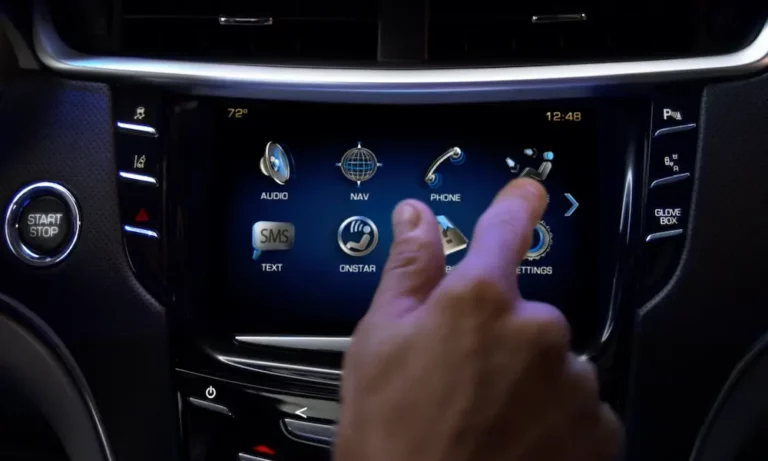
The Cadillac User Experience (CUE) is the infotainment system found in most Cadillac vehicles since 2013. It combines a touchscreen interface with haptic feedback (that slight vibration when you press a button) to control:
- Navigation
- Climate settings
- Audio entertainment
- Phone connectivity
- Vehicle settings
The system uses capacitive touch technology similar to smartphones and integrates with cloud-based profiles to remember your personal settings. However, like any complex electronic system, CUE can occasionally experience glitches requiring a reset.
Signs Your Cadillac CUE System Needs a Reset
Watch for these clear warning signs that your system needs attention:
- Frozen or unresponsive touchscreen
- Blank or black display
- System repeatedly rebooting itself
- Climate controls not responding
- Navigation system freezing or lagging
- Delayed audio response
- Strange clicking noises from behind the screen
Quick Checks Before Resetting
Before jumping into a full reset, try these quick diagnostic steps:
Check Your Battery Health
A weak or failing battery can cause erratic behavior in your CUE system. A properly functioning battery should show:
- 12.6V or higher when the engine is off
- 13.7-14.7V when the engine is running
If your battery shows signs of corrosion or voltage below 12.4V, consider replacing it as battery issues can directly affect the CUE system’s performance.
Test Touchscreen Responsiveness
Tap different areas of your screen to identify any dead zones. If only certain parts of the screen aren’t responding, this might indicate a hardware issue rather than a software glitch, particularly in older models (2013-2016) where the conductive gel can dry out.
Standard Hard Reset Procedure (Models with Flip-up Faceplate)
This method works for most Cadillac models with a storage compartment beneath the touchscreen:
- Start your vehicle or turn it to accessory mode
- Lift the storage compartment beneath the touchscreen to expose the hidden panel
- Turn off the vehicle completely
- Open the driver’s door and leave it ajar for 30-60 seconds (this disconnects the accessory power relay)
- Close the door and restart your vehicle
- Lower the faceplate
You should see a spinning yellow circle in the top-right corner, indicating a successful reboot. This reset process resolves most common CUE system issues.
Soft Reset for Newer Models (XT5, CT6, etc.)
For models without a flip-up faceplate, follow this alternative approach:
- Make sure your vehicle is in Park
- Turn off the ignition completely
- Open the driver’s door and leave it open for 30-60 seconds
- Close the door and restart your vehicle
This method addresses minor glitches but may not fix more serious software issues.
Alternative Reset Methods
Steering Wheel Button Reset (2023+ Models with Google Built-In)
- Press and hold the End Call button on your steering wheel for 20 seconds until the screen turns off
- Release the button and wait for the system to reboot automatically
Power Button Reset (Select Models)
Some Cadillac models feature a dedicated power button for the infotainment system:
- Press and hold the power button for approximately 10 seconds
- Release once you see the Cadillac logo reappear
Factory Reset (Last Resort)
If basic resets don’t solve your problem, you can try a factory data reset, but be aware this will erase all your saved settings:
- Navigate to Settings > System > Reset Options
- Select Factory Data Reset
- Confirm the reset when prompted
Note: This will erase all saved profiles, paired devices, and personal settings, so only use this method if other reset options have failed.
Common Hardware Issues and Solutions
Sometimes, the problem goes beyond what a reset can fix:
Degraded Conductive Gel (2013-2016 Models)
The touchscreen in older CUE systems contains a layer of conductive gel that can dry out over time, causing unresponsive areas.
Solution: Replace the screen. Aftermarket replacement kits are available for $150-$300, or you can visit a dealership for professional installation.
Loose Connections
Ribbon cables connecting the display panel can become loose over time.
Solution: Reseat the connectors behind the display panel. This requires some technical knowledge and careful disassembly.
Comparison: Reset Methods by Effectiveness
| Reset Method | Time Required | Effectiveness | User Settings Retained |
|---|---|---|---|
| Hard Reset (Door Method) | 1-2 minutes | High | Yes |
| Soft Reset (Newer Models) | 1 minute | Medium | Yes |
| Steering Wheel Reset | 30 seconds | Medium-High | Yes |
| Factory Data Reset | 5 minutes | Very High | No |
Maintaining Your CUE System
Follow these tips to keep your CUE system running smoothly:
Regular Software Updates
Connect to Wi-Fi regularly or visit a dealership to install the latest CUE firmware. Updated software can enhance stability and add new features.
Battery Maintenance
Replace your vehicle’s battery every 3-5 years to prevent voltage fluctuations that can affect the CUE system. Keep terminals clean and connections tight.
Temperature Considerations
Extreme temperatures can accelerate touchscreen degradation. When possible, park in shaded areas during hot weather and use a windshield sun shade.
Clean with Caution
Use only approved electronics cleaning cloths to wipe your touchscreen. Avoid:
- Household cleaners
- Paper towels (too abrasive)
- Excessive moisture
Advanced Troubleshooting Steps
If your CUE system continues to malfunction after trying all reset methods, consider these advanced options:
Check for System Updates
Outdated software can cause compatibility issues. Visit the Cadillac owner center website or dealership to ensure your system has the latest updates.
Inspect for Physical Damage
Carefully examine your screen for cracks, bubbling, or other physical damage that might indicate deeper issues.
Monitor Vehicle Electrical System
Some CUE problems stem from broader electrical issues. Have a mechanic check your alternator and overall electrical system if problems persist.
Reset Process for Specific Cadillac Models
ATS, CTS, XTS (2013-2019)
These models typically have the flip-up faceplate design. Use the standard hard reset procedure described above.
XT4, XT5, XT6, Escalade (2017+)
These newer models may not have the flip-up faceplate. Use the soft reset method or steering wheel button reset.
CT4, CT5 (2020+)
These latest models use an updated CUE system. Try the soft reset first, followed by the steering wheel button reset if needed.
How to Know When It’s Time for Professional Help
While most CUE issues can be resolved with a reset, certain symptoms indicate more serious problems requiring professional attention:
- Screen shows visible cracks or damage
- System fails to power on at all after multiple reset attempts
- Screen displays vertical lines or distortion
- Reset works temporarily but problems return within minutes
- System issues accompanied by other electrical problems
In these cases, contact your Cadillac dealership or a certified automotive electronics specialist.
The Bottom Line on Cadillac CUE Resets
Resetting your Cadillac CUE system is often a quick and effective solution for common touchscreen and infotainment issues. The door-triggered hard reset resolves most problems, while persistent issues may require factory resets or professional assistance.
Keep your system updated, maintain your vehicle’s battery, and protect your touchscreen from extreme temperatures to minimize future problems. With proper care and occasional resets when needed, your Cadillac CUE system should provide years of reliable service.