Ever jumped in your GMC, ready to use the built-in WiFi for navigation or streaming, only to find it’s just not connecting? You’re getting the WiFi icon, maybe even connecting to the network, but nothing loads. It’s frustrating, especially when you’re counting on that connection for an important trip.
What Causes GMC WiFi Connection Issues?
GMC’s built-in WiFi (powered by OnStar) can fail for several reasons, from simple software glitches to hardware problems. Most issues fall into these categories:
- System needs a simple reboot
- OnStar service disconnection
- Outdated firmware
- Cellular network problems
- Hardware malfunction
Let’s tackle each possible solution, starting with the quickest fixes first.
1. Power Cycle Your GMC’s Systems
Just like your home router, your vehicle’s WiFi system sometimes needs a complete restart. This simple fix resolves many connection issues by clearing temporary errors in the system.
Here’s how to do it properly:
- Park your vehicle in a safe location
- Turn off the engine completely
- Open the hood
- Disconnect the negative battery terminal (the black one)
- Wait 30 seconds
- Reconnect the terminal
- Start your vehicle
- Allow systems to fully initialize (about 2-3 minutes)
- Test the WiFi connection
This “hard reset” forces all vehicle systems to restart, often resolving connectivity issues that a simple ignition cycle won’t fix.
2. Verify Your OnStar Data Plan Status
Before diving deeper, ensure your data plan is active. Your GMC WiFi operates through OnStar’s cellular connection, so an expired or inactive plan means no internet access.
Check your plan status by:
- Opening the myGMC app on your smartphone
- Calling OnStar directly
- Pressing the blue OnStar button in your vehicle
Common plan issues include:
- Expired credit card on file
- Plan renewal failure
- Data limit reached
- Account not properly linked to your vehicle
3. Request an OnStar Remote Reset
If your data plan is active but WiFi still isn’t working, OnStar can perform a remote reset of your vehicle’s cellular modem.
- Press the blue OnStar button in your vehicle
- Ask the representative to perform a “modem reset”
- Request they re-push your provisioned data plan to the vehicle
- Follow any additional instructions they provide
OnStar’s customer service can remotely diagnose and often fix connectivity issues without a dealer visit.
4. Perform an Infotainment System Reset
Your vehicle’s infotainment system manages the WiFi connection interface. If it’s experiencing software issues, a dedicated reset can help:
- With the vehicle in Park, press and hold the phone hang-up button (end-call button) on your steering wheel
- Continue holding for 15-20 seconds
- The screen will go dark and then reboot
- Once restarted, test your WiFi connection
This reset clears the system cache without affecting your personalization settings or requiring any reconnection of devices.
5. Check and Toggle WiFi Hotspot Settings
Sometimes the WiFi hotspot gets disabled within your vehicle’s settings. Here’s how to check:
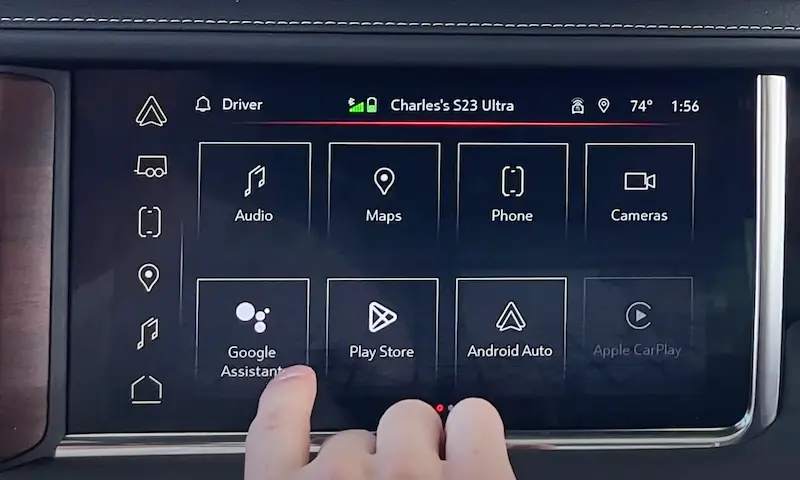
- Navigate to Settings in your infotainment system
- Select WiFi Hotspot
- Ensure “Share Hotspot Data” is toggled ON
- If this option immediately toggles back off, you may have a hardware or firmware issue
For many users, simply toggling this setting resolves connection problems when the system has gotten confused about data sharing.
6. Update Your Vehicle’s Software
Outdated firmware can cause connectivity issues. GMC releases software updates that often include fixes for WiFi and connectivity problems.
Check for updates by:
- In your infotainment system, navigate to Settings
- Select Software Updates
- Follow prompts to check for and install any available updates
- Alternately, check via the GMC mobile app for available updates
After updating, restart your vehicle completely before testing the WiFi connection again.
7. Check Vehicle Location and Signal Strength
Your GMC’s WiFi depends on cellular connectivity. If you’re in an area with poor coverage, your WiFi won’t work properly.
The system should display signal strength in the WiFi hotspot settings menu. If signal is weak:
- Move to a different location
- Check if there are known cellular outages in your area
- Try again later when network congestion may be lower
Mountain areas, parking garages, and remote locations commonly experience connection issues due to poor cell coverage.
8. Reset Your Network Settings on Connected Devices
Sometimes the problem isn’t with your GMC but with the devices trying to connect. Try:
- Forgetting the GMC WiFi network on your phone/tablet
- Restarting your device
- Reconnecting to the GMC hotspot with fresh network settings
- Using a different device to test if the problem is device-specific
This troubleshooting step helps rule out device-side issues that might make it seem like your GMC’s WiFi is the problem.
9. Check for Physical Damage or Interference
Physical issues can affect your WiFi performance:
- Inspect for any visible damage to your vehicle’s roof-mounted antenna
- Look for aftermarket accessories that might be causing interference
- Check if there are any recall notices for your model year regarding antenna or connectivity issues
Damaged antennas or interference can reduce signal strength even when the system appears to be working properly.
10. Use the Alternative Mobile Hotspot Feature
If your built-in WiFi still isn’t working, your GMC infotainment system can connect to your phone’s hotspot instead:
- Enable the mobile hotspot on your smartphone
- In your GMC’s infotainment system, go to Settings → WiFi
- Select your phone’s hotspot name from the available networks
- Enter the password
- Connect and use your phone’s data instead of the built-in system
This workaround provides connectivity while you resolve the underlying issue with your vehicle’s WiFi.
11. Visit Your GMC Dealer for Professional Diagnosis
When all else fails, it’s time for professional help. Your dealer has specialized tools to diagnose connectivity issues:
- Schedule a service appointment specifically for connectivity issues
- Ask them to check:
- Antenna connections
- Cellular modem wire harness
- OnStar module functionality
- Signal reception quality
If they determine hardware failure, they can replace the OnStar WiFi module and properly provision it with OnStar’s assistance.
Comparison of GMC WiFi Troubleshooting Methods
| Troubleshooting Method | Time Required | Technical Skill | Success Rate | When to Try |
|---|---|---|---|---|
| Battery Disconnect Reset | 5-10 minutes | Low | High | First step for all issues |
| OnStar Remote Reset | 10-15 minutes | None | Medium-High | After basic resets fail |
| Infotainment System Reset | 2-3 minutes | Very Low | Medium | For software glitches |
| Verify Data Plan | 5 minutes | None | Varies | When service was recently changed |
| Toggle WiFi Settings | 2 minutes | Very Low | Medium | For configuration issues |
| Software Update | 15-30 minutes | Low | Medium | When other solutions fail |
| Phone Hotspot Alternative | 5 minutes | Low | High (as workaround) | Temporary solution |
| Dealer Service | 1-3 hours | None (they handle it) | Very High | Last resort |
Preventing Future GMC WiFi Issues
Once you’ve resolved your current WiFi problem, take these steps to minimize future issues:
- Keep your OnStar account information current, including payment methods
- Install software updates promptly when notified
- Perform a manual system reboot (battery disconnect) every 6-12 months as preventative maintenance
- Keep track of your data usage to avoid unexpected plan limitations
- Save your vehicle’s WiFi password somewhere accessible in case system resets require reconnection
With these preventative measures and the troubleshooting steps above, you’ll be able to maintain reliable WiFi connectivity in your GMC vehicle and quickly resolve any issues that do arise.