Your Cadillac CUE is acting up, showing outdated maps, or just feeling sluggish. You’re probably wondering if a software update can fix it. Good news — it might. But the update process depends entirely on your model year and hardware. Stick around, because this guide covers every method, every generation, and every fix you’ll actually need.
First, Figure Out Which CUE System You Have
Before you do anything, you need to know what you’re working with. Not all Cadillac CUE systems update the same way. Your model year tells you everything.
Here’s a quick breakdown of every CUE generation and what each one supports:
| Infotainment Generation | Model Year Range | Update Method | Key Feature |
|---|---|---|---|
| First Generation CUE | 2013 | DVD disc only | Basic Bluetooth/USB |
| Second Generation CUE | 2014–2015 | Dealer/USB | 4G LTE, OnStar |
| Third Generation CUE | 2016–2018 | USB/SD card + limited OTA | CarPlay, Android Auto |
| Cadillac Infotainment 3.0 | 2019–2022 | SD card + full OTA | Cloud profiles |
| Google Built-in | 2023–Present | Automatic OTA/Google Play | Google Maps, app store |
If you drive a 2013–2015 Cadillac, some modern features simply aren’t coming via a software update alone. More on that in a minute.
How to Update Cadillac CUE Over the Air (2017 and Newer)
If you own a select 2017 or newer Cadillac, you’ve got the easiest path — over-the-air (OTA) updates. Think of it like your phone downloading a new iOS version while you sleep.
Here’s how OTA works:
- Download phase: The update downloads quietly in the background while you drive. If you pull into an underground garage, it pauses and picks back up when you’re back in range.
- Installation phase: Once the download finishes, the system prompts you to install it when you park or start your next drive.
To manually check if an update is waiting for you:
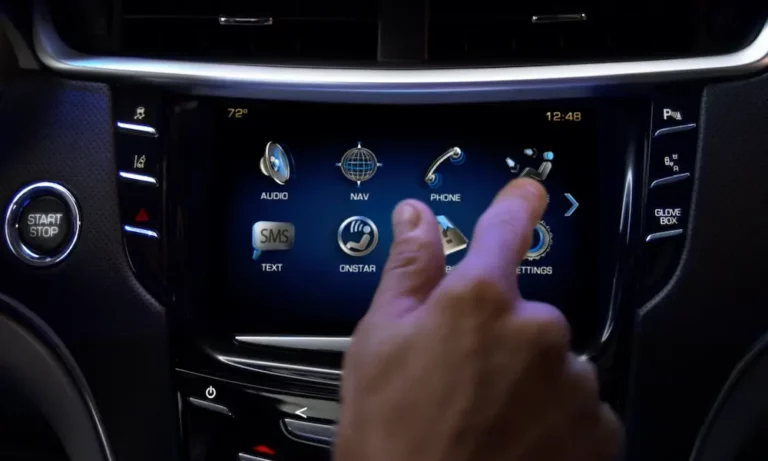
- Go to Settings on your CUE screen
- Select Software Information or Updates (label varies by year)
- Follow the on-screen prompts
Keep your OnStar subscription active and make sure you’ve accepted all connected vehicle terms. If you haven’t, your vehicle won’t appear in the update queue — and you’ll sit there wondering why nothing’s happening.
How to Update Cadillac CUE Navigation via SD Card (XT4, XT5, CT4, CT5)
For models like the XT5, CT4, and CT5, your navigation maps live on an SD card, not in the cloud. Map updates don’t come automatically — you need to order a new card.
Here’s the process step by step:
- Visit the GM Navigation Store and enter your VIN
- Purchase the correct authenticated SD card for your region and hardware
- Start your engine and put the vehicle in Park
- Swap the old SD card for the new one in the designated slot
- Follow the on-screen installation prompts
Don’t swap the card while driving or with the ignition off. The system needs stable power to read and validate the new data. One wrong step and you’re back to square one.
How to Update Cadillac CUE via USB Drive (Mid-Generation Models)
Some mid-generation CUE systems accept firmware and map updates through a USB drive. This applies mainly to 2016–2019 models receiving updates that aren’t supported by their OTA capabilities.
Follow these steps:
- Download the correct update file from the GM Navigation Store using your VIN
- Format your USB drive to FAT32 or exFAT — nothing else
- Load only the update files onto the drive — no other files, folders, or music
- Start your engine, put the car in Park, and insert the USB drive
- Follow the on-screen installation instructions and don’t remove the drive mid-process
A NHTSA technical service bulletin highlights how important stable voltage is during programming events like these. If your battery dips, the update can fail — or worse, corrupt the HMI module.
How to Update a Legacy Cadillac CUE via DVD Disc (2005–2014)
Got an older Escalade, DTS, or early XTS? You’re updating the old-fashioned way — with a DVD navigation disc.
Here’s what to expect:
- The process takes up to three hours — yes, really
- Your engine must run the entire time to keep power stable
- The disc uses a VIN-based authentication code you enter via the touchscreen
You can order the correct disc from the Cadillac Navigation DVD catalog. Block out an afternoon, park somewhere safe, and let it run.
Updating a 2023+ Cadillac with Google Built-In
If you’re driving a 2023 or newer Cadillac — Lyriq, Escalade, XT5, or the newer CT series — your system runs on Android Automotive with Google built-in. This is a completely different beast.
Here’s how updates work on this platform:
- System updates: Pushed automatically by GM via OTA — you don’t manage these
- App updates: Go to Google Play → My Apps and update third-party apps like Spotify manually or enable auto-updates
- Google Maps: Updates automatically via the cloud as long as you have an OnStar data connection
The Setup Wizard walks you through linking your Google Account when you first get the car. You don’t technically need a Google Account, but without one, you can’t download apps or get personalized navigation.
One thing to know: don’t uninstall system apps. Apps labeled “System” — like the System Manager and Terms and Conditions app — run silently in the background. Delete them and you’ll create real problems with core vehicle functions.
Super Cruise Map Updates: What You Need to Know
Super Cruise needs its own high-definition maps — separate from your regular navigation. These aren’t something you update manually. The system updates automatically via OTA as Cadillac expands the compatible road network.
To keep Super Cruise maps current:
- Maintain an active OnStar connection
- Accept all connected vehicle terms in your settings
- Drive regularly so the system has opportunities to download updates
If Super Cruise goes unavailable on a stretch of highway you use all the time, an outdated map package or a lapsed OnStar plan is usually why.
Battery Health: The #1 Reason CUE Updates Fail
Here’s something most people don’t think about — your battery health directly determines whether an update succeeds or fails.
The CUE system is sensitive to voltage drops. If power dips during a critical write phase, you can permanently damage the HMI module. That’s an expensive mistake.
| Parameter | Optimal Value | Critical Low | What Happens if It Fails |
|---|---|---|---|
| Resting Voltage | 12.6V | < 12.4V | Update gets blocked automatically |
| Cranking Voltage | > 10.0V | < 9.0V | System reset or data loss |
| Charging Voltage | 13.5–14.7V | < 13.0V | Battery won’t recover post-update |
| Parasitic Draw | < 50 mA | > 50 mA | Module stuck awake, battery drain |
If the system says “Conditions Not Ideal” or an update isn’t showing up, drive for 30 minutes to charge the battery first. Dealerships use a Midtronics battery maintainer set to power supply mode during programming to lock voltage steady throughout the process.
Lyriq and EV owners, pay extra attention here. Your infotainment runs off the 12-volt accessory battery, not the main traction battery. A failed OTA download can leave the telematics module awake for hours, draining your 12-volt battery even when the car shows a full charge. The fix? Keep your Lyriq plugged into a Level 2 charger when it’s parked for long periods — especially overnight when OTA updates tend to push.
How to Fix a Frozen or Broken CUE Screen
Sometimes the issue isn’t an update — it’s a frozen screen. Try these resets in order before assuming you need a new unit.
Soft Reset (Settings Menu)
Navigate to Settings → Return to Factory Settings. This wipes paired phones, radio presets, and navigation history. It won’t update anything, but it clears corrupted user data that causes glitches.
Hard Reset (The Faceplate Method)
This one reboots the entire HMI module and works on frozen screens that won’t respond to touch:
- Turn the ignition on — don’t start the engine
- Open the motorized faceplate to reveal the storage compartment
- Turn the vehicle off and open the driver’s door
- Wait 60 seconds with the door open — the screen must go completely dark
- Close the door, turn the ignition back on, then close the faceplate
Battery Terminal Reset
If neither reset works, disconnect the negative battery terminal for 20–30 minutes. This drains all capacitive energy from the infotainment modules and clears the temporary memory cache. While you’re at it, check the fuses labeled “RDO” or “AMP” in the instrument panel fuse box on the passenger side. A blown fuse is one of the most common — and most overlooked — causes of a dead CUE screen.
What to Do When Your 2013–2015 CUE Can’t Update
If you’re driving a 2013–2015 Cadillac ATS, CTS, or XTS, you’ve probably noticed something frustrating — CarPlay and Android Auto aren’t available no matter what you try. That’s a hardware limitation, not a software one.
The HMI 1.1 and HMI 2.0 modules in those cars don’t have the processing power to handle smartphone projection. A software update can’t change that.
You’ve got two real options:
HMI 2.5 Module Retrofit: A technician replaces your old module with a 2016+ HMI 2.5 unit, programs it with your VIN and the correct option codes (IO5 for no nav, IO6 with nav), and your factory controls stay exactly the same — but you gain CarPlay and Android Auto.
Aftermarket Screen Replacement: If your screen has the infamous “spider-web” cracking or delamination issue — a known problem from the adhesive gel between screen layers — a full aftermarket display is often the smarter financial move. These larger Android-based units bolt into the center stack and support wireless smartphone projection, though professional installation is strongly recommended for proper climate and amplifier integration.
Quarterly Maintenance Checks for a Healthy CUE System
Don’t wait for something to break. A few habits keep your system update-ready year-round:
- Every 3 months: Manually check for software updates in Settings — especially important if you don’t drive daily
- Every 3 months: Confirm your OnStar terms are accepted and your subscription is active
- Every year: Get a professional battery load test — a battery that passes a voltage test can still fail under load and tank an update mid-process
- Every year: Inspect battery terminals for corrosion and check that the main ground strap is tight
These aren’t big commitments. But skipping them is exactly how you end up with a bricked HMI module and a dealer bill you didn’t budget for.