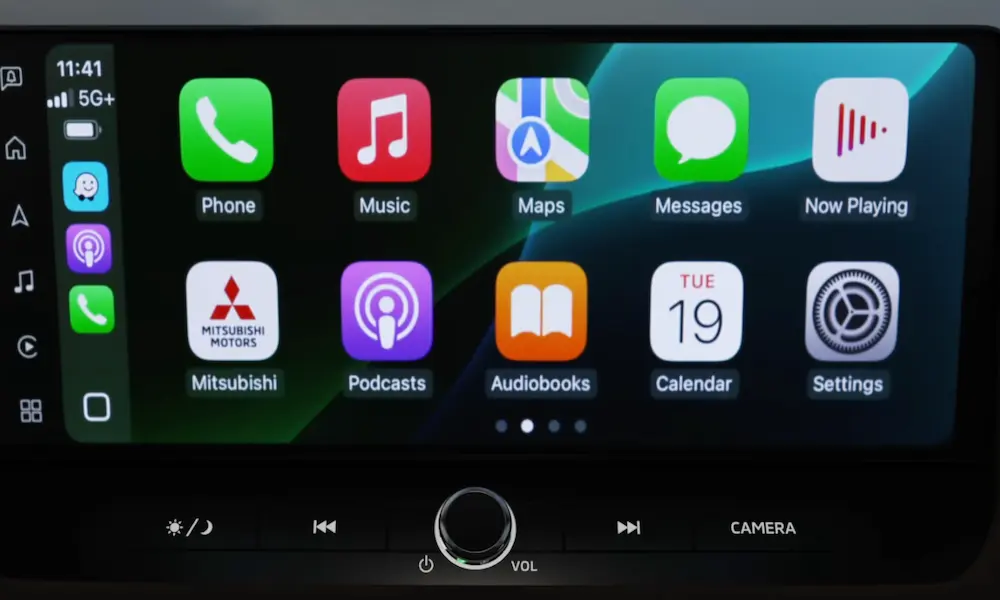
Plugging in your iPhone and seeing… nothing. Frustrating, right? Figuring out how to connect Apple CarPlay in Mitsubishi vehicles doesn’t have to feel like defusing a bomb. This guide covers every model, every USB port, and every setting you need. Stick around — the fix you need is probably two minutes away.
Which Mitsubishi Models Actually Support Apple CarPlay?
Before touching a cable, check that your car supports CarPlay. Mitsubishi started rolling out CarPlay in 2016 with the Mirage and Pajero, then expanded quickly from there.
| Model | CarPlay Start Year | Connection Type |
|---|---|---|
| Mirage / Mirage G4 | 2016 | Wired only |
| Outlander | 2017 | Wired (2017–2021) / Wireless (2022+) |
| Outlander PHEV | 2017 | Wired (2017–2022) / Wireless (2023+) |
| Outlander Sport | 2017 | Wired only |
| Eclipse Cross | 2018 | Wired (most trims) / Wireless (select 2024+) |
If your Mitsubishi is a 2016 or newer and has the Smartphone-link Display Audio (SDA) system, you’re in business.
Get Your iPhone Ready First
Most CarPlay failures start on the phone side, not the car. Check these settings before you even walk to your vehicle.
Enable Siri
CarPlay won’t launch without Siri active. Go to Settings > Siri & Search and turn on:
- Listen for “Hey Siri”
- Allow Siri When Locked
If Siri’s off, the system often refuses to open CarPlay entirely.
Check Screen Time Restrictions
Work phone? Shared family device? Parental controls can silently block CarPlay. Navigate to Settings > Screen Time > Content & Privacy Restrictions > Allowed Apps and confirm CarPlay is switched on.
Keep iOS Updated
Run the latest iOS version. Outdated software causes handshake failures between your iPhone and the SDA head unit. Check for updates under Settings > General > Software Update.
The Right Cable Makes or Breaks Wired CarPlay
This is the most overlooked step. Not every USB cable works for CarPlay.
Data Cable vs. Charge-Only Cable
USB cables fall into two camps: charge-only and data-sync. Charge-only cables have two internal wires for power. Data-sync cables have four wires — two for power, two for transferring data. CarPlay needs those data wires to send video and touch inputs to your screen.
Use an MFi-certified (Made for iPhone) Lightning or USB-C cable. Cheap third-party cables drop the signal inside your car’s electromagnetically noisy cabin. That’s why CarPlay crashes mid-drive or won’t load at all.
Find the Right USB Port in Your Mitsubishi
Your Mitsubishi probably has multiple USB ports. Most of them won’t connect to CarPlay. Here’s the breakdown:
| Port Location | Connects to CarPlay? |
|---|---|
| Lower center stack (front) | ✅ Yes |
| Inside center armrest | Variable — check your manual |
| Rear console / back seats | ❌ No — charge only |
| Glovebox pigtail (some Mirages) | ✅ Yes |
In the 2022–2025 Outlander, the front console typically has one USB-A and one USB-C port — both connect to the SDA processor. The rear ports look identical but only push power. Plug into the wrong one and nothing happens.
For Mirage owners: your CarPlay port is sometimes a pigtail cable inside the glovebox rather than a visible slot near the gear selector. Check inside the glovebox if the center console port isn’t working.
How to Connect Apple CarPlay in Mitsubishi via Wired Connection
This method covers the Mirage, Outlander Sport, early Eclipse Cross, and older Outlander models.
Step-by-step:
- Start the vehicle so the SDA screen powers on
- Unlock your iPhone — keep it on the home screen
- Plug your MFi-certified cable into the correct front USB data port
- Your Mitsubishi screen shows a prompt: “Enable Apple CarPlay?” — tap Yes or Always
- Your iPhone asks if CarPlay can run while the phone is locked — tap Allow
That’s it. The “Always” option means CarPlay launches automatically every time you plug in — no tapping required on future trips.
How to Connect Apple CarPlay in Mitsubishi via Wireless Connection
Wireless CarPlay arrived with the 2022 Outlander and expanded across the lineup from there. It uses Bluetooth to find your phone, then switches to Wi-Fi for the actual data transfer. Bluetooth doesn’t have enough bandwidth to stream a video interface — that’s why both radios have to cooperate.
Step-by-step:
- On your iPhone, go to Settings > Bluetooth and turn it on
- On the Mitsubishi SDA screen, open the Phone or Devices menu
- Select Add New Device or Pair New Phone
- Find “Mitsubishi Motors” in your iPhone’s Bluetooth list and tap it
- Match the PIN shown on both screens and confirm
- When your iPhone asks “Use CarPlay?” — tap Allow
- The SDA switches to Wi-Fi and CarPlay loads on screen
| Setup Stage | What Happens | Protocol |
|---|---|---|
| Discovery | Car and phone find each other | Bluetooth |
| Pairing | PIN confirmation | Bluetooth |
| Authorization | iPhone grants CarPlay access | Bluetooth / Wi-Fi |
| Operation | iOS interface streams to screen | Wi-Fi |
One important note: that Wi-Fi network is a closed loop between your phone and the car. It doesn’t give your phone mobile data or act as a hotspot. It just moves CarPlay data between two devices.
Apple CarPlay Setup by Model: What’s Different
2025 Outlander
The 2025 Outlander runs a 12.3-inch SDA screen and offers wireless CarPlay across almost every trim — including the base ES. That’s a big deal in a segment where competitors often lock wireless connectivity behind premium packages.
| Trim | CarPlay Type | Wireless Charging Pad |
|---|---|---|
| ES | Wireless | No |
| SE | Wireless | Yes |
| SE Tech | Wireless | Yes |
| SEL | Wireless | Yes |
| SEL Premium | Wireless | Yes |
| Platinum Edition | Wireless | Yes |
The 12.3-inch display gives Apple Maps more real estate. The Yamaha audio system is specifically tuned for the compressed audio streams coming through Apple Music via CarPlay — so your playlists actually sound as good as they should.
2025 Outlander PHEV
The PHEV lineup splits differently. The base ES trim uses a smaller 8.0-inch screen with wired CarPlay only. Step up to SE or higher and you get wireless on the 8.0-inch or 12.3-inch display depending on trim.
| PHEV Trim | Screen | CarPlay Type |
|---|---|---|
| ES | 8.0-inch | Wired |
| SE | 8.0-inch | Wireless |
| SE Tech | 12.3-inch | Wireless |
| SEL | 12.3-inch | Wireless |
| SEL Premium | 12.3-inch | Wireless |
PHEV drivers: you can still check battery status and charging schedules while CarPlay is active. Just toggle back to the Mitsubishi home screen from within CarPlay — both interfaces stay accessible.
Mirage and Mirage G4 (2016–2024)
The Mirage keeps it simple. All 2024 models ship with a 7-inch SDA unit and wired CarPlay as standard — which is impressive for one of the most affordable cars in America. Plug in every time you start the car. That’s the full process.
Eclipse Cross (2018–2025)
Most Eclipse Cross drivers deal with a wired connection through one of two USB ports below the climate controls. The 8.0-inch SDA screen has physical Home and Back buttons that stay active during CarPlay — handy when you want to jump back to the car’s climate menu without swiping through screens.
The 2025 Eclipse Cross also supports what3words — a navigation tool that pinpoints locations using three-word addresses, useful in areas where street addresses are vague or nonexistent.
Using CarPlay Once It’s Connected
Steering Wheel Controls
Your steering wheel is the best way to interact with CarPlay safely:
- Short press on the voice button → Mitsubishi’s native voice system
- Long press (1–2 seconds) → Siri activates for texts, calls, or navigation
- Volume toggles → adjust CarPlay audio directly
- Skip buttons → navigate Apple Music or Spotify playlists
Customizing Your CarPlay Layout
On newer models with the 12.3-inch display, you can rearrange CarPlay app icons to match how you actually drive. Go to Settings > General > CarPlay on your iPhone, select your car, and drag your most-used apps — Waze, Podcasts, Messages — to the front row.
My MITSUBISHI CONNECT Integration
The 2025 Outlander and PHEV connect to the My MITSUBISHI CONNECT app, which adds features that work alongside CarPlay:
- Remote engine start and pre-set cabin temperature before you get in
- myQ Connected Garage — open and monitor your garage door from the touchscreen
- Most 2025 Outlander buyers get a free 24-month trial of the connected services subscription
Fix CarPlay When It’s Not Working
| Problem | Likely Cause | Fix |
|---|---|---|
| Phone not detected | Charge-only cable | Swap for an MFi-certified cable |
| CarPlay icon grayed out | Siri disabled | Turn on Hey Siri and Siri When Locked |
| Screen frozen | Software hang | Hold the volume/power knob 10–15 seconds to reboot |
| Wireless keeps dropping | VPN interference | Disable VPN on your iPhone |
| No audio through car speakers | Output conflict | Set audio source to CarPlay in the SDA menu |
Soft Reboot the SDA Screen
For frozen or glitchy screens, hold the volume/power knob for 10–15 seconds. The screen goes black, the Mitsubishi logo returns, and you’re back. No saved data is erased. This fixes most software-related CarPlay issues in under 30 seconds.
If that doesn’t solve it, a full factory reset lives under Settings > System in the SDA menu. It wipes Bluetooth pairings and navigation history — treat it as a last resort.
Fix Wireless CarPlay Drops
- Toggle Airplane Mode on your iPhone for 30 seconds, then turn it off. This resets both Bluetooth and Wi-Fi radios simultaneously.
- Phone overheating? On hot summer days, wireless CarPlay plus a wireless charging pad generates real heat. If your phone throttles and drops the connection, plug in with a cable for long trips instead. It’s a practical workaround — not a bug.
Safety Features Built Into the System
Mitsubishi’s CarPlay implementation follows federal driver distraction guidelines. A few things happen automatically:
- Keyboard entry and library scrolling disable while driving — you can’t type a destination mid-highway
- Rearview camera instantly overrides CarPlay when you shift into reverse — safety sensors always take priority
- Siri handles texts and calls so your eyes stay on the road and hands on the wheel
These aren’t annoying limitations. They’re the system working as designed.
Learning how to connect Apple CarPlay in Mitsubishi is mostly about getting three things right: the correct cable, the correct port, and the right iPhone settings. Once those line up, the connection is reliable and fast — whether you’re in a base Mirage or a fully loaded 2025 Outlander with wireless CarPlay and a 12-speaker Yamaha system. Get those fundamentals sorted, and your phone and your Mitsubishi will get along just fine.