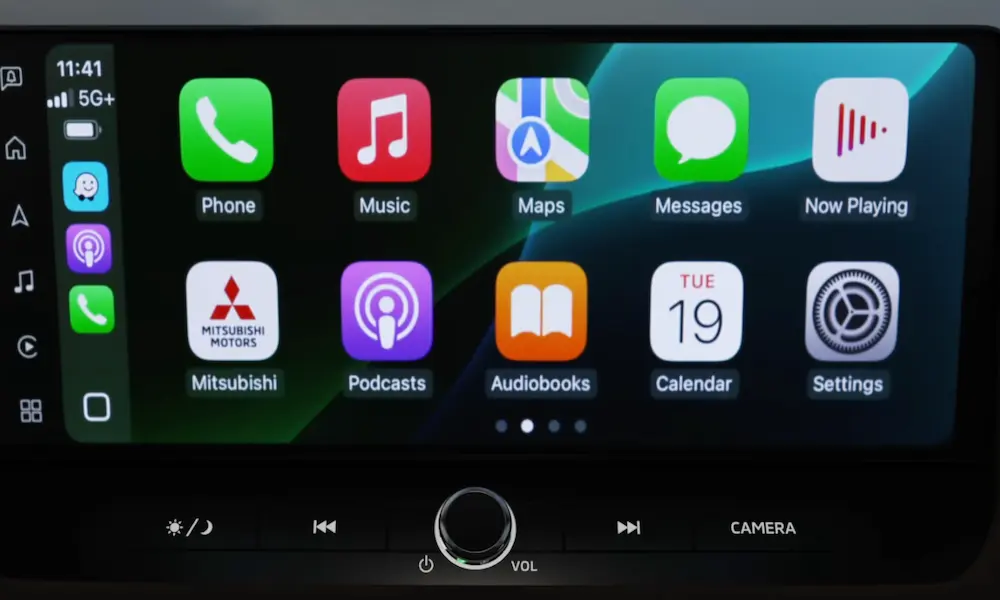
Dealing with Mitsubishi Apple CarPlay not working is genuinely frustrating, especially when you rely on it for navigation and hands-free calls. The good news? Most fixes don’t require a dealership visit. This guide walks you through every cause and fix — from dead-simple cable swaps to hidden service menus — so stick around to the end.
Start Here: Is It Your Cable or Your USB Port?
Nearly half of all wired CarPlay failures come down to the physical connection. Before you dig into settings, check these first.
Use a Genuine Apple Cable
Many cheap cables only charge your phone — they don’t carry data. If your cable isn’t MFi (Made for iPhone) certified, your Mitsubishi will charge your phone but CarPlay stays dark. Swap it for a genuine Apple Lightning or USB-C cable and test again.
Signs your cable is the problem:
- CarPlay launches sometimes but drops on bumps
- The cable feels warm during use (high resistance = bad)
- Connection drops when you move the cable slightly
You Might Be Using the Wrong USB Port
Here’s something a lot of Mitsubishi owners miss. Not every USB port in your cabin connects to the infotainment system’s data bus. In models like the Outlander Sport, only one specific port handles data — the others just charge your devices.
Look for a port marked with a white border or a smartphone icon. Plugging into a power-only port means your phone charges, but CarPlay never appears. Simple fix, easy to overlook.
Also, check for lint or debris in both your iPhone’s charging port and the car’s USB socket. A partial connection causes the same “device not recognized” errors as a bad cable.
Check These iPhone Settings Before Anything Else
Your phone’s settings can silently block CarPlay. iOS has several switches that must all point the right direction.
Siri Must Be Enabled
CarPlay is built around voice control to keep your eyes on the road. If Siri is off, CarPlay won’t launch at all. Go to Settings → Siri & Search and confirm all three of these are on:
- Listen for “Hey Siri”
- Press Side Button for Siri
- Allow Siri When Locked
Run Through This Settings Checklist
| iPhone Setting | Required Status | What Happens If It’s Wrong |
|---|---|---|
| Siri | Enabled | CarPlay fails to launch entirely |
| Allow CarPlay While Locked | ON | Disconnects when your screen sleeps |
| Content Restrictions | OFF for CarPlay | Phone isn’t detected by the vehicle |
| VPN Profiles | Disabled (especially iOS 18) | Connection timeout or blank screen |
The iOS 18 VPN Problem
If you updated to iOS 18 and CarPlay suddenly stopped working, your VPN might be the culprit. Active VPN connections block the local network communication CarPlay needs in roughly 30% of cases where a VPN is installed. Go to Settings → General → VPN & Device Management and toggle your VPN off before connecting.
Check Screen Time Restrictions
Corporate phones and devices with parental controls can have CarPlay hidden entirely under Screen Time → Content & Privacy Restrictions → Allowed Apps. If CarPlay isn’t listed as allowed, your Mitsubishi simply won’t see it — no error message, nothing.
Wireless CarPlay Issues (2022+ Outlander)
The 2022 and newer Mitsubishi Outlander supports wireless CarPlay, which adds a different set of problems to diagnose.
How Wireless CarPlay Actually Works
Wireless CarPlay doesn’t run entirely over Bluetooth. Here’s the actual sequence according to NHTSA technical documentation:
- Your car connects to your iPhone via Bluetooth (control channel)
- That Bluetooth link tells your phone to join the car’s dedicated 5GHz Wi-Fi network
- CarPlay streams over Wi-Fi from there
If either Bluetooth or Wi-Fi is off on your phone, the whole handshake stalls at step one.
Common Wireless CarPlay Problems
Still connected to home Wi-Fi? Your phone might prioritize your home network over the car’s ad-hoc network when you first start driving. Move out of range or manually disconnect from your home Wi-Fi before starting the car.
Competing Bluetooth devices? If your Apple Watch, wireless headphones, or other Bluetooth gear are all active simultaneously, they compete for your phone’s radio bandwidth. Disconnect them temporarily to test if CarPlay stabilizes.
Living in a dense city? High-density 5GHz Wi-Fi environments — downtown areas, packed parking garages — can cause wireless CarPlay to stutter or drop. Many urban Outlander owners switch back to a wired connection for their daily commute. It’s not glamorous, but it’s reliable.
How to Reset Your Mitsubishi Infotainment System
When settings checks don’t fix the problem, resetting the system often does. Work through these in order.
Level 1: Soft Reboot (Try This First)
A soft reboot restarts the infotainment OS without wiping your saved data. It clears the system’s RAM and often fixes frozen screens or failed connection handshakes.
- With the vehicle running, press and hold the center volume/power knob
- Hold it for 10–15 seconds
- Release when the screen goes black and the Mitsubishi logo reappears
This simple restart fixes a surprising number of CarPlay issues without touching any settings.
Level 2: Factory Reset
If the soft reboot doesn’t cut it, a factory reset clears all paired phone profiles, radio presets, and nav history. About 25% of Mitsubishi owners resolve persistent CarPlay problems this way — corrupted device profiles are more common than you’d think.
- Tap the Settings icon on the home screen
- Select System or General
- Find Return All to Default or Factory Reset
- Confirm and let the system re-initialize (takes a few minutes)
Re-pair your iPhone fresh afterward.
Level 3: Hard Reset via Battery Terminal
For a completely unresponsive or blacked-out screen, disconnect the 12V battery to force every electronic module to cold boot.
- Turn off the ignition and remove the key
- Disconnect the negative (black) terminal from the battery
- Leave it disconnected for 15–30 minutes — capacitors need time to fully discharge
- Reconnect and start the vehicle
This clears stuck states in the telematics control unit that can interfere with your infotainment system and survive a normal reboot.
Known Hardware Defects and Warranty Coverage
Not every Mitsubishi Apple CarPlay problem is software-related. Some are physical defects Mitsubishi has officially acknowledged.
The SDA2 Screen Problem (2020–2022 Models)
If you own a 2020–2022 Outlander Sport or Eclipse Cross and your touchscreen is unresponsive, registering phantom touches, or looks like it’s delaminating, you’re likely dealing with a known manufacturing defect. UV exposure degrades the adhesive and capacitive digitizer in the Smartphone Link Display Audio 2 units.
Mitsubishi issued a warranty extension covering this screen replacement for up to 7 years with unlimited mileage on affected 2020–2022 models. Take your car to an authorized dealer — this fix should cost you nothing.
Technical Service Bulletins You Should Know About
Mitsubishi has released several official TSBs addressing CarPlay-related bugs. Here’s a quick reference:
| TSB ID | Affected Models | Issue | Fix |
|---|---|---|---|
| TSB-21-54A-002 | 2020 Outlander, Sport, PHEV | Screen freezes during USB use | Firmware update to v4.37 |
| TSB-20-54-002 | 2020 Outlander (JVC Unit) | Muffled audio during CarPlay calls | Update JVC Kenwood parameters |
| TIN-20-54A-003 | 2017–2020 Eclipse Cross | Touchpad unresponsive on iOS 14.2+ | System reflash + iOS settings toggle |
| TSB-18-54-004 | 2017–2018 Outlander, Eclipse Cross | Connection drops | Update to firmware version S_V4_2_ or S_V2_4_ |
Ask your dealer specifically about these TSBs by number. Firmware flashing uses a FAT32-formatted USB drive with software matched to your exact VIN — don’t attempt this yourself with the wrong model-year file, as mismatched firmware can permanently damage the head unit.
Access the Hidden Service Menu
Tech-savvy owners can check their firmware version and screen health directly through a hidden diagnostic menu.
For SDA and SDA2 Systems
- Turn ignition to ACC or ON
- Navigate to the option that turns the screen display off
- Once the screen is dark (but powered), press and hold the top-left corner for 5 seconds
- Then press and hold the bottom-right corner for 5 seconds
Inside, check Version Information. If it’s lower than what the relevant TSB recommends, your system needs a firmware update.
Dealer Mode on 2022–2024 Models
For newer vehicles, a secondary Dealer Mode offers deeper tools including a Clear Backup Data function — which deletes operational logs and cache that a standard factory reset misses.
- Press the Power button and Media button simultaneously
- Select Clear Backup Data from the Dealer Mode screen
This is often the last software step before a hardware replacement becomes necessary.
Heat Is Also a Factor
If you park outdoors in Arizona, Texas, or anywhere the sun treats your car like an oven, thermal throttling might be your issue. When dashboard temperatures spike, the infotainment processor deprioritizes high-bandwidth apps like CarPlay to protect the system. You’ll see sudden disconnections that clear up once the A/C brings the cabin temperature down. This is a hardware limitation, not a bug you can patch.
Your Mitsubishi Warranty Has You Covered
Before you spend money on anything, check your coverage.
| Warranty Type | Duration | Mileage | Covers |
|---|---|---|---|
| New Vehicle Limited | 5 Years | 60,000 Miles | All infotainment hardware |
| SDA Screen Extension | 7 Years | Unlimited | Unresponsive 2020–2022 screens |
| Roadside Assistance | 5 Years | Unlimited | Lockouts, jumpstarts |
Compared to Toyota, Honda, and Ford — which typically offer just 3 years/36,000 miles bumper-to-bumper — Mitsubishi’s standard warranty coverage gives you two extra years of infotainment protection. Use it.
If your Mitsubishi Apple CarPlay is still not working after running through this entire guide, bring your VIN to an authorized dealer and ask them to check for open TSBs and confirm your eligibility for the SDA2 screen warranty extension. The fix is often free — you just have to ask for it.