Your phone isn’t talking to your car — and that’s annoying. Whether you just bought a new Altima or you’re still rocking a 2012, this guide walks you through exactly how to connect Bluetooth in a Nissan Altima. From first-time pairing to fixing stubborn connection problems, it’s all here. Stick around — the fix is probably simpler than you think.
First, Know Which System You’re Working With
Not all Altima infotainment systems are the same. The pairing steps depend on your trim level and model year. Before you tap anything, figure out which screen you’re looking at.
Here’s a quick breakdown of what each trim level actually includes:
| Trim | Display | Bluetooth Type | Wireless CarPlay/Android Auto |
|---|---|---|---|
| 2.5 S (Base) | 5-inch Meter Display | Standard Bluetooth | No |
| 2.5 SV / 2.5 SR | 8-inch Touchscreen | NissanConnect (Wired) | No |
| 2.5 SL / SR VC-Turbo | 12.3-inch HD Touchscreen | NissanConnect (Wireless) | Yes |
The bigger your screen, the fewer physical buttons you’ll use. The 12.3-inch display on 2023–2025 Altima SL and SR VC-Turbo trims handles almost everything through touch tiles. The 8-inch system mixes soft keys and menus. The 5-inch base display leans on steering wheel controls.
Knowing your setup saves you five minutes of poking around the wrong menu.
Before You Start: Two Things to Check
Don’t skip these. They trip up a lot of people.
1. Put the car in Park.
The Altima’s safety firmware disables the Bluetooth pairing menu while you’re in Drive or Reverse. The engine can be running or just in Accessory mode — either works fine.
2. Turn on Bluetooth and stay on that screen.
Open your phone’s Bluetooth settings and keep them open. iOS and Android will stop broadcasting a discovery signal if you navigate away. Your car won’t find your phone if you switch apps mid-pairing.
How to Connect Bluetooth on the 8-Inch and 12.3-Inch Screen (2019–2025)
This covers the majority of Altimas on the road right now. The process is nearly identical across both screen sizes.
Step-by-Step Pairing
Step 1 — Open Settings
On the 8-inch screen, tap Menu then Settings. On the 12.3-inch screen, look for a Connections tile right on the home screen.
Step 2 — Find Bluetooth
Select Bluetooth, then tap Add Phone or Connect New Device. The Altima starts broadcasting its name — usually something like “MY-CAR” or “Nissan Altima.”
Step 3 — Find the Car on Your Phone
On your phone’s Bluetooth screen, look for the car’s name under Available Devices and tap it.
Step 4 — Match the PIN
A six-digit code pops up on both the Altima’s screen and your phone. This security step prevents unauthorized access to your vehicle’s communication system. Confirm the codes match, then tap Pair or OK on both.
Step 5 — Allow Permissions
Your phone will ask for access to contacts and messages. Say yes. Without this, features like voice-to-text and hands-free calling won’t work properly.
That’s it. The connection saves automatically for future trips.
How to Connect Bluetooth on Older Altimas (2007–2015)
Older models without a touchscreen use voice commands or a small multi-line LCD display. The process is a bit different but just as straightforward.
Voice-Command Pairing
- Press the Talk button on your steering wheel.
- Say “Setup” when prompted.
- The system offers options — say “Pair Phone.”
- The system gives you a static PIN, usually “1234” or “0000.”
- On your phone, find “MY-CAR” in the Bluetooth list and enter that PIN.
- The system asks you to record a name for the phone — say something like “Sarah’s iPhone.”
This name tag is how older NissanConnect systems identify and prioritize devices. Newer systems pull the device name automatically from Bluetooth metadata, but these legacy systems need you to do it manually.
If you’re unsure how to navigate the voice menus on your specific year, NissanConnect’s device connectivity support page has model-specific guidance.
Wireless CarPlay and Android Auto (2023–2025 SL and SR VC-Turbo)
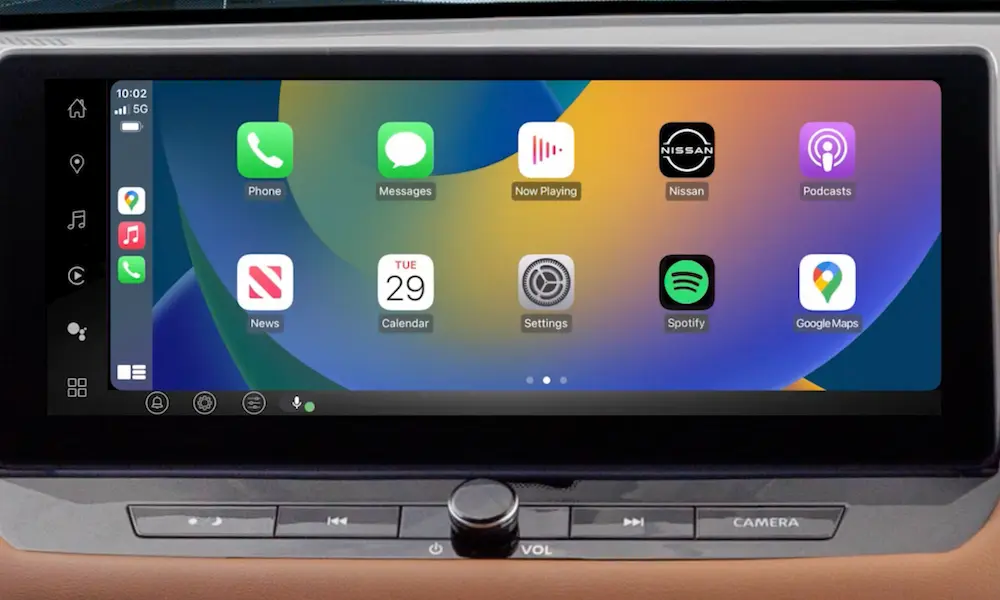
If you drive a newer top-trim Altima, you’re not stuck plugging in a cable. The 12.3-inch system supports wireless Apple CarPlay and Android Auto — but Bluetooth is still part of the equation.
Here’s how it works:
- Bluetooth handles the first connection and low-data tasks like phone calls.
- Once the car detects your phone supports wireless mirroring, it shows a prompt: “Would you like to use Wireless CarPlay?”
- Accept it, and the system automatically switches to an internal Wi-Fi 5 connection for navigation and music streaming.
- After that, your phone stays in your pocket. The wireless charging pad handles power while the Wi-Fi handles data.
No more digging for cables at 7 a.m.
Understanding Bluetooth Profiles (Why This Actually Matters)
The Altima uses several Bluetooth profiles at once. Each one handles a different job. Knowing this makes troubleshooting way easier.
| Bluetooth Profile | What It Does |
|---|---|
| HFP (Hands-Free Profile) | Handles phone calls, signal bars, and battery icons on your dash |
| A2DP (Advanced Audio Distribution) | Streams music from Spotify, Apple Music, etc. |
| AVRCP (Audio/Video Remote Control) | Lets steering wheel buttons skip and pause tracks |
| PBAP (Phone Book Access Profile) | Downloads your contacts so you can dial by name |
| MAP (Message Access Profile) | Reads and sends texts through the infotainment system |
Here’s the useful part: if your phone connects for calls but won’t play music, A2DP failed while HFP stayed active. That’s a profile-specific issue, not a full connection failure. Knowing this helps you target the actual problem instead of redoing everything from scratch.
Bluetooth Not Working? Fix It Here
The Car Can’t Find Your Phone
- Make sure Bluetooth is on and your phone is discoverable.
- Stay on the Bluetooth settings screen — don’t switch apps.
- Move your phone closer to the center console.
- Restart both the car’s infotainment system and your phone.
It Connects But Drops Constantly
A few common culprits:
- Cheap USB chargers or aftermarket dash cams can create electromagnetic interference that disrupts the Bluetooth antenna.
- Multiple phones in the cabin can confuse the system — it may try to connect to your passenger’s device instead of yours.
- Low phone battery matters more than you’d think. When your battery drops below 15–20%, Android and iOS throttle the Bluetooth radio to save power. The car sees your phone but can’t finish the handshake. Plug in to the Altima’s USB port to fix this fast.
“Add Phone” Is Greyed Out
Your Altima’s memory is probably full. Most Altima systems store five to six paired devices. If you bought a used car, the previous owner’s phone profiles are likely taking up all the slots. Delete them:
- Go to Settings > Connections (or Bluetooth).
- Tap the “i” (Information) icon next to the old device.
- Select Delete or Remove and confirm.
- Restart the car and your phone to clear the Bluetooth cache fully.
This YouTube walkthrough on deleting paired phones shows the process visually if you want to see it in action.
Your Phone Forgets the Car Every Time
If you own a 2013–2020 Altima and have to re-pair your phone every single time you start the car, check for a physical SD card in the dashboard. These generations store Bluetooth pairing data on a small SD card, usually tucked behind a small panel near the USB ports. If that card is loose, missing, or corrupted, the system loses its memory every restart. Reseat it firmly or replace it.
Voice Controls for Hands-Free Use
Once you’re connected, you don’t need to touch the screen for most tasks. The Altima uses a two-tier voice system:
- Short press of the Talk switch → activates the Altima’s native voice recognition
- Long press → activates Siri or Google Assistant directly from your paired phone
The native system handles climate, navigation, and audio. Siri and Google Assistant handle everything else — texts, calls, reminders. On 2025 models with the 12.3-inch display, saying “Hey Nissan” works hands-free without pressing anything.
This setup matters beyond convenience. NHTSA guidelines and hands-free laws in states like California, New York, and Georgia make using your phone while driving illegal. The Altima’s Bluetooth system isn’t just a nice feature — for many drivers, it’s a legal requirement.
Keeping Bluetooth Running Smoothly Long-Term
Update Your System Software
Outdated firmware causes more connection problems than most people realize. New iOS and Android updates can break compatibility with older head unit software.
- 2023–2025 Altimas: Go to Settings > System Update to install over-the-air updates via Wi-Fi at home.
- Older models: Your dealership can flash the infotainment module with the latest firmware during a service visit.
Keep Your USB Ports Clean
Dust and lint in USB ports cause data errors. If Bluetooth gets too unreliable, your Altima can fall back to a wired connection — but only if the port is clean and the cable is certified. Avoid cheap third-party cables for anything beyond basic charging.
One Last Thing
The Altima’s Bluetooth setup is genuinely well-designed once you know how it works. Most “broken Bluetooth” situations come down to one of three things: a full device memory, a low phone battery, or a software update that nobody installed. Run through the steps here, match them to your trim, and you’ll be connected and hands-free in under five minutes.