Getting Apple CarPlay working in your Nissan shouldn’t feel like defusing a bomb. Whether you’ve got a brand-new Rogue or a 2019 Altima, this guide walks you through every step — plus the fixes when things go sideways. Stick around to the end for the troubleshooting tricks that actually work.
Does Your Nissan Even Have Apple CarPlay?
Before anything else, check if your car supports it. Nissan started rolling out CarPlay in 2017, with the GT-R among the first compatible models. By 2020, it became a standard expectation across most trims.
Here’s a quick look at where current models stand:
| Nissan Model | Wired CarPlay | Wireless CarPlay |
|---|---|---|
| Altima (2025) | ✅ All trims | ✅ Standard |
| Rogue (2025) | ✅ All trims | ✅ Higher trims |
| Kicks (2025) | ✅ S trim | ✅ SV/SR trims |
| Sentra (2025) | ✅ All trims | ✅ SV/SR/SL (2026) |
| Ariya (2025) | ✅ Standard | ✅ Standard |
If your Nissan is a 2017 or newer, there’s a good chance you’re covered. Check Apple’s full list of compatible Nissan models to confirm yours.
What You Need Before You Start
Don’t skip this part. Most CarPlay failures start here.
You’ll need:
- An iPhone running iOS 7.1 or later (honestly, keep it updated)
- An Apple-certified MFi cable for wired connections — cheap third-party cables are the number one cause of connection failures in the US market
- Your car in Park (P) for first-time setup — many Nissan models have a safety interlock that blocks setup while moving
- Both Bluetooth and Wi-Fi turned on if you’re going wireless
One thing people constantly miss: Not all USB ports in your Nissan connect to CarPlay. Ports designed for data have a smartphone icon or white border next to them. The ports in the rear console are usually charging-only — they won’t trigger CarPlay at all.
How to Connect Apple CarPlay to Nissan — Wired Method
Wired is the most stable connection, especially in areas with lots of wireless interference. It also charges your phone simultaneously.
Step-by-step:
- Turn your car to “On” or “Accessory” mode
- Put the transmission in Park
- Plug your iPhone into the CarPlay-designated USB port using your MFi cable
- Watch the NissanConnect screen — it’ll ask you to enable CarPlay; tap “Enable” or “Always”
- On your iPhone, approve the prompt to use CarPlay while the screen is locked
That last step matters. If you tap “Don’t Allow,” your CarPlay session will cut out every time your phone’s screen turns off.
Once you complete the first-time setup, future connections launch automatically as long as you selected “Always” in the settings menu.
How to Connect Apple CarPlay to Nissan — Wireless Method
Newer Nissans like the 2025 Ariya, Rogue, and Frontier support wireless CarPlay. No cable needed, but the setup has a few more steps.
Wireless CarPlay uses a two-step handshake: Bluetooth handles the initial pairing, then the system switches to a 5GHz Wi-Fi link for the actual screen mirroring. That’s why you need both radios active on your iPhone.
Step-by-step:
- Turn on Bluetooth and Wi-Fi on your iPhone
- On the NissanConnect screen, go to Connections > Add New Device
- Press and hold the voice command button on your steering wheel — this kicks off the search for a CarPlay device on many Nissan models
- Your iPhone should show your car’s name (e.g., “My Rogue”) — tap it
- Confirm the numeric pairing code on both your phone and the dashboard
- When prompted on your iPhone, approve the request to use Wi-Fi for CarPlay
That Wi-Fi approval step is where a lot of people get stuck. Without it, the Bluetooth pairing succeeds, but the actual CarPlay display never loads.
Customize How CarPlay Launches in Your Nissan
Once you’ve connected once, you can control how CarPlay behaves every time you get in the car. Head to Settings > Apps > Apple CarPlay on the NissanConnect touchscreen.
You’ve got three options:
- Always — CarPlay launches the moment your phone connects. Best for single-driver vehicles
- Ask — The system prompts you each connection. Good for shared cars
- Never — Disables CarPlay entirely; your phone becomes Bluetooth audio only
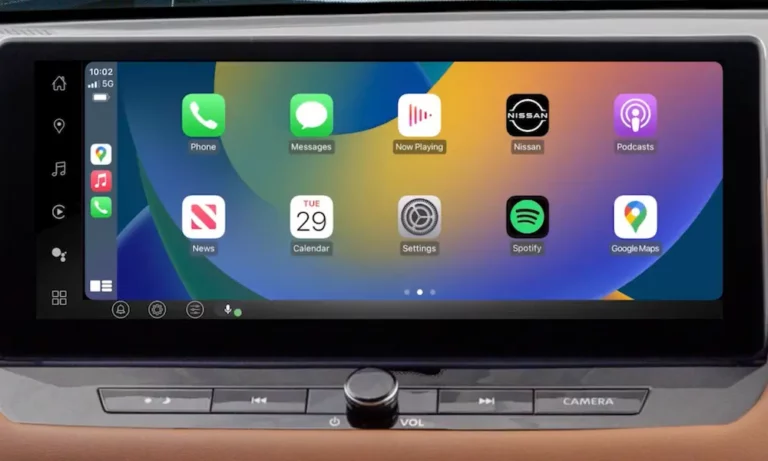
On the iPhone side, go to Settings > General > CarPlay > [Your Nissan] to drag, drop, and rearrange app icons on your CarPlay home screen. You can remove apps you never use while driving and put the ones you do front and center.
Using Siri in Your Nissan
The steering wheel voice button does double duty in Nissans with CarPlay:
- Short press — triggers the native NissanConnect voice system (climate control, radio stations, vehicle commands)
- Long press/hold — bypasses NissanConnect and activates Siri on your iPhone
Through Siri, you can send texts, get directions to a contact’s address, or queue up a playlist — all without touching your phone. The car’s built-in microphones and noise-cancellation tech make Siri significantly more accurate than just talking to your phone on the seat.
Apple CarPlay vs. NissanConnect Services — What’s the Difference?
This trips up a lot of Nissan owners. They’re two separate things.
Apple CarPlay is free. It uses your iPhone’s data and doesn’t require any Nissan subscription. NissanConnect Services — managed through the MyNISSAN app — is a separate paid subscription that controls the vehicle’s remote hardware features.
| Feature | Powered By | Cost |
|---|---|---|
| Apple Maps / Google Maps / Waze | Apple CarPlay | Free (uses phone data) |
| Apple Music / Spotify / Podcasts | Apple CarPlay | Free (uses phone data) |
| Remote Engine Start | NissanConnect Services | Subscription required |
| Remote Door Lock/Unlock | NissanConnect Services | Subscription required |
| Vehicle Health Reports | NissanConnect Services | Subscription required |
| In-Vehicle Wi-Fi Hotspot | NissanConnect (internal SIM) | Subscription required |
For most daily driving needs, CarPlay handles everything — navigation, music, messaging — at zero extra cost. NissanConnect Services adds value if you want remote vehicle access through the app.
How to Fix Apple CarPlay in Nissan When It’s Not Working
CarPlay stops working for a handful of predictable reasons. Work through these in order before panicking.
Check the Cable First
Non-certified cables can charge your phone just fine but can’t carry the high-speed data stream CarPlay needs. Swap it for an Apple-certified MFi cable and test again.
Also check your iPhone’s charging port for lint or debris. A dirty port causes intermittent drops every time the car hits a bump — annoying and easy to fix with a toothpick or canned air.
Check iPhone Permissions
If you ever tapped “Don’t Allow” on a CarPlay prompt, your car is essentially blocked in your phone’s memory. Fix it by going to:
Settings > General > CarPlay > [Vehicle Name] > Forget This Car
Then re-initiate the pairing from scratch. This resolves the majority of software-level CarPlay failures.
Reset the Infotainment System
If the cable’s fine and permissions look good, try resetting the NissanConnect system. Here’s what each reset actually does:
| Reset Type | How To Do It | What It Fixes |
|---|---|---|
| Soft Reset | Hold the power/volume knob for 10–20 seconds (car in “On” mode) | Reboots software, keeps all pairings |
| Hard Reboot | Turn car off, open driver’s door, wait 30 seconds, restart | Clears cache, forces fresh hardware handshake |
| Network Reset (iPhone) | Settings > General > Reset > Reset Network Settings | Clears broken Wi-Fi/Bluetooth handshakes — best fix for wireless CarPlay |
| Factory Reset | Settings > System > Factory Reset on touchscreen | ⚠️ Erases all presets, paired devices, and saved navigation data |
Start with the soft reset. Move to the hard reboot. Only use the factory reset as a last resort.
Keep Software Updated
2021 and newer Nissan models support Over-the-Air updates that patch CarPlay handshake bugs — things like screen flickering, audio lag, and random disconnects. Check for updates at Settings > System > Software Update on your touchscreen.
On the iPhone side, always run the latest iOS. Apple frequently updates the CarPlay subsystem to improve performance on the newer high-resolution displays — like the 12.3-inch screens in the 2025 Rogue and Ariya.
What’s New for 2025–2026 Nissan Models
Nissan is pushing hard toward wireless-first connectivity across its lineup.
The 2025 Nissan Kicks got a full tech overhaul. The base S trim runs a 7-inch screen with wired CarPlay, while the SV and SR trims jump to a 12.3-inch display with wireless CarPlay — powered by a Qualcomm Snapdragon processor for noticeably faster load times.
The 2025 Rogue leads the crossover lineup with USB-C ports for all passengers and standard wireless CarPlay on higher trims. It also supports a split-screen view, so you can keep CarPlay running while glancing at other vehicle info.
The 2026 Sentra brings wireless CarPlay to the SV, SR, and SL trims paired with a new 12.3-inch dual-display monolith setup — a genuine upgrade for a budget-friendly compact sedan. The base S trim stays wired but gets CarPlay standard across the board.
If you want to browse all current Nissan models with wireless Apple CarPlay, Nissan’s build-and-price tool lets you filter by that feature directly.