Staring at that “Device Not Detected” message while your phone’s clearly charging? You’re dealing with one of the Pacifica’s most frustrating quirks. Good news: there’s usually a straightforward fix once you understand what’s actually broken. Let’s skip the generic restart advice and get straight to the real solutions.
The Problem Is Different Depending on Your Model Year
Here’s what most troubleshooting guides won’t tell you: your 2019 Pacifica has a completely different system than your neighbor’s 2022. The fix for one won’t work for the other.
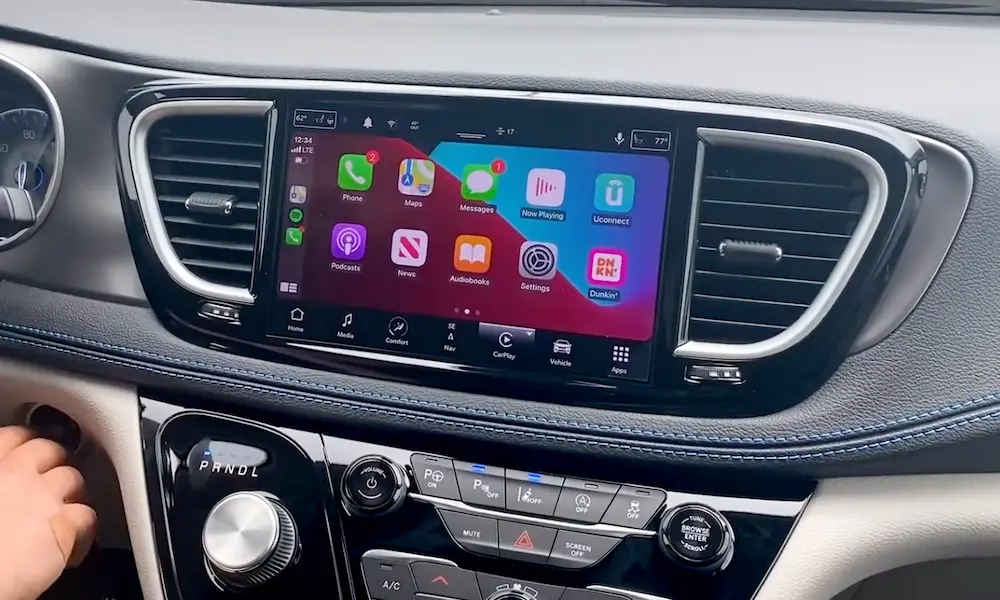
2018–2020 models run Uconnect 4. These failures are almost always hardware—usually a physical part that’s worn out. 2021 and newer models use Uconnect 5, where the issues are typically software glitches or wireless networking hiccups.
If You’ve Got a 2018–2020 Pacifica (Uconnect 4)
Your Phone Charges But CarPlay Won’t Connect
This is the telltale sign of a failed media hub. It’s not your cable, and it’s not your phone—it’s the small box behind your center console that connects the USB port to your radio.
What happens is the power pins inside the hub keep working (so your phone charges), but the data pins have failed. Think of it like a broken phone line where you can still get electricity, but no signal passes through.
The fix: You need to replace the media hub. It’s part number 68229840AB for most models, though some configurations use 68229844AC or 68330449AC.
The good news? It’s a surprisingly simple swap. Pop off the trim bezel around your USB ports, disconnect two plugs, and connect them to the new unit. No dealer programming needed.
Stellantis knows this is a common problem—there’s even an official Star Case (S2008000004) documenting the “USB Hub In-Operable” issue.
Try This Before Buying Parts
Sometimes it’s not the hub itself—it’s the radio’s USB controller that’s locked up. Here’s the reset sequence:
- Pop your hood and locate the fuse box near the battery
- Pull fuse F76 (powers the radio) and fuse F28 (powers the USB hub)
- Wait a full 10 minutes—don’t rush this
- Reinstall the fuses and test
This forces a complete power cycle that clears stuck processes. It works about 30% of the time.
Your Cable Matters More Than You Think
Even with a healthy hub, cheap cables kill CarPlay reliability. The total wire run from your radio to the USB port is already pushing USB 2.0’s limits. Add a flimsy 6-foot cable and you’ve got voltage drops that reset the connection.
Stick with Apple-certified cables under 3 feet. Yes, it’s annoying for backseat passengers, but it eliminates about half of all “intermittent disconnect” complaints.
Update Your Radio Software
Early Uconnect 4 versions had buggy USB drivers. Technical Service Bulletin 08-016-18 fixes the “Device Not Detected” logic errors with a firmware update to version 22.6 or higher.
Check your version by holding the bottom-left and bottom-right corners of your screen for 10 seconds. When the hidden “Dealer Mode” menu appears, look for “Application Version” under System Information.
If You’ve Got a 2021+ Pacifica (Uconnect 5)
Wireless CarPlay Gets Stuck on “Connecting…”
This is almost always a handshake failure between your phone and the car’s Wi-Fi network. The system pairs via Bluetooth, then tries to hand off to a private 5GHz Wi-Fi connection for the actual video streaming.
Killer #1: VPNs
If you’ve got a VPN app running—NordVPN, ExpressVPN, even work profiles with Cisco AnyConnect—it’s probably blocking the connection. VPNs see the car’s Wi-Fi has “no internet” and either refuse to connect or drop it immediately.
Disable your VPN before connecting to CarPlay. You can re-enable it after the session starts, but it needs to be off during the initial handshake.
Killer #2: Double Connection
Plugging your phone in to charge while using wireless CarPlay creates a race condition. The system can’t decide whether to use the wireless session or the wired USB connection.
Use a cigarette lighter charger instead of the car’s USB ports. This prevents the wired data handshake entirely.
Delete and Re-Pair Your Phone (The Right Way)
A corrupted device profile is the second-most-common Uconnect 5 failure. But you can’t just “forget” on your phone—you need to purge it from both sides simultaneously:
On the car:
- Open Device Manager (or Settings → Bluetooth)
- Find your phone in the list
- Select “Delete Device” (make sure you’re in Park—the system sometimes blocks this while driving)
On your phone:
- Settings → General → CarPlay
- Tap your car’s name
- Select “Forget This Car”
Now perform a soft reset: hold the power/volume knob on the radio for 15 seconds until the screen goes black. Let it reboot completely before trying to pair again.
The “Ghost Touch” or Missing Navigation Bar Fix
This is a weird one. Recent iOS updates sometimes conflict with Uconnect 5’s display scaling, causing phantom touches or missing UI elements.
The workaround is oddly specific:
- Connect to CarPlay
- On the Uconnect home screen, tap “Edit Pages”
- Add a “CarPlay Split Screen Projection” widget
- On your iPhone, go to Settings → Display & Brightness
- Set “Display Zoom” to “Standard” (not “Zoomed”)
This forces the system to re-poll your phone’s resolution settings and usually clears the rendering glitch.
Get the Latest Software Update
Stellantis released TSB 08-101-25 to fix multiple CarPlay bugs in Uconnect 5, including incorrect song titles, ghost touches on the navigation screen, and black map displays. The fix is updating to radio software version U33.43 or later.
Your car should get this via over-the-air update, but if your wireless module is glitchy, you might need a dealer to install it via USB.
The Nuclear Option: Full Electrical Reset
When software resets don’t work, you need to cut power completely. This clears every microcontroller in the infotainment system.
For Non-Hybrid Models
- Turn off the car and open the hood
- Remove fuses F76 and F28 from the power distribution center
- Wait 10 full minutes
- Reinstall and test
For Pacifica Hybrids
The 12V system stays partially powered via the high-voltage battery’s DC-DC converter, so fuse pulls sometimes don’t fully reset the system.
Instead, disconnect the negative terminal of the 12V battery (it’s in the rear cargo area on hybrids, left side panel). Leave it disconnected for 20 minutes to force a global body control module reset.
Advanced Diagnostics: Entering Engineering Mode
If you want to see what’s actually happening under the hood, you can access the hidden engineering menu.
Uconnect 4: Hold the bottom-left and bottom-right corners of the screen for 15 seconds.
Uconnect 5: Hold the driver temp down and temp up climate buttons simultaneously for 10 seconds. You’ll need a passcode:
- 2021–2023 models: 20230411
- 2024 models: 20230928
- 2025 models: 19610505
Inside this menu, you can check Wi-Fi signal strength (RSSI), view DHCP logs to see if your phone’s getting an IP address, and even force specific Wi-Fi channels to avoid interference.
Wired vs. Wireless: Which Should You Use?
If your 2021+ model supports both, wired is technically superior for reliability and audio quality. Wireless CarPlay uses compressed AAC audio over Wi-Fi, while wired delivers lossless digital audio. You’ll also notice less lag with navigation prompts.
But wireless wins on convenience. For quick trips, it’s unbeatable. For road trips or if you’re picky about sound quality, stick with wired.
| Factor | Wired | Wireless |
|---|---|---|
| Audio Quality | Lossless | Compressed AAC |
| Lag | ~30ms | 100ms+ |
| Battery | Charges while in use | Drains quickly |
| Reliability | Depends on cable quality | Depends on RF environment |
The Rear Entertainment System Quirk
Here’s a bizarre issue specific to Pacificas with Uconnect Theater rear screens: the rear Android system’s security settings can sometimes lock the front USB hub.
The fix is counterintuitive. Connect the rear screen to Wi-Fi, download VLC for Android from the Play Store, then plug a USB drive into the rear USB port. When VLC requests permission to access USB storage, granting it updates the Android security table system-wide, often unlocking the front hub immediately.
What Actually Works: The Diagnosis Flowchart
For 2018–2020 (Uconnect 4):
- Phone charges but no CarPlay? → Failed media hub (replace part 68229840AB)
- Intermittent disconnects? → Try shorter MFi-certified cable
- No response at all? → Pull fuses F76 & F28 for 10 minutes
- Still broken? → Check for firmware update via TSB 08-016-18
For 2021+ (Uconnect 5):
- Wireless stuck on “Connecting”? → Disable VPN, delete device from both sides
- Ghost touches or missing UI? → Use “Edit Pages” workaround, check Display Zoom
- Works sometimes but not others? → Don’t charge via USB ports while using wireless
- Still broken? → Request TSB 08-101-25 software update (version U33.43)
The key difference: older models fail because of worn-out hardware, newer models fail because of software conflicts. Once you know which generation you’re dealing with, the fix is usually straightforward.
Your Pacifica’s infotainment system is complex, but these failures follow predictable patterns. Start with the simple stuff (cable swaps, soft resets), then move to the generation-specific fixes. You’ll have CarPlay working again without spending hours at the dealership.