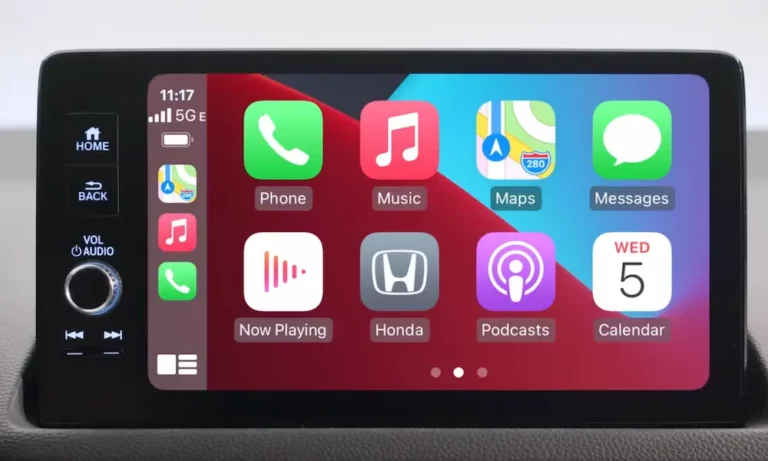
Struggling with Apple CarPlay in your Honda Civic? This frustrating tech hiccup happens more often than you’d think. Whether your connection keeps dropping, the screen stays blank, or the system simply won’t recognize your iPhone, there’s likely a straightforward fix you can try before heading to the dealership. Let’s explore the most effective solutions that have helped countless Honda Civic owners get their CarPlay working again.
The Quick System Reset Method (Most Effective Fix)
When your Honda Civic’s Apple CarPlay stops working, a complete system reset is your best first move. This single solution fixes most CarPlay issues instantly.
For 2024 and Earlier Honda Civic Models:
- Press and hold the power/volume button for 6-10 seconds
- When prompted, select “Yes” to reboot
- Wait for the complete restart cycle (it takes longer than normal)
- After the Honda logo appears, reconnect your iPhone
This system reset approach has proven successful for most Honda owners across different model years and typically restores CarPlay functionality immediately.
For 2025 Honda Civic Models:
The newer models require a slightly different approach:
- Navigate to General Settings → Advanced Settings → System → Reset Options → Reset Network
- After the network reset completes, perform the three-button reboot (hold Home + Power + Back buttons simultaneously)
- Completely re-pair your iPhone from scratch
Many users report this reset sequence resolves connection problems even when other methods fail.
iPhone Troubleshooting Steps
Force Restart Your iPhone While Connected
This method has surprising success rates:
- Keep your iPhone plugged into the car’s USB port
- Perform a force restart on your iPhone while it remains connected
- Wait for the CarPlay connection dialog to appear
- Accept the terms and allow the connection
Reddit users have reported this technique works when nothing else does, especially after iOS updates.
Clean Your iPhone’s Charging Port
Dirty ports are a surprisingly common culprit. One Honda dealer found this was the primary issue after extensive troubleshooting:
To properly clean your port:
- Turn your iPhone off completely
- Use a wooden toothpick (never metal objects) to gently remove lint and debris
- Use compressed air from about 1 inch away
- Clean with a soft-bristled brush if needed
- Wipe with a microfiber cloth
This cleaning method has resolved countless CarPlay connectivity issues when nothing else worked.
Reset Your iPhone’s CarPlay Settings
If basic fixes aren’t working, try resetting your CarPlay configuration:
- Go to Settings → General → CarPlay
- Select your Honda vehicle and tap “Forget This Car”
- Remove the car from Bluetooth settings too
- Restart your iPhone
- Set up CarPlay from scratch
This complete CarPlay reset clears any configuration issues that might be preventing proper connection.
Cable and Connection Problems
Use a Quality, Certified Cable
The importance of your cable can’t be overstated:
- Avoid cheap, non-certified cables – they frequently cause connectivity problems
- For iPhone 15 and newer (USB-C), ensure you have a quality USB-A to USB-C cable
- Replace damaged cables, as internal wire damage causes intermittent connections
Many user discussions confirm that simply switching to an Apple-certified cable resolved their CarPlay issues.
Check You’re Using the Right USB Port
Not all USB ports in your Honda Civic support CarPlay:
- Look for a port marked with a smartphone icon
- Some Honda models have multiple USB ports, but only one supports CarPlay
- The port needs to provide both power and data connection
This port verification step is easy to overlook but often solves the problem instantly.
Software and Update Solutions
Update Your iPhone and Honda’s System
Outdated software on either device can cause compatibility issues:
- Update your iPhone to the latest iOS (Settings → General → Software Update)
- Check with Honda for any available infotainment system updates
Honda support resources emphasize keeping both systems updated to maintain compatibility.
Perform a Network Settings Reset
For persistent connection problems:
- Go to Settings → General → Transfer or Reset iPhone → Reset → Reset Network Settings
- This removes all saved Wi-Fi passwords and Bluetooth pairings
- Reconnect to your Honda’s system from scratch
This network reset approach resolves deeper connectivity issues that simple restarts might miss.
Verify CarPlay Isn’t Restricted
CarPlay might be accidentally disabled in your settings:
- Go to Settings → Screen Time → Content & Privacy Restrictions
- If restrictions are enabled, tap “Allowed Apps”
- Make sure CarPlay is toggled on
Apple support documentation identifies this as a common oversight that prevents CarPlay from functioning.
Hardware Issues That Might Need Professional Help
Some CarPlay problems stem from hardware issues:
Faulty USB Assembly
The USB port assembly inside your Honda Civic can fail over time:
- Symptoms include intermittent connections or complete failure
- Sometimes only certain cables will work
- The port might feel loose when plugging in
Some user reports indicate this requires dealer replacement but completely resolves connection issues.
Infotainment System Limitations
Older Honda Civic models may have limited RAM:
- This can cause the system to crash when running CarPlay
- Performance degrades over time as the system stays on
- Regular system resets become necessary
These system limitations often become more noticeable after iOS updates that increase resource requirements.
iPhone Hardware Problems
In some cases, the issue might be with your iPhone:
- Damaged charging ports can cause intermittent connections
- Water damage may allow charging but prevent data transfer
- Battery health issues can affect peripheral connections
Professional iPhone repair might be necessary if the problem follows your phone to different vehicles.
Comparing Honda Civic CarPlay Systems by Model Year
| Model Year | CarPlay Type | Common Issues | Best Fix Method |
|---|---|---|---|
| 2016-2018 | Wired only | Slow response, crashes | System reset + cable replacement |
| 2019-2021 | Wired only | Connection drops, blank screen | Port cleaning + force restart |
| 2022-2024 | Wired/Wireless (trim dependent) | Pairing problems, audio issues | Network reset + system update |
| 2025 | Wireless standard | Initial setup failures | Three-button reset + complete re-pairing |
Special Cases: Audio Issues with CarPlay
If CarPlay connects but has audio problems:
- Check your phone’s volume is turned up (separate from car volume)
- Verify audio output is set correctly in the Honda system
- Try playing audio directly from the phone, then switch to CarPlay
- Reset audio settings in both the phone and car system
These audio troubleshooting steps have helped many users resolve sound issues even when CarPlay visually appears to be working correctly.
Wireless CarPlay Adapters for Older Honda Civics
If you have an older Honda Civic with only wired CarPlay:
- Aftermarket wireless adapters can add wireless functionality
- These plug into your existing USB port
- Quality varies significantly between brands
- Installation is typically plug-and-play
Many Honda forums discuss these adapters as a popular upgrade option.
Prevention Tips for Reliable CarPlay Performance
To avoid future Honda Civic CarPlay issues:
- Regularly perform system resets (monthly is recommended)
- Keep your iPhone updated but wait a week after major iOS releases
- Use only high-quality, Apple-certified cables
- Clean your phone’s charging port every few months
- Disconnect CarPlay before turning off the vehicle
These proactive steps can significantly reduce the frequency of CarPlay problems in your Honda Civic.