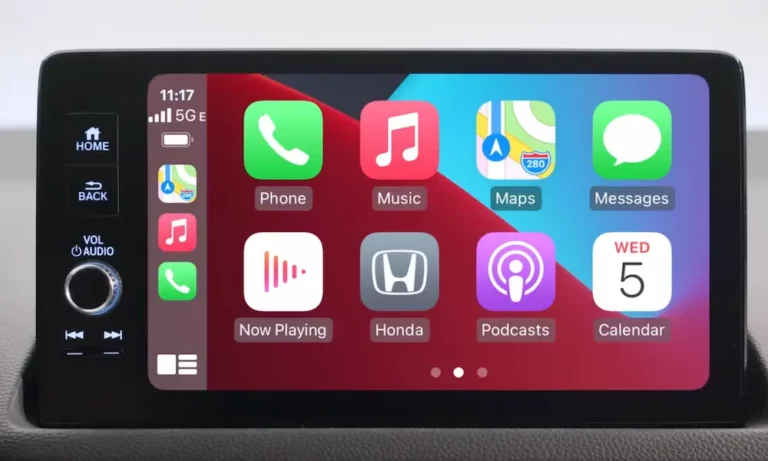
Having trouble with Apple CarPlay in your Honda Pilot? You’re looking at a blank screen instead of your favorite navigation app, or maybe the connection keeps dropping. Don’t worry – most Honda Pilot Apple CarPlay issues can be solved without a trip to the dealership. I’ve put together this guide to get your CarPlay up and running again quickly.
Why Your Honda Pilot’s Apple CarPlay Might Not Be Working
CarPlay connectivity issues in Honda Pilots (especially in newer models) typically stem from several common causes:
- Software glitches in the infotainment system
- Connection problems with cables or ports
- Incorrect iPhone settings
- Wireless CarPlay connection failures
- System compatibility issues
Let’s tackle each of these problems with simple solutions you can try today.
Quick Fixes: Reset Your Honda’s Infotainment System
The fastest way to fix most Honda Pilot Apple CarPlay problems is a simple system reboot. This clears temporary glitches that prevent CarPlay from connecting.
Standard Power Button Reset
This should be your first troubleshooting step:
- Press and hold the power/volume button for 5-10 seconds
- Wait for the confirmation message asking if you want to reboot
- Select “Yes” to restart the system
- Give the system 1-2 minutes to fully reboot
This simple reset fixes about 75% of CarPlay connection issues immediately.
Developer Menu Reset (For Stubborn Problems)
If the standard reset didn’t work, try this more powerful reset method:
- Simultaneously hold the home button, volume button, and back arrow (not back button) for several seconds
- When the developer screen appears, select the bottom option
- Press and hold the same three buttons again
- Select “System Reboot” from the menu
This advanced reset often works when regular resets fail, especially in 2025 Honda Pilot models.
Check Your Connection Hardware
If resetting didn’t solve your problem, the issue might be with your connection hardware.
Cable and Port Issues
Many CarPlay problems trace back to the cable or port you’re using:
- Use only Apple-certified Lightning cables – Cheap knockoffs often cause connectivity problems
- Check for physical damage to both the cable and port
- Clean the USB port with compressed air to remove dust or debris
- Try the correct USB port – Look for ports marked with a smartphone or CarPlay icon
Some Honda Pilots have multiple USB ports, but not all support CarPlay. Try each port to find one that works.
Check iPhone Settings
Before blaming your Honda, verify these iPhone settings:
- Ensure iOS is updated to the latest version
- Confirm Siri is enabled (Settings > Siri & Search)
- Check CarPlay isn’t restricted (Settings > Screen Time > Content & Privacy Restrictions > Allowed Apps)
- Enable CarPlay while locked (Settings > General > CarPlay > Your Vehicle > Allow CarPlay While Locked)
These settings checks resolve many connection issues without touching your Honda’s systems.
Wireless CarPlay Connection Problems
Wireless CarPlay is convenient but can be finicky in Honda Pilots.
Troubleshooting Wireless Connections
If your wireless CarPlay won’t connect:
- Ensure both Bluetooth and Wi-Fi are enabled on your iPhone
- Go to Settings > Wi-Fi and verify the CarPlay network has “Auto-Join” turned on
- Try connecting via cable first, then enable wireless when prompted
- Check that your iPhone isn’t connecting to a different nearby Wi-Fi network
Some Honda Pilot owners report that wireless CarPlay works after a reset but stops functioning after one drive, requiring repeated resets.
The “Reset Loop” Problem in 2025 Models
A frustrating issue in some 2025 Honda Pilots is the “reset loop” – CarPlay works after a reset but fails again after turning off the car.
Managing Recurring Issues
If you’re stuck in this cycle:
- Document when the problem occurs
- Try using a wired connection as a more reliable backup
- Perform a quick reset before each drive where you need CarPlay
- Consider a dealer visit if the problem persists, as it may indicate a deeper software compatibility issue
According to user reports, this problem affects multiple 2025 Honda Pilot owners.
Update Your Software
Outdated software often causes CarPlay connection problems in Honda Pilots.
Honda System Updates
Your Honda Pilot supports over-the-air updates:
- Press the Menu button
- Select “System Updates”
- Allow the system to check for available updates
- Download and install any available firmware
This is especially important if Honda has released a specific fix for CarPlay issues.
iPhone Updates
Ensure your iPhone is running the latest iOS:
- Go to Settings > General > Software Update
- Download and install any available updates
- Restart your iPhone after updating
Older iOS versions can create compatibility issues with newer Honda infotainment systems.
Hardware Issues to Consider
Sometimes the problem isn’t with software but with actual hardware components.
Check for Blown Fuses
In rare cases, CarPlay problems stem from blown fuses:
- Locate your Honda Pilot’s fuse box (check your owner’s manual)
- Look for fuses related to the infotainment system (often fuse #29)
- Check if any fuses appear blown or damaged
- Replace any blown fuses with identical replacements
A blown fuse can prevent proper power delivery to the USB ports that support CarPlay.
USB Port Hardware Failures
Some Honda Pilot owners report specific USB ports failing:
- Try all available USB ports before assuming a system failure
- Look for physical damage to ports
- Check if other devices (like flash drives) work in the same ports
If one port works but others don’t, you might have a hardware issue requiring dealer service.
Try a Factory Reset (Last Resort)
If nothing else has worked, a factory reset might be your best option.
Performing a Factory Reset
- From the home screen, select “Settings”
- Select “System”
- Choose “Factory Data Reset”
- Confirm the reset when prompted
- Wait for the system to completely reset and reboot
Note that this will erase all your saved settings, paired phones, and preferences.
Honda Pilot USB Port Guide
| Port Location | Supports CarPlay? | Notes |
|---|---|---|
| Front USB with smartphone icon | Yes | Primary CarPlay port |
| Front USB (charging only) | No | Power only, no data transfer |
| Center console USB | Varies by model | Try this if front port fails |
| Rear USB ports | No | Charging only in most models |
Honda Pilot Apple CarPlay not working is a common issue, but most problems can be solved with the steps in this guide. Start with a simple system reboot, check your connections and settings, and work your way through the more advanced solutions if needed. Most users can get CarPlay running again without a dealer visit by following these troubleshooting steps.
If you’ve tried everything and still have problems, especially with a newer model, it might be time to contact your Honda dealer, as there could be a known issue affecting your specific vehicle that requires professional attention.