Got a Buick and an iPhone but can’t figure out why they won’t talk to each other? You’re probably missing one small step. This guide walks you through every method — wired, wireless, and troubleshooting — so you can get Apple CarPlay running fast. Stick around, because the fix you need is likely two minutes away.
Does Your Buick Actually Support Apple CarPlay?
Before you troubleshoot anything, check that your Buick supports CarPlay in the first place.
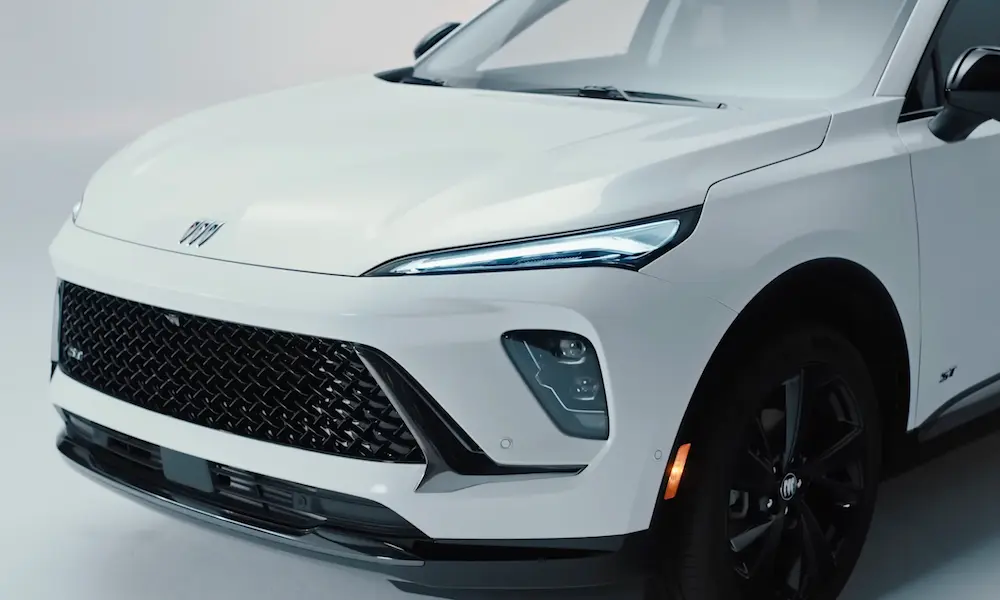
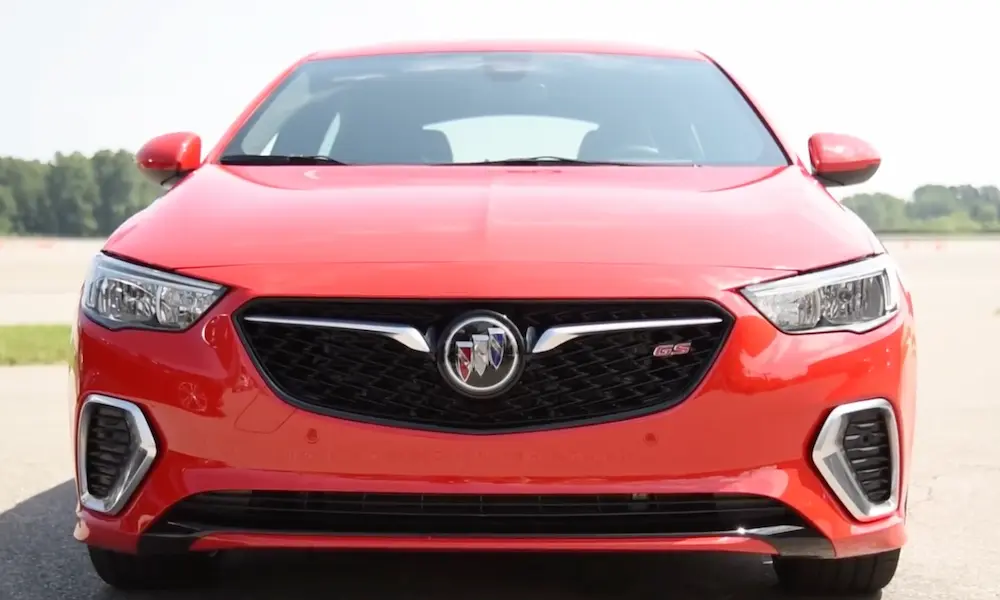
Buick started rolling out CarPlay with the 2016 LaCrosse and Regal. From there, the feature spread across the entire lineup. Here’s a quick reference:
| Buick Model | CarPlay Added | Connection Type |
|---|---|---|
| LaCrosse | 2016 | Wired |
| Regal | 2016 | Wired |
| Encore | 2017 | Wired |
| Envision | 2017 | Wired |
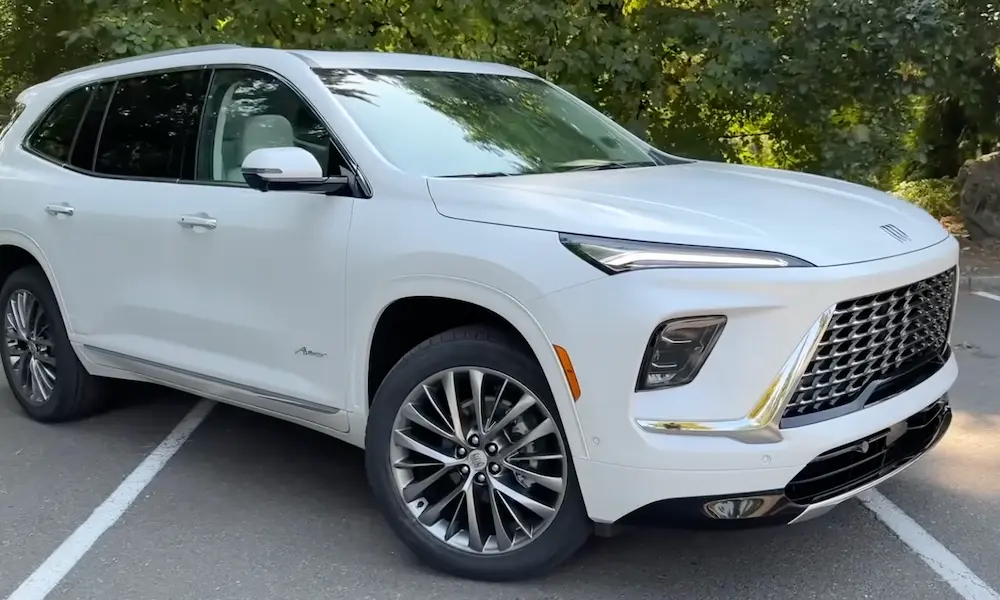
| Enclave | 2018 | Wired |
| Encore GX | 2023 | Wireless |
| Envista | 2024 | Wireless |
If your Buick is a 2016 or newer, you’re almost certainly covered. If it’s older than that, CarPlay isn’t available — full stop.
Your iPhone needs to be an iPhone 5 or newer, running at least iOS 7.1. That said, 2024 and newer Buick models require iOS 14 or later for both wired and wireless connections to work properly.
How to Connect Apple CarPlay to Buick With a USB Cable
Wired CarPlay is the most reliable connection method. Here’s exactly how to do it.
Step 1: Find the Right USB Port
This is where most people go wrong. Not every USB port in your Buick supports CarPlay. Rear-seat USB ports in most models are charge-only — they power your devices but can’t communicate with the infotainment system.
You need a data-capable USB port, which is always located up front — typically in the lower center console storage area or behind the cupholders. Newer Buicks use USB-C ports. Older ones use USB-A. Check your center console first.
Step 2: Use the Right Cable
Don’t grab any random cable from your junk drawer. Buick and Apple both recommend using an MFi-certified cable — that’s “Made for iPhone.” Cheap cables that aren’t MFi-certified often lack the data pins needed for CarPlay, and the Buick screen will throw a “Projection Not Available” error even if the phone is charging fine.
Step 3: Plug In and Follow the Prompts
- Put your Buick in Park. The system won’t start the pairing process while you’re moving.
- Plug your iPhone into the front USB data port.
- Your Buick’s center screen will ask for permission to enable Apple CarPlay.
- Your iPhone will also prompt you to allow CarPlay while the phone is locked — tap Allow. This lets the CarPlay screen stay active even when your phone’s screen is off.
- The CarPlay interface launches automatically on the Buick display.
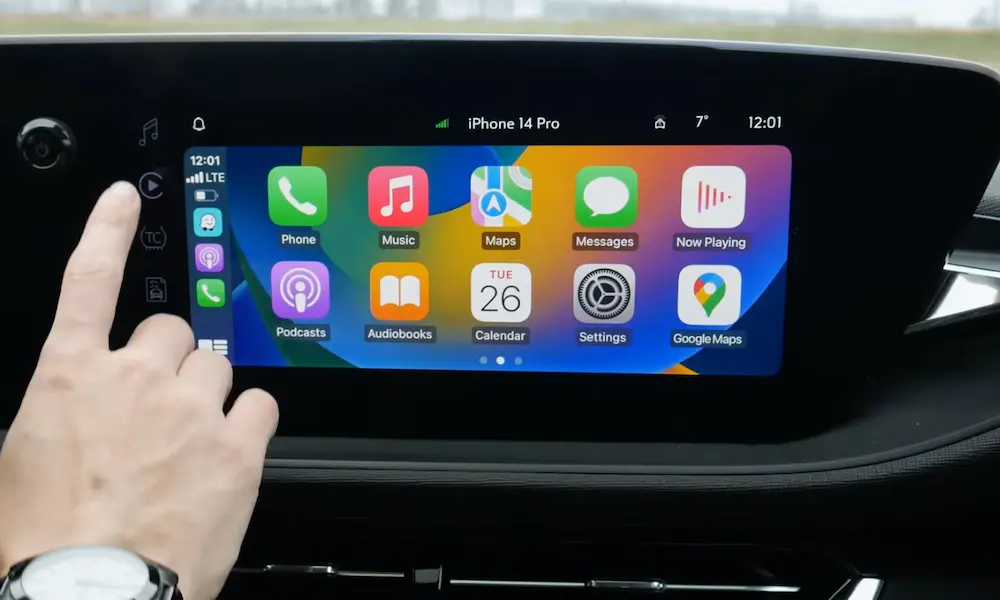
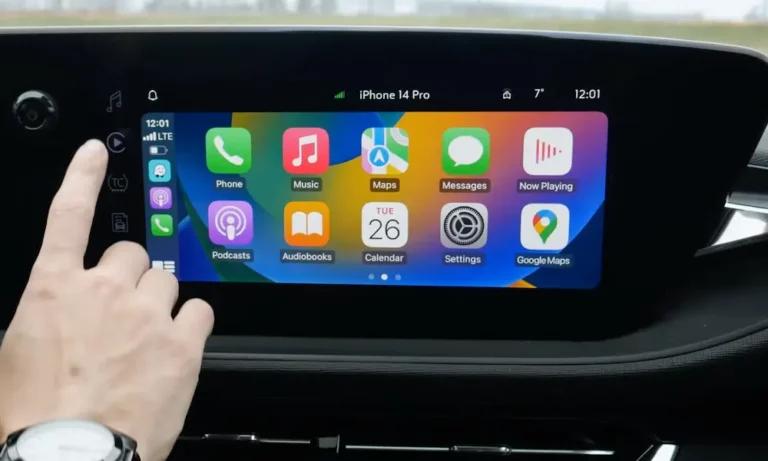
If it doesn’t launch automatically, look for the Apple CarPlay or “Projection” icon on the Buick home screen and tap it. Once the handshake completes, the icon activates and CarPlay loads.
How to Connect Apple CarPlay to Buick Wirelessly
Wireless CarPlay skips the cable entirely. It’s available on newer Buicks — including the 2021 and later Envision, 2023 Encore GX, and 2024 Envista.
How Wireless CarPlay Actually Works
Wireless CarPlay uses both Bluetooth and Wi-Fi — not one or the other. Bluetooth handles the initial discovery and authentication. Then the system switches to a peer-to-peer Wi-Fi connection for the actual screen projection, because Bluetooth alone doesn’t have enough bandwidth for video and audio streaming.
This internal Wi-Fi network is separate from your vehicle’s 4G/5G hotspot. You don’t need an active OnStar data plan to use wireless CarPlay. The projection stays local between your phone and the car.
Step-by-Step Wireless Pairing
- On your iPhone, turn on both Bluetooth and Wi-Fi.
- On the Buick screen, tap the Phone icon, then select “Add Phone”.
- Your iPhone should detect “My Buick” in the Bluetooth device list — tap it.
- The systems exchange security credentials, then the car prompts your iPhone to join its internal Wi-Fi network.
- Approve the connection on your phone.
- CarPlay launches on the Buick display.
Once you complete this setup once, your Buick and iPhone reconnect automatically every time you get in the car. The vehicle’s Bluetooth scans for your phone the moment you turn on the ignition. By the time you buckle up, CarPlay is typically already running.
Using Siri in Your Buick
CarPlay is built around voice control, and Siri is the engine behind it. In your Buick, you have three ways to activate Siri:
- Long-press the Voice Command button on your steering wheel
- Press and hold the Home icon on the CarPlay touchscreen
- Say “Hey Siri” — if your iPhone’s microphone picks it up and the feature is enabled in Settings
When you activate Siri, the Buick audio system automatically lowers your music volume and uses the cabin microphones to isolate your voice from road noise. If you’re running iOS 15 or later, Siri can also read incoming texts aloud and let you dictate a reply — hands completely free.
One important note: Siri must be enabled on your iPhone for CarPlay to work at all. Apple’s system requires Siri as a safety measure. If Siri is off, the CarPlay icon on your Buick screen will appear grayed out and won’t respond to taps.
Buick’s Display Options and What CarPlay Looks Like
The CarPlay experience looks different depending on which Buick you drive.
| Display | Screen Size | Key Feature | Models |
|---|---|---|---|
| Standard | 8 inches | Traditional layout, physical buttons | 2016–2022 LaCrosse, Encore |
| Ultrawide HD | 11 inches | Reconfigurable tiles, sharp resolution | 2024–2026 Envista, Encore GX |
| Ultrawide Panoramic | 30 inches | Curved glass, split-view with vehicle data | 2025–2026 Enclave, Envision |
On the 30-inch Ultrawide display found in the Enclave Avenir and high-trim Envision, CarPlay runs side-by-side with native vehicle information like climate controls and tire pressure. Apple Maps navigation prompts can also mirror to the 8-inch Driver Information Center — the instrument cluster behind your steering wheel — so your eyes barely leave the road.
Fixing Common CarPlay Problems in Buick
The Icon Is Grayed Out
This means the car sees a device but can’t authenticate the CarPlay session. Check these in order:
- Is Siri enabled? Go to Settings > Siri & Search on your iPhone.
- Is Bluetooth on? Even for wired connections, many Buick systems require Bluetooth active for device identification.
- Are you using a data port, not a charge-only port? Try the front console ports only.
CarPlay Keeps Disconnecting
A damaged or non-MFi-certified cable is the most common cause. Replace it with an Apple-branded or MFi-certified cable and the problem usually disappears immediately.
The System Won’t Detect Your Phone at All
Check the USB port for lint or debris — pocket lint in the Lightning or USB-C port is a surprisingly frequent culprit. Clean it with a short burst of compressed air. Also confirm that “USB Accessories” is enabled in Settings > Face ID & Passcode on your iPhone.
Nothing Works — Try the Deep Sleep Reset
A standard engine restart often isn’t enough. Modern Buicks keep their computer systems in standby mode for several minutes after shutdown. To force a true reboot:
- Turn off the ignition.
- Power off your iPhone.
- Open the driver’s door, then close it.
- Watch for the OnStar LED on the overhead console or rearview mirror to go completely dark — this confirms the telematics module has fully de-energized. It takes 5–15 minutes.
- Restart your phone, then start the car.
This forces a clean initialization and resolves most stubborn pairing failures.
| Symptom | Likely Cause | Fix |
|---|---|---|
| Icon grayed out | Siri disabled or Bluetooth off | Enable both in iPhone Settings |
| Frequent disconnects | Non-certified cable | Swap for MFi-certified cable |
| No device detected | Port debris or USB Accessories locked | Clean port, enable USB Accessories |
| Persistent pairing failure | Corrupted telematics cache | Run the 15-minute Deep Sleep reset |
Keep Software Updated
Both devices need current software. On your Buick, go to Settings > System > Vehicle Software > Updates. Newer models download updates over the air via the built-in Wi-Fi. On your iPhone, go to Settings > General > Software Update. Outdated software on either end causes compatibility issues that no cable or reset will fix.
Tips for Getting the Most Out of CarPlay in Your Buick
Do the first pairing with a cable. Even if you plan to use wireless CarPlay long-term, connecting by USB for your first setup ensures the Wi-Fi credentials transfer accurately. After that, go wireless.
Keep your navigation apps updated. Apps like Waze and Google Maps push CarPlay-specific performance patches regularly. An outdated app can feel sluggish on the Buick screen even when everything else checks out.
Charge your phone on long drives. Wireless CarPlay keeps the Wi-Fi and GPS radios running non-stop. Use the Buick’s wireless charging pad or plug into a USB port to keep your battery from draining before you reach your destination.
Manage shared vehicles. If multiple drivers use the same Buick, head to the “Manage CarPlay Devices” menu. You can set priority so the car connects to the right phone first — not a passenger’s iPhone sitting on the back seat.
Switch to wired in dense urban areas. In areas with heavy electromagnetic interference, the wireless CarPlay Wi-Fi signal can lag. Plugging in gives you a clean, lag-free connection when the wireless signal gets spotty.
What’s Coming Next for Buick and CarPlay
It’s worth knowing that GM has announced a shift toward Google Built-in for its upcoming electric vehicles, including the Buick Electra E5. The reasoning is deeper EV integration — battery state, charging station routing, and real-time range calculations work better natively than through phone projection.
Apple is responding with CarPlay Ultra, a next-generation system that takes over all screens in the car, including the instrument cluster and climate controls. Current 2026 Buick models like the Enclave and Envision use standard wireless CarPlay projection rather than CarPlay Ultra.
For now, if you drive a gas-powered Buick, CarPlay isn’t going anywhere. Buick has committed to keeping CarPlay available across all its current internal combustion engine models, so your setup today will stay supported for years to come.