Getting Apple CarPlay running in your Chrysler shouldn’t feel like defusing a bomb. This guide walks you through every step — wired and wireless — for the Chrysler 300, Pacifica, and Voyager. Stick around, because the fix you need is probably simpler than you think.
First, Check If Your Chrysler Actually Supports CarPlay
Before you touch a single cable, confirm your vehicle is compatible.
Chrysler started rolling out Apple CarPlay with the 2017 Chrysler 300 and the 2018 Pacifica. If your vehicle predates those model years, it doesn’t have the hardware for CarPlay — full stop. No software update will change that.
Here’s a quick compatibility snapshot:
| Model | CarPlay Starts | Connection Type |
|---|---|---|
| Chrysler 300 | 2017 | Wired only (Uconnect 4) |
| Chrysler Pacifica | 2018 (wired), 2021 (wireless) | Wired & Wireless |
| Chrysler Voyager | 2020 | Wired & Wireless |
Your Chrysler runs either Uconnect 4 or Uconnect 5. Uconnect 4 supports wired CarPlay only. Uconnect 5 — introduced with the 2021 Pacifica — added wireless CarPlay thanks to its dual-band Wi-Fi radio. If you’re unsure which system you have, go to Settings > System Information on your Uconnect screen.
Also confirm on your iPhone:
- Running iOS 10 or later (iOS 17+ is strongly recommended)
- Siri is enabled — CarPlay won’t launch without it
You can check which vehicles officially support CarPlay on Apple’s available models page.
How to Connect Apple CarPlay to Chrysler via USB (Wired)
Wired is the most reliable method. It charges your phone and delivers a rock-solid connection.
Step 1: Find the Right USB Port
Not every USB port in your Chrysler does CarPlay. You need the primary media hub port — the data-capable one.
- Chrysler 300: Look in the storage cubby at the base of the center stack, often behind a sliding door
- Chrysler Pacifica / Voyager: Look at the lower center stack area, near the floor
Avoid ports in the second-row seatbacks or the third-row panels — those are charge-only ports and won’t trigger CarPlay.
Newer Chrysler models (2021+) include both USB-A and USB-C ports in the media hub. Both work for CarPlay as long as they’re in the right hub.
Step 2: Use the Right Cable
This is where most people trip up. A flimsy charging cable won’t cut it. CarPlay needs a high-bandwidth data stream.
Use:
- An original Apple Lightning or USB-C cable
- Or a quality MFi-certified cable
Skip the dollar-store cables. Extreme cabin temperatures cause micro-fractures in cheap cable wiring, which throws a “Device Not Supported” error even when the phone charges fine.
Step 3: Enable CarPlay on Your iPhone
Go to Settings > General > CarPlay on your iPhone. Select your Chrysler Uconnect system if it appears. If you’ve never connected before, it’ll prompt you to allow CarPlay.
Step 4: Watch the Uconnect Screen
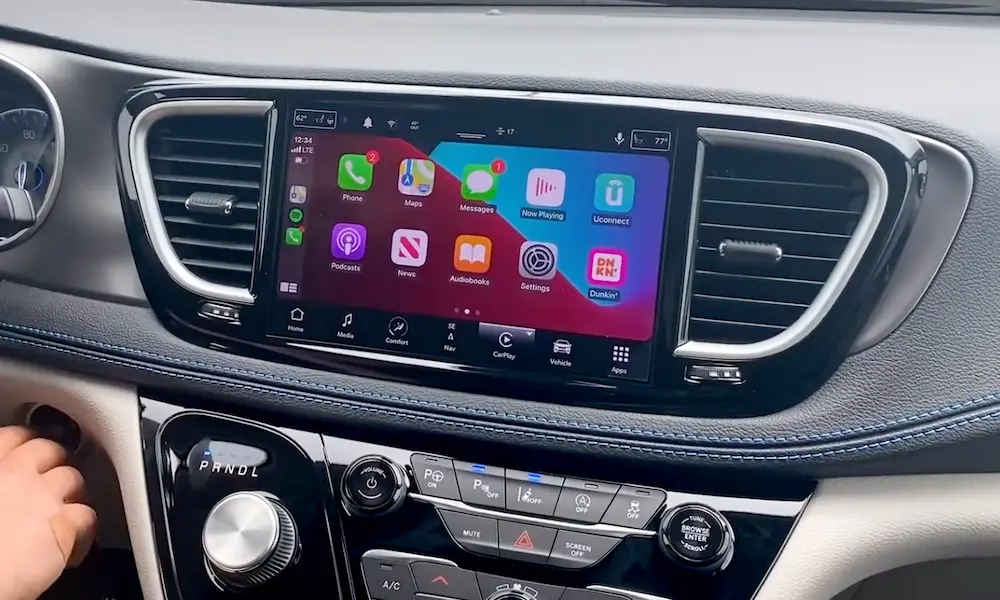
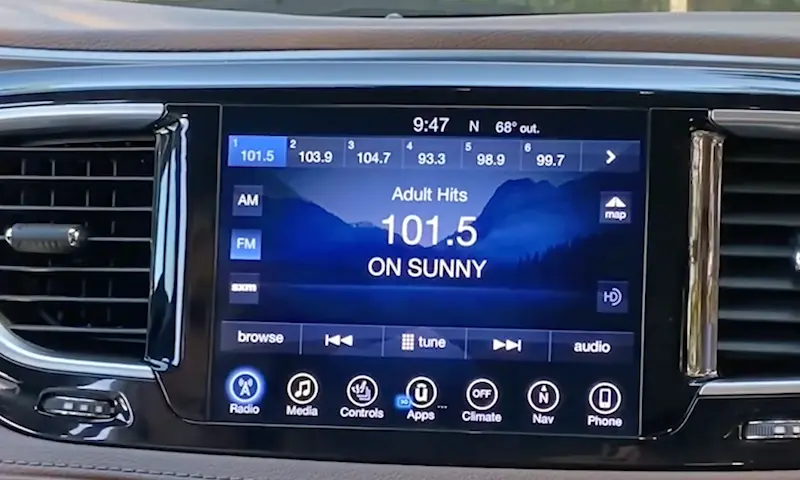
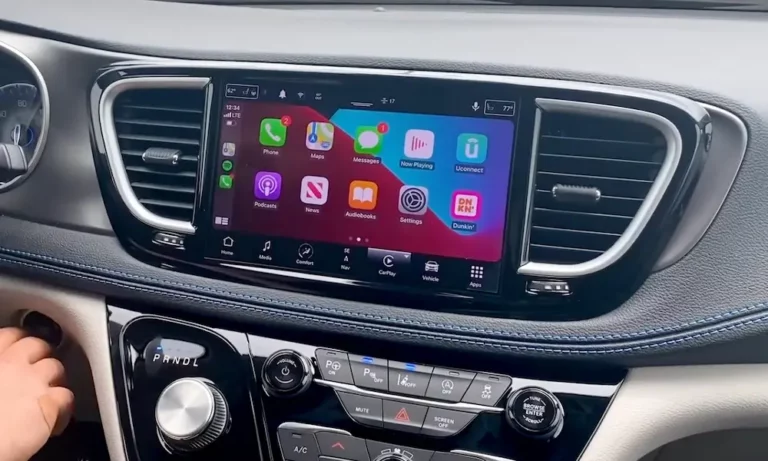
Once you plug in and the authentication handshake completes, the Phone icon on the Uconnect bottom bar changes to the Apple CarPlay logo. Tap it. The CarPlay interface replaces the native Uconnect screen.
That’s it. You’re in.
How to Connect Apple CarPlay to Chrysler Wirelessly (Uconnect 5 Only)
Wireless CarPlay is available on Uconnect 5 vehicles — primarily the 2021+ Pacifica and Voyager. The system uses Bluetooth to initiate the connection, then hands off to a 5 GHz Wi-Fi signal for the actual CarPlay data stream.
Step 1: Pair via Bluetooth First
- On the Uconnect 5 screen, go to Phone or Device Manager
- Tap Add Device
- On your iPhone, open Settings > Bluetooth
- Select your Uconnect system from the list
- Match the PIN shown on both screens
Step 2: Let Wi-Fi Take Over
Once Bluetooth pairs successfully, Uconnect 5 automatically sends your iPhone the credentials for its internal 5 GHz Wi-Fi network. Your phone connects to it in the background — you don’t have to do anything manually.
The system uses 5 GHz intentionally. In busy U.S. cities, the 2.4 GHz band is saturated with signals from everything around you. The 5 GHz band keeps the CarPlay stream clean and stutter-free.
Step 3: Automate Future Connections
After the first pairing, Uconnect 5 uses Bluetooth Low Energy (BLE) to detect your iPhone before you even sit down. By the time you buckle up, CarPlay is already loading on the 10.1-inch screen. No tapping required.
Pro tip for Pacifica Pinnacle owners: Your trim includes a wireless charging pad in the center console. Pair that with wireless CarPlay, and you’ve got a completely cable-free setup.
Enable CarPlay Through the Uconnect Projection Manager
If you’ve plugged in your phone and nothing happens, the Projection Manager might be off.
Here’s how to check:
- Tap Apps on the Uconnect screen
- Look for Projection Manager
- Make sure it has a blue checkmark next to it — that means it’s active
This is one of the first diagnostic steps when CarPlay doesn’t launch after a connection is made.
Add CarPlay to Your Uconnect Bottom Bar
You can also pin CarPlay to the bottom shortcut bar for one-tap access from any screen:
- Open the Apps screen
- Press and hold the Apple CarPlay icon
- Drag it to the bottom bar and drop it over an icon you want to replace
This drag-and-drop trick works on both Uconnect 4 and 5 and saves you from hunting through menus every time.
Troubleshooting: When Apple CarPlay Won’t Connect
Most CarPlay issues fall into three categories: cable problems, software conflicts, or a confused head unit.
Check the Physical Stuff First
- Swap your cable: A new MFi-certified cable fixes roughly 40% of wired connection issues
- Clean your iPhone’s port: Pocket lint blocks the data pins even when charging still works. Use compressed air or a non-conductive tool
- Try a different media hub port: If one port is loose or corroded, another in the same hub might work fine
Fix Software Conflicts
| Symptom | Likely Cause | Fix |
|---|---|---|
| No CarPlay icon appears | Siri is disabled | Enable Siri in iPhone Settings |
| Wireless connection keeps timing out | Active VPN on iPhone | Disable VPN before connecting |
| Phone charges but no CarPlay | Cable is charge-only, or port has debris | Replace cable or clean port |
| CarPlay stopped working after iOS update | Broken Wi-Fi/Bluetooth profile | Reset network settings on iPhone |
| Distorted screen resolution | Smart Zoom bug | Toggle Smart Zoom in CarPlay Settings |
The VPN issue is real — and it’s caught a lot of people off guard since iOS 18. If your wireless CarPlay worked before and suddenly stopped, disabling your VPN app is the first thing to try.
Reset the Pairing Completely
If CarPlay is acting up consistently, a fresh pairing often solves it:
- On your iPhone, go to Settings > General > CarPlay, select your vehicle, and tap Forget This Car
- Go to your iPhone Bluetooth settings and forget the Uconnect device
- On the Uconnect screen, go to Device Manager and delete your phone
- Re-pair from scratch using the steps above
For stubborn software glitches, reset your iPhone’s network settings at Settings > General > Transfer or Reset iPhone. Note: this clears all saved Wi-Fi passwords.
Hard Reset the Uconnect System
When the head unit itself is frozen or unresponsive:
- Uconnect 4: Hold the Volume knob + Tune/Browse knob simultaneously for 10–15 seconds
- Uconnect 5: Hold the Power/Mute button for 15–20 seconds
- Last resort: Disconnect the negative terminal of the 12-volt battery for five minutes. This forces a full cold boot of the head unit and clears deep software glitches
Keep Uconnect Updated for Best CarPlay Performance
An outdated head unit is a slow, glitchy head unit.
Uconnect 5 gets over-the-air updates through the vehicle’s cellular modem. When an update is ready, a pop-up appears on your touchscreen. The download runs in the background while you drive. Installation happens when you’re parked and takes up to 70 minutes — your backup camera and radio will be unavailable during that window, so plan accordingly.
Uconnect 4 doesn’t always get OTA updates. You may need to visit a Chrysler dealership for a manual USB install. These updates often fix specific bugs like intermittent CarPlay disconnects or GPS drift.
To check your current software version, go to Settings > System Information on your Uconnect screen. For the Pacifica, firmware “U40.C R1H” specifically addressed connectivity issues in 2023–2025 models — worth checking if you’ve been chasing random disconnects.
You can also check for available updates directly at the Uconnect Software Update Center.
Managing Two iPhones in One Chrysler
Uconnect 5 stores up to five user profiles and connects two Bluetooth phones simultaneously. If you and a passenger both have iPhones in the car, the system needs to know whose phone to use for CarPlay.
In the Device Manager menu, set your phone as the Favorite. That tells Uconnect 5 to always prioritize your device for the CarPlay connection — no confusion, no accidental switching mid-drive.
Now you know exactly how to connect Apple CarPlay to your Chrysler, whether it’s a quick wired plug-in or a fully wireless setup. Keep the cable quality high, Siri on, VPN off, and the firmware current — and CarPlay will give you very little reason to complain.