Struggling to activate your GMC Sierra’s heads-up display? You’re staring at those dashboard buttons wondering which one actually turns it on. This guide walks you through every method to get your HUD working perfectly, so you can keep your eyes on the road while staying informed.
Which GMC Sierra Models Have Heads-Up Display
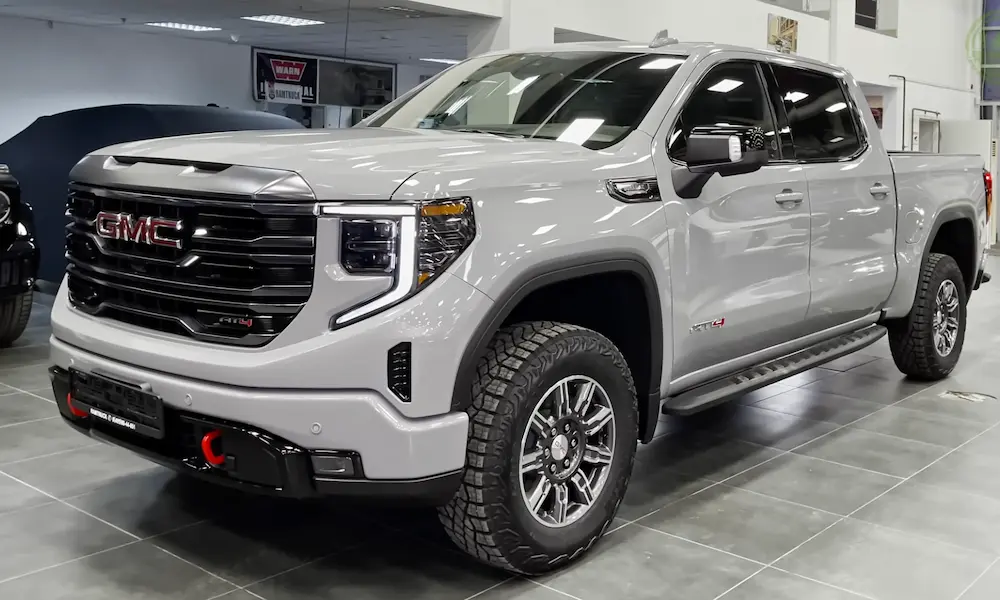
Not every Sierra comes with HUD technology. This feature typically appears on higher trim levels including AT4, AT4X, Denali, and Denali Ultimate models. Base or SLT trims usually don’t include HUD unless you’ve got the Technology Package.
Your Sierra might have one of two HUD types:
- Windshield projection: Projects directly onto your windshield
- Combiner screen: Uses a small pop-up screen on your dashboard
Getting Your Seat Position Right First
Before you touch any buttons, set up your driving position correctly. Adjust your seat to where you’ll actually drive and sit up straight. This matters because the HUD projects at a specific angle – if you’re slouched or sitting too low, you won’t see the display properly.
Method 1: Using Physical Dashboard Controls
Most Sierra owners will find HUD controls located to the left or right of the steering wheel. Look for three buttons on your dashboard:
The buttons you’ll see:
- Up/down arrow buttons (height adjustment)
- INFO button (display modes)
- Brightness buttons marked with + and – symbols
Here’s how to turn on heads up display GMC Sierra using these controls:
- Press the brightness (+) button repeatedly until the display appears on your windshield
- Use the up/down arrows to move the display to a comfortable height
- Press the INFO button to cycle through different display options
The brightness button acts as both the power switch and intensity control. If nothing happens when you press it, keep pressing the + button – the display might be set to minimum brightness.
Method 2: Infotainment System Activation
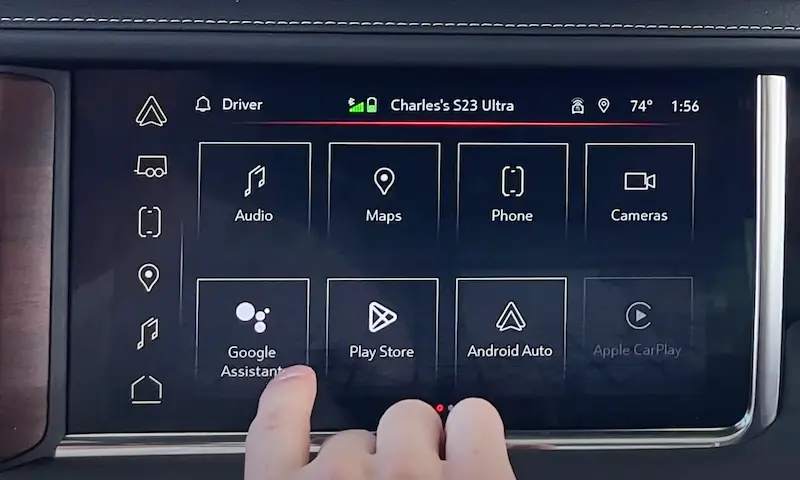
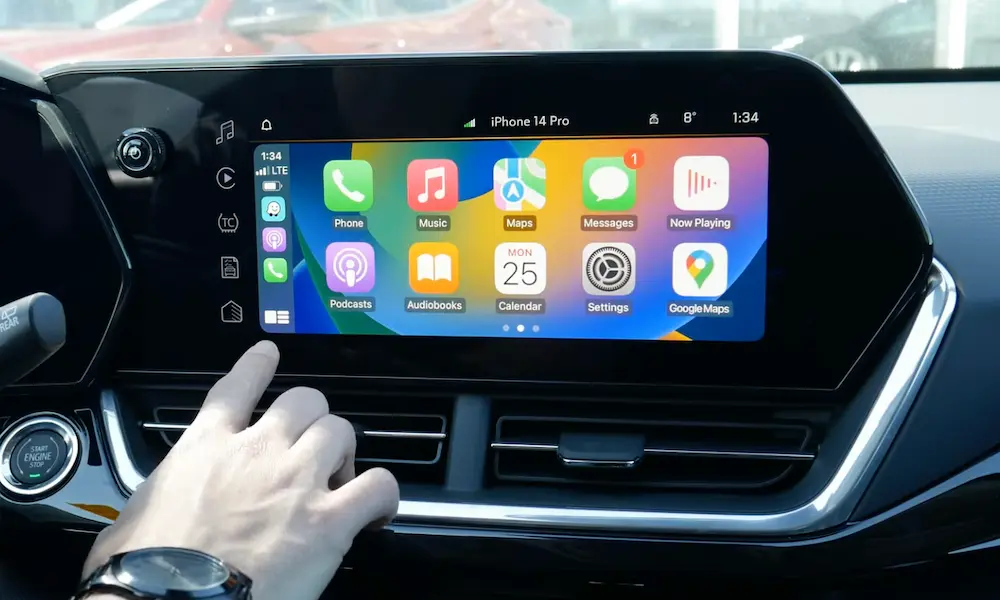
Some Sierra models let you control the HUD through the center touchscreen:
- Tap the Settings icon on your center display
- Select “Display” from the menu options
- Choose “Head-Up Display” to toggle it on or off
This method works well if your physical buttons aren’t responding or if you prefer using the touchscreen interface.
Method 3: Combiner HUD Activation
If your Sierra has the combiner-style HUD (the kind with a pop-up screen), the process differs slightly:
- Press or lift any of the HUD control switches when the system is off
- Release the switch once it starts opening – it’ll finish automatically
- Adjust height and brightness using the same controls mentioned above
The combiner screen physically moves up and down, so you’ll hear a slight motor sound during adjustment.
Understanding Your Display Modes
Once you’ve figured out how to turn on heads up display GMC Sierra, you can customize what information appears. Press the INFO button to cycle through these modes:
| Display Mode | Information Shown |
|---|---|
| Speed View | Current speed, speed limit signs, adaptive cruise status, lane departure warnings |
| Audio/Phone View | Speed info plus radio station, media type, incoming calls |
| Navigation View | Speed data plus turn-by-turn directions or compass heading |
| Performance View | Speedometer, RPMs, transmission position, gear indicators |
Each mode builds on the previous one, adding more information to your display.
Fine-Tuning Your HUD Settings
Height Adjustment Tips:
Position the display as low as possible while still keeping it visible. This reduces how much you need to shift your focus from the road. Use the up/down arrows until the display sits just above your steering wheel in your peripheral vision.
Brightness Control:
The HUD automatically adjusts for day and night driving, but manual control helps in tricky lighting conditions. Bright sunny days might need maximum brightness, while night driving works better with lower settings.
Image Rotation:
If your display appears tilted, you can fix this through your cluster display menu using steering wheel controls. Navigate to HUD settings and look for rotation or angle adjustment options.
What Information Appears on Your HUD
Your heads-up display shows different data depending on your selected mode and driving situation:
Always Visible:
- Current vehicle speed
- Speed limit detection (when available)
- Turn signal indicators
Conditional Information:
- Navigation arrows and distances
- Adaptive cruise control status
- Lane departure warnings
- Forward collision alerts
- Audio source and station information
- Incoming phone calls
The display prioritizes safety information, so warnings and alerts will override other content when necessary.
Troubleshooting Common HUD Problems
Display Won’t Turn On:
Check if the brightness is turned all the way down first. Press and hold the brightness (+) button for several seconds. The display might be active but invisible due to low brightness settings.
Can’t See the Display:
Your HUD might be positioned too high or too low. Try this reset sequence: hold the up button for 15 seconds, then press the down button for 10 seconds. This returns the display to its default position.
Blurry or Unclear Image:
Clean the HUD lens on top of your dashboard with a soft, dry cloth. Dust and fingerprints significantly affect display clarity. Also check your windshield for smudges in the projection area.
Intermittent Operation:
Verify that HUD is enabled in your infotainment system settings. Sometimes software updates or battery disconnections can reset these preferences.
HUD Performance in Different Conditions
Sunglasses Impact:
Polarized sunglasses can reduce HUD visibility or make the display appear dim. If you wear polarized lenses regularly, you might need to increase brightness or choose non-polarized glasses while driving.
Weather Considerations:
Rain, snow, and fog on your windshield will interfere with HUD clarity. Keep your windshield clean and use appropriate wipers to maintain visibility.
Time of Day Adjustments:
The automatic brightness adjustment works well most of the time, but dawn and dusk conditions sometimes need manual tweaking. Don’t hesitate to adjust brightness as lighting conditions change.
Maintaining Your HUD System
Regular Cleaning:
Clean both the HUD projector lens (on your dashboard) and the windshield projection area weekly. Use microfiber cloths and avoid harsh cleaners that might damage anti-reflective coatings.
Software Updates:
GMC occasionally releases infotainment updates that improve HUD functionality. Check with your dealer during regular maintenance visits or monitor GMC’s website for available updates.
Professional Calibration:
If your HUD seems misaligned or doesn’t respond to controls properly, your dealer can recalibrate the system. This typically takes about 30 minutes and ensures optimal performance.
Advanced HUD Features
Speed Limit Recognition:
Your Sierra’s HUD can display detected speed limits using camera-based recognition. This feature works with clear, standard road signs but may not catch temporary construction zone signs or electronic displays.
Navigation Integration:
When using GMC’s navigation system or compatible smartphone apps, turn-by-turn directions appear directly on your HUD. Arrows, distances, and street names help you navigate without looking down at your phone.
Safety Alert Priority:
The HUD automatically prioritizes safety warnings over other information. Forward collision alerts, lane departure warnings, and blind spot notifications will override music or navigation displays when active.
Understanding HUD Limitations
Adjustment Range:
Your HUD can only move up and down – there’s no left or right adjustment. GMC designed the horizontal position for optimal viewing from the driver’s seat.
Information Filtering:
The display shows essential information only. Detailed navigation maps, complete song titles, or extensive phone contact information appear on your center screen instead.
Brightness Limits:
Even at maximum brightness, very bright sunlight might wash out the display. This is normal for all automotive HUD systems and doesn’t indicate a malfunction.
Learning how to turn on heads up display GMC Sierra opens up a safer, more convenient driving experience. The system keeps crucial information in your line of sight while reducing the need to look away from the road. Whether you’re checking your speed, following navigation directions, or monitoring safety alerts, the HUD helps you stay informed and focused on driving.
Remember that HUD technology works best when properly positioned and maintained. Take time to adjust the settings for your driving style and remember to keep both the projector lens and windshield clean for optimal performance. With these tips, you’ll get the most out of your Sierra’s heads-up display system.