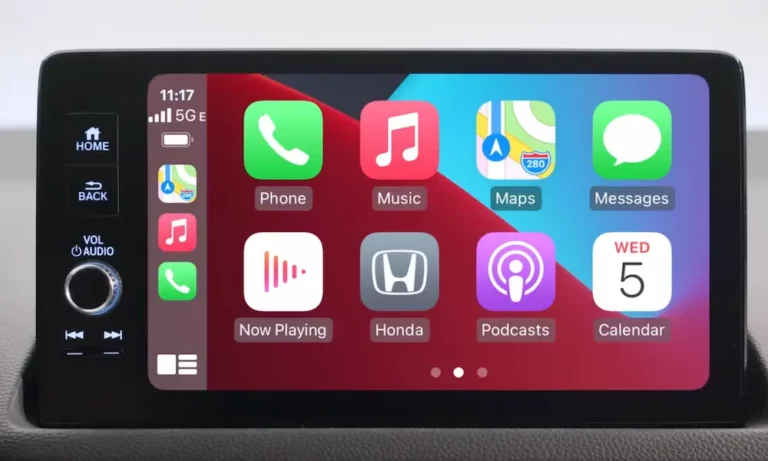
Is your Honda CR-V giving you headaches with Apple CarPlay that suddenly stopped working? You’re dealing with one of the most common infotainment problems affecting CR-V models. The good news? Most CarPlay connection issues can be fixed without an expensive trip to the dealership. This guide walks you through proven solutions that have helped thousands of CR-V owners restore their CarPlay functionality.
Is Your Honda CR-V Compatible with Apple CarPlay?
Before diving into troubleshooting, let’s make sure your vehicle actually supports CarPlay. Not all CR-V models and trim levels include this feature.
Honda started offering CarPlay in CR-V models beginning with the 2017 model year. However, availability varies significantly depending on your specific trim level and year. Higher trims typically include CarPlay as standard, while lower trims might not have it at all.
For wireless CarPlay specifically, this feature is only available on newer CR-V models (mostly 2021 and newer) or through dealer upgrades for compatible vehicles. If you’re driving an older model, you’ll likely be limited to wired connections only.
Identifying Why Your CR-V’s CarPlay Isn’t Working
CarPlay connection failures typically fall into five main categories:
- Incompatible devices
- Faulty cables or connections
- Incorrect settings
- Software conflicts
- Honda infotainment system glitches
The most common complaint is intermittent connections – where CarPlay works sometimes but fails unpredictably. This frustrating issue usually points to either a hardware problem (cables, ports) or software conflicts (iOS updates, system bugs).
Quick Fixes to Try First
Before attempting more complex solutions, try these quick fixes that solve about 50% of all CarPlay issues:
- Restart your iPhone: Hold the power button, then swipe to power off. Wait 30 seconds before turning it back on.
- Restart your car’s infotainment system: Press and hold the volume/power knob for 5-10 seconds until the system reboots.
- Check your cable: Make sure you’re using a high-quality, Apple-certified Lightning cable (or USB-C for iPhone 15+ models).
- Try a different USB port: Some CR-V models have multiple USB ports, but only certain ones (usually marked with a phone icon) support CarPlay.
Step-by-Step Troubleshooting Process
1. Verify Device Compatibility
Make sure your iPhone meets the minimum requirements for CarPlay:
- iPhone 5 or newer
- iOS 9 or later (though latest iOS is recommended)
Nearly all modern iPhones support CarPlay, but if you’re using an older device or outdated iOS version, this could explain your connection problems.
2. Check Your Cable and USB Ports
Unreliable connections often boil down to cable issues. For wired CarPlay connections:
- Use only Apple MFi-certified Lightning cables
- Inspect both ends of the cable for damage
- Clean your iPhone’s charging port (carefully) using compressed air
- Try a different cable to rule out cable failure
If you own an iPhone 15 or newer, remember these models use USB-C, not Lightning. Older CR-V models might need a USB-A to USB-C cable for proper connectivity.
3. Verify iPhone Settings
Several iPhone settings can affect CarPlay connectivity:
- Go to Settings > General > CarPlay
- Check if your Honda is listed – if not, try connecting your phone to the car again
- Ensure Siri is enabled (Settings > Siri & Search)
- Turn on “Allow Siri When Locked” as CarPlay requires Siri functionality
4. Honda Infotainment Soft Reset
The soft reset is the most effective Honda-specific solution and resolves approximately 75% of persistent CarPlay issues:
- Turn on your car
- Hold the volume/power knob for 5-10 seconds
- When the reboot menu appears, select “Yes”
- Wait for the system to fully restart
This process clears temporary glitches without erasing your saved settings or preferences.
5. Advanced Reset for Stubborn Problems
If the soft reset didn’t work, try this more comprehensive reset sequence:
- Press and hold the Home button, Volume knob, and Back button simultaneously for 5 seconds
- This should access a diagnostic mode menu
- Navigate to system reboot options
- Select the option to restart the system
Wired vs. Wireless CarPlay Troubleshooting
Different connection types require different troubleshooting approaches:
Wired CarPlay Issues
Wired connections typically offer better stability but come with their own problems:
- Cable quality matters: Cheap, non-certified cables often fail unpredictably
- USB port selection: Only specific USB ports in your CR-V support CarPlay data transfer (usually marked with a smartphone icon)
- Charging port contamination: Lint and debris in your iPhone’s port can prevent solid connections
Try this fix: Clean your iPhone’s charging port monthly using compressed air or a wooden toothpick (never metal) to remove lint accumulation.
Wireless CarPlay Problems
Wireless CarPlay provides convenience but can suffer from:
- Bluetooth pairing conflicts: Having too many devices paired to your car can confuse the system
- WiFi connectivity issues: Wireless CarPlay relies on both Bluetooth and WiFi connections
- Battery drain: Wireless connections consume more battery than wired ones
Try this fix: Clear your CR-V’s entire Bluetooth device list and re-pair your iPhone from scratch:
- On your CR-V screen, go to Settings > Bluetooth
- Delete all paired devices
- Turn Bluetooth off and on again
- Re-pair your iPhone as a new device
iOS Update Complications
Recent iOS updates (especially iOS 18.4 and later) have caused widespread CarPlay issues across multiple car manufacturers, including Honda. Common problems include:
- Connection failures
- Missing dashboard information
- Audio problems
- Apps not loading properly
If your CarPlay stopped working after an iOS update, try these specialized solutions:
- Disable Apple Intelligence temporarily (if applicable)
- Turn off active VPNs on your iPhone
- Reset network settings: Go to Settings > General > Transfer or Reset iPhone > Reset > Reset Network Settings
Some users have found success by updating to newer iOS versions when available, as Apple frequently addresses CarPlay bugs in subsequent updates.
Factory Reset: The Last Resort
When all other troubleshooting steps fail, a factory reset of the Honda infotainment system often resolves persistent issues:
- On your CR-V’s screen, navigate to Menu > System Settings
- Select Factory Data Reset
- Confirm your choice (you’ll need to confirm twice)
- Allow the system to completely reboot
Important: This process erases all personal settings, saved contacts, navigation history, and other customizations, but typically restores CarPlay functionality.
Model-Specific Issues and Solutions
Different CR-V model years have their own unique CarPlay quirks:
2017-2019 CR-V Models
These earlier CarPlay-equipped models often suffer from:
- Slower connection establishment
- More frequent disconnections
- Limited to wired CarPlay only
Solution: Regular soft resets (volume knob method) and ensuring you’re using the correct USB port (typically the front one) help maintain reliable connections.
2020-2022 CR-V Models
Mid-generation models may experience:
- Software conflicts with newer iPhone models
- Intermittent wireless connectivity (if equipped)
- Unresponsive touchscreens during CarPlay use
Solution: Check for available infotainment system updates at your Honda dealer, as software patches have been released for some of these issues.
2023+ CR-V Models
The newest CR-V generations might encounter:
- Compatibility issues with latest iOS versions
- Wireless CarPlay connection drops
- Bluetooth pairing conflicts
Solution: These newer models benefit most from the advanced reset procedure (Home + Volume + Back buttons), as their more complex infotainment systems sometimes need deeper refreshes.
Cable Quality Makes a Difference
The importance of using high-quality cables cannot be overstated. Here’s why your cable might be the culprit:
| Cable Issue | Impact on CarPlay | How to Identify |
|---|---|---|
| Frayed ends | Intermittent connections | Visible damage at connector ends |
| Non-certified cables | System doesn’t recognize iPhone | “This accessory is not supported” messages |
| Internal wire damage | Works in some positions only | Connection improves when cable is bent certain ways |
| Incorrect cable type | No data transfer, charging only | Cable works for charging but not CarPlay |
Always use Apple-certified (MFi) cables for the most reliable connection. This simple investment can prevent countless connection headaches.
Preventing Future CarPlay Problems
Keep your CR-V’s CarPlay running smoothly with these prevention tips:
- Keep everything updated:
- Update your iPhone to the latest iOS
- Ask your dealer about available infotainment system updates for your CR-V
- Maintain your equipment:
- Clean your iPhone’s charging port regularly
- Inspect cables for damage and replace as needed
- Rotate between multiple high-quality cables to prevent wear
- Be cautious with iOS updates:
- Monitor online feedback before installing major iOS updates
- Consider waiting a few weeks after major updates to avoid potential bugs
- Document what works:
- When you find a solution that fixes your specific issue, write it down
- Having your personal “fix” handy saves time when problems recur
When Hardware Issues Are to Blame
Sometimes, CarPlay problems stem from hardware failures that require professional attention:
- USB port damage: Bent pins inside the CR-V’s USB port can cause connection failures
- Infotainment system hardware failures: Components like the main unit processor can degrade
- Touchscreen responsiveness issues: Calibration problems may require dealer equipment
If you’ve tried all software fixes without success, Honda dealership service becomes necessary. Some dealers also offer wireless CarPlay upgrades for compatible models at around $112 plus labor, though availability varies significantly by dealer.
Dealing with Wireless CarPlay Stability
For CR-V owners with wireless CarPlay capability, connection stability can be improved by:
- Reducing wireless interference:
- Move other electronic devices away from your phone and dashboard
- Remove unnecessary Bluetooth connections to your vehicle
- Managing battery considerations:
- Wireless CarPlay drains your phone battery faster
- Consider using a wireless charging pad in your CR-V if equipped
- For longer trips, switching to wired CarPlay preserves battery life
- Optimizing wireless performance:
- Keep your phone updated to the latest iOS
- Position your phone closer to the dashboard for stronger wireless connections
- Try toggling Airplane Mode on and off to reset wireless connections
System Update Considerations
Honda occasionally releases infotainment system updates that can resolve CarPlay issues. However, these updates are typically only available through dealerships rather than over-the-air.
Before scheduling a dealer visit for a system update:
- Call ahead to confirm if any updates are available for your specific CR-V model and year
- Ask if the update addresses CarPlay connectivity specifically
- Inquire about the cost (some updates are covered under warranty, others may not be)
Some Honda owners report that service departments have varying levels of expertise with CarPlay issues, so calling ahead can help you determine if they’ve successfully resolved similar problems before.
The Power of CarPlay Recovery Mode
For particularly stubborn CarPlay issues, putting your iPhone into recovery mode before reconnecting can clear deeper system conflicts:
- Disconnect your iPhone from the car
- On your iPhone, go to Settings > General > CarPlay
- Select your Honda and choose “Forget This Car”
- Restart both your iPhone and your car’s infotainment system
- Reconnect your phone and set up CarPlay again from scratch
This complete reset of the CarPlay connection often resolves issues that simpler troubleshooting steps miss.