Struggling to get Apple CarPlay working in your BMW? Whether you just bought a new 3 Series or you’re finally setting up your 2017 X5, the steps aren’t always obvious. This guide walks you through every iDrive version, covers compatibility, and fixes the most common connection problems. Stick around — the troubleshooting section alone is worth it.
Does Your BMW Actually Support Apple CarPlay?
Before you do anything, check your iDrive version. Not every BMW supports CarPlay, and older systems simply can’t run it — no workaround exists without aftermarket hardware.
Every BMW with iDrive 5.0 or newer supports CarPlay. If your car has the older CCC or CIC system, skip to the aftermarket section below.
Here’s a quick look at how CarPlay support evolved across iDrive generations:
| iDrive Generation | Production Years | CarPlay Support |
|---|---|---|
| iDrive 5.0 | 2016–2017 | Optional / Retrofit required |
| iDrive 6.0 | 2017–2018 | Standard on most models |
| iDrive 7.0 | 2018–2021 | Standard wireless |
| iDrive 8.0 / 8.5 | 2022–2024 | Standard wireless |
| Operating System 9 | 2024–Present | Standard wireless |
One more thing: your BMW needs the factory navigation system installed. CarPlay uses the navigation hardware’s GPS processing to boost location accuracy, so the nav package isn’t optional — it’s required.
What You Need on Your iPhone
Your car’s hardware is only half the equation. Your iPhone needs to meet a few conditions too.
- iPhone model: iPhone 5 or newer works. Realistically, use an iPhone 8 or later for a smooth experience.
- iOS version: iOS 9.3 minimum, but always run the latest iOS for best results.
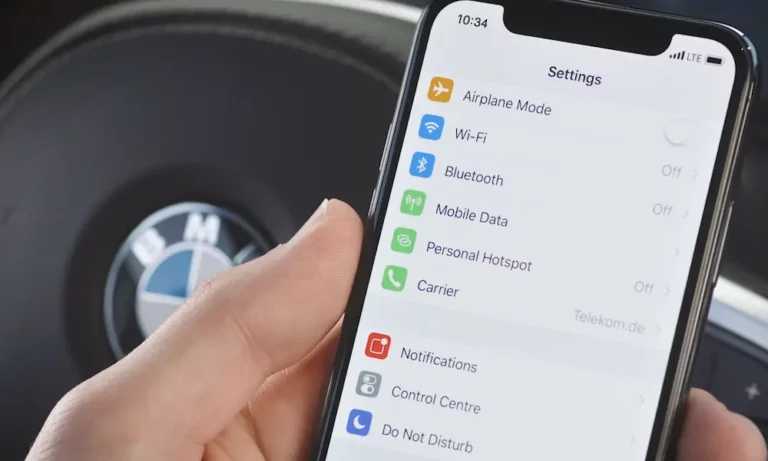
- Bluetooth: Must be on. This handles the initial handshake between your phone and the car.
- Wi-Fi: Must be on too. Once Bluetooth authenticates the connection, the actual data streams over a private Wi-Fi Direct link at 5GHz.
- Siri: Must be enabled. If Siri is off — especially if Screen Time restrictions block it — CarPlay won’t launch at all.
BMW Model Compatibility by Series
Most BMW models got CarPlay starting in 2017. Here’s a quick reference:
| Model | CarPlay From | Notes |
|---|---|---|
| 3 Series | 2017 | iDrive 6.0 |
| 5 Series | 2017 | First wireless CarPlay ever offered |
| X3 / X5 | 2017 | iDrive 6.0 |
| X1 | 2018 | iDrive 6.0 |
| 8 Series / X7 | 2018 | iDrive 7.0 |
| Z4 | 2019 | iDrive 7.0 |
| iX / i4 | 2022 | iDrive 8.0 |
For 2016 models, production date matters. Vehicles built from August 2016 onward with NBT Evo hardware are eligible. Earlier 2016 builds often lack the right hardware architecture.
M models — M3, M4, M5, M8 — follow the same timeline as their base series counterparts.
How to Connect Apple CarPlay to BMW: Step-by-Step by iDrive Version
The steps differ depending on your iDrive version. Find yours below.
BMW Operating System 9 (2024–Present)
OS 9 uses a redesigned app-based layout. Here’s the official setup path from BMW USA:
- Make sure Bluetooth and Wi-Fi are on your iPhone.
- On the iDrive screen, tap MENU → All Apps → Mobile Devices → Connect New Device.
- The car scans for nearby Bluetooth devices. Select your iPhone from the list.
- A numeric pairing code appears on both screens. Confirm the codes match, then tap Pair on your iPhone and OK on iDrive.
- When prompted, choose Apple CarPlay instead of standard BMW iDrive mode.
BMW OS 8 and 8.5 (2022–2024)
These models use the Curved Display. The setup process runs through the TEL menu:
- Tap TEL in the left sidebar on the main screen.
- Select Connect New Telephone.
- Choose your iPhone from the device list.
- Tap Yes on your iPhone, then Allow to permit contact syncing.
- Select Use Apple CarPlay on the iDrive display.
- Enable Hey Siri integration when prompted — this lets you use voice commands through the car’s microphone.
iDrive 7.0 (2018–2021)
iDrive 7 is still one of the most common systems on the road. The connection lives inside the COM menu:
- Go to COM → Mobile Devices → + New Device.
- Select Phone Calls and Audio as the connection type.
- Your BMW’s Bluetooth ID (usually “BMW” + five digits) appears in your iPhone’s Bluetooth settings. Tap it.
- Confirm the PIN on both devices.
- On the iDrive screen, select Confirm Note and Connect Apple CarPlay.
iDrive 5.0 and 6.0 (2016–2018)
These earlier systems use a slightly different path. Here’s how it works:
- From the main menu, select Communication → Manage Mobile Devices → Connect New Device.
- Choose Apple CarPlay from the connection type options.
- On your iPhone, go to Settings → General → CarPlay and select your vehicle’s ID.
- Confirm the passcode on both devices.
- The iDrive status bar turns blue when the CarPlay link is fully active.
How the Wireless Connection Actually Works
Here’s why both Bluetooth and Wi-Fi need to be on — they play different roles.
Stage 1 — Bluetooth Low Energy: The car and your iPhone find each other and authenticate the pairing. Low power, low data. Think of this as the handshake.
Stage 2 — Wi-Fi Direct: Once authenticated, the car creates a private 5GHz Wi-Fi hotspot that your iPhone connects to automatically. This is where the high-resolution screen mirroring and audio streaming happen.
Your iPhone’s data plan handles internet-based tasks like Apple Maps routing. The car’s Wi-Fi Direct link is only for the CarPlay interface itself, not general internet access — unless you have an active BMW ConnectedDrive hotspot subscription.
Controlling CarPlay in Your BMW
BMW gives you three ways to interact with CarPlay:
- iDrive Controller: Rotate to highlight apps, press to select, tilt to switch between CarPlay home and the dashboard view.
- Touchscreen: Works exactly like your iPhone. Tap, swipe, pinch to zoom on maps.
- Siri: Say “Hey Siri” or hold the voice button on your steering wheel for about three seconds. A short press activates BMW’s own voice assistant for car functions like climate control. A long press hands things over to Siri.
Your steering wheel’s track-skip buttons also control music playback in Spotify, Apple Music, and other CarPlay apps.
Fix CarPlay Connection Problems Fast
The Clean Slate Reset
When reconnecting fails repeatedly, wipe the pairing data from both devices and start fresh:
- On your iPhone: Settings → General → CarPlay, select the BMW, tap Forget This Car.
- Then: Settings → Bluetooth, tap the ⓘ next to your BMW, select Forget This Device.
- In iDrive: Find your iPhone under Mobile Devices and select Delete / Remove Device.
- Restart your iPhone. Reboot iDrive (see below).
- Re-pair as if it’s the first time.
iDrive Reboot Methods
BMW’s volume knob doubles as a system reset button:
- 30-Second Soft Reset: Hold the volume knob for 30 seconds. This restarts the graphical interface. Use this for a frozen screen or unresponsive app.
- 70-Second Hard Reboot: Hold for 70 seconds. The screen goes dark, restarts, then goes dark a second time. Don’t release the knob until after the second shutdown. This resets the Wi-Fi and Bluetooth hardware antennas — the best fix for “device not found” errors or persistent drops.
Common Culprits That Break the Connection
- Home Wi-Fi conflict: Your iPhone may prefer your home network over the car’s Wi-Fi Direct signal. Turn Wi-Fi off and back on once you leave the driveway, or disable Auto-Join for your home network.
- VPN apps: An active VPN blocks the local network routing CarPlay needs. Disable it before connecting.
- 5GHz interference: CarPlay runs on 5GHz. Heavy RF interference near certain locations can cause stuttering or audio skips.
- Outdated apps: In iDrive’s Apps or ConnectedDrive menu, press the Option button and select Update Apps and Services to manually refresh your vehicle’s software services.
Older BMW? Here Are Your Options
If your BMW predates the 2017 rollout or lacks NBT Evo hardware, you still have options.
Retrofit Decoder Modules
MMI Prime and similar retrofit kits install behind the dashboard and plug into your existing head unit. No wire cutting, no permanent changes. You toggle between iDrive and CarPlay by holding a button on the controller or steering wheel. These work on CCC, CIC, and NBT systems from 2009 to 2016.
Full Screen Replacements
For older vehicles with low-resolution displays, a full screen swap installs a high-definition Android-based unit with built-in wireless CarPlay support. It’s a bigger job but gives you a modern interface on a legacy car.
A Quick Note on BMW’s Old CarPlay Subscription
From 2018 to 2019, BMW charged $80/year or $300 for lifetime CarPlay access — the only major automaker to do so. They dropped the subscription in December 2019 after serious customer backlash. CarPlay is now free for life on all compatible BMWs. If you had the subscription, it converted automatically to lifetime access.
What’s Coming: CarPlay Ultra
Apple’s next-generation CarPlay — sometimes called CarPlay Ultra — will extend across all vehicle screens, including the instrument cluster, and integrate with climate control and seat adjustments. BMW already previews this direction: current OS 8.5 and OS 9 models show Apple Maps in the digital instrument cluster and HUD. Expect deeper integration with each new model year.