Is your Honda Civic’s touchscreen frozen? Audio not working? Bluetooth refusing to connect? You’re dealing with an infotainment system that needs a restart. Infotainment issues can be frustrating, but most can be resolved with the right reset technique. Let’s walk through the exact steps to get your system back on track without a trip to the dealer.
Why Your Honda Civic Infotainment System Might Need a Reset
Your Civic’s infotainment system is essentially a computer, and like all tech, it sometimes needs a restart. Common issues include:
- Screen freezing or becoming unresponsive
- Bluetooth connection failures
- Audio suddenly cutting out
- System running slowly or lagging
- Apps crashing unexpectedly
- Display glitches or black screen
These problems typically stem from software hiccups rather than hardware failures. A proper reset is often all you need to resolve these issues.
Quick Soft Reset Methods (Try These First)
A soft reset refreshes your system without deleting your personal settings or data. It’s like restarting your phone when it acts up.
For 10th Generation Civic (2016-2021):
- Locate the power/volume knob on your infotainment system
- Press and hold it for 10-30 seconds
- Wait until you see the Honda logo appear
- Release the button and let the system restart
This method works for most minor system glitches and is particularly effective for Bluetooth pairing issues.
For 11th Generation Civic (2022-Present):
- Press and hold the Home button for approximately 5 seconds
- When the reboot confirmation prompt appears, select “OK”
- Allow the system to restart completely
If your screen is completely frozen and unresponsive, try holding the power button for 20-40 seconds, which should trigger an automatic reboot.
Performing a Factory Reset (When Soft Reset Fails)
If a soft reset doesn’t solve your problem, a factory reset might be necessary. This will erase all your saved settings and return the system to its original state.
Standard Factory Reset Procedure:
- From the home screen, select “Settings”
- Navigate to “General Settings” > “System” > “Factory Data Reset”
- Select “Continue” when prompted
- Confirm again when asked
- Wait 3-5 minutes for the system to complete the reset process
Be aware this will delete:
- All paired Bluetooth devices
- Saved audio settings and equalizer presets
- Navigation history and saved destinations
- User preferences and customizations
What If Your Screen Is Completely Frozen?
When your screen is completely unresponsive, try these alternative reset methods:
Voice Command Workaround:
- Press the voice command button on your steering wheel
- Say “Voice Settings”
- Navigate verbally to “System” > “Factory Data Reset”
- Confirm the reset when prompted
Hardware Reset Options:
If software resets aren’t working, these physical methods can help:
For 10th Generation Civic:
- Fuse Reset: Locate fuse #9 or #21 (depending on your trim) in the fuse box, remove it for 30 seconds, then reinstall
- Battery Reset: Disconnect the negative terminal of your car battery for 15 minutes, then reconnect
For 11th Generation Civic:
Try this hidden reboot combination:
- Simultaneously hold the “Home” + “Power” + “|<<” buttons until you hear a chime
- Select “Detailed Information & Settings”
- Hold “Back” + “Power” + “|<<” to trigger a system reboot
Model-Specific Reset Tips and Tricks
10th Generation Civic (2016-2021) Advanced Methods
For persistent issues, access the diagnostic menu:
- Simultaneously hold “Brightness” + “Power” + “Menu” for 3 seconds
- This opens a hidden service menu with additional reset options
- Select “Factory Reset” from the available options
This method is recommended by experienced Civic owners for stubborn system issues.
11th Generation Civic (2022-Present) Advanced Methods
The newer Civics have a Safe Mode option:
- While restarting the system, hold the “Home” button
- This boots the system in a diagnostic mode that disables third-party apps
- From here, you can perform more comprehensive troubleshooting
This technique helps isolate whether the issue is with the core system or an installed app.
Fixing Specific Infotainment Problems
Bluetooth Connection Issues
If your phone won’t pair or keeps disconnecting:
- Delete all paired devices from your infotainment system
- On your phone, remove the Honda Civic from your Bluetooth devices
- Restart both your phone and the infotainment system
- Re-pair the devices following the standard procedure
- If problems persist, try toggling Airplane Mode on the infotainment system
Touchscreen Calibration Problems
For inaccurate touch response:
- Enter Developer Options by tapping “Build Number” seven times in the system settings
- Adjust Touch Sensitivity settings
- Perform the Touch Test under diagnostic menus
- If needed, recalibrate the screen following the on-screen prompts
System Running Slowly
To improve performance:
- Clear unnecessary saved data
- Disable background apps and processes
- Set screen timeout to 30 seconds to reduce system load
- Restrict data usage for apps that don’t need constant updates
What to Expect After Resetting
Here’s what happens after different types of resets:
| Reset Type | What’s Affected | Recovery Steps |
|---|---|---|
| Soft Reset | Nothing | System continues with all settings intact |
| Factory Reset | All user data and preferences | Manually reconfigure all settings |
| Battery/Fuse Reset | Clock, radio presets, some system settings | Reprogram stations and update the clock |
After a factory reset, you’ll need to:
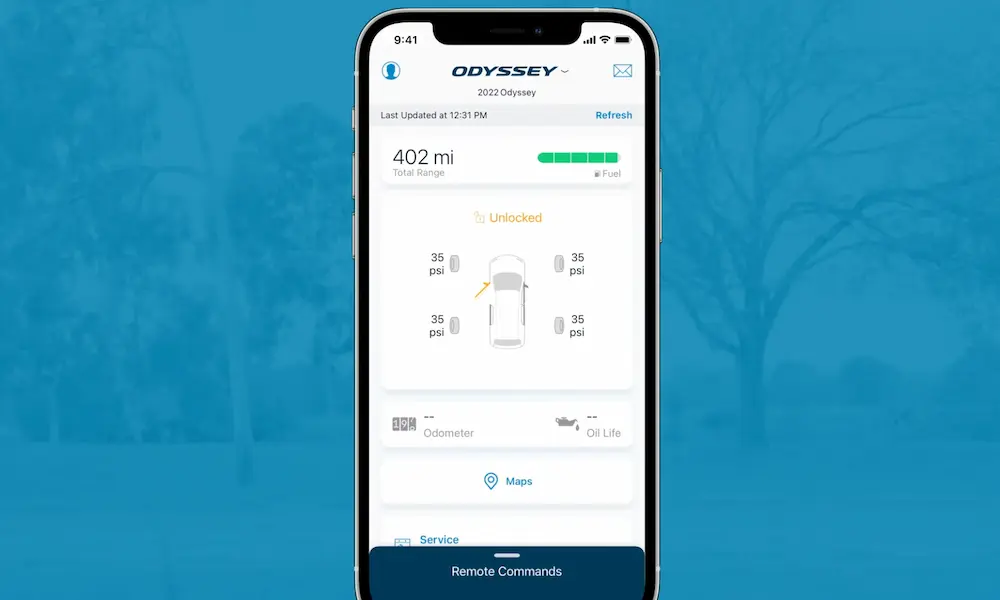
- Reinstall the HondaLink app if you use remote features
- Reconfigure driver profiles for seat and mirror positions
- Update navigation maps via USB or Wi-Fi
- Re-pair all Bluetooth devices
Preventing Future Infotainment Issues
To avoid needing frequent resets:
- Keep your system updated with the latest software
- Don’t overload the system with unnecessary apps
- Wait for the system to fully boot before using it
- Avoid extreme temperature exposure (particularly heat)
- Disconnect unused devices from Bluetooth when not needed
When Hardware Issues Might Be the Culprit
While most problems can be fixed with a reset, some indicate hardware failures:
- Screen remains black even after multiple reset attempts
- System repeatedly crashes regardless of reset method
- Visible physical damage to the screen
- Buttons completely unresponsive to any input
- Strange noises coming from behind the dashboard
If you experience these issues, it may be time to consult a professional Honda technician. In rare cases, the National Highway Traffic Safety Administration may have safety information about infotainment issues that affect vehicle operation.
Upgrading Your System After Reset
A reset provides the perfect opportunity to improve your infotainment experience:
- Check for available system updates from Honda
- Update your navigation maps to the latest version
- Optimize audio settings for your listening preferences
- Organize your favorite radio stations in a logical order
- Set up voice commands for hands-free operation
These enhancements will make your daily driving experience more enjoyable and reduce the likelihood of future system issues.
Dealing with HondaLink App Integration
If you use the HondaLink app for remote features, a system reset may affect connectivity:
- Ensure the app is updated on your smartphone
- Re-establish the connection between your vehicle and the app
- Verify your account credentials are correctly entered
- Check that all permissions are properly enabled
- Test remote features like door lock/unlock to confirm functionality
Keeping Your System Healthy Long-Term
To maximize your infotainment system’s lifespan:
- Perform regular soft resets (every few months) as preventative maintenance
- Keep the touchscreen clean using only approved cleaning products
- Protect the screen from direct sunlight when parked
- Disconnect unused devices to reduce system load
- Consider a system update at your dealer during regular maintenance visits
These maintenance habits will help prevent major system failures and extend the life of your infotainment system.
Remember, most Honda Civic infotainment issues are software-related and can be resolved with the right reset technique. By following this guide, you’ll have your system running smoothly again without the need for expensive dealer visits.