Got a notification telling you your Mercedes needs a software update? Or maybe your nav maps are showing roads that no longer exist? Either way, knowing how to update Mercedes-Benz software saves you time, dealership trips, and headaches. Stick around — this guide covers everything from OTA updates to USB map installs.
First, Know What System You’re Working With
Before you update anything, you need to know which telematics generation your car runs. This determines how you update — and whether you can do it yourself or need a dealer.
Here’s a quick breakdown:
| NTG Version | Typical Years | How You Update |
|---|---|---|
| NTG 4.5 / 4.7 | 2012–2015 | Manual USB/SD only, PIN required for maps |
| NTG 5.1 / 5.2 | 2014–2018 | Manual USB, limited OTA patches |
| NTG 5.5 | 2016–2020 | OTA for multimedia, USB for large maps |
| NTG 6.0 (MBUX Gen 1) | 2018–2022 | Primary OTA via built-in SIM, Wi-Fi, USB fallback |
| NTG 7.0 (MBUX Gen 2) | 2022–Present | Automatic background OTA, Wi-Fi, app-managed |
Your NTG version dictates the entire update pathway available to you. There’s no shortcut around it.
How to Check Your Current Mercedes Software Version
Don’t skip this step. Knowing your current version tells you whether an update is even needed.
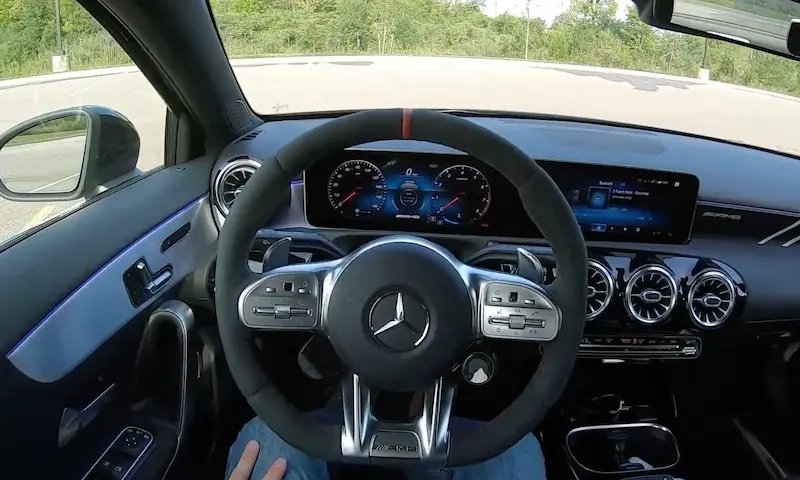
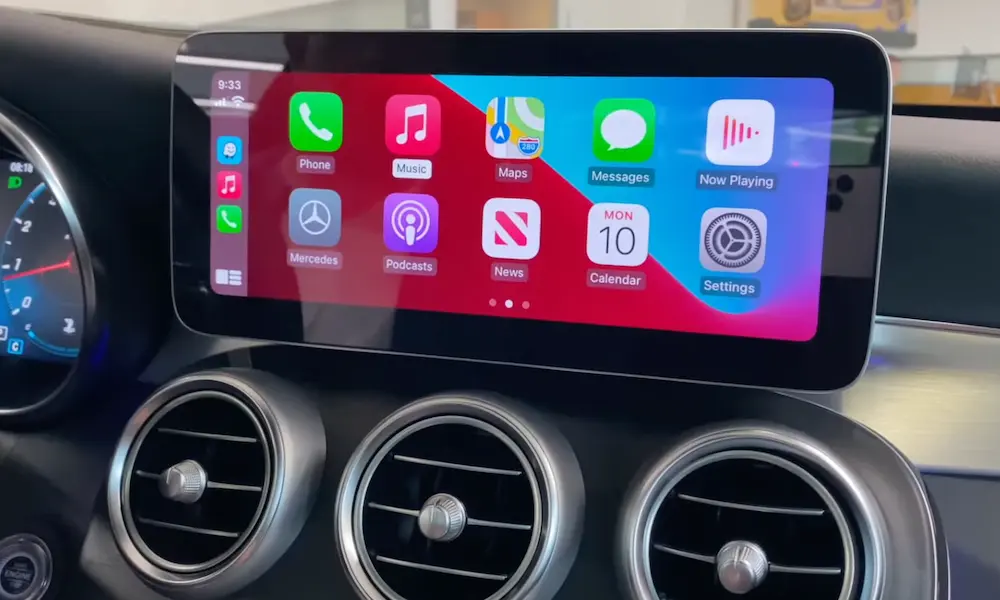
On MBUX vehicles (NTG 6.0 and 7.0):
- Go to your home screen
- Tap the Settings gear icon
- Select System or Info
- Open System Information
You’ll see alphanumeric codes. A code starting with “RL” means it’s a North American regional release. The NTG number confirms your hardware platform. This YouTube walkthrough shows exactly what those codes mean.
On older COMAND systems (NTG 4.x / 5.x):
Navigate to System Settings → Version Information. You’ll find the map version and software build number here.
Write these down before doing anything. You’ll need them if something goes wrong.
Set Up Mercedes me Connect First
You can’t tap into over-the-air updates without a working Mercedes me connect account. Think of it as the backbone of your car’s digital life.
Here’s how to get set up:
- Download the Mercedes-Benz app on your phone
- Create your account and log in
- Enter your 17-digit VIN to pair your vehicle
- On newer MBUX models, scan the QR code on your central display to speed up pairing
US owners: don’t skip identity verification. The American market requires a biometric facial scan and a barcode scan of your driver’s license (the back of it). This unlocks safety-critical remote features and certain OTA update capabilities. If the automated scan fails, a dealership visit for in-person verification is your next move.
Most new vehicles (2022 and newer) include complimentary connected services for the first year. After that, you’ll need to renew through the Mercedes-Benz Store to keep OTA map updates and connectivity features running.
How OTA Updates Work on Modern Mercedes Vehicles
If your car runs NTG 6.0 or 7.0, over-the-air updates handle most software maintenance automatically. Here’s what actually happens behind the scenes.
Three conditions must be met before installation starts:
- Stable internet connection — cellular is standard, but Wi-Fi speeds up large downloads significantly
- Adequate battery voltage — a low battery halts the process entirely; NHTSA technical service bulletins confirm this is a common delay trigger
- Safe vehicle status — engine off, parked, parking brake on, doors locked, occupants out
The three-phase update cycle:
Download → Happens quietly in the background while you drive. Your infotainment stays fully functional.
Install → Takes 15–45 minutes. Your car is unusable during this window. The display warns you before it begins.
Activate → Requires a cold restart. New software kicks in on your next ignition cycle.
For updates flagged as “Automatic Online Updates” — usually security patches or safety recalls — installation happens without your manual input, as long as the safe status conditions are met.
OTA Updates and Safety Recalls
NHTSA confirms that Mercedes-Benz delivers certain recall fixes entirely over the air, marked as “No Dealership Visit Required.” One example: 2019–2021 models received an OTA fix for rearview cameras not displaying correctly at startup. These updates are free and prioritized automatically by the system.
You can also check active OTA service bulletins here to see if your vehicle has a pending campaign.
How to Update Mercedes Navigation Maps Manually (USB Method)
Large map packages — especially full North American updates — often need a manual USB install. Here’s how to do it correctly.
Step 1: Prepare your USB drive
Your MBUX system is picky about storage media. Use the wrong format and it won’t even recognize the drive.
| Parameter | Requirement |
|---|---|
| Drive Type | USB 2.0 or 3.0 flash drive (USB 2.0 preferred for older systems) |
| Capacity | 8 GB minimum for single region; 64 GB for full maps |
| File System | NTFS or exFAT (FAT32 for NTG 4.x legacy units only) |
| Drive State | Must register as a “Removable Disk” |
On Windows: right-click the drive → Format → choose NTFS or exFAT → confirm. Keep the drive empty — no other files.
Step 2: Download maps using Mercedes me Portal
- Log into your account at the Mercedes me portal on your computer
- Go to Online Map Update under Manage Digital Extras
- Select your region (e.g., full North America)
- Install and run the Mercedes me Download Manager — it’s available for both Windows and macOS
- Let the manager verify and write the files to your USB drive
The Download Manager checks file integrity during the transfer, which significantly reduces the risk of a corrupted install.
Step 3: Install the map update in your vehicle
- Start your engine — keep it running to maintain power throughout
- Insert the USB drive into the primary multimedia USB port (usually in the center console)
- Your MBUX or COMAND system detects the drive and prompts you
- Select Yes or Start to begin the transfer
- When it hits 100%, the system asks you to restart
- Maps are fully accessible after the reboot
According to Mercedes-Benz USA’s manual map update guide, navigation features may be restricted during the transfer but the rest of your infotainment stays usable.
Updating Legacy COMAND Systems (NTG 4.x and 5.x)
Older systems need more hands-on work. Here’s what’s different.
The Map PIN system
NTG 4.x units require a 25-digit activation PIN to accept new map data. This PIN ties directly to your VIN and the specific map version you’re installing. Get the version wrong and the PIN won’t work — and these codes are typically non-refundable.
You can get a PIN from an authorized dealer or a verified vendor like Navi World. Double-check your VIN and current map version before purchasing.
Changing your region (imported vehicles only)
If your Mercedes was originally sold outside the US, you may need to switch the region setting before US maps will load. On NTG 4.5 and 4.7 systems, this involves a hidden dealer menu — accessed by holding End Call + 7 + 9 simultaneously for a few seconds. From there, navigate to Market Settings and switch from ECE to US.
Fair warning: making the wrong move in this menu can trigger the Anti-Theft lock. If that happens, you need a dealer to fix it. Treat this as a last resort and follow this region-change guide carefully.
Troubleshooting Common Update Problems
Updates don’t always go smoothly. Here’s how to handle the most common issues:
| Symptom | Likely Cause | Fix |
|---|---|---|
| Update never appears | Expired subscription or no signal | Check Mercedes me account status; park in an open area for better LTE signal |
| Install freezes at 0% | Corrupted download or low battery | Drive 30 minutes to recharge; delete and re-download via Wi-Fi |
| USB drive not detected | Wrong file system or USB 3.0 issue | Reformat to NTFS; remove all other files; try a USB 2.0 drive |
| Map PIN rejected | VIN mismatch or wrong map version | Verify VIN in the Info menu; confirm the PIN matches your exact map version |
If an OTA update fails repeatedly and none of these fixes work, your dealer can run a wired update that bypasses the wireless module entirely using the STAR Diagnostic system — Mercedes’ professional-grade tool for deep CAN bus error analysis.
What Software Updates Actually Do to Your Car
This part surprises most owners. Software updates aren’t just about fixing bugs in the touchscreen.
Updates to the Transmission Control Module can resolve jerky gear shifts or delayed downshifts during acceleration. ECU updates fine-tune your throttle-by-wire response — making Sport mode feel sharper or Comfort mode more fuel-efficient. This breakdown of Mercedes software updates and mechanical performance explains how significant these changes can be.
For Mercedes-EQ electric vehicles, software governs battery thermal management and regenerative braking efficiency. Keeping these systems current can improve real-world range and reduce time spent at fast chargers. The EQB software update history shows how dramatically OTA updates have improved performance metrics over time.
What’s Coming: AI and the 2026 Mercedes Update Ecosystem
Mercedes is pushing hard into AI territory. Starting with 2025 and 2026 models, MBUX is shifting toward a generative AI-powered virtual assistant that learns your habits and anticipates what you need before you ask.
Future OTA “waves” will deliver:
- Voice commands that work without saying “Hey Mercedes”
- Smart home integration directly from your dashboard
- Biometric authentication for secure in-car payments
- Expanded Digital Extras purchasable after delivery
The era of a car’s tech being frozen at the factory is over. A 2024 Mercedes can genuinely improve over a five-year ownership cycle — that’s a fundamental shift in what car ownership means.
Keep These Four Habits to Stay Current
Managing how to update Mercedes-Benz software doesn’t have to feel complicated. Build these habits and your car handles most of it for you:
- Keep your Mercedes me connect subscription active — no subscription means no OTA recalls or safety updates
- Enable Automatic Online Update in MBUX settings — lets the car update during downtime without you lifting a finger
- Run a full manual map update once a year via the Download Manager and USB — the online map update only covers your home region
- Drive your car regularly or use a battery maintainer — low voltage is the most common reason updates fail or get delayed
Your Mercedes is more software than steel at this point. Treat its digital health like you treat its oil — maintain it regularly and it’ll reward you every time you get behind the wheel.