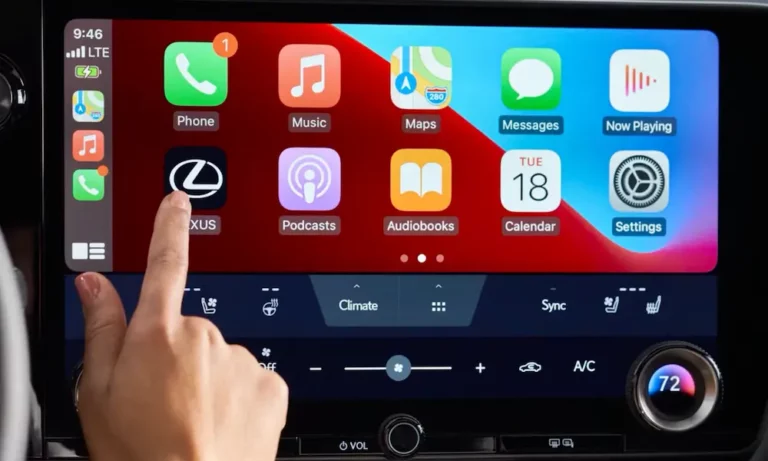
Your Lexus has Apple CarPlay, but getting it to actually work isn’t always obvious. Whether you’re dealing with a hidden USB port or a wireless setup that won’t connect, this guide walks you through everything — wired, wireless, troubleshooting, and more. Stick around to the end, because the fix you need is probably in here.
Does Your Lexus Even Have Apple CarPlay?
Before anything else, you need to confirm your model and year support CarPlay.
Lexus first added CarPlay in 2019 with the UX, ES, and LS models. The popular RX followed in 2020, and the IS joined the party in 2021. The GX and LX didn’t get it until 2022.
Here’s the full picture:
| Lexus Model | CarPlay Added | Connection Type |
|---|---|---|
| ES, UX, LS, LC, NX | 2019 | Wired |
| RC / RC F | 2019 | Wired |
| RX Series | 2020 | Wired |
| IS Series | 2021 | Wired |
| GX, LX Series | 2022 | Wired |
| RZ Series | 2023 | Wireless |
| TX Series | 2024 | Wireless |
Got a 2018 Lexus? Some models — like the LC, LS, NX, and RC — can get CarPlay through a dealer-installed software retrofit. It requires a visit to a certified Lexus service center to flash the multimedia module with updated firmware.
What You Need Before You Start
Don’t skip this part. Most CarPlay failures trace back to one of these requirements.
iPhone and iOS Requirements
| Requirement | Minimum | Best Experience |
|---|---|---|
| iPhone Model | iPhone 6s | iPhone 11 or newer |
| iOS Version | iOS 7.1 | Latest available (iOS 18+) |
| Siri | Enabled | “Hey Siri” active |
| Cable (wired) | MFi-certified | Apple original |
Siri must be enabled in your iPhone’s settings for CarPlay to launch at all. This isn’t optional — it’s a built-in safety requirement so drivers keep their eyes on the road. Check under Settings > Siri & Search and make sure it’s switched on.
Find the Right USB Port
This is where most people get stuck. Not every USB port in your Lexus carries data.
In the 2021 and newer RX, the data port hides inside the center console storage compartment, under the armrest. The more visible ports near the cup holders? Power only. They’ll charge your phone but won’t trigger CarPlay.
In the 2022 and newer NX, you’ll typically find a Type-A port and a Type-C port. The Type-A port handles data for CarPlay. The Type-C is often charge-only unless you have the higher trim with the navigation package.
Use a quality MFi-certified cable. Cheap third-party cables lose signal integrity over bumps, which causes random disconnections.
How to Set Up Wired Apple CarPlay (2019–2021 Models)
Most Lexus vehicles with the Enform 2.0 system use a wired connection. Follow these steps in order.
Step 1 — Park the car. The system runs a security handshake and it works best when the vehicle is stationary.
Step 2 — Plug in using the data port. Use your certified cable and the correct USB port (see above).
Step 3 — Choose “Always Enable” on the screen. A prompt will appear offering three options. Select “Always Enable” so CarPlay launches automatically every time you plug in — no more prompts each time.
Step 4 — Accept on your iPhone. Your phone will ask: “Allow CarPlay with [Vehicle Name] while locked?” Tap Allow. This lets your phone stay in your bag or console while the interface runs on the screen.
Step 5 — Select CarPlay on the screen. Press the Menu button on the Remote Touch controller and tap the CarPlay icon. On some models it appears where the “Projection” icon used to be.
That’s it. Next time you plug in, CarPlay launches on its own.
How to Set Up Wireless Apple CarPlay (2022+ Lexus Interface)
Newer models like the RZ and TX use the Lexus Interface system, which supports wireless CarPlay through a Bluetooth-plus-Wi-Fi combination.
Step 1 — Open the Bluetooth menu. On the central display, tap the Settings gear icon, then select Bluetooth & devices, then Add another device.
Step 2 — Pair your iPhone. Open Bluetooth settings on your phone and select your Lexus from the list. Confirm that the pairing code on the phone matches the one on the screen.
Step 3 — Toggle CarPlay on. After pairing, the Lexus Interface will show a “Use for Apple CarPlay” toggle. Switch it on. This triggers a secondary Wi-Fi handshake that carries the actual CarPlay data stream.
Step 4 — Enjoy automatic reconnection. Once paired, your Lexus will detect your iPhone automatically every time you get in and launch CarPlay without you touching anything.
One thing to keep in mind: wireless CarPlay needs both Bluetooth and Wi-Fi active on your iPhone simultaneously. If you’ve turned off Wi-Fi to save battery, wireless CarPlay won’t launch.
How to Control CarPlay in Your Lexus
Depending on your model year, you might interact with CarPlay through a touchpad, touchscreen, or physical controls.
Remote Touchpad (Older Models)
If your Lexus has the Remote Touchpad rather than a touchscreen, here’s how it maps to CarPlay:
- Slide your finger across the pad to move the cursor through the app grid. The pad gives a subtle haptic pulse when you land on an icon.
- Flick quickly to scroll through music playlists or contacts — it mimics the inertia scrolling on your phone.
- Pinch or spread two fingers to zoom in and out on Apple Maps. This only works when the map is in full-screen mode.
Touchscreen (2022+ Models)
On the Lexus Interface with the 14-inch display, CarPlay runs in a split-screen format. Apple Maps can fill most of the screen while native Lexus climate controls stay accessible on the side panel. It keeps you from feeling locked into the Apple interface.
Steering Wheel Controls
Your steering wheel volume and track-skip buttons work natively with CarPlay. Skip tracks in Spotify, adjust volume, all without touching the screen.
For Siri, the key is the push-to-talk button on the steering wheel:
- Short press — activates Lexus’s own voice assistant for car functions like climate control
- Long press (hold 2 seconds) — bypasses the car’s system and wakes Siri directly
Use the long press to send messages, get directions, or play music without taking your hands off the wheel.
Fixing Common CarPlay Problems
CarPlay not connecting or acting up? Work through this list before panicking.
| Problem | Likely Cause | Fix |
|---|---|---|
| No connection at all | Wrong or damaged cable | Swap for an MFi-certified cable |
| System freezes | Software glitch | Hold the volume knob 10 seconds to reboot |
| CarPlay icon doesn’t appear | Siri disabled | Enable Siri in iPhone Settings |
| Wireless CarPlay lags | VPN app interference | Disable VPN while driving |
| Audio stuttering | Outdated firmware | Update multimedia firmware |
The Soft Reboot Fix
This solves more CarPlay problems than anything else. Hold the power/volume knob for 5 to 10 seconds until the Lexus emblem appears. The head unit restarts. It doesn’t wipe your saved settings or radio presets — it just clears the software glitch that stopped CarPlay from recognizing your phone.
Do this first whenever CarPlay suddenly stops connecting after a quick stop.
Wireless Connection Dropping?
Check these three things:
- Wi-Fi is on — CarPlay needs Wi-Fi and Bluetooth active at the same time
- Airplane Mode is off — this kills both signals
- VPN is off — VPN apps can reroute the car-to-phone connection through a remote server, causing lag or complete dropout. Disable any VPN app before you drive.
If you’re still stuck, resetting network settings on your iPhone clears DNS conflicts that can block the wireless handshake.
Keeping CarPlay Working Long-Term
Both your iPhone and your Lexus need regular software updates to stay compatible with each other.
Older Models (Enform 2.0)
These require manual firmware updates. Here’s how:
- Go to Menu > Setup > General > Software Update to find your current firmware version
- Visit the Lexus Drivers portal, enter your vehicle info, and download the update to a blank USB drive formatted in FAT32
- With the engine running, insert the drive into the data port and follow the on-screen prompts. The process takes up to 15 minutes — don’t turn off the engine during the update
Newer Models (Lexus Interface 2022+)
These update over the air using the car’s built-in cellular connection. The system downloads updates in the background and lets you schedule installation for overnight hours if you’d rather not deal with it during the day. These updates often include map refreshes and voice assistant improvements alongside CarPlay patches.
Two Phones in One Car
Got a passenger who also wants to use CarPlay? The Lexus Interface handles this, but only one device can run CarPlay at a time. Two phones can both be paired via Bluetooth for calls and messages, but for CarPlay control, you navigate to Bluetooth & devices and tap Switch to hand over CarPlay to the second device. This prevents the system from randomly swapping between phones based on signal strength.
Phone Placement Tips
In older wired Lexus models, there’s no dedicated phone slot — many owners use vent-mount or console-mount accessories to keep the phone accessible.
In newer NX and RX models, the wireless charging pad sits near the data ports in a sliding tray. Drop your phone there to charge and run wireless CarPlay at the same time — no cables, no clutter.