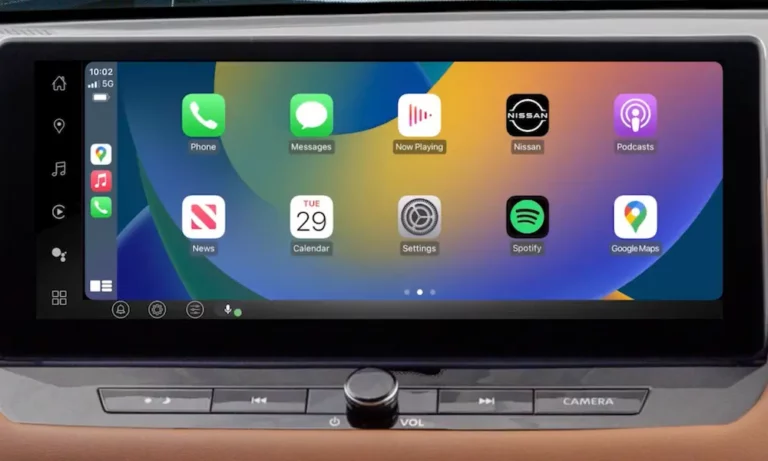
You plug in your iPhone, expect to see CarPlay pop up on your Nissan’s screen, and… nothing. Or it connects for five seconds before dying. Or worse—it charges but acts like your phone doesn’t exist. Here’s how to fix it without losing your mind or your money.
Why Your Nissan Won’t Talk to Your iPhone
Your phone and car need to shake hands through a complex data exchange. It’s not just a power cable—it’s a mini-network running video, audio, and control signals. When Nissan CarPlay not working becomes your daily headache, the breakdown happens at one of three points: the physical connection, your phone’s settings, or the car’s brain (the infotainment firmware).
Think of it like this: your iPhone encodes a video stream and sends it through the cable to your Nissan’s screen. Meanwhile, the car sends back your touch inputs and microphone audio. If any single piece fails—a dirty USB pin, a VPN blocking traffic, or a memory leak in the head unit—the whole thing collapses.
Check the Cable (Yes, Really)
The MFi Certification Matters
That gas station cable you grabbed for $8? It’s probably why your phone charges but CarPlay won’t start. Non-certified cables use thin wires that can’t handle the data transmission speed CarPlay demands. Power flows fine—your battery fills up—but the data handshake never happens.
You need an MFi-certified (Made for iPhone) cable. The chip inside authenticates with your car’s USB system. Without it, the Nissan head unit sees an unauthorized accessory and blocks everything except charging.
Quick test: Try an original Apple cable (preferably under 3 feet long). If CarPlay suddenly works, your old cable was the problem.
Inspect Your Ports Like a Mechanic
The Lightning port on your iPhone accumulates pocket lint like a vacuum. Even a tiny fiber strand can block the data pins (while the power pins still make contact). Same goes for the USB port in your car.
The fix:
- Turn off your car
- Shine a flashlight into both ports
- Use a wooden toothpick (not metal—you’ll short something) to gently scrape out debris
- Blow compressed air into the ports
If you see corrosion (green or white crusty stuff), especially after a spilled coffee incident, the port might need professional cleaning or replacement.
You’re Plugging Into the Wrong Port
Nissan vehicles often have multiple USB ports, but they’re not created equal. Some are data ports (wired to the infotainment system), while others are charge-only ports (connected only to the 12V power system).
How to Spot the Difference
| Port Location | Usually For | Icon to Look For |
|---|---|---|
| Front center stack, near shifter | Data (CarPlay works) | Smartphone symbol or plain USB icon |
| Center console armrest, rear seats | Charging only | Lightning bolt icon |
Plugging into a charge-only port is the #1 reason people think their system is broken when it’s actually working perfectly—just not where they’re looking. The Nissan Sentra, for example, hides the data port in the lower cubby while putting a useless charging port in the armrest where you’d naturally reach.
2021+ Nissan Rogue tip: Early builds of the T33 generation had tight USB-C port tolerances. Your cable might look seated but isn’t fully clicked in. Push harder than you think you should until you feel a solid snap.
Your iPhone Is Blocking the Connection
Unlock Before You Plug
iOS has a security feature called USB Accessories Lock. If your phone’s been locked for over an hour, the data pins on the Lightning port shut down. You plug in, the car sees nothing, and you’re stuck in charging mode.
The sequence matters:
- Unlock your iPhone first
- Then plug it in
- Tap “Use Apple CarPlay” on the car screen
Do it backward and you’ll sit there wondering why the universe hates you.
The “Don’t Ask Again” Trap
When you first connect to a Nissan, the infotainment system asks: “Do you want to start Apple CarPlay?” If you accidentally hit “No” or select “Do not ask again,” your car’s MAC address gets blacklisted in your phone’s memory.
To undo this:
- Go to Settings > General > CarPlay
- Look under “My Cars”
- If you see your Nissan listed, tap it and select “Forget This Car”
- Reconnect and say yes this time
Siri Must Be Enabled
Apple requires Siri to be active for CarPlay to function. It’s a safety mandate—voice control is considered essential. If you’ve disabled Siri for privacy reasons, CarPlay won’t launch.
Check: Settings > Siri & Search and toggle on “Listen for ‘Hey Siri'” or at least “Press Side Button for Siri.”
Screen Time Restrictions Kill CarPlay
If you’ve set up Screen Time (or if your employer manages your phone with MDM), there’s a toggle specifically for CarPlay. When it’s off, the feature is dead in the water.
Check: Settings > Screen Time > Content & Privacy Restrictions > Allowed Apps and make sure CarPlay is toggled on.
The VPN Problem (Wireless CarPlay)
Wireless CarPlay creates a local Wi-Fi network between your car and phone. If you’re running a VPN—NordVPN, ExpressVPN, Google One VPN, whatever—it sees your car’s network as “unsecured” and blocks the connection or routes it through a server in Sweden.
Why This Breaks Everything
Your phone tries to send video packets to your car’s local IP address (like 192.168.1.1). The VPN intercepts those packets and either:
- Drops them (if you have “Block connections without VPN” enabled)
- Sends them to the internet (where they vanish into the void)
You’ll see “Connecting…” on the car screen, then “Connection Failed.”
The fix:
- Disable your VPN before driving
- Or, if your VPN app has it, enable “Allow Local Network Access” in its settings
iOS 18.1 and 18.2 made this worse by tightening VPN enforcement. If this suddenly stopped working after an update, your VPN’s the culprit.
Reset the Nissan Infotainment System
Your car’s head unit is a computer. Like any computer, it can freeze, leak memory, or get stuck in a logic loop. Nissan has issued multiple Technical Service Bulletins addressing these software glitches.
The Soft Reboot (Start Here)
This clears the RAM and restarts the operating system without erasing your settings.
For knob-based systems (most Nissans):
- Press and hold the Power/Volume knob for 15-20 seconds
- The screen will go black
- Wait for the Nissan logo to reappear
- Release the button
For touchscreen-only systems:
- Press and hold the power icon on the screen for 15 seconds
This works on most 2018+ Nissans including the Rogue, Altima, Sentra, and Frontier.
The Hard Reset (Nuclear Option)
If the soft reboot doesn’t work, the system might be in a deeper logic lock. You need to cut all power.
Steps:
- Turn off the car completely
- Open the hood
- Disconnect the negative (–) battery terminal
- Wait 20-30 minutes (this discharges the capacitors)
- Optional: Press the brake pedal a few times to drain residual voltage
- Reconnect the battery
This forces a cold boot of every computer in the car, clearing deep-seated cache errors.
Factory Reset (Last Resort)
If you suspect a corrupt Bluetooth pairing list or bad user profile, wipe everything.
Path: Settings > Others > Return all settings to default
Warning: This erases all paired phones, radio presets, and navigation history. Your firmware version stays the same—this isn’t a downgrade.
The Software Update You Probably Need
Nissan released a critical firmware patch in 2023 called NTB23-018. It fixes a laundry list of infotainment failures:
- Random CarPlay disconnections
- System reboots while driving
- Frozen touchscreens
- Audio popping and static
- A specific “Software Not Found” boot error
Affected models: 2018-2023 Kicks, Leaf, Rogue, Altima, Titan, Frontier, Sentra, and others.
This update optimizes memory management and patches the USB driver stack. Some vehicles can download it over-the-air via Wi-Fi, but if your system is in a boot loop or severely corrupted, a dealer has to manually apply it using a USB drive and the CONSULT-III diagnostic tool.
Special case for 2019 Altima owners: There’s a separate bulletin (NTB20-046) addressing erratic volume knob behavior that also kills CarPlay. Ask your dealer for software version 0912 or later.
Check Your Fuses (If Nothing Powers On)
If your screen is completely dead—no boot logo, no charging, nothing—you’ve got an electrical problem.
Nissan Rogue (2021+ T33)
Cabin fuse box (behind driver’s side dashboard panel):
- Audio fuse: 10A
- Amp fuse: 20A
IPDM (Intelligent Power Distribution Module, in engine bay):
- Contains high-amperage fuses for the main AV power rail
Nissan Altima (2019+ L34)
Cabin fuse box (left side of dashboard):
- Fuse #22: 10A (Audio)
- Fuse #24: 20A
- Fuse #26: 20A
A blown fuse here cuts power to the display or USB hub.
Nissan Sentra (2020+ B18)
Cabin fuse box (left side of instrument panel):
- Look for “Elec Parts” or “Audio” labels
Pro tip: Don’t trust your eyes. A hairline fracture in a fuse link can be invisible but will fail under load. Use a multimeter to test continuity.
Does Your Nissan Even Have CarPlay?
Not all Nissans support Apple CarPlay, and wireless vs. wired varies wildly by model year and trim.
| Model & Year | CarPlay Availability | Wireless or Wired? |
|---|---|---|
| 2014-2017 Rogue (T32) | No | N/A |
| 2018-2020 Rogue (T32) | Standard | Wired only |
| 2021+ Rogue (T33) | Standard | Wireless on Platinum/SL trims |
| 2019+ Altima (L34) | Standard (all trims) | Wired until 2023; Wireless on 2023+ SL/SR |
| 2013-2018 Sentra (B17) | No (except 2019 SV Special Edition) | Wired |
| 2020+ Sentra (B18) | Standard | Wired (no wireless as of 2024) |
| 2017-2021 Pathfinder (R52) | No | N/A |
| 2022+ Pathfinder (R53) | Standard | Wireless on SL Premium/Platinum |
The 2017-2021 Pathfinder trap: Despite having a modern-looking screen, these models don’t support CarPlay. The electrical architecture dates back to 2013. You’d need to replace the entire head unit.
2024+ Rogue with Google Built-in: The latest Rogues run Android Automotive OS with Google Maps/Assistant baked in. CarPlay still works, but it runs within the Google environment. New failure mode: if you’re logged into the wrong user profile, CarPlay might be blocked.
Wireless CarPlay: The Extra Steps
Wireless CarPlay (available on select 2021+ Nissan trims) adds complexity because it requires both Bluetooth and Wi-Fi.
The handshake sequence:
- Bluetooth pairs (for the initial connection)
- The car sends Wi-Fi credentials to your phone over Bluetooth
- Your phone connects to the car’s closed Wi-Fi network
- Video streaming begins over Wi-Fi
Common failures:
- You’re in your driveway: Your iPhone is stuck on your home Wi-Fi and won’t switch to the car’s network. Walk away from your house or turn off Wi-Fi on your phone.
- VPN interference: Already covered, but it’s worth repeating—VPNs wreck wireless CarPlay.
- Bluetooth paired but no video: The Wi-Fi handoff failed. Forget the car in Bluetooth settings and re-pair.
The Hidden Diagnostic Menu (For Nerds)
Nissan technicians can access a secret “System Diagnosis” menu to see raw connection status.
How to access (knob-based systems):
- Turn Audio OFF
- Press and hold “Menu”
- While holding, turn the “Tune” knob left-right-left-right quickly
- The menu should pop up
This shows “Connection NG” (No Good) for specific modules like GPS antenna, microphone, or USB controller. If you see USB Controller flagged, you’ve got a hardware failure that software updates can’t fix.
What If It’s Still Broken?
If you’ve tried everything—new cable, unlocked phone, disabled VPN, reset the system, checked fuses—and you’re still stuck, you’re looking at one of two problems:
- Outdated firmware: Your Nissan needs a dealer-applied software update (NTB23-018 or model-specific patches).
- Failed hardware: The USB hub module or AV Control Unit itself is dead. This is a modular component separate from the radio in most Nissans and can be replaced without swapping the entire head unit.
Before you pay for a new radio: Ask the dealer to run the latest TSBs. Nissan’s been patching these bugs aggressively, and most issues are software, not hardware. The diagnostic protocol in NTB21-038 specifically guides techs to distinguish between the two.
The Bottom Line
The overwhelming majority of Nissan CarPlay failures come down to three things: a bad cable, a wrong setting, or old firmware. Start with the physical—swap cables, clean ports, check which USB port you’re using. Then hit the software—unlock your phone first, disable your VPN, forget and re-pair the car.
If you’re still stuck after a hard reset, your Nissan’s brain needs a software patch. These updates are free at the dealer (they’re safety-related) and take about 30 minutes. Don’t let them sell you a new radio until you confirm the firmware is current and the diagnostic menu shows actual hardware failure.
Your iPhone and your Nissan want to work together. You just need to remove whatever’s standing in their way.