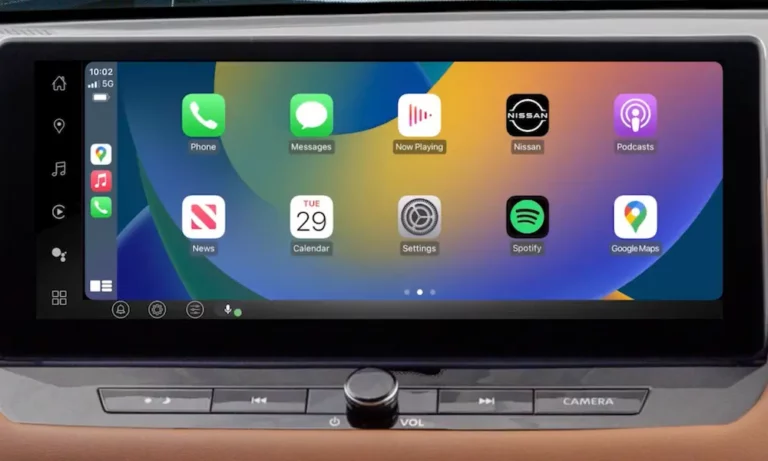
Is your Nissan Rogue’s Apple CarPlay suddenly giving you the silent treatment? You’re trying to navigate to your destination or play your favorite music, but the connection just won’t cooperate. Don’t worry—this comprehensive guide will walk you through every possible fix to get your CarPlay working properly again.
Why Your Nissan Rogue’s Apple CarPlay Might Be Failing
Apple CarPlay in your Nissan Rogue can stop working for several reasons. From faulty cables to software glitches, the problem could be simpler than you think. Most issues fall into a few common categories that we’ll tackle one by one.
Check Your Lightning Cable First
The cable connecting your iPhone to your Rogue is often the culprit. Here’s what to look for:
- Use Apple-certified cables only: Those cheap gas station cables might charge your phone, but they often can’t transfer the data needed for CarPlay. Apple-certified cables have the proper components to establish a reliable CarPlay connection.
- Inspect for damage: Check for fraying, bending, or other visible damage that might interfere with the connection.
- Test multiple cables: If possible, try a friend’s cable to determine if yours is the problem.
Research shows that cable quality issues are among the most common reasons for CarPlay failures in Nissan vehicles.
USB Port Troubles in Your Rogue
Not all USB ports in your Nissan Rogue are created equal:
- Try different ports: Newer Rogues have multiple USB ports, including both USB-A and USB-C options. Only specific ports may support CarPlay functionality.
- Clean the port: Gently remove any lint or debris from both your phone’s Lightning port and the car’s USB port. A small amount of dust can prevent proper connection.
- Correct timing matters: Don’t plug in too early. Wait until your Rogue’s infotainment system fully boots up before connecting your iPhone—this can take up to a minute after starting the car.
Restart Your Rogue’s Infotainment System
Sometimes your Nissan’s infotainment system needs a fresh start:
- Soft reset: Press and hold the volume/power knob for about 2-3 seconds until the screen turns off, then release.
- Hard reset: For more stubborn issues, press and hold the volume/power knob for approximately 20 seconds until the Nissan logo appears on the screen. This hard reset approach has solved many connectivity problems.
Check Your Rogue’s CarPlay Settings
Your NissanConnect system might have CarPlay disabled or improperly configured:
- Go to Settings → Connections (or Apps → Smartphone Connection)
- Select your iPhone from the list
- Tap the “i” (information) icon
- Ensure “Smartphone Projection” is set to “Auto” or “Ask” (not “Never”)
This setting is critical, as documented in various Nissan Rogue owner forums.
iPhone Settings That Affect CarPlay
Several iPhone settings can prevent CarPlay from working correctly:
Make Sure Siri Is Enabled
CarPlay requires Siri to function properly:
- Open Settings on your iPhone
- Tap Siri & Search
- Enable “Listen for ‘Hey Siri'” and “Press Side Button for Siri”
Reset Your CarPlay Connection
Clear any corrupted connection data:
- Go to Settings → General → CarPlay
- Select your Nissan Rogue
- Tap “Forget This Car”
- Reconnect via USB and follow the prompts
This reset method has helped many users according to Apple discussion forums.
Check Screen Time Restrictions
CarPlay can be blocked by Screen Time settings:
- Open Settings → Screen Time
- Tap Content & Privacy Restrictions
- Ensure CarPlay isn’t disabled under Allowed Apps
This overlooked setting is surprisingly common.
Update Your Software
Outdated software on either device can cause compatibility issues:
iPhone Updates
- Go to Settings → General → Software Update
- Install any available iOS updates
- Restart your iPhone after updating
Nissan Infotainment Updates
Your Rogue’s infotainment system may need updating:
- Check with your Nissan dealer for available firmware updates
- Some newer models support over-the-air updates through the Settings menu
- Follow the official Nissan guidelines for your specific model year
The Timing Trick for Nissan Rogue CarPlay
Many Rogue owners have found success with this specific sequence:
- Start your Nissan Rogue
- Wait until the infotainment system fully boots (all icons visible)
- Only then plug in your iPhone
- If CarPlay doesn’t launch automatically, tap the CarPlay icon on your infotainment screen
This timing solution has fixed connectivity issues for numerous owners.
Factory Reset Your Rogue’s Infotainment System
As a last resort, you can completely reset your infotainment system:
- Go to Settings → Other (or Settings → General)
- Select “Return All Settings to Defaults”
- Confirm the reset
- Reconfigure all your settings, including CarPlay
While effective, this factory reset option should be used only after trying the other solutions.
Compare With Different iPhones
If possible, test your Rogue with another iPhone:
| Test Scenario | What It Tells You |
|---|---|
| Different iPhone works | Your iPhone has the issue |
| Different iPhone also fails | Your Rogue system has the issue |
| Different iPhone in different Rogue works | Both your iPhone and Rogue may have issues |
This diagnostic step helps narrow down whether the problem is with your specific iPhone or with your vehicle.
Wireless vs. Wired CarPlay Considerations
If your Nissan Rogue supports wireless CarPlay:
| Connection Type | Requirements |
|---|---|
| Wired | Apple-certified Lightning cable and proper USB port |
| Wireless | Both Bluetooth and Wi-Fi enabled on iPhone |
For wireless connections, ensure both Bluetooth and Wi-Fi are active on your iPhone, even if you’re not connected to a specific Wi-Fi network.
Model Year-Specific Solutions
Different model years of the Nissan Rogue have specific quirks:
- 2017-2019 models: These often require the infotainment system to be fully booted before connecting your iPhone.
- 2020-2021 models: Some units had software bugs fixed in later updates. Check with your dealer for available updates.
- 2022+ models: These newer vehicles support wireless CarPlay on certain trim levels, but may require specific settings configurations as outlined in the owner’s manual.
Contact Professional Support
If you’ve tried everything and CarPlay still isn’t working:
- Contact your local Nissan dealer’s service department for diagnostics
- Reach out to Apple Support about your iPhone
- Check if your vehicle is covered under any technical service bulletins that might address CarPlay connectivity
Preventing Future CarPlay Issues
Once you’ve resolved your current problem, prevent future issues by:
- Keeping a spare Apple-certified cable in your car
- Regularly updating both your iPhone and your vehicle’s infotainment system
- Cleaning connection ports periodically
- Following the correct connection sequence every time
By implementing these preventative measures, you can enjoy uninterrupted CarPlay functionality in your Nissan Rogue for years to come.
Remember that most CarPlay connectivity issues have simple solutions. By systematically working through these troubleshooting steps, you’ll likely resolve the problem without needing expensive repairs or replacements.