Your Subaru Starlink system is overdue for an update — and ignoring it could mean missing out on better performance, safety fixes, and even hands-free driving features. This guide walks you through every update method, every generation, and every common glitch so you can get it done right.
What Generation Subaru Starlink System Do You Have?
Before you touch a single setting, you need to know your hardware. Subaru Starlink isn’t one system — it’s a series of evolving hardware and software generations, each with different update rules.
Here’s the full breakdown:
| Generation | Hardware Vendor | Update Method | Display Size | Model Years |
|---|---|---|---|---|
| Gen 1 | Clarion | Dealer/USB only | 6.2–7.0 inch | 2015 and older |
| Gen 2 | FujitsuTen | Manual USB | 7.0–8.0 inch | 2016–2018 |
| Gen 3/3.1 | Harman | Wi-Fi OTA or USB | 6.5–8.0 inch | 2019–2022 |
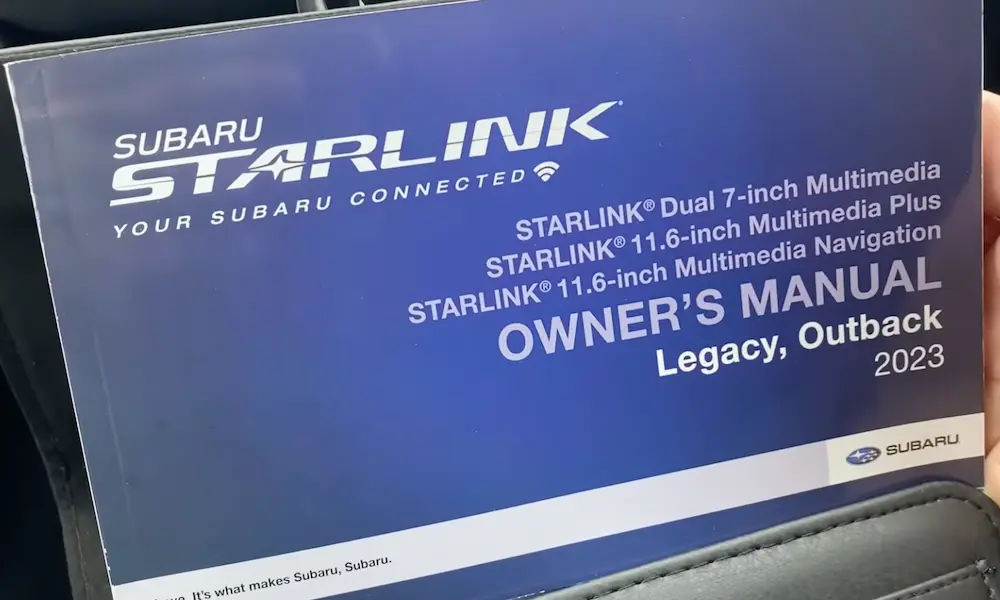
| Gen 4 | Denso | Wi-Fi OTA or USB | 11.6 inch | 2023–2025 |
| Gen 5 | Denso (CP25) | Cellular FOTA or USB | 12.1 inch | 2026 and newer |
Check your model year and match it to the table. That determines everything — your update method, your eligibility, and how much effort this takes.
How the 2026 Gen 5 System Changes the Game
If you drive a 2026 Subaru Outback or Legacy, you’re on the new fifth-generation Denso CP25 platform. This is a big deal.
The 2026 system runs on a Qualcomm Snapdragon 8 Automotive processor — octa-core, with 8GB of RAM and 128GB of storage. That’s double the memory of the Gen 4 system.
What does that mean in real life?
- Screen response is 2.5x faster than the previous generation
- Map swiping is 3x faster
- Audio screen transitions are 6x faster
- The 12.1-inch display cuts external glare by roughly 80%
The bigger shift? The 2026 system uses cellular Firmware Over-the-Air (FOTA) updates. Your car downloads patches through its built-in Data Communication Module — no Wi-Fi required. No more dragging your car to the driveway to catch a signal from your router.
How to Do a Subaru Starlink Update Over Wi-Fi (Gen 3 and Gen 4)
If you’re on a 2019–2025 model, Wi-Fi OTA is your standard update path. It takes up to 70 minutes, so clear your schedule.
Before You Start
- Park the car outside (never in a closed garage — carbon monoxide risk is real)
- Keep the engine running the entire time
- Engage the parking brake fully
- Put the transmission in Park
- Disconnect all USB devices — phones, cables, everything
Connecting to Wi-Fi
- Tap Settings on your touchscreen
- Go to the General tab
- Select Wi-Fi and toggle it on
- Choose your network from the available list
- Enter your password
You want three to four signal bars on screen. Fewer than that and the download may time out. One important catch: the system won’t connect to networks that need a web login page — no hotel Wi-Fi, no coffee shop hotspots. Use your home router or a trusted mobile hotspot.
Running the Update
Once connected, tap Check for Updates. If your system isn’t already on version Rel_UL.23.13.70 or higher, you’ll see a prompt: “Software Update Ready to Download.”
Here’s what happens next:
| Phase | Time | What You Can Do |
|---|---|---|
| Version Check | 2–5 minutes | Everything works normally |
| Download | Up to 30 minutes | Normal use — it runs in the background |
| Installation | Up to 40 minutes | Touchscreen goes dark — don’t panic |
| Post-install Finalization | 5 minutes (engine off) | Walk away |
The screen will go blank and reboot a few times during installation. That’s normal. Do not turn off the engine. A power cut during installation can permanently kill your multimedia unit.
When it’s done, a confirmation screen appears. Turn the car off, wait at least five minutes, then start it again.
How to Update Subaru Starlink Maps (TomTom Navigation)
Navigation maps run on a separate update cycle from your multimedia software. Subaru uses TomTom for its map data, and these get refreshed quarterly.
Small Regional Updates Over Wi-Fi
For light maintenance, most newer Starlink systems let you update up to eight specific states or regions at one time via Wi-Fi. This works well between major update cycles.
Full National Map Update via USB
For a complete U.S. map update, you’ll need to go manual. Here’s what you need:
- A PC or Mac with the Map Downloader app from subaru-maps.com
- A USB 2.0 or 3.0 drive with at least 16GB of free space
- Your vehicle’s 17-character VIN
The process:
- On your Subaru’s screen, go to Navigation Settings and grab your “request code”
- Enter it into the Map Downloader app on your computer
- Download the map files to your USB drive
- With the engine running, insert the USB into the vehicle’s front port
- Enter the activation code when prompted
New Subaru vehicles with factory navigation include three years of free map updates. After that, you’ll need a paid subscription to keep maps current.
The 2026 Highway Hands-Free Assist Update
This one deserves its own section. Subaru announced a no-cost Highway Hands-Free Assist update for 2026 Outback Touring and Touring XT models — and it’s genuinely impressive.
The system lets you drive hands-free on designated interstates at up to 85 mph. It uses:
- Three forward-facing cameras
- Millimeter-wave radar
- HD 3D map data
Early 2026 build owners got this as a dealer-installed firmware update. It specifically optimized how the Data Communication Module communicates with the EyeSight control unit. The DriverFocus system monitors whether you’re paying attention — look away too long and it disengages and asks you to take back control.
Other software-enabled safety upgrades in the 2026 lineup include:
- Pre-Curve Speed Control — the car reads the map ahead and slows itself before corners
- Emergency Stop Assist with Safe Lane Selection — if you become unresponsive, the car moves to the shoulder and stops
- Highway Automatic Resume Assist — stop time in traffic extended from 3 seconds to about 30 seconds before you need to tap the pedal
These features don’t live in hardware. Software delivers them, which is exactly why staying current on your Subaru Starlink update matters.
What the MySubaru App Has to Do With Updates
The MySubaru app connects you to your vehicle’s software ecosystem from your phone. In early 2026, it got a UI refresh that mirrors the look of the new 12.1-inch in-vehicle display.
The app notifies you when an update’s available and lets you schedule dealer-installed firmware. It also handles:
- Remote engine start with climate pre-conditioning
- Door lock/unlock
- Vehicle location
One issue some 2026 owners have hit: the app loses connection after the car’s been off for a while. This happens because the telematics system enters a deep sleep mode to save the 12-volt battery. Subaru’s actively targeting this “wake-up” logic in upcoming software patches.
Common Subaru Starlink Update Problems (and Quick Fixes)
CarPlay or Android Auto Keeps Dropping
Intermittent disconnects are usually a signal interference issue or a handshake problem between your phone’s OS and the head unit. Try a different USB cable first, then check if your phone’s OS needs an update too.
The Update Prompt Won’t Go Away
This is a known bug. The screen keeps asking for an update you’ve already installed. It’s a visual glitch that happens when the telematics system fails to log the successful install back to Subaru’s servers. A technician can clear the cached prompt with a memory initialization — it’s quick.
Error Code 202 or 204 During Setup
These codes pop up during the subscription process when the Data Communication Module can’t connect to the network. Causes include poor local signal, a wiring issue, or a module that was swapped between vehicles without being re-registered. If power cycling doesn’t fix it, a dealer visit is the right move.
DCM Status Light Is Red or Off
The green overhead light means your telematics system is live, subscribed, and connected. Red or dark means something’s wrong — could be signal loss, a dead subscription, or a hardware fault. Check your MySubaru subscription status first before heading to the dealer.
How Software Updates Protect Your Subaru’s Safety Features
Skipping updates isn’t just annoying — it can affect your EyeSight system’s accuracy. Subaru recommends a full system diagnostic at least once a year or every 12,000 miles.
Physical repairs matter here too. If you replace your windshield or fix front-end damage, the EyeSight cameras likely need a software-based recalibration afterward. Without it, automatic emergency braking and lane centering can fall outside their specified tolerances.
The NHTSA service bulletin MC-11023507 outlines specific software versioning steps technicians use to verify Gen 4 units are fully current. On Gen 4 systems, if the last six digits of your software version aren’t “185-180,” you’re likely eligible for a performance update that fixes wireless connectivity delays and radio sound lag.
How to Check Your Current Starlink Software Version
Go to Settings → System Information on your touchscreen. You’ll see a version string that looks something like Rel_UL.23.13.70 or S01NSM012-820.
Here’s what to look for by system:
| Component | Target Version | Notes |
|---|---|---|
| Gen 5 Multimedia | S01NSM012-820 | Baseline for 12.1-inch systems |
| Gen 5 Map Data | 47561 | Current TomTom national database |
| 3D HD Map Data | 2025(1) | Required for Hands-Free Assist |
| Gen 4 Multimedia | Rel_UL.23.13.70 | Final optimization for 11.6-inch units |
If your version is older than what’s listed, check for updates or contact your dealer to schedule a firmware session.
The 2026 Solterra: EV Updates Work Differently
If you drive the 2026 Subaru Solterra, your update priorities look different. The focus is on charging speed, thermal management, and energy efficiency — not just the infotainment screen.
The latest firmware versions include an optimized charge curve and better battery preconditioning logic. When you route to a DC fast charger, the software pre-warms the battery to cut 10-to-80% charging time to about 35 minutes.
The 2026 Solterra also adds native NACS support and Tesla Supercharger access through the SubaruConnect app, including Plug and Charge — where the car and charger sort out payment automatically.
That said, many critical Solterra systems still require a dealer visit for updates. The Battery Management System, power inverter software, and regenerative braking logic all stay on a dealer-verified update path. It’s more conservative than Tesla’s approach, but it keeps core safety systems tightly controlled.
Keep Your Subaru Starlink Update Current — It’s Worth It
Your Subaru’s infotainment system isn’t just a screen. It’s the control center for safety features, navigation, remote services, and increasingly, hands-free driving. Staying current with your Subaru Starlink update means your EyeSight system works as intended, your maps are accurate, and your car stays compatible with the latest smartphone software.
Check your version today. If it’s behind, connect to Wi-Fi, grab a USB drive, or book a dealer appointment. The process isn’t complicated — and the features you unlock are worth the 70 minutes.