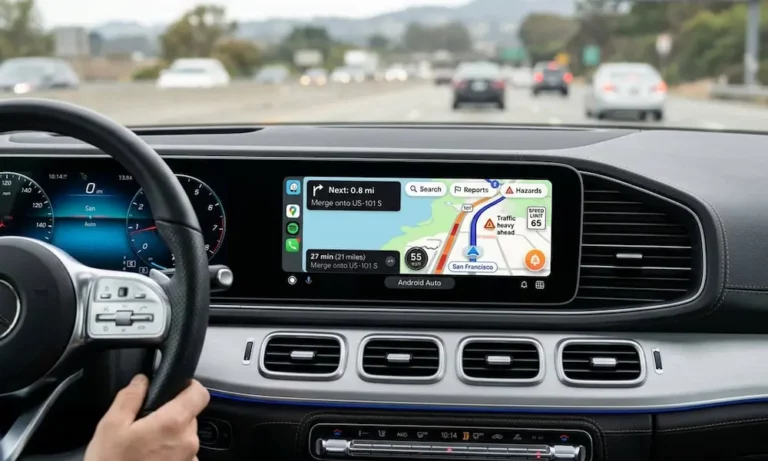
Got a new Subaru and can’t figure out Android Auto? You’re about two minutes away from Google Maps on your dashboard. This guide walks you through wired setup, wireless pairing, full-screen tips, and what to do when things go sideways. Stick around — the fix you need is probably in here.
Does Your Subaru Actually Support Android Auto?
Before you start, check that your car supports it. Subaru rolled out Android Auto starting with the 2017 Impreza, then expanded to the Crosstrek, Legacy, Outback, and BRZ in 2018. By 2019, the Ascent, Forester, and WRX all had it too.
For 2025 and 2026, Android Auto is standard across the entire Subaru lineup — including Wilderness editions and the WRX tS. So if your car is a 2019 or newer, you’re almost certainly good to go.
Your phone needs to run at least Android 6.0, though Android 10 or higher gives you the smoothest experience. On Android 10+, Android Auto is baked into your system settings. Older devices need to download the app from the Play Store first.
What You Need Before You Start
You don’t need much — but the cable matters more than you think.
Here’s what to grab:
- A high-quality USB data cable (USB-IF certified, six feet or shorter)
- Your Android phone (unlocked, power-saving mode off)
- Your Subaru running or in accessory mode
Skip the cheap charging-only cables. Those “anti-juice-jacking” cables block data transfer completely. Your STARLINK system won’t even register your phone if the cable lacks internal data wires. A bad cable is the number one reason Android Auto fails to connect.
Also, keep cables under six feet. Longer cables cause signal drop, which leads to maps freezing mid-drive or random disconnects on bumpy roads.
Where’s the USB Port in Your Subaru?
Port location changes depending on your model and year. Here’s a quick breakdown:
| Model & Year Range | Port Types | Location |
|---|---|---|
| Outback (2020–2022) | Dual USB-A (2.1A) | Cubby below screen |
| Outback (2023–2025) | USB-A and USB-C | Front console tray |
| Ascent (2019–2025) | Dual USB-A (front + rear) | Center console and rear console |
| Crosstrek (2024–2025) | USB-A and USB-C | Front storage tray |
| Solterra (2023–2026) | USB-C (high power) | Center console under-bridge |
| WRX (2022–2025) | Dual USB-A | Below 11.6-inch screen |
One heads-up for 2019 Crosstrek owners: your data port sits inside the center console armrest. There’s a small notch in the lid so your cable doesn’t get pinched when you close it. Easy to miss if you’re looking in the wrong spot.
Newer 2026 Forester and Outback models move these ports to more visible, easy-access locations — no more digging around inside the armrest.
How to Connect Android Auto to Subaru (Wired)
This is the most reliable method. Follow these steps in order:
- Unlock your phone and disable battery saver or power-saving mode.
- Start your Subaru or turn it to accessory mode. Let STARLINK finish booting.
- Tap “I Agree” on the safety disclaimer that pops up on the screen.
- Plug your USB cable into the data port (look for the USB symbol or the 2.1A label), then into your phone.
- Watch your screen — STARLINK will ask “Start Android Auto?” Tap Yes or Always.
- Grant permissions on your phone. Android Auto will ask for access to SMS, GPS, and call logs. Say yes to everything — especially if you want Google Assistant to read your messages aloud while you drive.
- Tap the Android Auto icon on the STARLINK home screen. It’ll go from gray to full color. Tap it and you’re in.
That’s it. The whole thing takes under two minutes once your cable and phone are ready.
How to Connect Android Auto to Subaru Wirelessly
Wireless Android Auto is available on newer models like the 2024 Outback and 2025 Forester. Your phone needs to support 5GHz Wi-Fi and run Android 11 or higher. It’s more convenient, but it does drain your battery faster.
Here’s how to set it up:
- Pair via Bluetooth first. Go to your car’s Settings > Phone > Add Device. On your phone, find the car under Bluetooth (it’ll show as “Subaru BT” or similar) and pair using the PIN shown on screen.
- Wait for the wireless prompt. Once Bluetooth connects, STARLINK will ask: “Would you like to use wireless Android Auto?” Tap Yes.
- Let it connect. The system uses Bluetooth for discovery and calls, then switches to a Wi-Fi Direct connection to stream the interface.
- Next time, it’s automatic. Once paired, your car will connect to your phone whenever you get in with Bluetooth on. Full setup instructions in PDF format are available directly from Subaru.
If multiple phones are paired to the car, it defaults to the last one used. Easy enough to switch in settings if someone else drives regularly.
Getting Full-Screen Android Auto on the 11.6-Inch Display
Here’s something a lot of Subaru owners don’t know: older 11.6-inch STARLINK screens didn’t show Android Auto in full portrait mode. Maps were stuck in a small square. Not ideal on a big screen.
In late 2023, Subaru released a major firmware update — Outback and Legacy owners on Reddit started calling it the “giga-update” — that unlocked full-screen Android Auto on 2020–2022 models. It also redesigned the climate controls so heated seats became one-tap instead of buried in a sub-menu.
How to check if you need this update:
- Go to Settings > General > Software Update on your STARLINK screen
- If there’s an available update, download and install it
- 2024+ models come with full-screen capability pre-installed from the factory
Once you’re on full-screen, you can also customize your app layout through the Android Auto settings on your phone. Move Google Maps and Spotify to the top of the launcher so they’re the first things you see.
Keeping Your STARLINK Software Up to Date
A stale firmware version causes most of the weird bugs people blame on Android Auto. Keeping it current fixes connection drops, lag, and permission issues.
For Over-the-Air (OTA) updates:
Most 2019+ Subaru models can update via Wi-Fi. Here’s how to do it safely:
- Park outside where the engine can idle safely
- Connect to a home Wi-Fi network or hotspot with at least 100MB free
- Go to Settings > General > Software Update > Check for Updates
- Select Download Now, then Install Now
- Let the engine idle — the full process can take up to 70 minutes
- After installation, turn the car off for at least five minutes before restarting
Don’t skip that five-minute wait. The modules need time to reset and register the new software.
For manual USB updates:
If your system can’t connect wirelessly or you need a full base update, use a 16GB or 32GB USB drive. Download the update files from the Subaru-Maps website and follow the on-screen instructions from Subaru’s technical documentation. This method also updates your onboard navigation maps if you have TomTom integrated navigation.
Android Auto Not Working? Fix It Fast
Most connection problems fall into three categories: bad cable, software glitch, or battery settings killing the app.
Hardware checks first:
- Inspect the USB port for bent pins or debris — compressed air clears out lint buildup that causes resistance
- Swap to a different data cable to rule out signal issues
- Try a different Android phone to see if the issue is your phone or the head unit
Software fixes:
- Clear the Android Auto cache: Settings > Apps > Android Auto > Storage > Clear Cache
- If the STARLINK screen freezes, hold the volume knob for 10 seconds to force a reboot
- Check Settings > USB Mode and make sure it’s set to File Transfer, not Charging Only
Battery optimization — this one trips people up:
Android’s power management sometimes kills Android Auto in the background. Here’s how to fix it by phone brand:
| Phone Brand | Setting to Change | Why It Helps |
|---|---|---|
| Google Pixel | Apps > Android Auto > Battery > Unrestricted | Stops the OS killing the app during low battery |
| Samsung | Sleeping Apps > Remove Android Auto | Keeps the app active when screen is off |
| All Android | Settings > USB Mode > File Transfer | Lets the head unit read data, not just charge |
These fixes resolve the majority of disconnect issues without any hardware changes.
Android Auto by Subaru Trim Level
Not all Subaru trims give you the same Android Auto experience. The screen size and audio system make a real difference day to day.
- Base trims — dual 7.0-inch screens. Android Auto works, but the smaller display makes navigation harder to read at a glance.
- Premium and Sport trims — the 11.6-inch portrait screen with wireless Android Auto as standard.
- Limited and Touring trims — add a 12-speaker Harman Kardon system. If you stream high-quality audio through Spotify or Tidal via Android Auto, you’ll actually hear the difference here.
- Wilderness trims — the 11.6-inch screen with a more durable touch surface. Works well with Android Auto navigation in rough terrain conditions.
The 2026 Outback’s 12.1-inch Snapdragon 8-powered system doubles the RAM to 8GB and supports split-screen view — navigation on one side, media on the other. It’s the most capable STARLINK setup Subaru has shipped so far.
Android Auto in the Subaru Solterra
The Solterra runs a different setup. It’s a Subaru-Toyota joint project with a 14.0-inch horizontal touchscreen instead of Subaru’s usual portrait layout.
Android Auto on the Solterra works alongside the SubaruConnect platform, which handles things like charging station mapping and cabin pre-conditioning. The high-power USB-C ports can charge your phone even under the processing load of wireless Android Auto — useful when you’re parked at a charger for 30+ minutes.
The 2026 Solterra also integrates real-time range calculations with Google Maps through the Android Auto interface, so it can suggest charging stops along your route automatically. That’s a practical EV feature that actually works in daily use.
One Last Thing to Check
Once you’ve got Android Auto running, check your Phonebook Download and Message Access settings. Go to your car’s Phone settings > Change Device and make sure both are toggled on. If they’re off, calls and messages won’t show up in the interface even if everything else is connected perfectly.
Get those set, keep your STARLINK firmware current, and use a proper data cable — and Android Auto in your Subaru will just work, every single time.