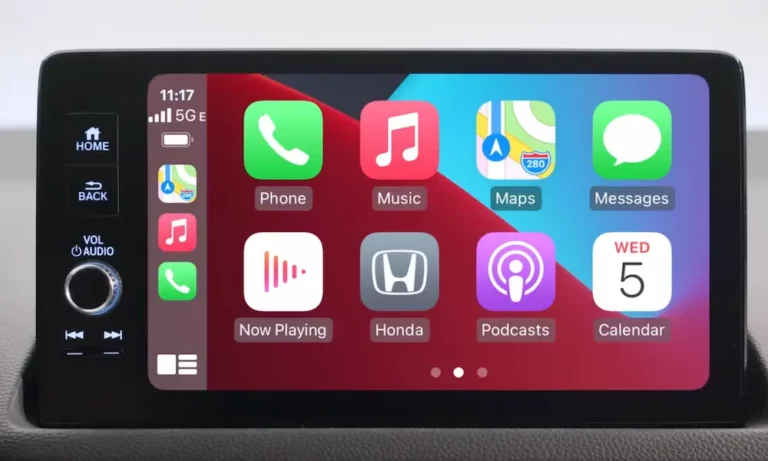
Having trouble with Apple CarPlay in your Honda Accord? You’re in for some frustration when your music cuts out, navigation disappears, or the connection drops completely. The good news is that most CarPlay issues have simple solutions you can try before heading to the dealership. Let’s dive into the most effective fixes that have worked for fellow Honda owners.
Why Honda Accord CarPlay Problems Happen
Before jumping into solutions, it helps to understand why these issues occur. Common causes include:
- Outdated iOS or Honda infotainment software
- Damaged or low-quality USB cables
- Corrupted connection settings
- Hardware glitches in the infotainment system
- Connection interference
Quick Fixes You Should Try First
Reboot Your Infotainment System
A simple system reboot solves most CarPlay problems immediately:
- Press and hold the HOME/Power button for 3-10 seconds
- Select “Yes” or “Reboot” when prompted
- Wait for the system to fully restart (give it a minute)
- Reconnect your iPhone
This quick reset process often clears temporary glitches that prevent CarPlay from connecting properly.
Check Your Cable Connection
If you’re using wired CarPlay, your cable might be the culprit:
- Use only Apple-certified Lightning cables that support data transfer
- Inspect both ends of the cable for damage or debris
- Try a different cable – some can charge but not transfer data
- Test both USB ports in your Honda Accord
Many users report fixing their issues simply by switching to a higher-quality cable that supports data transfer, not just charging.
Reset Your iPhone’s Connection to Your Car
When basic fixes don’t work, try a clean slate:
- On your iPhone: Go to Settings → General → CarPlay
- Select your Honda and tap “Forget This Car”
- Go to Settings → Bluetooth and forget your Honda’s Bluetooth connection
- Restart your iPhone
- Start the pairing process fresh
This complete reset often resolves persistent connection issues by clearing corrupted connection data.
Advanced Troubleshooting Steps
Perform a Factory Data Reset on Your Honda’s System
For stubborn issues, a factory reset often works:
- From your Honda’s touchscreen, go to Home → Settings → System → Factory Data Reset
- Select “Continue” to proceed with the reset
- Wait for the system to complete the process
Just remember this will erase all your saved settings, including radio presets and paired devices, so use it as a last resort.
Address Wireless CarPlay Connection Problems
If you have a newer Honda Accord with wireless CarPlay:
- Open iPhone Settings → WiFi
- Find your car’s WiFi network (usually named “CarLink” followed by numbers)
- Tap the network name to manually connect
- You may need to repeat this process several times until your phone prioritizes the connection
Many 2022+ Honda owners report that after doing this a few times, the connection becomes more reliable.
Verify Your iPhone Settings
Double-check these important iPhone settings:
- Enable “Allow CarPlay While Locked” in Settings → General → CarPlay
- Make sure Siri is turned on (CarPlay relies on it)
- Check that your iPhone isn’t in Low Power Mode
- Ensure your iOS is updated to the latest version
Model-Specific Fixes for Honda Accord
2016-2017 Honda Accord
Older Accords have documented issues with CarPlay stability, particularly when using navigation apps. Users report:
- System freezing during longer trips
- CarPlay crashing when using GPS navigation
- Connection drops after 15-30 minutes of use
Regular system reboots are often necessary for these models.
2018+ Honda Accord Sport Models
Many 2018+ Accord owners report receiving “Unable to start Apple CarPlay” messages after a few weeks of ownership. The factory data reset solution is particularly effective for these models, as demonstrated in this helpful video guide.
2022+ Honda Accord Models
The newest Accords primarily feature wireless CarPlay, which brings its own set of challenges:
- WiFi connection issues require manual selection each time
- Slower startup times compared to wired connections
- Connection drops during phone calls
Many owners report success by manually selecting the car’s WiFi network several times until the phone learns to prioritize it automatically.
Complete Connection Reset Process
When all else fails, this comprehensive reset process works for most Honda Accord models:
Step 1: Reset Your iPhone’s Connections
- On your iPhone, go to Settings → General → CarPlay
- Find your Honda and select “Forget This Car”
- Go to Settings → Bluetooth
- Find your Honda and select “Forget This Device”
- Restart your iPhone completely
Step 2: Reset Your Honda’s System
- From the home screen, tap Settings → System
- Select “Factory Data Reset”
- Confirm and wait for the process to complete
- The system will restart automatically
Step 3: Establish Fresh Connections
- Turn on your Honda and ensure Bluetooth is enabled
- On your iPhone, go to Settings → Bluetooth and enable it
- Connect your iPhone via cable (even if you normally use wireless)
- Follow the on-screen prompts to establish the connection
- For wireless CarPlay, manually connect to the car’s WiFi network
This complete reset process resolves even the most persistent CarPlay issues by eliminating all potentially corrupted connection data.
Preventing Future CarPlay Problems
To minimize future issues:
- Keep your iPhone updated with the latest iOS version
- Ask your Honda dealer about infotainment system updates
- Use only high-quality, Apple-certified USB cables
- Regularly restart both your phone and infotainment system
- Avoid extreme temperatures in your car when possible
When Hardware May Be the Issue
If you’ve tried everything and still have problems, hardware issues might be to blame:
- Damaged USB ports in your Honda
- Faulty wireless communication module
- Hardware conflicts with specific iPhone models
In these cases, it’s best to consult with your Honda dealership, as they can run diagnostics on the infotainment system and check for known hardware issues or available updates.
The Last Resort: System Update at the Dealership
If no DIY fix works, your Honda may need a system update that only dealers can perform. Honda occasionally releases software updates to address known CarPlay compatibility issues. These updates aren’t always pushed automatically and may require dealer installation.
By methodically working through these troubleshooting steps, you’ll likely resolve your Honda Accord’s Apple CarPlay issues without an expensive trip to the dealership. Start with the simple fixes and work your way through the more advanced solutions as needed.