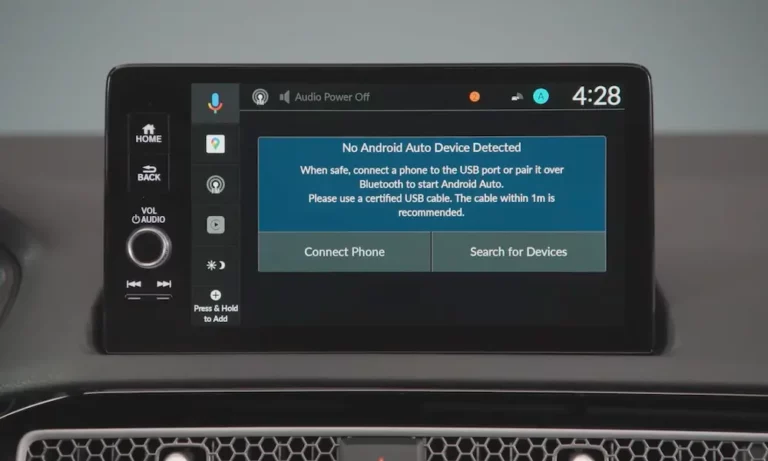
Is your Honda suddenly refusing to connect with Android Auto? You’re trying to navigate to work or play your favorite podcast, but all you get is a blank screen or an error message. Before you rush to the dealership, try these proven fixes that have helped thousands of Honda owners restore their Android Auto functionality.
Why Your Honda’s Android Auto Connection Fails
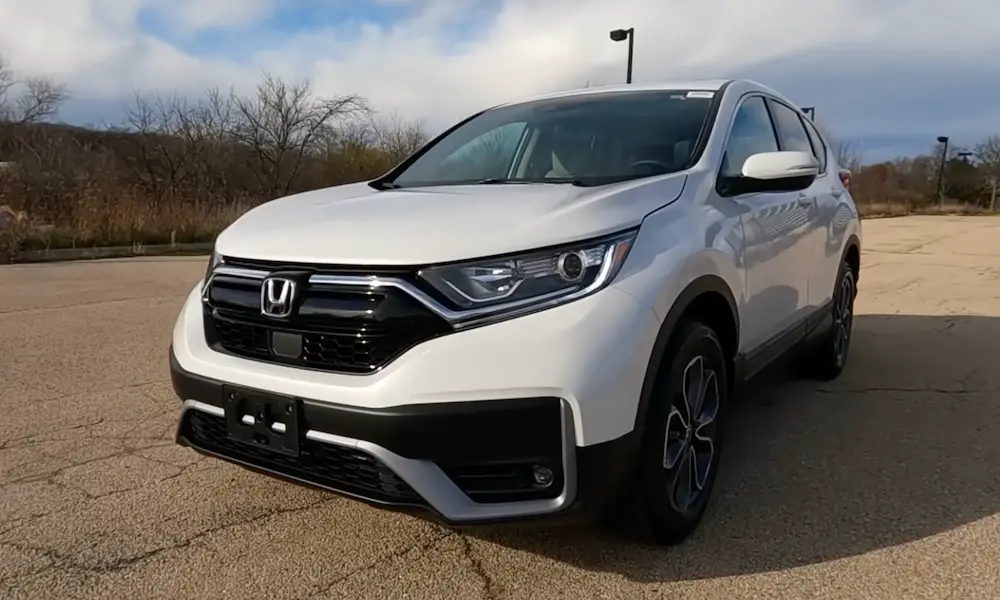
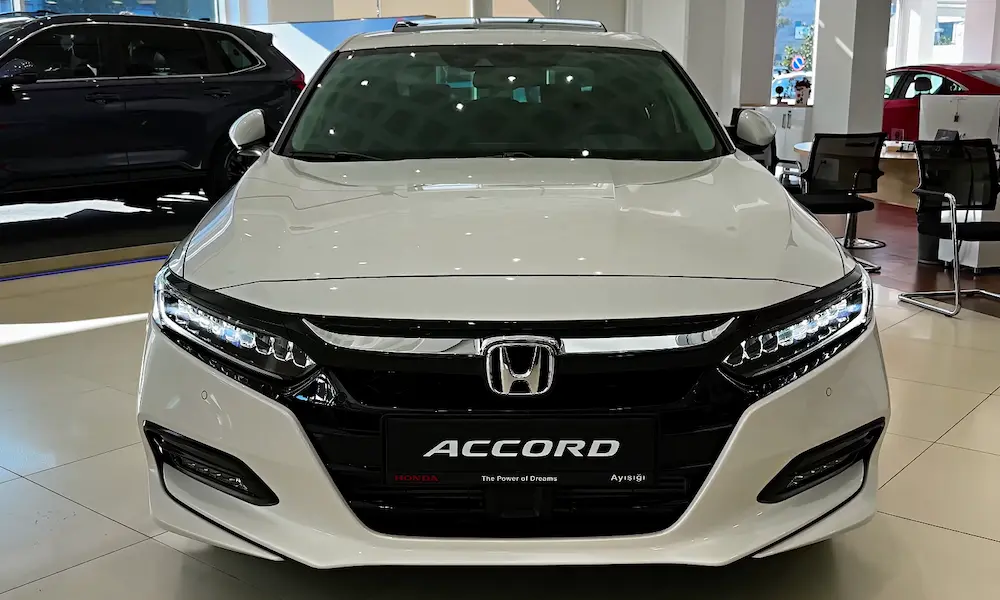
Honda vehicles—particularly the CR-V, Accord, and Civic—are known to experience Android Auto problems across multiple model years. If you’re dealing with Android Auto issues, you might notice:
- Your phone connects via Bluetooth but Android Auto won’t start
- Frequent disconnections during your drive
- Connection delays that last several miles into your journey
- Complete system freezes requiring multiple restarts
- Bluetooth error messages preventing Android Auto from launching
The good news? Most Android Auto connectivity issues in Honda vehicles can be resolved without professional help.
Quick System Resets for Immediate Relief
Reset Method for 2023+ Honda Models (9-inch Display)
If you drive a newer Honda with the 9-inch infotainment system, this specific reboot procedure often works wonders:
- Hold down the Home + Volume/Power + Previous Track buttons simultaneously until you hear a beep
- Tap “Detailed Information and Settings” on the diagnostic menu
- Now hold Back + Volume/Power + Previous Track buttons simultaneously
- Tap “System Reboot” and confirm when prompted
This complete system reboot tackles connectivity problems that a simple car restart can’t fix.
Reset Method for Older Honda Models
For older Honda infotainment systems, try this simpler reset:
- Press and hold the power/volume button for 7-10 seconds
- Select “Yes” when the reboot prompt appears
- If no prompt shows up, keep holding for 20-30 seconds to force a reboot
This infotainment system reset has helped countless Honda owners restore Android Auto functionality.
Check Your Cable and Connection
The Right Cable Makes All the Difference
Using the wrong cable is the #1 reason Android Auto fails in Honda vehicles. For reliable connections:
- Use the original cable that came with your phone
- Avoid cables longer than 3 feet
- Never use USB hubs or extension cables
- Ensure your cable supports both data transfer and charging
Even slightly damaged cables can cause Android Auto failures. If you need a replacement, invest in a high-quality cable specifically designed for Android Auto compatibility.
Clean Your Ports
Dust and debris in either your phone’s charging port or your Honda’s USB port can prevent solid connections:
- Turn off your vehicle
- Use compressed air to gently clean both ports
- Check that the car’s USB port isn’t loose or damaged
Verify Software and Compatibility
Phone Requirements
Make sure your Android device meets these requirements:
- Android 9.0 or newer (Android 10+ has Android Auto built-in)
- Active data plan
- For wireless connections: Android 11+ (or Samsung/Google phones with Android 10+)
Honda Model Compatibility Chart
| Honda Model | Android Auto Available Since |
|---|---|
| Accord | 2016-Present |
| Civic | 2016-Present |
| Clarity | 2017-2021 |
| CR-V | 2017-Present |
| Fit | 2018-2020 |
| Odyssey | 2018-Present |
| Pilot | 2017-Present |
| Ridgeline | 2017-Present |
Double-check your specific model year on the official Honda compatibility list.
Fix Android Auto App Settings
Grant All Permissions
Missing permissions are a common Android Auto failure point. Here’s how to fix them:
- Go to Settings > Apps > Android Auto
- Ensure these permissions are granted:
- Location
- Microphone
- Phone
- SMS
- Contacts
- Enable “Start Android Auto automatically” by setting it to “Always”
- Turn on “Start Android Auto while locked” if available
These settings adjustments align with Google’s Android Auto best practices for uninterrupted performance.
Clear Cache and Data
App data corruption can cause connection failures. Try this:
- Navigate to Settings > Apps > Android Auto
- Tap “Storage & Cache”
- Select “Clear Cache” first
- If issues persist, try “Clear Storage”
- Restart your phone
This app data reset process creates a clean slate for Android Auto to rebuild its connection with your Honda.
Wireless Android Auto Options
Official Honda Wireless Upgrade
If you have a 2018-2022 Accord with an 8-inch touchscreen, Honda offers a dealer-installed wireless upgrade for about $112 plus labor. This official upgrade enables wireless Android Auto functionality.
Third-Party Wireless Adapters
For other Honda models, consider aftermarket wireless adapters like:
- AAWireless ($70-90)
- Motorola MA1 ($70-90)
- Carlinkit ($60-80)
These plug into your USB port and create wireless Android Auto functionality for any Honda with wired Android Auto support.
Advanced Troubleshooting Methods
Manage Multiple Devices
Multiple connected devices can create conflicts. Try these steps:
- Disconnect other phones from your Honda’s Bluetooth
- Remove previously paired devices from Android Auto settings
- Clear the “Previously connected cars” list in your Android Auto app
By starting fresh with just one device connected, you eliminate potential conflicts.
Reset Network Settings
For stubborn connectivity problems, try resetting your phone’s network settings:
- Go to Settings > System > Reset options
- Select “Reset Wi-Fi, Mobile & Bluetooth”
- Confirm and wait for your phone to restart
- Reconnect to your Honda after the reset
This nuclear option often resolves persistent Android Auto connection issues by rebuilding all network configurations.
Update Your Software
Honda Infotainment Updates
Some Android Auto issues are fixed through Honda infotainment updates. Check if your system needs updating:
- On your Honda’s touchscreen, go to System Settings
- Select System Updates or Software
- Check for any available updates
- If available, follow the prompts to install
Some Honda models require dealer installation of infotainment updates, so call your dealer if you don’t see update options.
Android Auto App Updates
Ensure your Android Auto app is current:
- Open Google Play Store
- Search for Android Auto
- If an update is available, tap “Update”
- After updating, restart your phone before reconnecting
Google regularly patches Android Auto bugs through app updates, so staying current is essential.
Persistent Issues and Factory Solutions
Hard Reset Your Infotainment System
For severely glitchy systems, try this factory reset method:
- Park your vehicle and engage the parking brake
- From the home screen, select Settings
- Scroll to System and select Factory Data Reset
- Confirm by selecting Yes
- The system will restart and require initial setup
This wipes all settings and paired devices but often resolves deeper software glitches affecting Android Auto.
Hardware Considerations
If you’ve tried everything and still have issues, your Honda might have hardware problems. Users on Reddit have reported that some persistent Android Auto failures required complete head unit replacements.
Signs you might need dealer intervention:
- System freeze happens regardless of which phone you connect
- System becomes completely unresponsive
- Screen goes blank or displays garbled graphics
- Multiple resets provide only temporary relief
Prevent Future Android Auto Problems
Keep your Honda Android Auto connection running smoothly with these preventative measures:
- Update your phone’s operating system regularly
- Keep the Android Auto app updated
- Use only high-quality, short USB cables
- Clean connection ports periodically
- Avoid extreme temperature exposure for your phone
- Don’t connect your phone until the car’s infotainment has fully booted
These simple habits can prevent most Android Auto connectivity issues from recurring in your Honda.
Now you have a comprehensive toolkit to diagnose and fix Honda Android Auto problems. Try these solutions step by step, starting with the simplest fixes first. Most users resolve their connectivity issues without ever needing a dealer appointment.