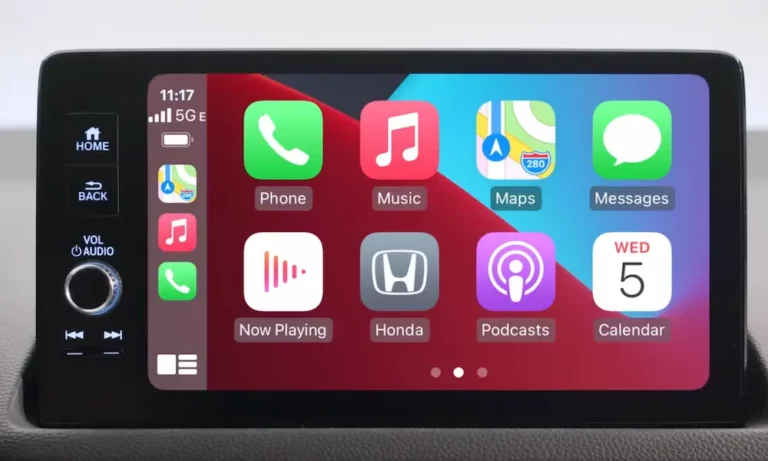
Is your phone refusing to connect to your Honda? Whether it’s for calls, music, or navigation, a broken connection between your smartphone and car can turn even a quick drive into a frustrating experience. I’ve put together this comprehensive troubleshooting guide to help you get your Honda smartphone connection working again without a trip to the dealership.
Check These Basics First
Before diving into complex fixes, make sure you’ve covered these essentials:
- Compatibility: Confirm your phone and Honda model support your desired connection method. Wireless CarPlay needs iPhone 5 or later with iOS 9+, while wireless Android Auto requires Android 11+ and a compatible Honda model.
- Updates: Ensure both your phone’s operating system and apps are running the latest versions.
- Cables: If using wired connections, only use high-quality cables. For iPhone users, stick with MFi-certified Lightning cables, and for Android users, opt for USB-IF certified USB 2.0 cables.
- Right Port: Some Hondas have multiple USB ports, but only specific ones (usually marked with a smartphone icon) support CarPlay or Android Auto.
Bluetooth Connection Problems
If your Honda smartphone connection not working involves Bluetooth (HandsFreeLink):
- Reset all pairings: Go to your Honda’s audio system menu and delete all paired devices:
- Select Home → Settings → Bluetooth → Delete Device
- Reset phone connections: On your smartphone:
- Turn Bluetooth off and back on
- Find your Honda in your phone’s Bluetooth settings
- Select “Forget This Device”
- Restart your phone completely
- Pair from scratch: After your phone restarts:
- Turn on your Honda’s ignition
- Select “Phone” on the head unit
- Follow the on-screen prompts to connect
These steps resolve about 80% of Bluetooth connectivity issues in Honda vehicles.
Apple CarPlay Connection Failures
When your Honda smartphone connection not working specifically affects CarPlay:
- Check cables and ports: If using wired CarPlay, ensure you’re using the correct USB port (look for the smartphone icon) and a certified cable.
- Reset CarPlay on your iPhone:
- Go to Settings → General → CarPlay
- Select your Honda and tap “Forget This Car”
- Reconnect using the manufacturer’s instructions
- Reset the connection in your Honda:
- Navigate to MENU → Smartphone Settings → Apple CarPlay
- Select your device and delete it
- Reconnect following the prompts
- Hard reboot the infotainment system: Press and hold the VOL/AUDIO knob for 6-10 seconds until you see the “Reboot” prompt, then confirm. This full system reboot often solves persistent connection problems.
Android Auto Not Connecting
If your Honda smartphone connection not working involves Android Auto:
- App setup: Ensure the Android Auto app is properly installed and updated on your phone.
- Check permissions: Android Auto requires several permissions to function properly:
- Open Settings → Apps → Android Auto → Permissions
- Enable Location, Phone, Storage, and Contacts permissions
- Reset Android Auto connections:
- In your Honda, go to MENU → Smartphone Settings → Android Auto
- Delete your device and reconnect
- Clear Android Auto data:
- On your phone, go to Settings → Apps → Android Auto → Storage
- Tap “Clear Cache” and “Clear Data”
- Restart your phone and reconnect to your Honda
Many users on Reddit forums have found these steps fix most Android Auto connection problems.
Wireless Connection Issues
If your Honda offers wireless CarPlay or Android Auto but your Honda smartphone connection not working wirelessly:
- Enable wireless mode:
- For iPhone: Settings → General → CarPlay → Available Cars → Select your Honda and choose “Always Enable”
- For Android: Open Android Auto app → Settings → Wireless Android Auto → Enable
- Dual connectivity: Ensure both Bluetooth AND Wi-Fi are enabled on your phone, as wireless connections use both technologies.
- Initial setup: Sometimes you need to connect with a cable first:
- Connect via USB cable to establish the initial connection
- Disconnect the cable and restart your car
- Wireless mode should activate automatically
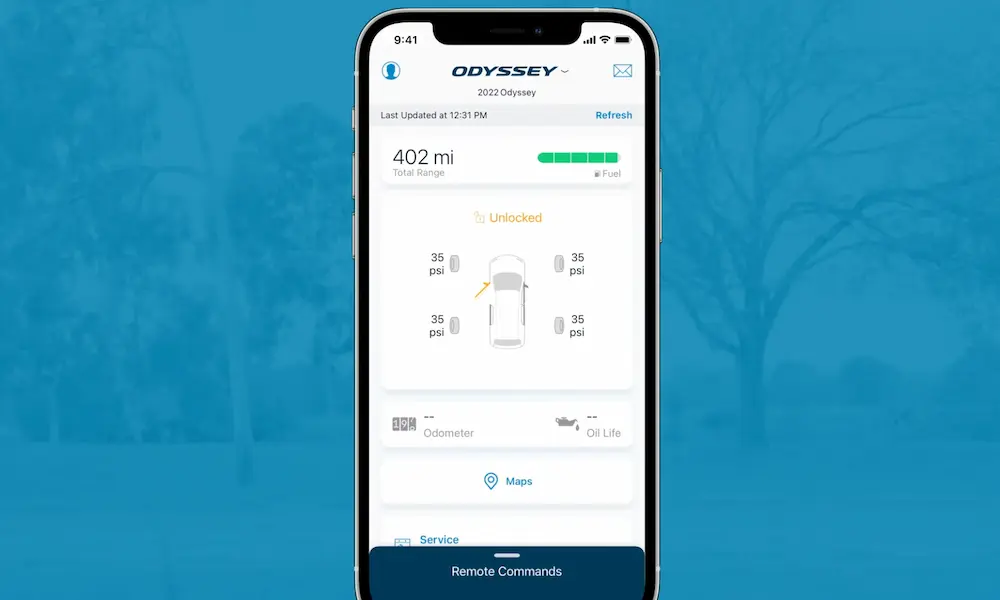
HondaLink App Connection Problems
When your Honda smartphone connection not working involves the HondaLink app:
- Clear app data:
- Go to your phone’s Settings → Apps → HondaLink → Storage
- Tap “Clear Cache” and “Clear Data”
- Reopen the app to force the latest update
- Check permissions and subscription:
- Ensure the HondaLink app has location and data permissions
- Verify your Honda’s HondaLink subscription is active
- Remove and re-add vehicle:
- If problems began after updating, delete the vehicle from the app
- Re-add it following the in-app instructions
System-Wide Reset Options
When your Honda smartphone connection not working persists across multiple connection methods:
Factory Data Reset
This is a more drastic step but often resolves persistent issues:
- Navigate to: Home → Settings → Vehicle/System → Factory Data Reset
- Follow the prompts to confirm
- After reset, reconfigure your preferences and pair your phone again
Power Cycling
Sometimes the simplest solution works best:
- Turn off your Honda completely
- Disconnect the battery for 5 minutes (if you’re comfortable doing so)
- Reconnect the battery and start the vehicle
- Try connecting your phone again
Software Update Fixes
Honda regularly releases updates for their infotainment systems that fix connection bugs:
- Check for updates: Visit the Honda Owners website or contact your dealer to see if an update is available for your model
- Dealer installation: Most Honda infotainment updates require dealer installation
Connection Troubleshooting Table
Here’s a quick reference table for the most common Honda smartphone connection issues:
| Connection Type | Common Issue | First Fix to Try | Advanced Fix |
|---|---|---|---|
| Bluetooth | Won’t pair | Delete all pairings & restart | Factory reset infotainment |
| Wired CarPlay | Not detected | Try different cable | Reboot infotainment (hold power 10s) |
| Wired Android Auto | Connection drops | Clear app cache & data | Update Android OS & app |
| Wireless CarPlay | Won’t connect | Enable both Bluetooth & WiFi | Connect wired first, then unplug |
| HondaLink App | “Cannot connect” | Clear app data | Delete & re-add vehicle |
Model-Specific Issues
Different Honda models have unique connection quirks:
Accord (2018+)
- Wireless CarPlay/Android Auto available on higher trims
- May require multiple system reboots to establish initial connection
Civic (2016+)
- Common USB port failures requiring dealer service
- Many users report better results using the USB port in the center console vs. the one under the dashboard
CR-V (2017+)
- Often requires cable to be plugged in before starting the vehicle
- Some users report having to delete and re-add their phone after every system update
Pilot/Passport/Ridgeline
- Many users find success by performing the full system reboot (holding VOL/AUDIO knob for 10 seconds)
- WiFi connection may need to be manually selected the first time
When Hardware Might Be the Problem
If you’ve tried everything and your Honda smartphone connection not working persists, it might be hardware-related:
- USB port failures: The ports can physically wear out with frequent use
- Infotainment system issues: The head unit itself may have hardware failures
- Phone compatibility: Some specific phone models have known incompatibilities with certain Honda years
In these cases, visiting your Honda dealer might be necessary. But before making that appointment, try one last comprehensive reset:
- Delete all paired devices from your Honda
- Forget the Honda connection on your phone
- Perform a factory data reset on your infotainment system
- Update your phone’s operating system
- Reconnect following the manufacturer’s instructions exactly
Keep Your Connection Strong
To prevent future Honda smartphone connection issues:
- Update your phone’s operating system regularly
- Keep cables in good condition and replace them when showing wear
- Avoid unplugging while apps are actively using the connection
- Consider a periodic reset of connections even when working fine
With these troubleshooting steps, you should be able to get your Honda smartphone connection working again without needing to visit the dealership. Remember that patience is key—sometimes the solution is as simple as turning everything off and on again.