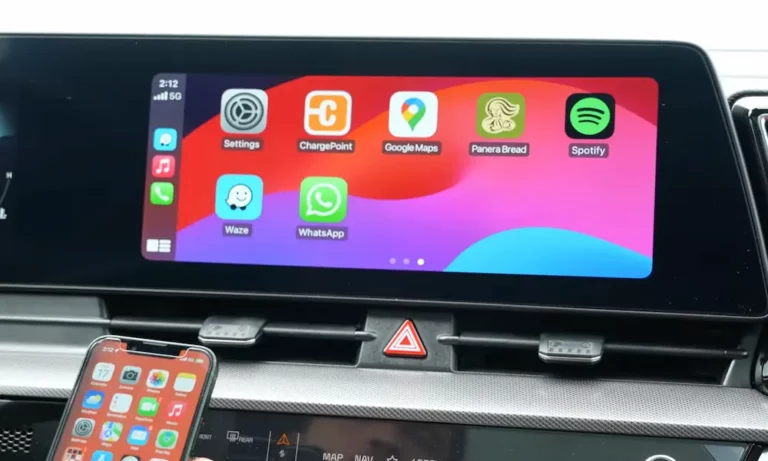
Got a new Kia and want your iPhone on the dashboard? Whether you’re dealing with a USB cable or going fully wireless, connecting Apple CarPlay to your Kia takes less than two minutes once you know the steps. This guide covers every method, every model, and every fix you’ll actually need. Stick around — the troubleshooting section alone is worth it.
Does Your Kia Have Apple CarPlay?
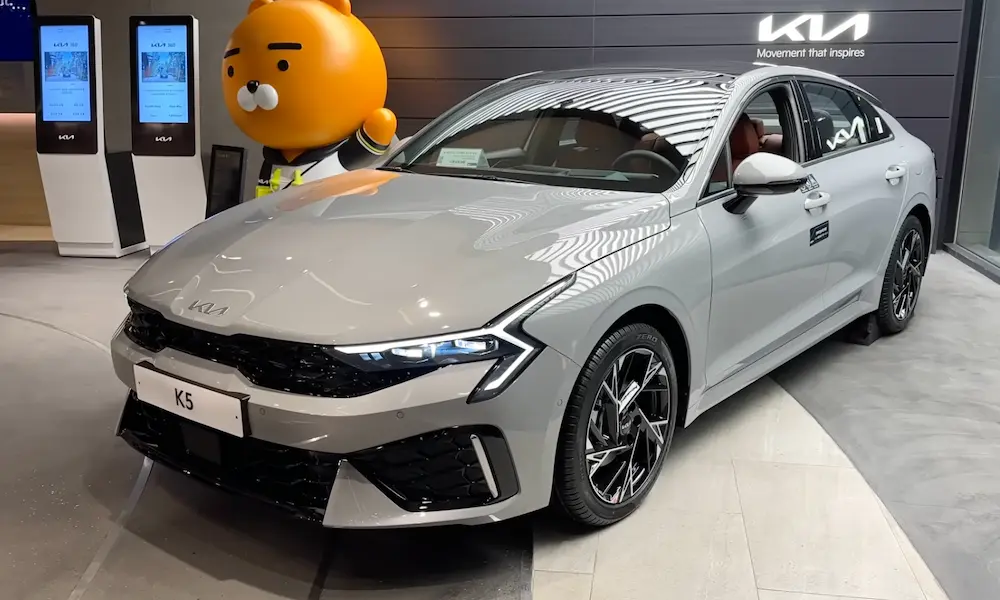
Short answer: almost certainly yes. Kia has supported Apple CarPlay since the 2014 Soul, making it one of the earlier mainstream adopters in the US market. By 2018, CarPlay became standard across nearly the entire lineup.
Here’s a quick compatibility snapshot by era:
| Model Year Range | Hardware Platform | Connection Type | What to Know |
|---|---|---|---|
| 2014 – 2016 | Gen4 / Early Gen5 | Wired (Update Required) | May need a dealership firmware update to activate |
| 2017 – 2020 | Gen5 / Gen5W | Wired (Standard) | Works out of the box on Sorento, Sportage, Niro |
| 2021 – 2023 | Gen5W / Display Audio | Wired or Wireless | 8-inch screens got wireless; 10.25-inch screens stayed wired |
| 2024 – Present | CCNC | Wireless (Universal) | All trims go wireless, regardless of screen size |
If you drive a 2014–2016 model and CarPlay isn’t showing up, a software update via USB or dealership visit might be all you need.
How to Connect Apple CarPlay to Kia With a USB Cable
Wired CarPlay is still the most reliable method. It charges your phone simultaneously, keeps the connection rock-solid, and avoids any Wi-Fi interference issues.
What You Need First
- An iPhone running iOS 7.1 or later (realistically, iOS 14+ for best performance)
- An Apple MFi-certified Lightning or USB-C cable — cheap third-party cables cause a huge percentage of failed connections
- Siri enabled on your iPhone (CarPlay won’t launch without it)
Step-by-Step Wired Connection
- Start your Kia and wait for the infotainment screen to fully load
- Tap Setup on the home screen
- Go to Device Connections, then select Apple CarPlay
- Toggle CarPlay on if it isn’t already enabled
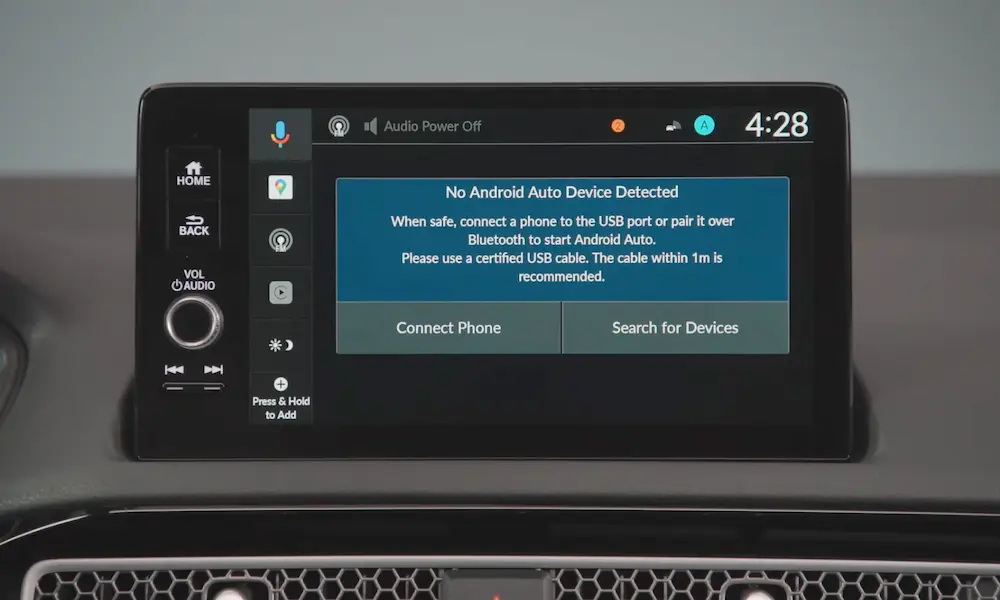
- Plug your iPhone into the USB data port — look for the port marked with a smartphone icon or three-pronged symbol (not all USB ports support data)
- On your iPhone, tap Trust when the “Trust This Computer” prompt appears
- CarPlay launches automatically within seconds
That’s it. Your iPhone’s interface replaces the home screen, and you’re good to go.
Why Wired Still Wins for Long Trips
Wireless CarPlay draws heavily on your phone’s battery and processor. On a five-hour highway drive, a wired connection handles both data and high-amperage charging simultaneously, keeping your phone cool and fully charged. It also bypasses radio frequency congestion in cities, giving you a smoother frame rate on Google Maps or Waze.
How to Connect Wireless Apple CarPlay to Kia (2021 and Newer)
Wireless CarPlay uses a two-step handshake: Bluetooth handles the initial pairing, then the system switches to a 5GHz Wi-Fi connection for the actual projection. The result is a fast, cable-free experience that connects automatically every time you get in the car.
Does Your Kia Support Wireless CarPlay?
- 2021–2023 models with an 8-inch Display Audio screen: Yes, wireless works
- 2021–2023 models with a 10.25-inch or 12.3-inch navigation screen: No — these older premium trims stayed wired due to Gen5W firmware limitations
- 2024 and newer models with CCNC: Yes, all trims support wireless regardless of screen size
Step-by-Step Wireless Pairing (CCNC / 2024+ Models)
- Start your Kia and open the Device Connections menu on the touchscreen
- Select Add New Device — the vehicle enters Bluetooth discovery mode
- On your iPhone, go to Settings > Bluetooth and select your vehicle’s name (e.g., “Sportage,” “EV6,” or “Telluride”)
- A six-digit pairing code appears on both screens — confirm it matches, then tap Pair on your phone
- When your iPhone asks “Allow CarPlay with [vehicle name] while locked?”, tap Allow — this saves you from unlocking your phone every future trip
- Tap Yes on the vehicle screen when it asks to enable CarPlay
- The system drops the Bluetooth audio stream and upgrades to the Wi-Fi connection automatically
- CarPlay appears on your dashboard within seconds
After this first-time setup, your Kia connects to CarPlay automatically every time you start the car — no tapping required.
One Setting That Breaks Wireless CarPlay
Make sure your iPhone’s Wi-Fi is on and set to auto-join the vehicle’s network. If you’ve manually disabled Wi-Fi or blocked auto-join networks, the wireless handshake fails at the last step. You’ll connect via Bluetooth but CarPlay won’t launch.
Getting the Most Out of CarPlay on Your Kia Screen
Split-Screen Mode on 10.25-Inch and 12.3-Inch Displays
If your Kia has a wide panoramic screen, you don’t have to choose between CarPlay and the vehicle’s native features. Swipe inward from the right edge of the screen while CarPlay is active, and a Kia widget panel appears on the right third of the display. You can set this panel to show:
- EV battery and energy flow (huge on the EV6, EV9, or Niro EV)
- Compass heading
- Current weather
- Tire pressure
You get full CarPlay navigation on the left while monitoring your vehicle’s vitals on the right. No need to exit CarPlay at all.
Using the Steering Wheel Button for Siri
The Voice Recognition button on your Kia’s steering wheel does double duty:
- Short press: Activates Kia’s native voice assistant for climate, radio, and phone calls
- Long press (2+ seconds): Triggers Siri directly through CarPlay
This button integration is a genuine safety win — you keep both hands on the wheel and your eyes on the road, which aligns directly with NHTSA distracted driving guidelines for hands-free device use.
How Audio Ducking Works
When you’re playing music through CarPlay and a navigation prompt fires, Kia’s system automatically lowers the media volume and routes the voice guidance to the driver’s side speakers. If you turn the volume knob during a prompt, the system adjusts the guidance volume specifically — not the music. Handy when you want clearer turn-by-turn instructions without blasting the podcast you’ll return to.
Apple CarPlay Not Working on Your Kia? Fix It Here
Start With the Simple Checks
Before anything else, run through this list:
- Siri is enabled: Go to Settings > Siri & Search and confirm Siri responds to requests. CarPlay won’t launch if Siri is off
- Screen Time isn’t blocking CarPlay: Go to Settings > Screen Time > Content & Privacy Restrictions > Allowed Apps and confirm CarPlay is toggled on
- Your cable supports data: Try an Apple-certified MFi cable. Charging-only cables are the number-one cause of wired CarPlay failures
- The right USB port: Not every USB port in your Kia carries data. Use the port with a smartphone or data symbol
How to Soft Reset Your Kia Infotainment System
A soft reset reboots the head unit without wiping your saved settings, paired devices, or navigation data. It clears memory issues and failed handshakes quickly.
Method 1 — Pinhole Reset:
Find the small pinhole button near the volume or tuning knob. Insert a paperclip and hold it for 5–10 seconds until the screen goes dark and reboots. Here’s where to find it by model:
| Model | Reset Button Location |
|---|---|
| Sportage (2023+) | Right side of the screen near the tune knob |
| Telluride (2020+) | Beside the volume wheel |
| Sorento (2021+) | Near the physical media controls |
| EV6 / EV9 | Near the volume knob or center panel |
Method 2 — Settings Reset:
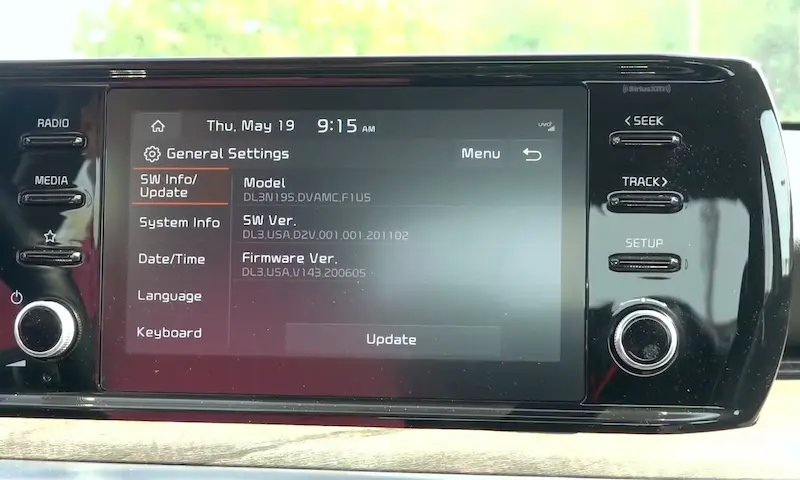
Go to Setup > General > Reset on the touchscreen. This option appears on most Gen5W and CCNC systems and gives you a guided reboot.
Unpair and Re-Pair Your iPhone
If CarPlay connects but then drops repeatedly, delete the pairing entirely and start fresh.
On your iPhone: Settings > General > CarPlay > [Your Kia] > Forget This Car
On your Kia: Device Connections > Bluetooth Devices > [Your iPhone] > Delete
Then run through the wireless pairing steps above again. This fixes corrupted pairing keys that build up over time.
Keeping Your Kia CarPlay System Updated
Over-the-Air Updates (2024+ Models)
If you own a 2024 or newer Kia with an active Kia Connect account, firmware updates download automatically in the background. The system notifies you when an update is ready to install. To install safely:
- Put the car in Park
- Engage the parking brake
- Make sure the battery has sufficient charge
The 2025 software release, for example, specifically improved wireless handshake stability for both CarPlay and Android Auto on Gen5W vehicles.
Manual Updates for Older Models
No OTA capability? You’ll need a 64GB USB 3.0 drive and a computer with fast internet. Download the correct firmware for your exact model and trim from Kia’s update portal — installing the wrong version can brick your head unit. Keep the engine running for the full installation, which can take 30+ minutes. Cutting power mid-update corrupts the firmware.
A Note for Massachusetts Drivers
If you’re in Massachusetts and drive a 2022 or newer Kia, Kia Connect services are currently restricted due to state data access regulations. CarPlay itself still works fine through a local USB or wireless connection. But OTA updates and cloud features like remote start require a dealership visit for now.
The Kia Connect Subscription Tiers Explained
CarPlay itself is free — always. But the connected vehicle features that run alongside it come in tiers:
| Subscription Tier | Key Features | Annual Cost |
|---|---|---|
| Lite | 911 Connect, Maintenance Alerts | Free for 5 years |
| Care | Roadside Assistance, Alarm Alerts | $59 |
| Plus | Remote Start, Find My Car | $149 |
| Ultimate | Home-to-Car (Alexa/Google), POI Sync | $199 |
You don’t need a paid tier to use CarPlay. But if you want to remote-start your car from your iPhone on a cold January morning, the Plus tier covers that.